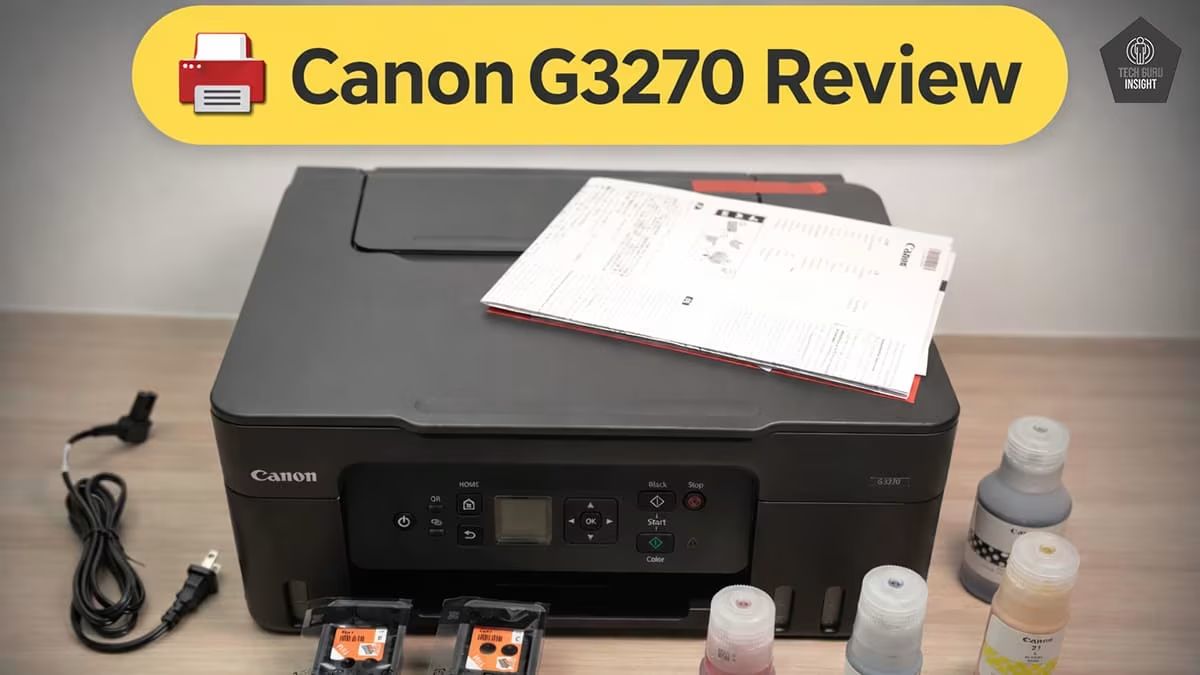
Canon Pixma G3270 Review: Decent And Affordable
The Canon PIXMA G3270 is a budget MegaTank printer that delivers thousands of prints with ultra-low ink costs and reliable wireless printing.
If you’re looking for a budget printer with extremely low printing costs, the **Canon PIXMA G3270 is one of the most affordable ink-tank printers available today. Designed for home users, students, and small offices, this MegaTank printer promises thousands of pages from a single ink refill while maintaining good print quality.
👉 But does it actually deliver reliable performance in real-world use?
In this review, we’ll examine the printer’s print quality, speed, scanning performance, connectivity features, and long-term printing cost to help you decide whether the Canon PIXMA G3270 is the right printer for your needs.
Canon Pixma G3270
Type: All-In-One Technology: Inkjet SuperTank: Yes Color: Yes Wireless: Yes
Recommended in: AirPrint Printers Under $200
Quick Verdict
The Canon PIXMA G3270 MegaTank Wireless All-in-One Printer is a great choice if your priority is printing thousands of pages while keeping ink costs extremely low. It focuses on practicality and long-term savings rather than advanced office features, making it ideal for users who want dependable everyday printing at a minimal cost.
Best for: Home users, students, and small offices that print frequently
Not ideal for: Users who need fast printing speeds or automatic duplex printing
Rating: ⭐ 8.3 / 10
Key highlight: MegaTank ink system that delivers extremely low cost-per-page printing
👉 Bottom line: If you want a reliable, budget-friendly printer that keeps printing costs incredibly low over time, the Canon PIXMA G3270 is one of the best entry-level ink tank printers available.
Canon G3270 — Reasons to Buy vs. Avoid
Reasons to Buy
- Extremely low printing cost.
- Good text print quality.
- Reliable MegaTank ink system.
- Wireless printing support.
Reasons to Avoid
- No automatic duplex printing.
- Small display.
- No ADF.
- Input tray capacity 100 sheets.
Canon PIXMA G3270 Variants
The remaining models in this printer lineup are simply region-specific or color variations, offering the same specifications and performance. You can find them listed in the table below.
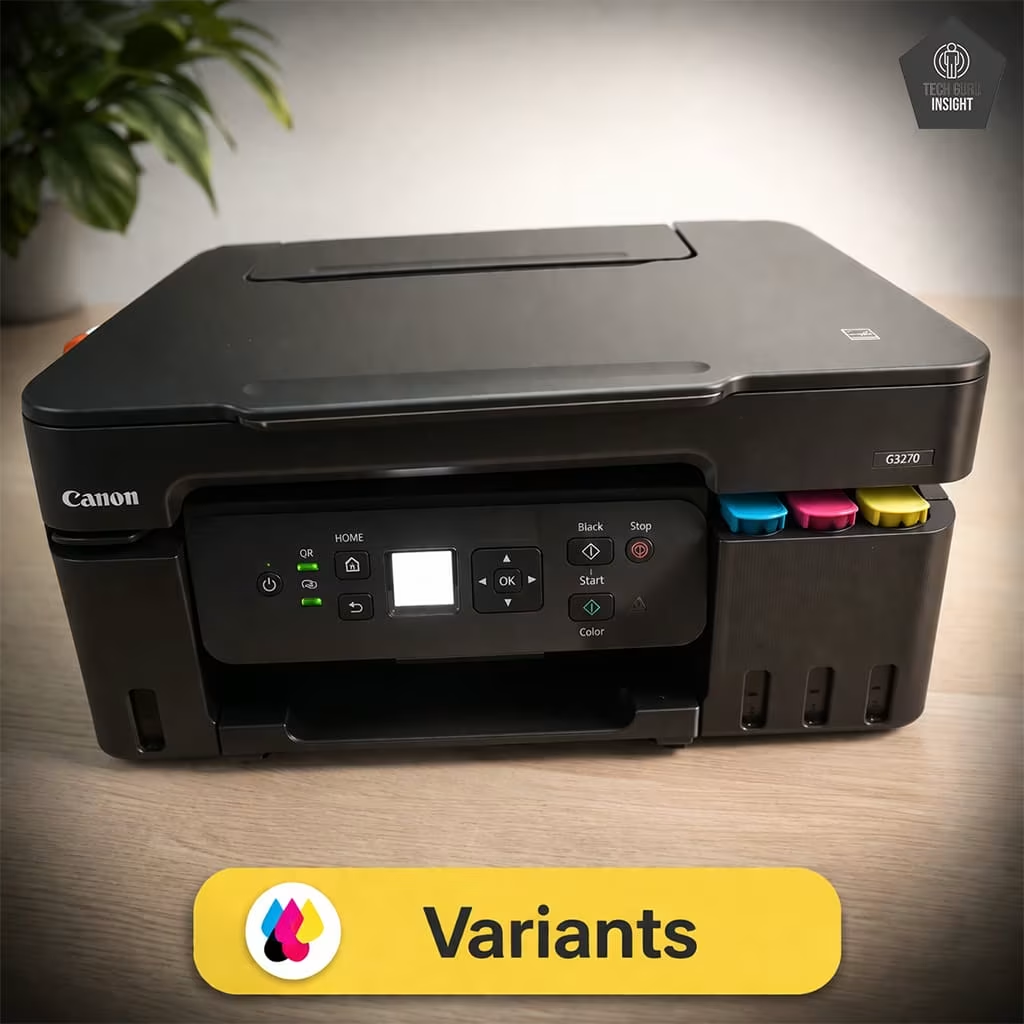
Canon G3270, White
Canon G3270, Black
Canon G3290, White, Touch LCD, ADF
Canon PIXMA G3270 Key Specifications
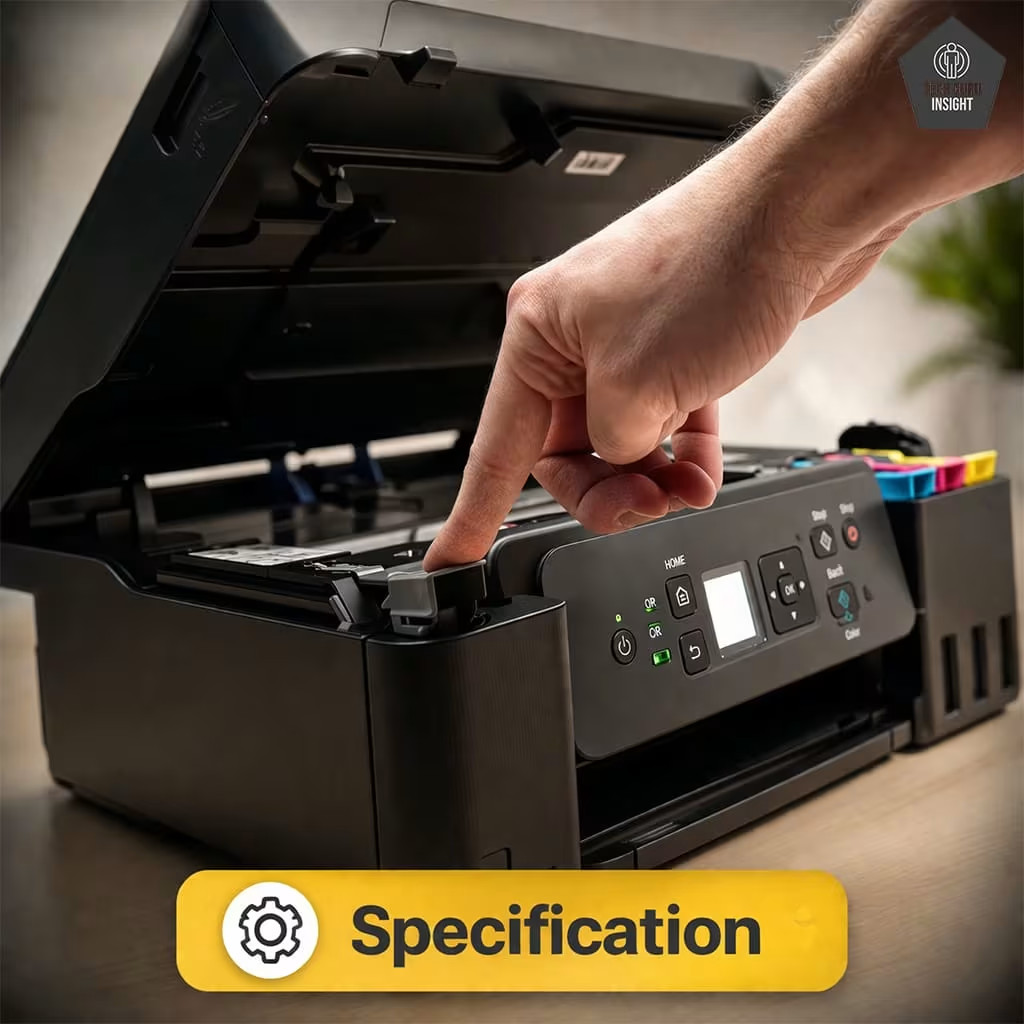
– Printer Type: MegaTank Ink Tank All-in-One Printer
– Functions: Print, Scan, Copy
– Connectivity: Wi-Fi, USB
– Mobile Printing: Supported via Canon PRINT Inkjet/SELPHY
– Print Speed: Up to ~11 ppm (Black), ~6 ppm (Color)
– Ink System: Refillable MegaTank ink system using high-yield bottles
– Display: 1.35-inch monochrome LCD screen
What’s Inside the Box?
– Canon PIXMA G3270 printer unit
– 1 Black ink bottle
– 3 Color ink bottles (Cyan, Magenta, Yellow)
– Power cord
– Quick setup guide
– Warranty and documentation
Epson ET-2800 vs Competitors
HP Smart Tank 5000
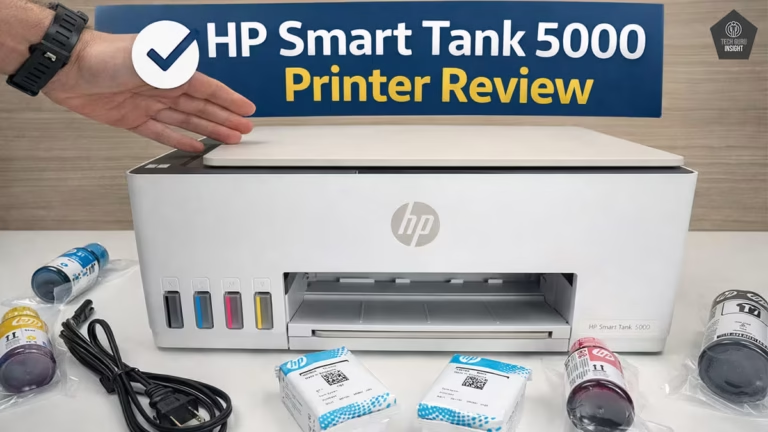
The core difference between the Canon PIXMA G3270 and the HP Smart Tank 5000 is mainly in print quality and software experience. The Canon PIXMA G3270 generally produces sharper black text and slightly better photo prints, making it strong for documents and casual photo printing. In contrast, the HP Smart Tank 5000 focuses more on user-friendly mobile printing with the HP Smart app and a slightly more compact design. Both printers use high-capacity ink tank systems that offer very low printing costs, but Canon tends to prioritize print clarity while HP emphasizes convenience and mobile integration.
Canon PIXMA G3270
The core difference between the Canon PIXMA G3270 and the Epson EcoTank ET-2800 mainly comes down to document printing vs photo quality. The Canon PIXMA G3270 uses pigment black ink, which produces sharper and darker text, making it a better option for printing documents, school assignments, and office work. In comparison, the Epson EcoTank ET-2800 focuses more on color accuracy and smoother photo printing, making it slightly better for printing images and photos. Both printers use refillable ink tank systems that offer very low printing costs, but Canon tends to perform better for text-heavy printing while Epson has a slight advantage in photo quality.
Our Results
✅ Design & Build Quality
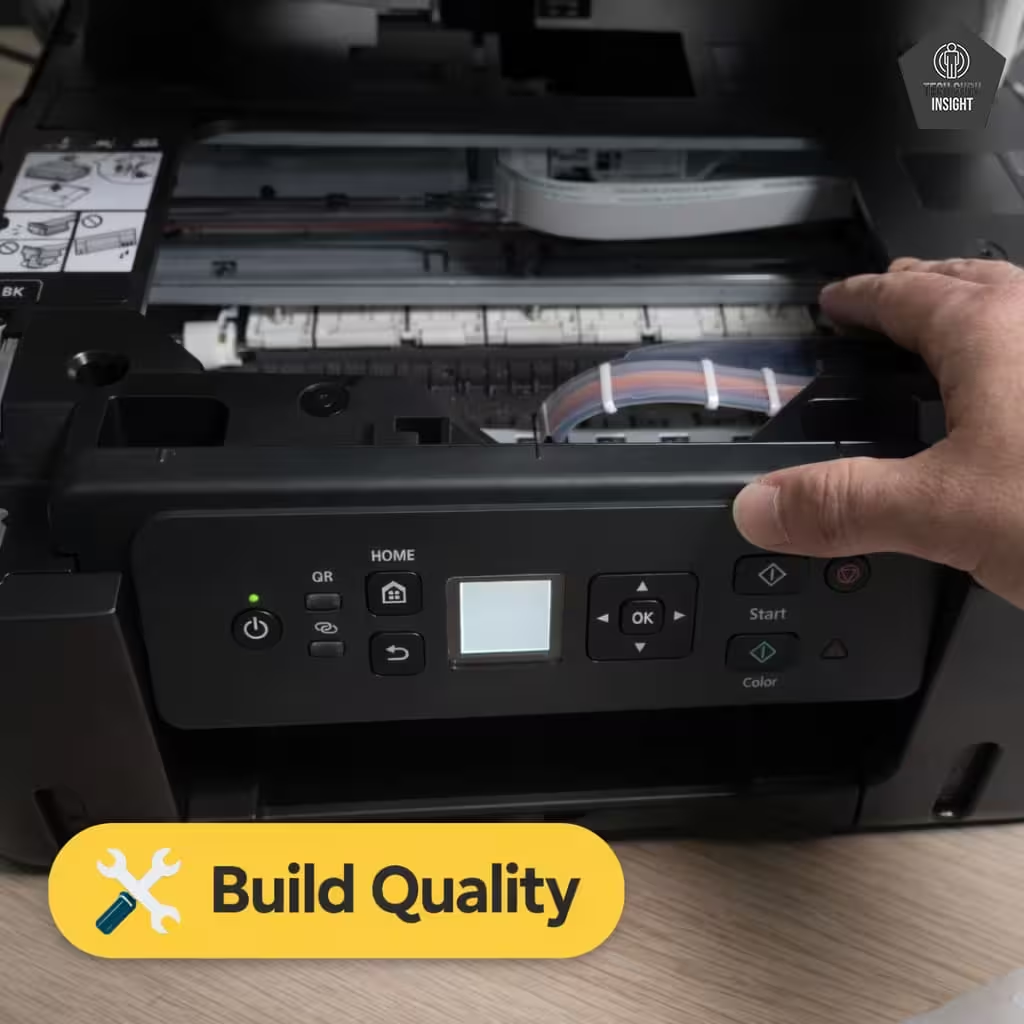
Compact vs Bulky: The Canon PIXMA G3270 is designed to be compact and practical for home environments. Unlike bulky office printers, it has a relatively small footprint that fits comfortably on desks, shelves, or study tables. Its lightweight design also makes it easier to move or reposition compared with larger multifunction printers.
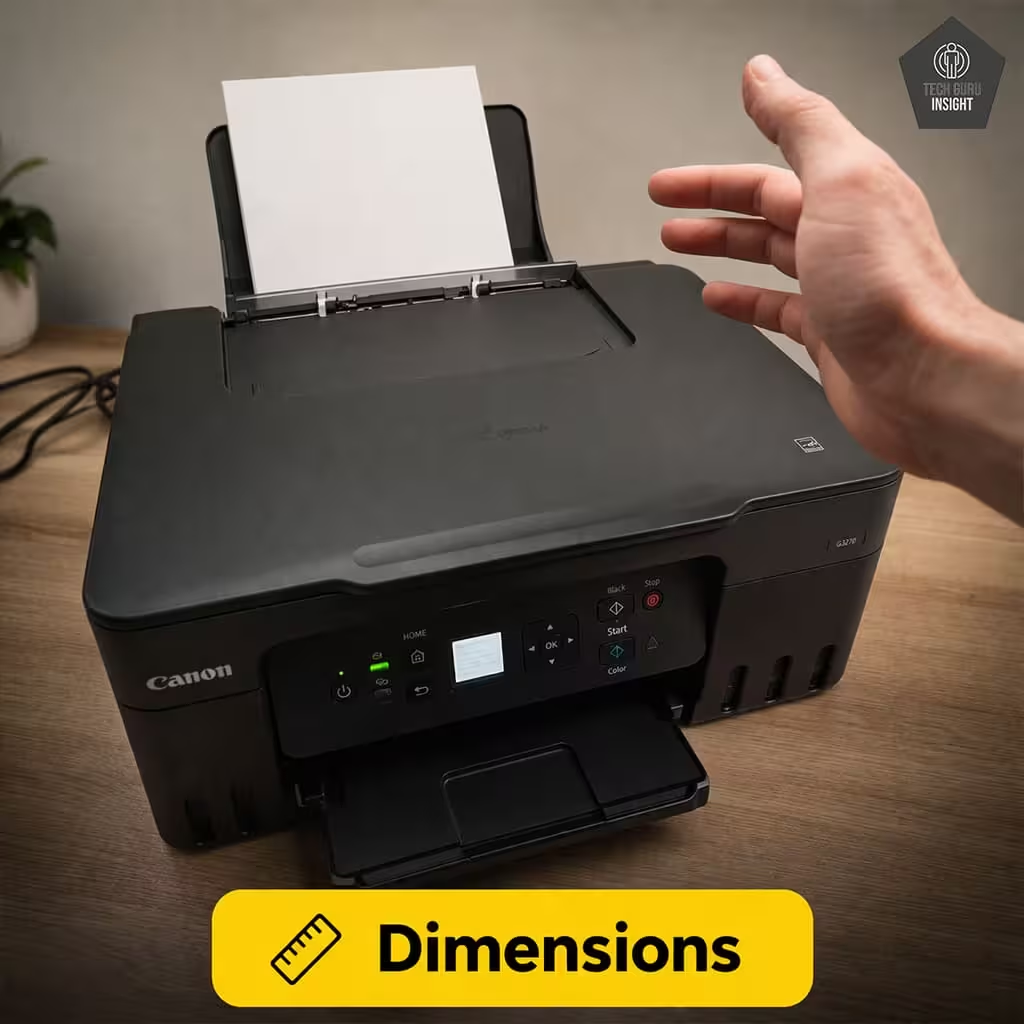
Printer Dimensions & Size:
– Standard Dimensions (W × D × H): 416 × 337 × 177 mm
– Maximum Dimensions (with trays extended): 416 × 557 × 268 mm
– In Inches:
– Standard: 16.4 × 13.3 × 7.0 inches
– Max (expanded): 16.4 × 21.9 × 10.6 inches
– Weight: 6.0 kg (~13.2 lbs)
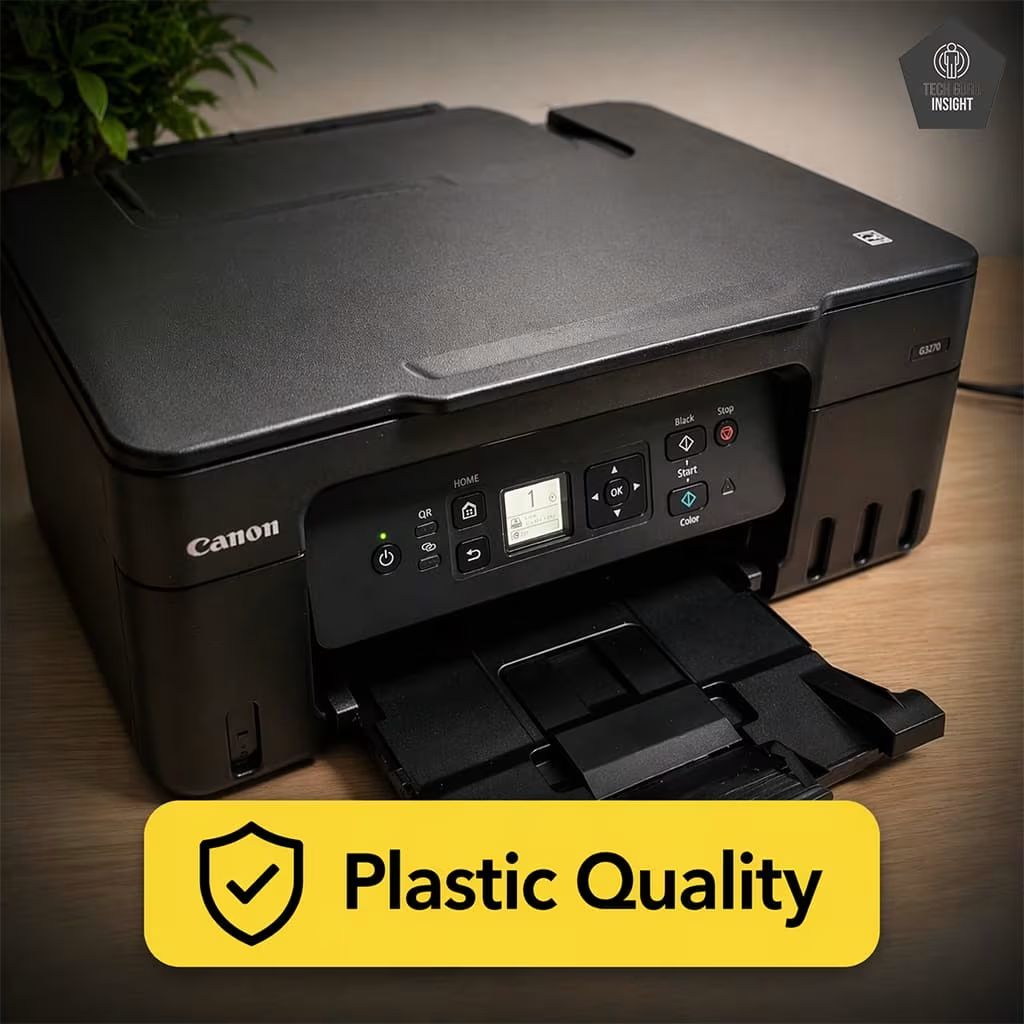
Plastic Quality: The outer body is made primarily from matte plastic, which is common in budget-friendly printers. While it doesn’t feel premium, the construction is sturdy enough for everyday home printing. The panels fit well together, and the overall structure feels stable during normal operation.
Ease of Setup: Setting up the printer is straightforward. The ink tanks are located at the front, making the initial ink filling process easy to manage. The refill bottles are designed to fit securely into the tanks, helping prevent spills during installation. The printer can be connected quickly through Wi-Fi or USB, and the setup process is guided through the printer software.
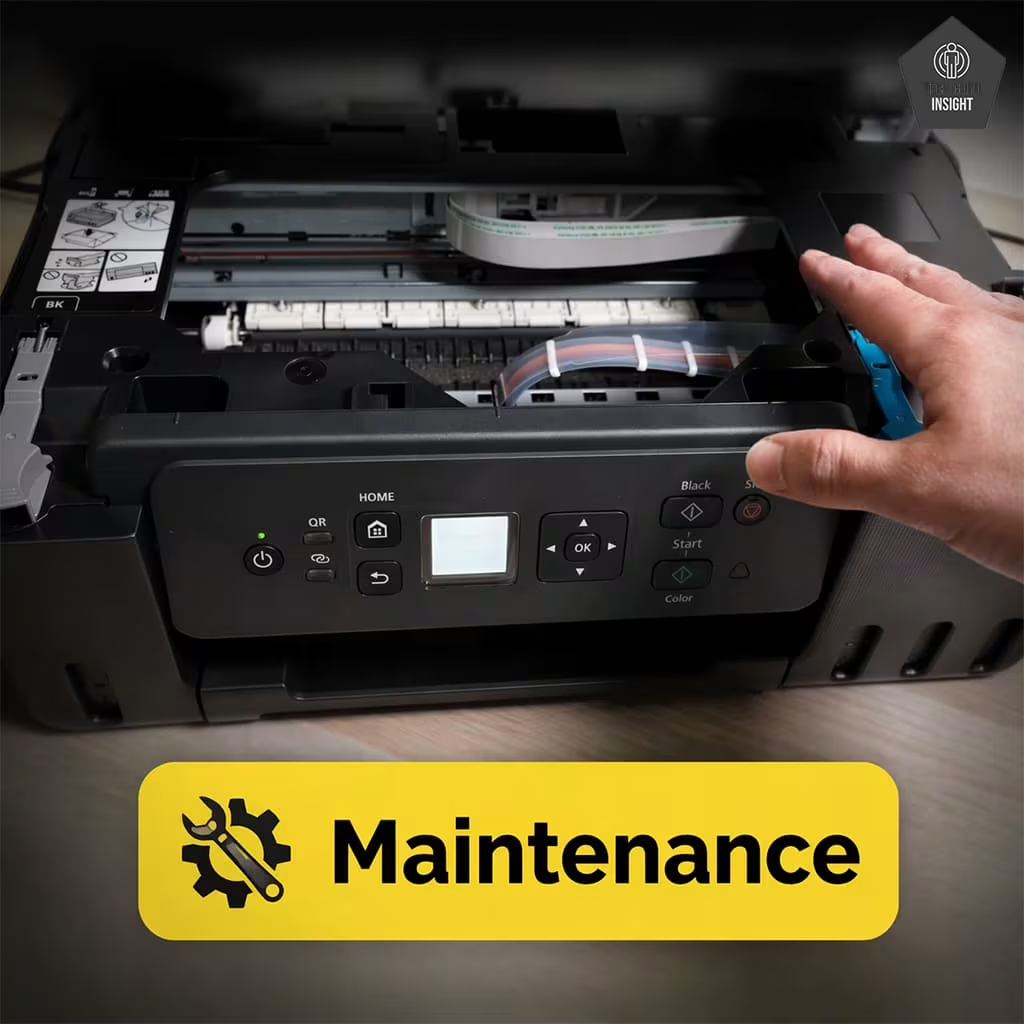
Expected Maintenance: Maintenance requirements are relatively low thanks to the MegaTank system. Since the printer uses refillable ink tanks instead of cartridges, users only need to refill the tanks after thousands of pages. Occasional printhead cleaning and basic maintenance through the printer software help keep print quality consistent.
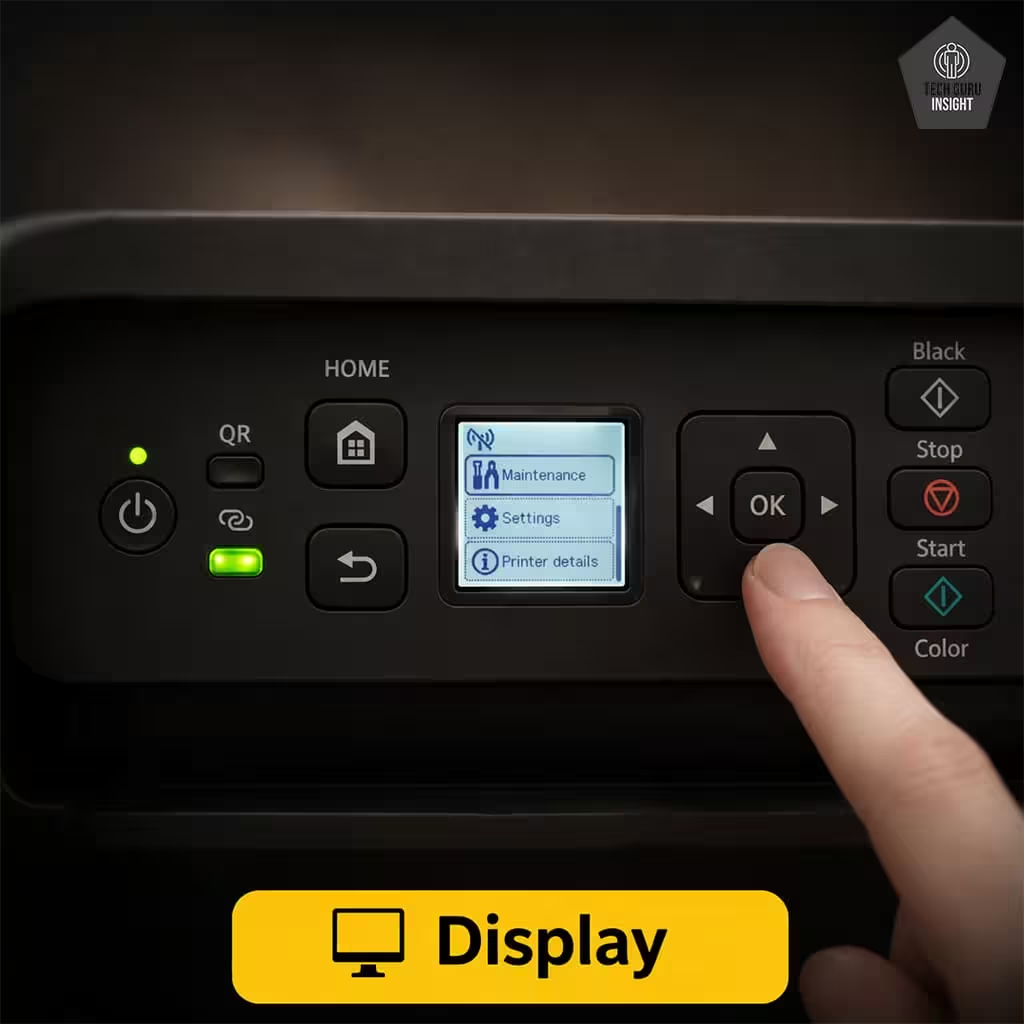
Display Screen: The printer includes a 1.35-inch monochrome LCD display used for basic navigation and status information.
– Screen size: 1.35 inches
– Touchscreen: No
– Display type: Monochrome LCD
Although the screen is small, it is sufficient for viewing printer status, network information, and performing simple setup tasks.
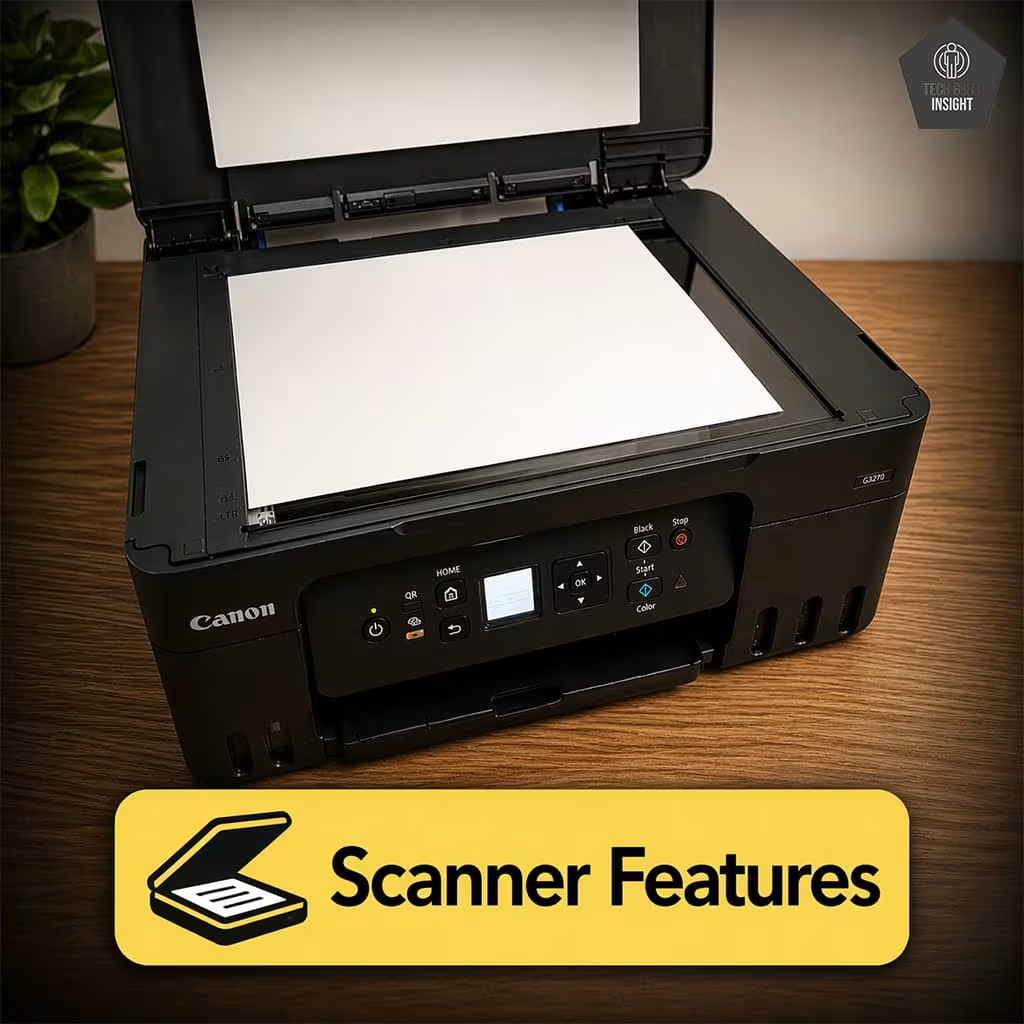
Scanner Features: The Canon PIXMA G3270 includes a basic flatbed scanner suitable for scanning documents, photos, and identification cards.
– Scanner type: Flatbed scanner (CIS sensor)
– ADF capacity: No Automatic Document Feeder (ADF)
– Scan Speed:
– Monochrome (200 ppi): ~28 seconds per page
– Color (200 ppi): ~33 seconds per page
(Actual speeds may vary depending on resolution and connected device.)
– Duplex scanning: Not supported
– Max flatbed scan size: Letter / A4 (8.5 × 11.7 inches)
– Flatbed hinge adjustability: Basic hinge design suitable for documents and thin books
– Max ADF scan size: Not applicable (no ADF)
This scanner setup works well for occasional scanning tasks but may feel slower for users who frequently scan large stacks of documents.
✅ Setup & Ease of Use
Setting up the Canon PIXMA G3270 is simple and beginner-friendly. The printer is designed so that most users can complete the installation within a few minutes without technical experience.
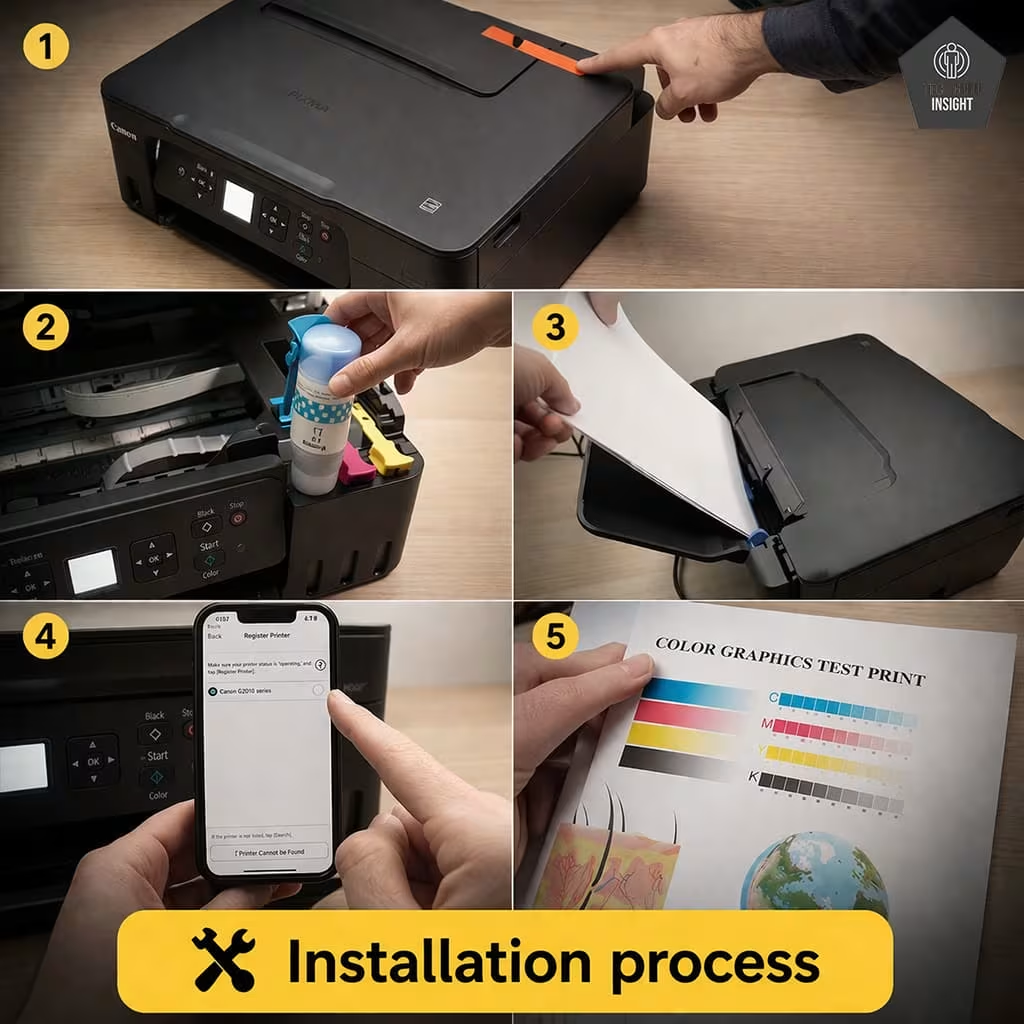
Installation Process:
– Unbox the printer and remove all protective tapes and packaging materials.
– Connect the power cord and turn on the printer.
– Fill the ink tanks using the included MegaTank ink bottles. The bottles are keyed to prevent incorrect color filling.
– Load paper into the rear paper tray.
– Install the printer software or drivers on your computer or smartphone.
– Connect to Wi-Fi or USB, depending on your preferred setup method.
– Run the initial printhead alignment, which prepares the printer for optimal print quality.
Wireless Setup (iPhone & Android)
The Canon PIXMA G3270 supports wireless printing, allowing you to print directly from smartphones and tablets without using a USB cable. The setup process is simple and works smoothly on both iPhone and Android devices through the Canon PRINT Inkjet/SELPHY mobile app.
To begin, install the Canon PRINT Inkjet/SELPHY app from your device’s app store and make sure your phone is connected to the same Wi-Fi network you want the printer to use.
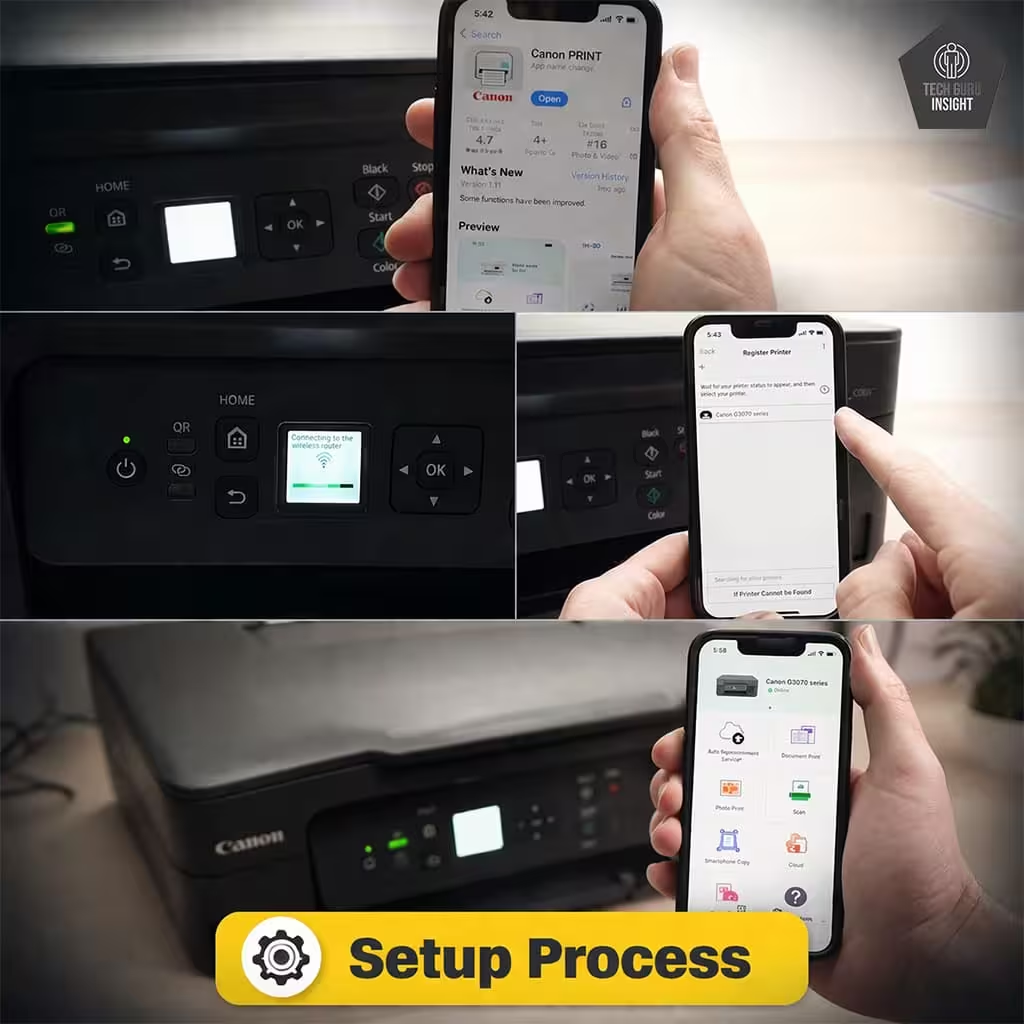
Setup Steps:
– Install the Canon PRINT Inkjet/SELPHY app on your iPhone or Android device.
– Turn on the printer and enable its Wi-Fi function.
– Open the app and choose “Add Printer.”
-The app will search for available printers on your network.
– Select the Canon PIXMA G3270 from the list.
– Follow the on-screen instructions to complete the connection.
Once connected, you can print photos, documents, and PDFs directly from your smartphone, as well as check printer status and perform basic maintenance through the mobile app.
Wireless Features:
– Wi-Fi connectivity for cable-free printing
– Mobile printing via the Canon PRINT Inkjet/SELPHY app
– Apple AirPrint support for iPhone and iPad
– Mopria Print Service for Android devices
– Scan to mobile devices through the mobile app
User Interface Simplicity
The Canon PIXMA G3270 features a simple and beginner-friendly interface designed for everyday home printing. Its control panel focuses on essential functions, making basic tasks like copying, wireless setup, and maintenance easy to access.
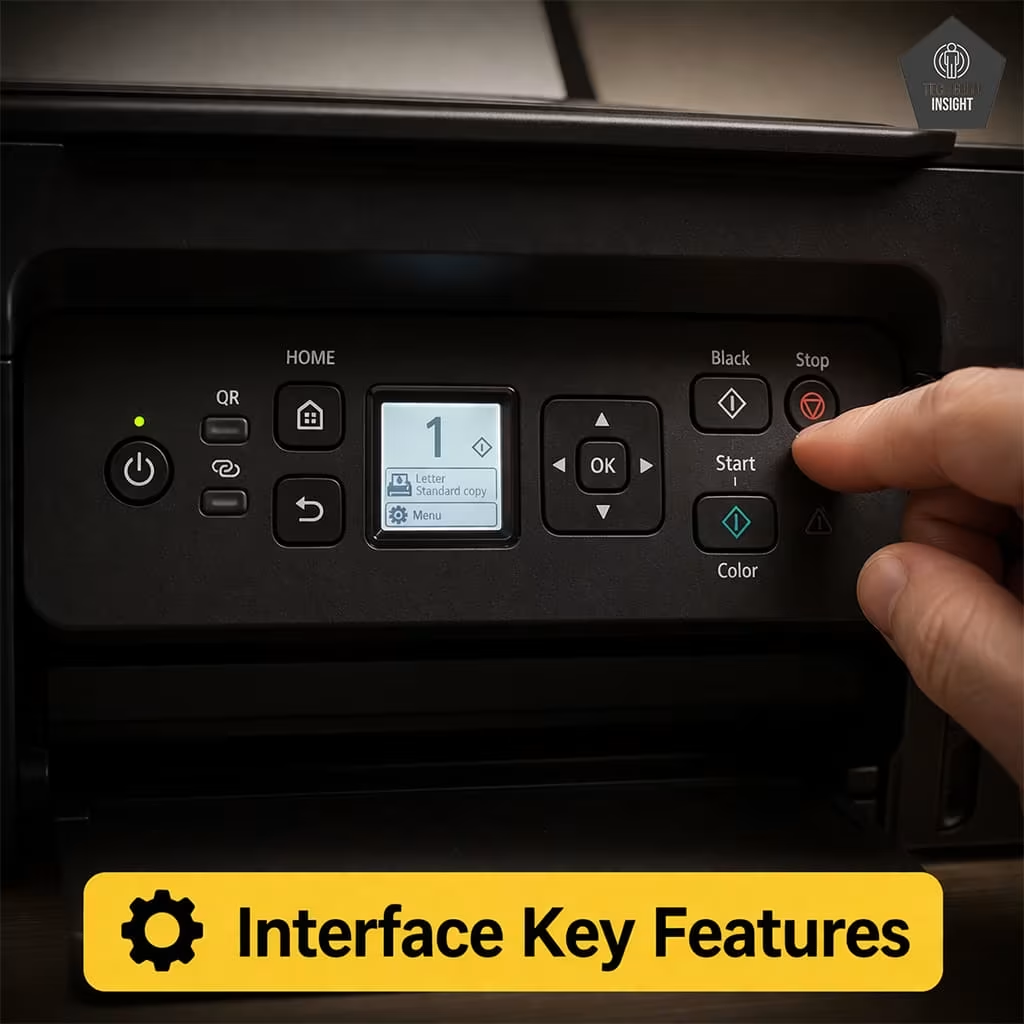
Key Features of the User Interface:
– 1.35-inch monochrome LCD screen for status and menu navigation.
– Physical control buttons for quick operation.
– Simple menu layout for basic printer settings.
– Mobile control support via the Canon PRINT Inkjet/SELPHY app.
– Clear status indicators for Wi-Fi, ink levels, and printer alerts.
✅ Print Quality
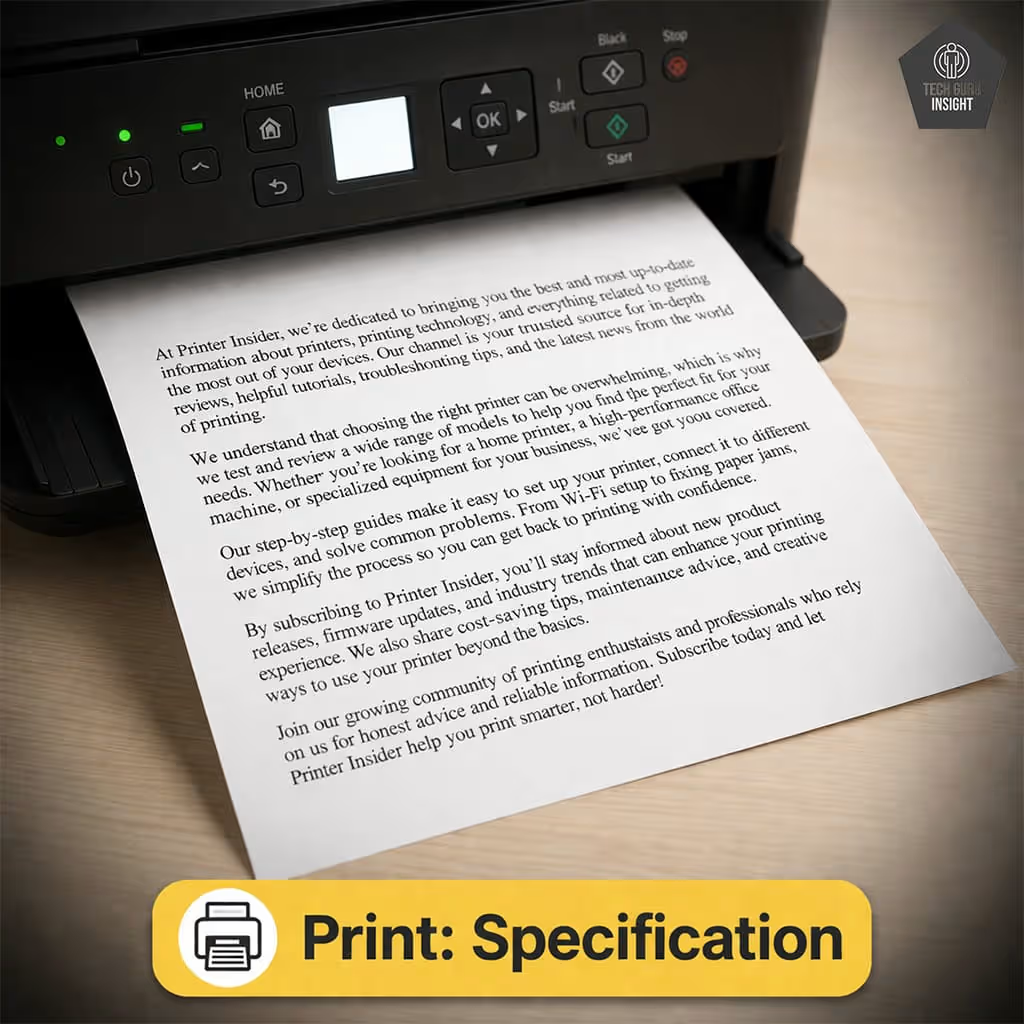
Text Printing: Text printing is one of the strongest aspects of the Canon PIXMA G3270. The use of Canon pigment black ink allows the printer to produce crisp, well-defined characters with strong contrast on plain paper. Small fonts remain readable, and lines in documents appear clean without noticeable smudging or fading.
This makes the printer ideal for school assignments, reports, forms, invoices, and other document-heavy printing tasks. Even after extended use, the printer maintains consistent text clarity, which is important for users who print large volumes of documents.
Supported Document Printing Sizes:
– Letter: 8.5 × 11 inches
– Legal: 8.5 × 14 inches
– Tabloid (11 × 17 inches): Not supported
– A6: 105 × 148 mm
– A5: 148 × 210 mm
– A4: 210 × 297 mm– Maximum Paper Weight: Up to 275 gsm when printing on supported photo paper.
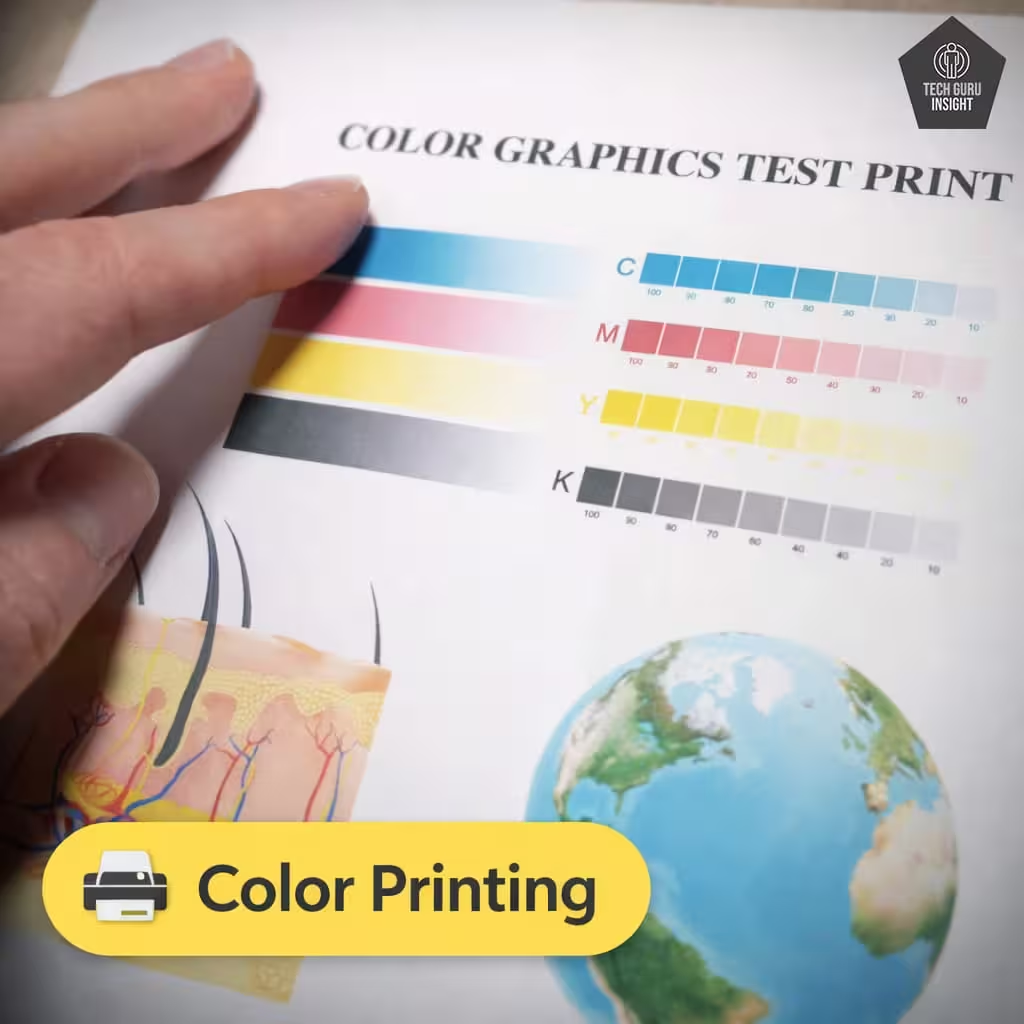
Color Printing: Color printing on the Canon PIXMA G3270 is designed for general-purpose tasks such as presentations, school projects, charts, and marketing materials. The printer produces bright and reasonably accurate colors, which helps graphs and visual elements stand out clearly.
Gradients and color transitions appear smooth in most cases, although extremely fine color details may not be as precise as those produced by higher-end photo printers. For typical home use, the color performance is more than adequate and delivers attractive results for mixed text-and-graphics documents.
Photo Printing: While the Canon PIXMA G3270 can print photos, it is primarily built for document printing rather than professional photography. Photos printed on standard paper look acceptable, but the best results are achieved when using glossy or high-quality photo paper.
With proper photo paper, images show good color depth and reasonable detail, making them suitable for casual prints such as family photos or school projects. However, compared with dedicated photo printers, the image detail and color range are somewhat limited.
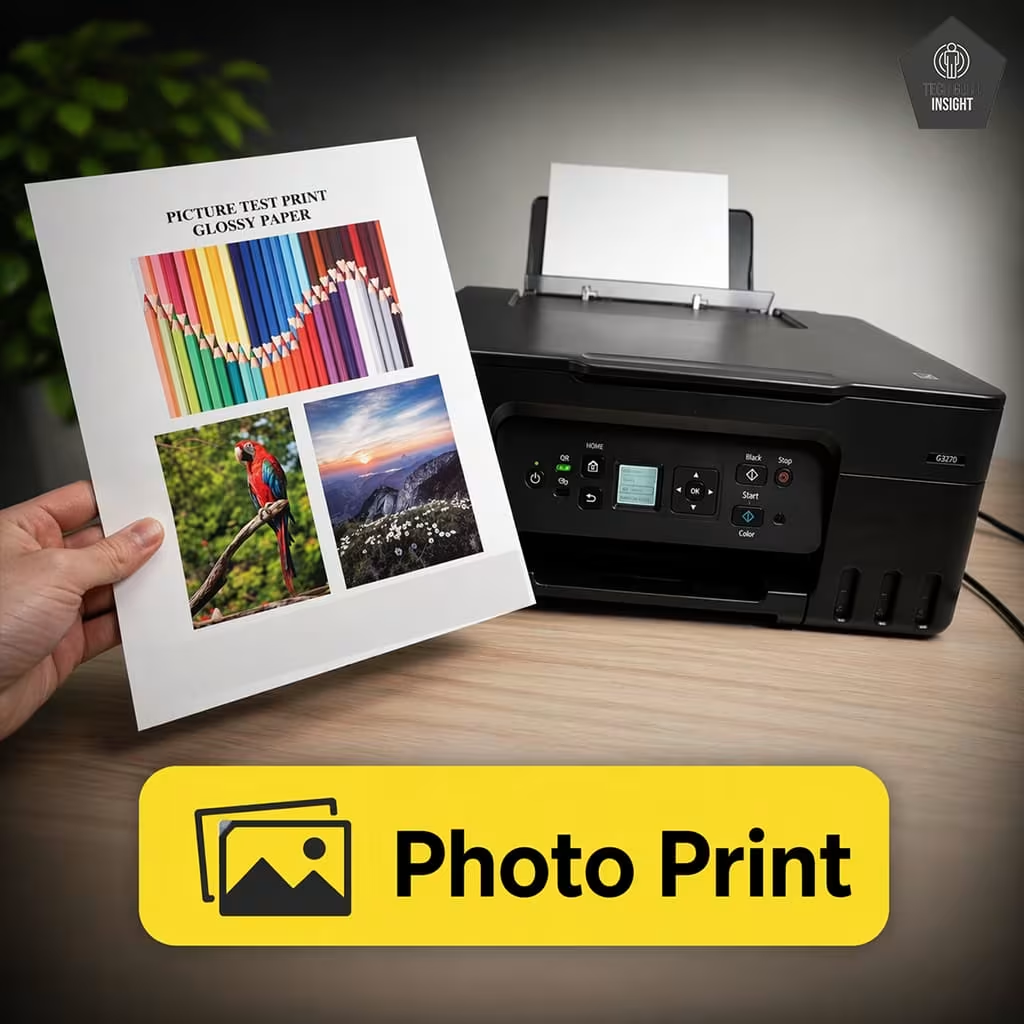
Photo Printing Sizes:
– Glossy Paper (4″ × 6″): Supported
– Glossy Paper (5″ × 7″): Supported
– Glossy Paper (8″ × 10″): Supported
– Glossy Paper (8.5″ × 11″): Supported
– Glossy Paper (13″ × 19″): Not supported
– Borderless Printing: Supported on several standard photo sizes, allowing photos to print edge-to-edge without white margins for a cleaner and more professional look.
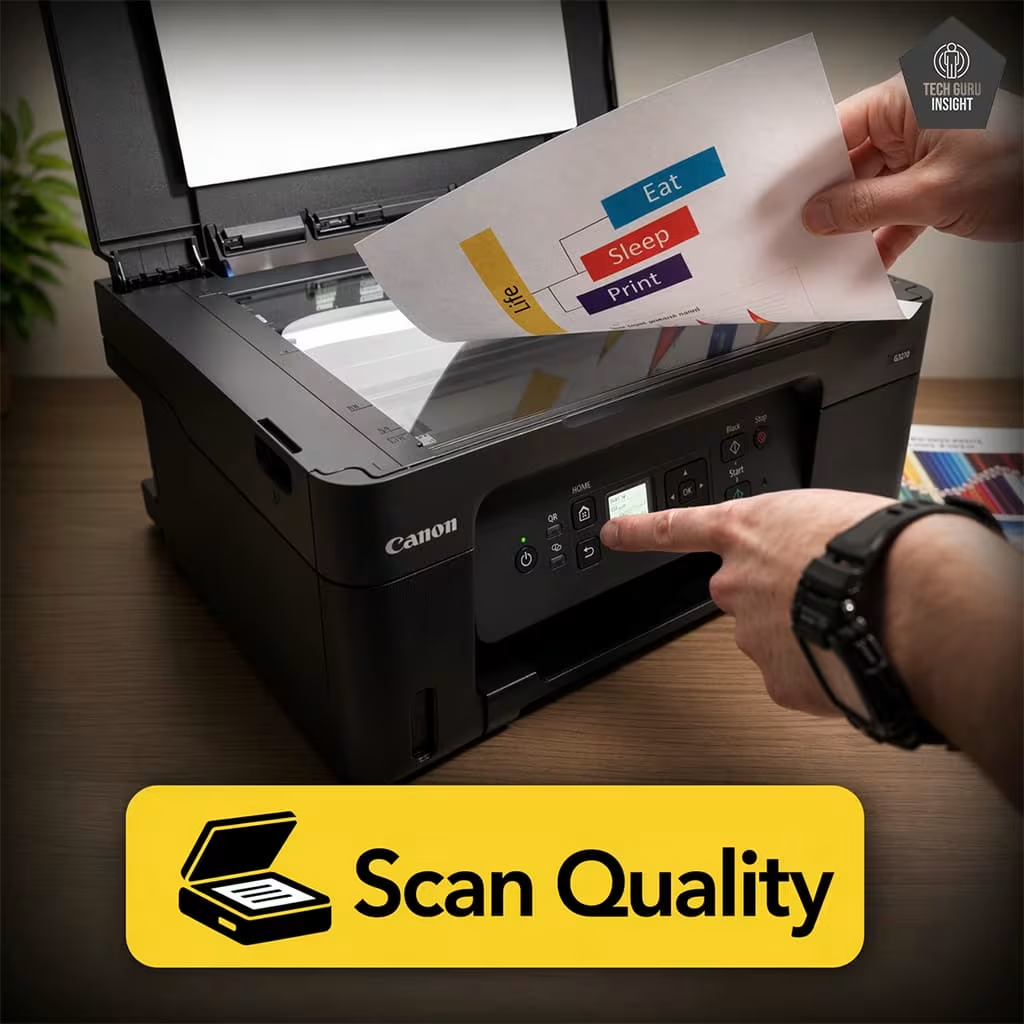
Scan Quality:
– Max Scan Resolution: 1200 x 1200 dpi
– Optical Scan Resolution: 600 × 1200 dpi
– Max Scan Color Depth: 48-bit
The scan quality is sufficient for documents, school assignments, and basic photo scanning, though it is not designed for professional photo archiving or high-end graphic work.
✅ Printing Speed
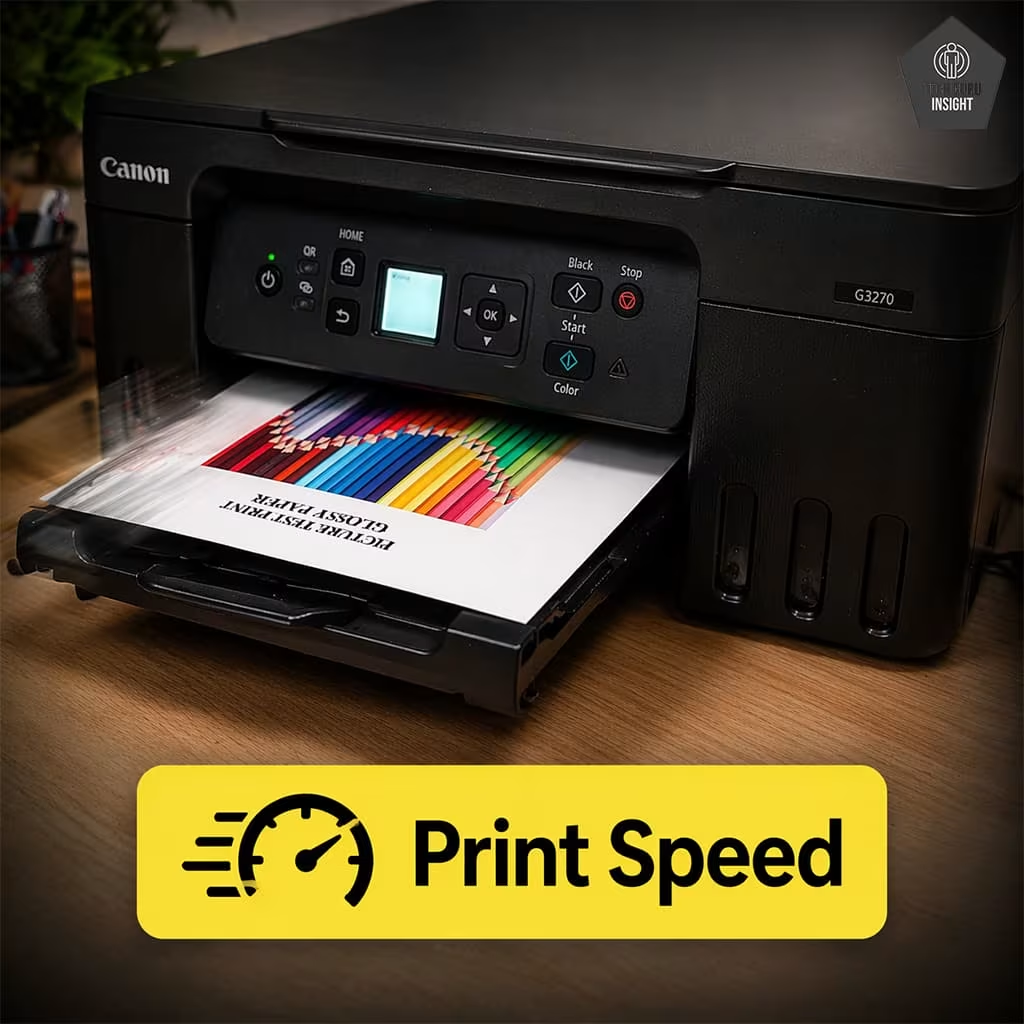
Official (Claimed) Speed:
– Black printing: Up to 11 pages per minute (ppm)
– Color printing: Up to 6 pages per minute (ppm)
These speeds follow the ISO/IEC 24734 standard, which is commonly used to compare printer performance across different brands.
Real-World Performance:
– Black document printing: Around 8–9 ppm for typical text documents
– Color document printing: Around 3–4 ppm for documents with graphics and images
First Page Out Time:
– Black first page out time: Approximately 16–18 seconds
– Color first page out time: Approximately 18–20 seconds
👉 Key Insight: The Canon PIXMA G3270 is designed for steady, affordable printing rather than fast output. While it may not be the quickest printer in its category, it provides dependable performance and extremely low cost-per-page, which is often more important for home users who print regularly.
✅ Ink System & Cost Per Page
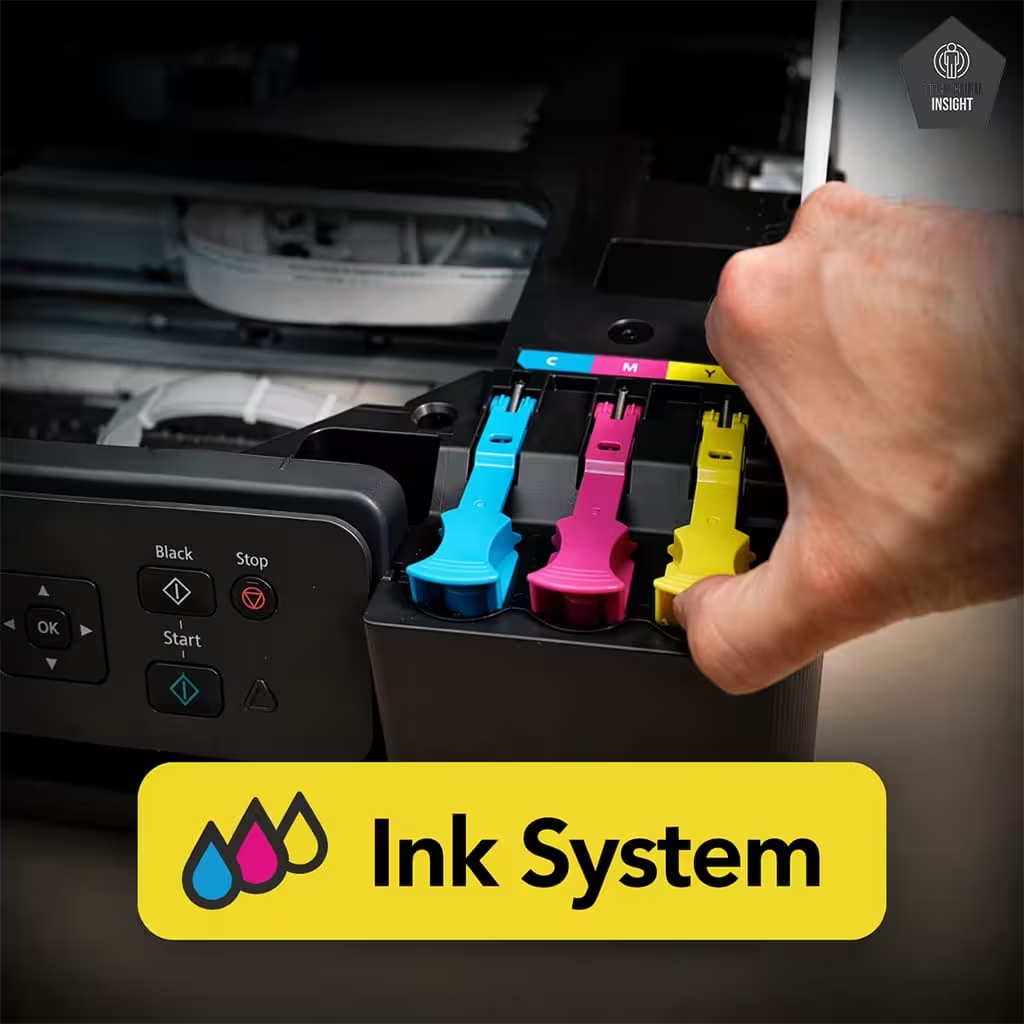
Advantages of the MegaTank Ink System: The MegaTank system used in the Canon PIXMA G3270 is designed to make refilling simple and reliable.- Spill-resistant refill bottles help reduce ink mess during refilling.
– Keyed bottle nozzles ensure each color only fits the correct tank.
– Large integrated tanks store more ink for high-volume printing.
– Stable ink flow maintains consistent print quality over long print jobs.
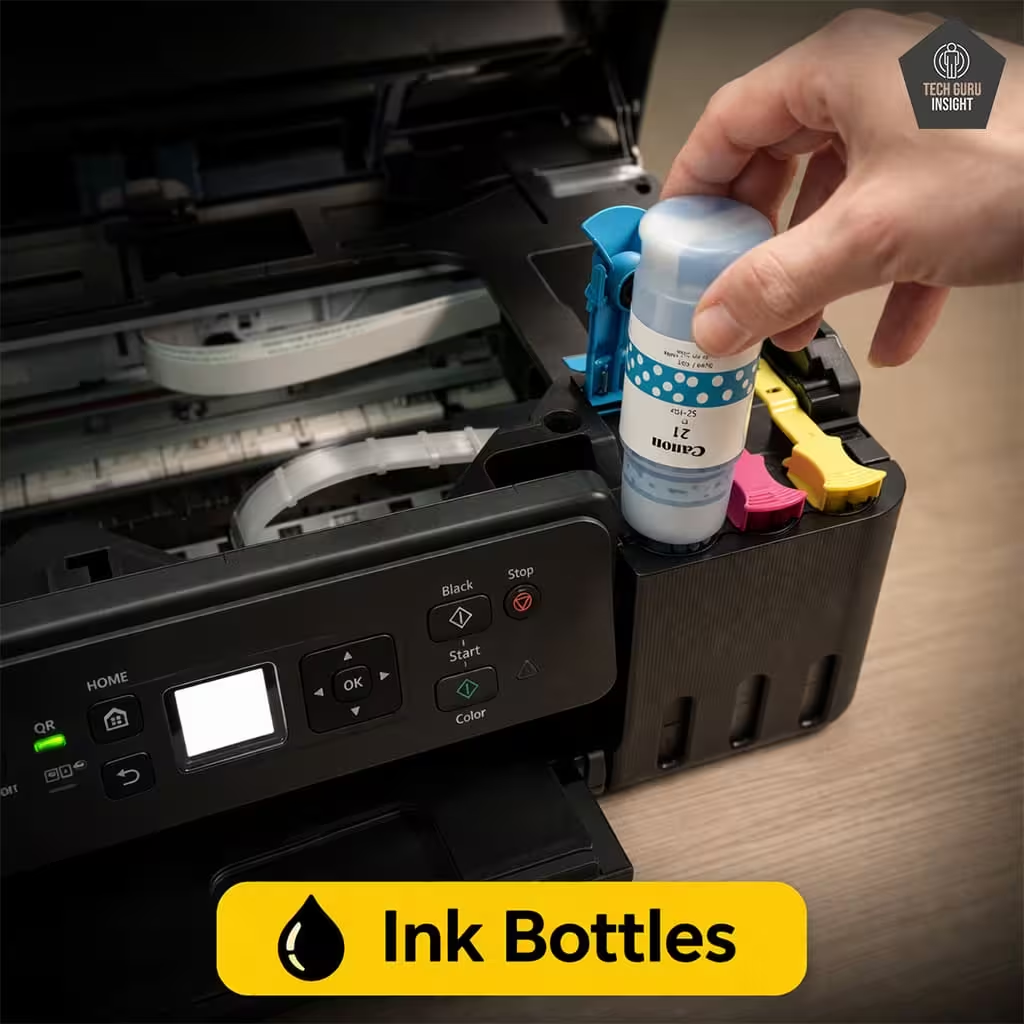
Ink Bottles (Compatible Inks & Price):
Compatible Ink Bottles: The printer works with Canon GI-21 series ink bottles, which include one pigment black ink and three dye-based color inks.
– Canon GI‑21 PGBK Pigment Black Ink Bottle: Around $17.99
– Canon GI‑21 Cyan Ink Bottle: Around $13
– Canon GI‑21 Magenta Ink Bottle: Around $13
– Canon GI‑21 Yellow Ink Bottle: Around $13
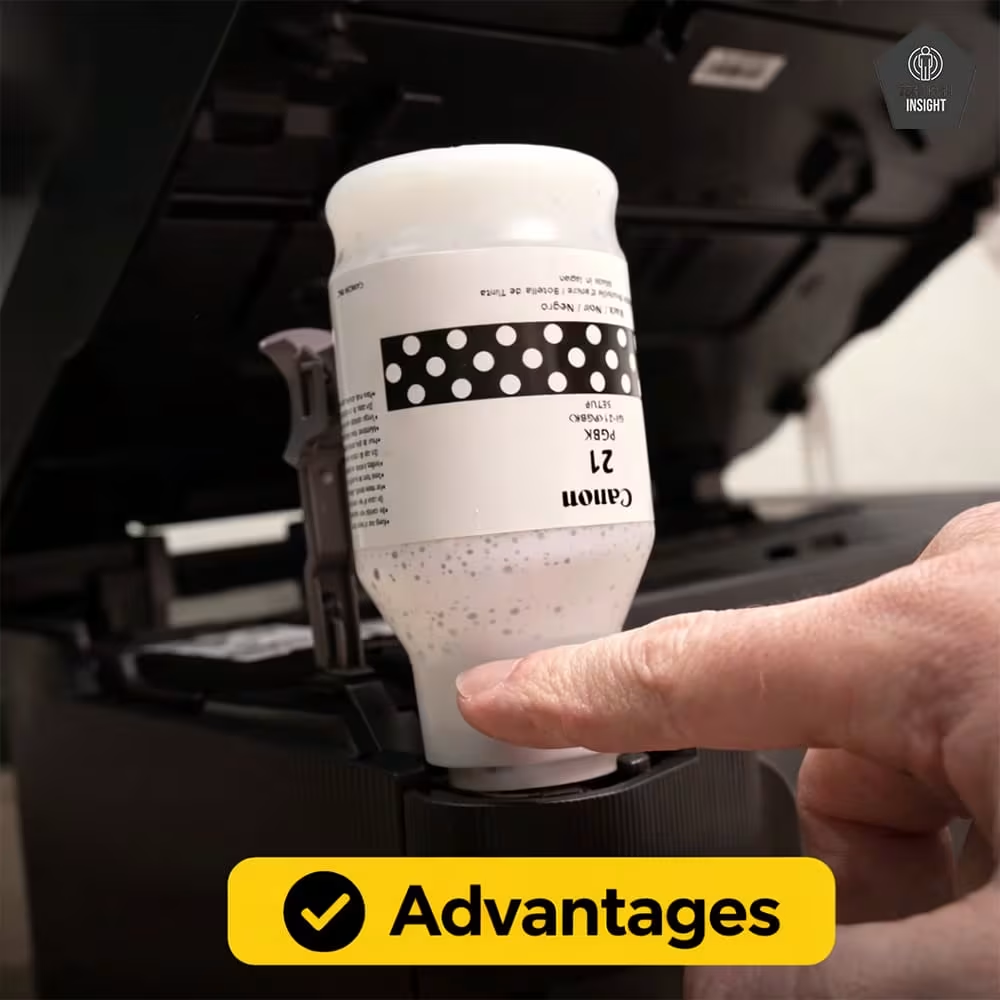
Advantages of Ink Bottles: Ink bottle systems provide several benefits compared with traditional cartridge-based printers.
– Lower printing costs because each bottle lasts much longer than a cartridge.
– High page yield, allowing thousands of prints before refilling.
– Less frequent replacements, reducing maintenance interruptions.
– Lower plastic waste, making the system more environmentally friendly.
– Visible ink levels, so users can easily monitor remaining ink.
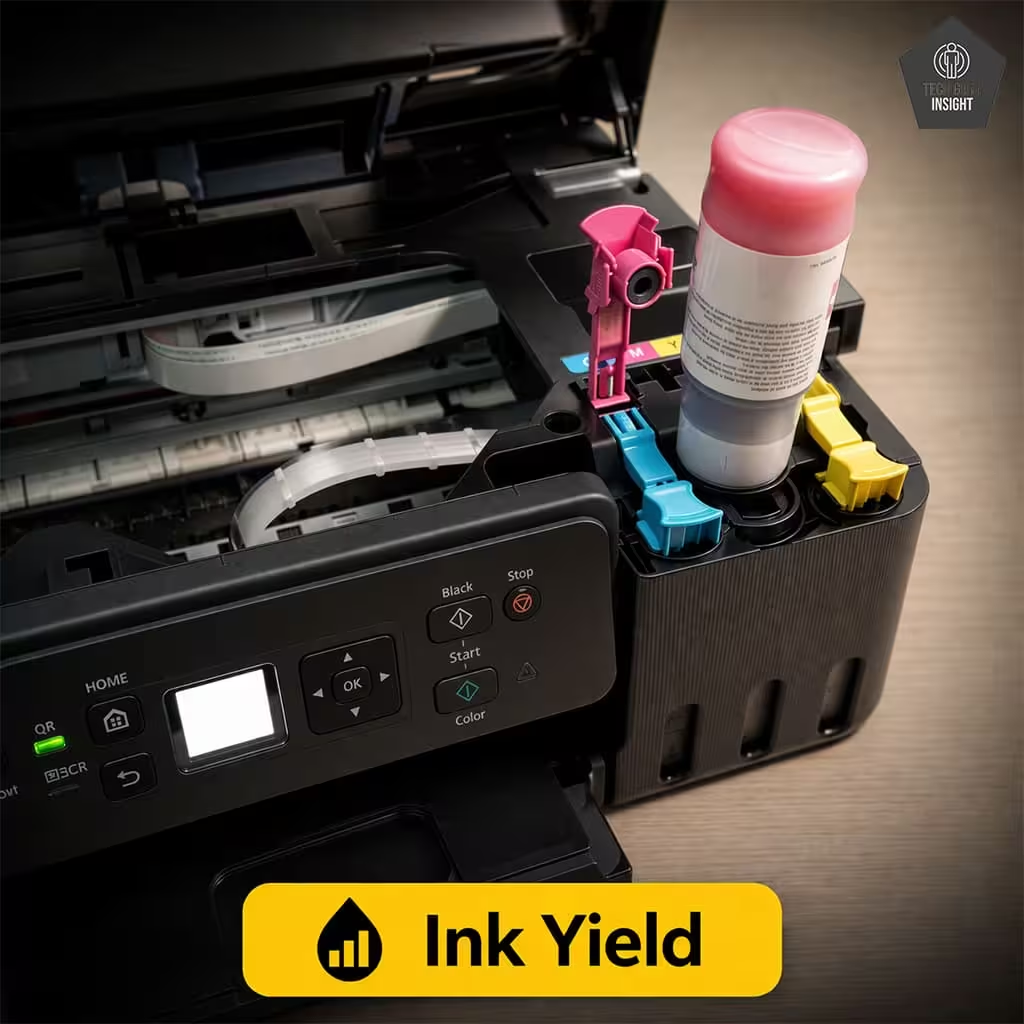
Ink Yield & Cost Per Page
– Black page yield: ~6,000 pages (up to ~8,300 in economy mode).
– Color page yield: ~7,700 pages.
– Real-world black yield: ~5,900 pages.
– Real-world color yield: ~3,400–6,800 pages.
👉 Important Note: The initial ink bottles included in the box usually produce fewer pages because some ink is used during the first setup to charge the printhead system.
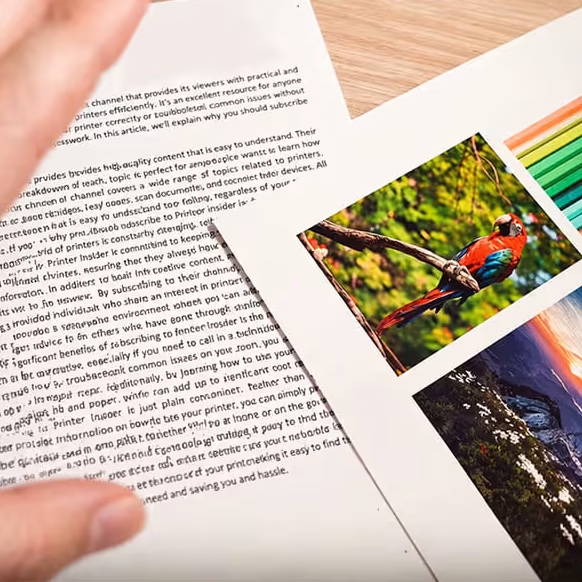
Estimated Printing Cost
Based on typical ink prices and estimated page yields, the approximate printing cost is:
– Black-only printing cost: about $0.003 per page (≈ 0.3 cents).
– Color printing cost: about $0.006 per page (≈ 0.6 cents).
– Photo printing cost: about $0.014 per page, depending on photo coverage and paper type.
✅ Connectivity And App
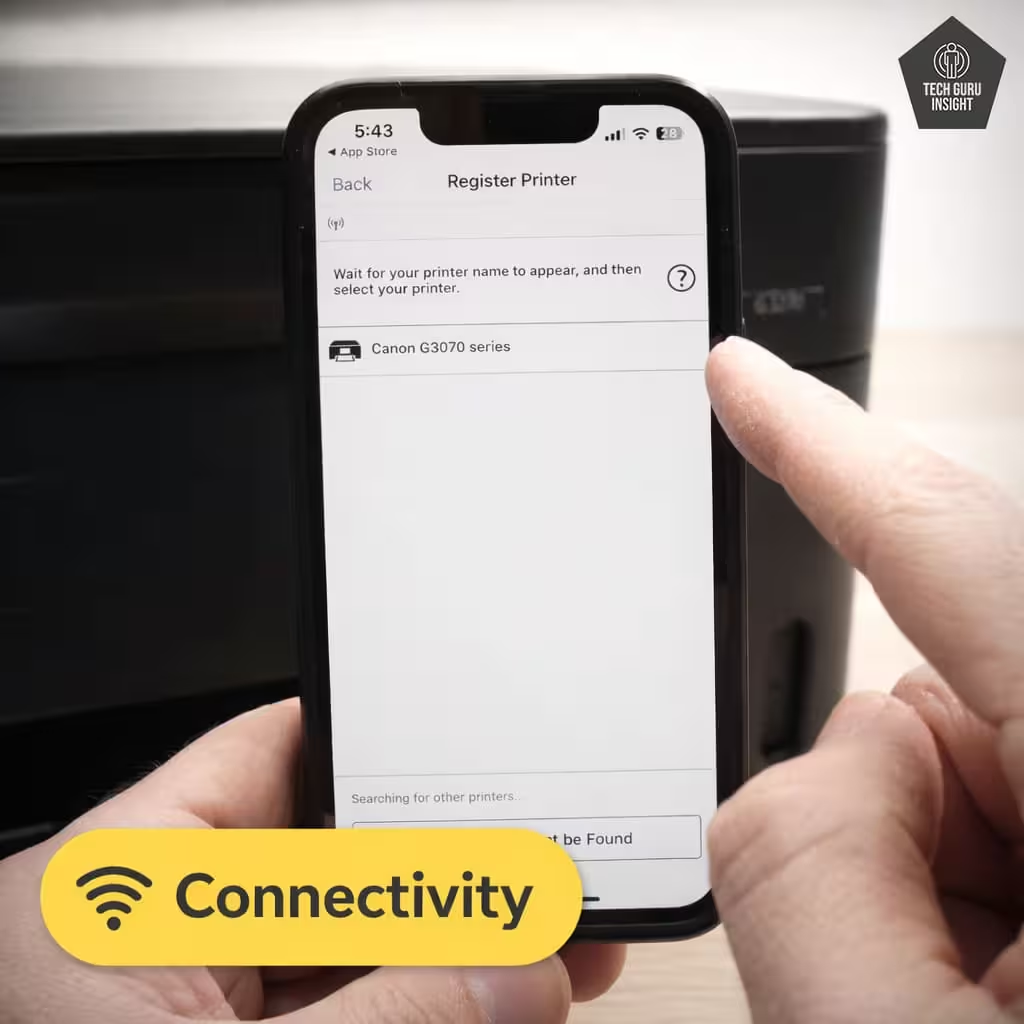
Connectivity
– Wireless: Yes
– Wi-Fi via Router: Yes
– Wi-Fi Direct: Yes
– Bluetooth: No
– Ethernet: No
– USB Input To Computer: Yes
– External Storage Support (USB drive): No
– Apple AirPrint: Yes
– Mopria Print Service: Yes
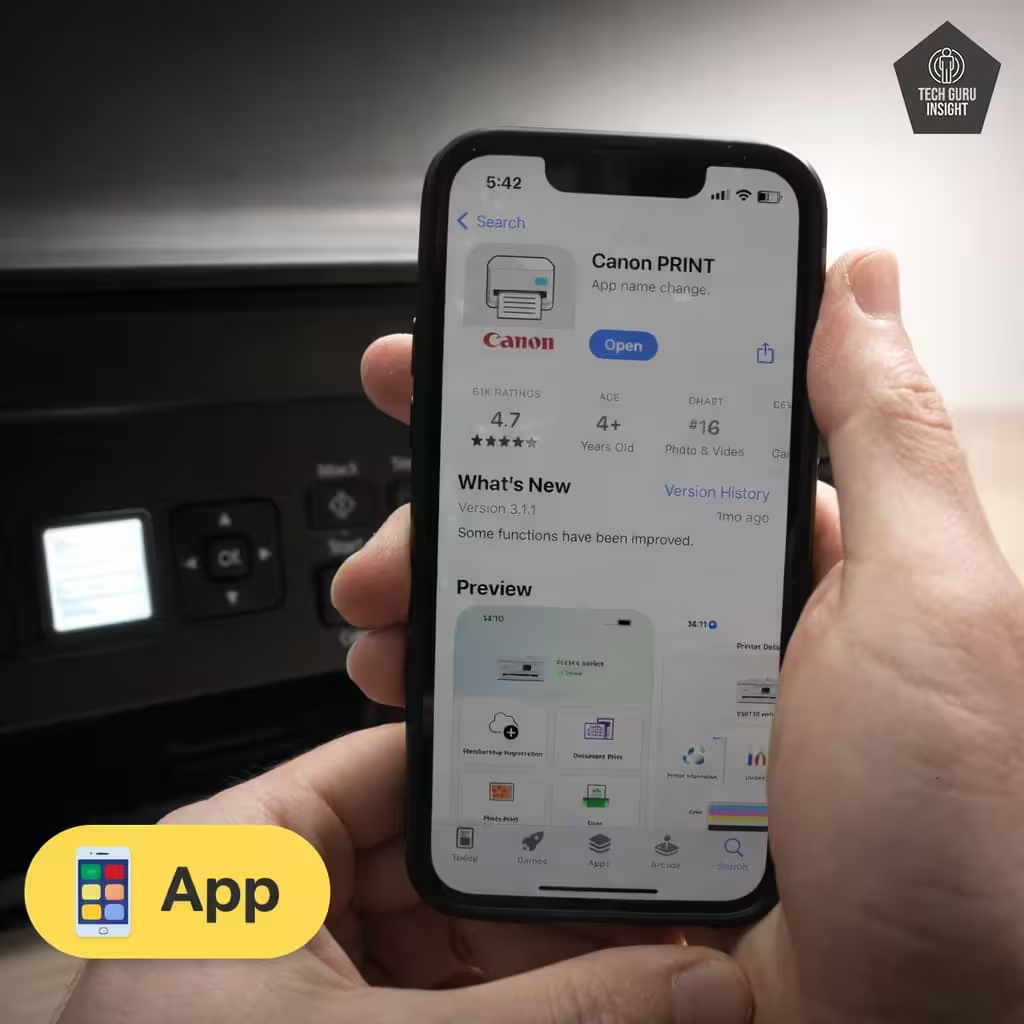
App
– Mobile App: Yes
– App Name: Canon PRINT Inkjet/SELPHY
– iOS: Yes
– Android: Yes
– Photo (JPEG, PNG): Yes
– PDF: Yes
– Microsoft Office Files: Yes
– Text Files (TXT): Yes
– Webpages (HTML): Yes
Who Should Buy the Epson EcoTank ET-2800?
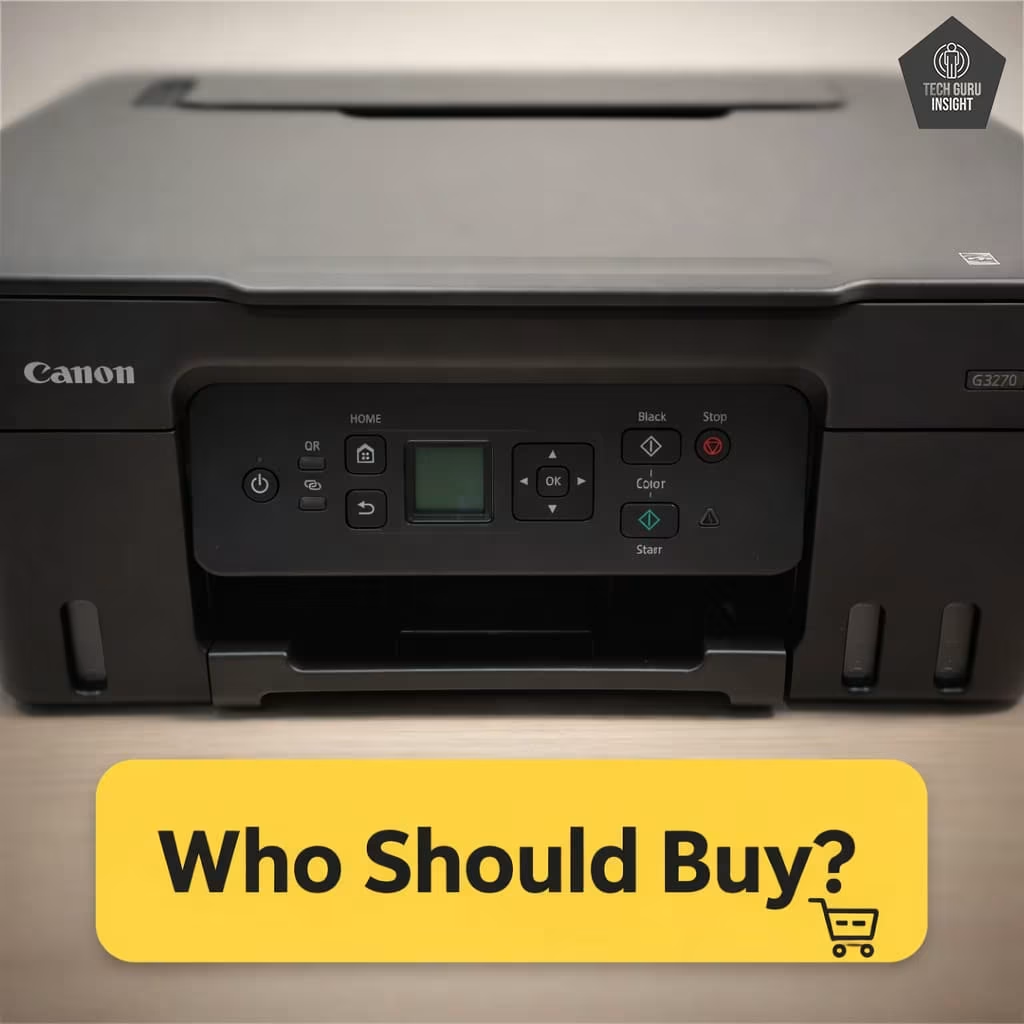
👍 Best For:
– Students who regularly print assignments, notes, and study materials.
– Home offices that need reliable document printing without high ink costs.
– Families printing homework and school projects on a frequent basis.
– Budget-conscious users looking for a printer with very low cost per page.
👎 Not For:
– Users who need high-speed printing for large office workloads
– Professionals requiring advanced photo printing quality
– Offices that need automatic document feeding or duplex scanning
– Work environments requiring Ethernet networking or large paper capacity
Where To Buy
You help support Tech Guru Insight’s product testing and reviews by purchasing from our retail partners.