Standalone Desktop Scanner vs. All-in-One Laser Printer: Which Is Best for Your Home Office?
If you are building an efficient home office or digitizing years of accumulated paperwork, one major equipment decision can make or break your productivity: Should you buy a dedicated standalone desktop scanner or an all-in-one laser printer (MFP)?
While both devices handle document digitization, they are engineered for fundamentally different workloads. Buying the wrong device can lead to slow scanning speeds, paper jam headaches, or wasted desk space.
In this guide, we break down speed, image quality, document handling, ongoing costs, and real-world performance so you can pick the perfect setup for your workflow.
At a Glance
Key Differences
| Feature / Need | Dedicated Desktop Scanner | All-in-One Laser Printer (MFP) |
| Primary Focus | High-volume scanning, OCR, receipt tracking | Document printing, occasional scanning & copying |
| Scanning Speed | Fast (35–60+ pages per minute) | Moderate to slow (15–30 pages per minute) |
| Duplex Scanning | Single-Pass (Scans both sides simultaneously) | Often Reversing ADF (Flips paper manually) or Flatbed |
| Media Versatility | Plastic ID cards, thick stock, mixed receipt sizes | Standard cut-sheet printer paper (Letter/Legal) |
| Running Costs | Zero ongoing toner costs | Requires regular toner cartridge replacements |
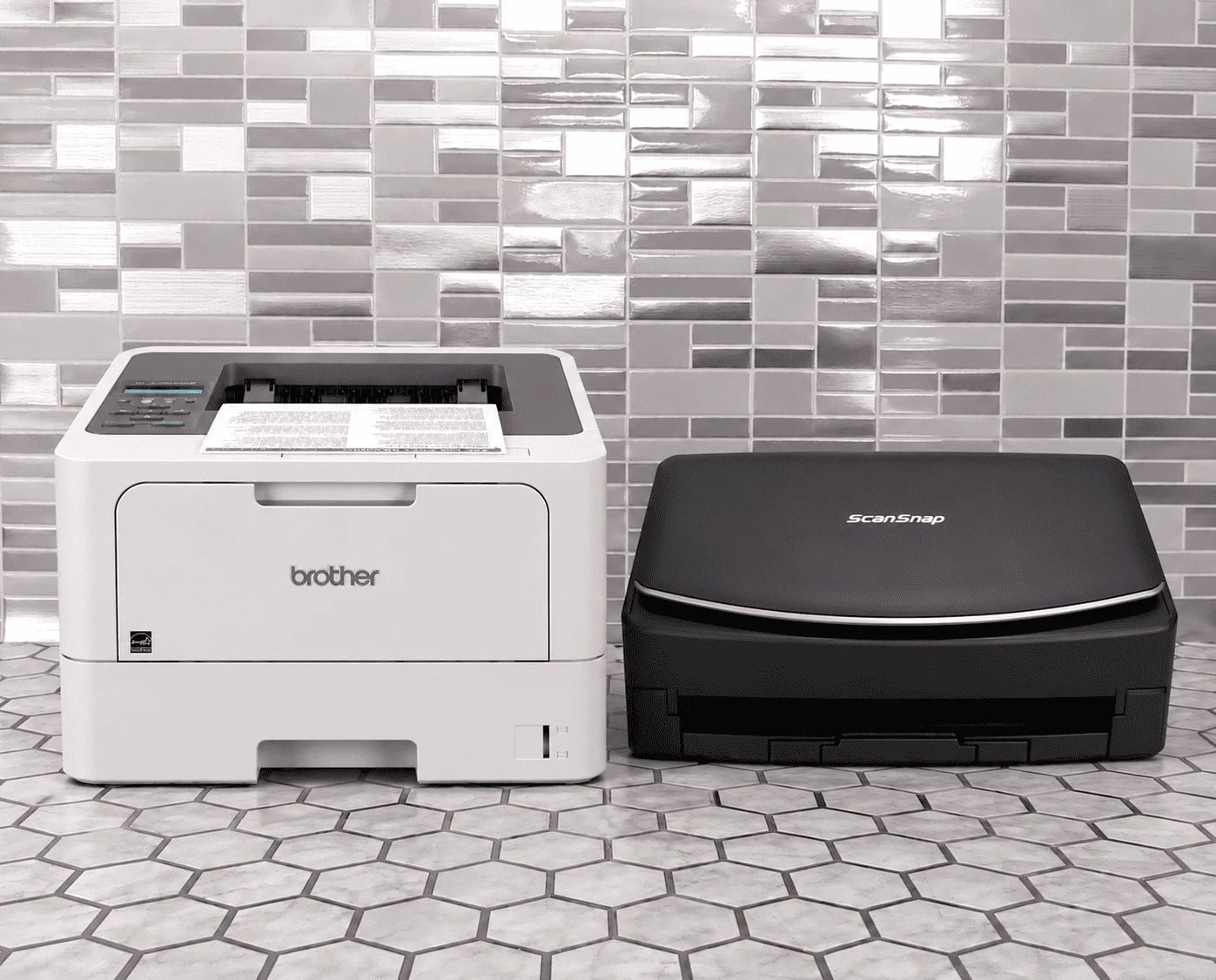
| Desk Footprint | Compact & portable | Large & heavy |
Mixed-Media & Small Receipt Handling
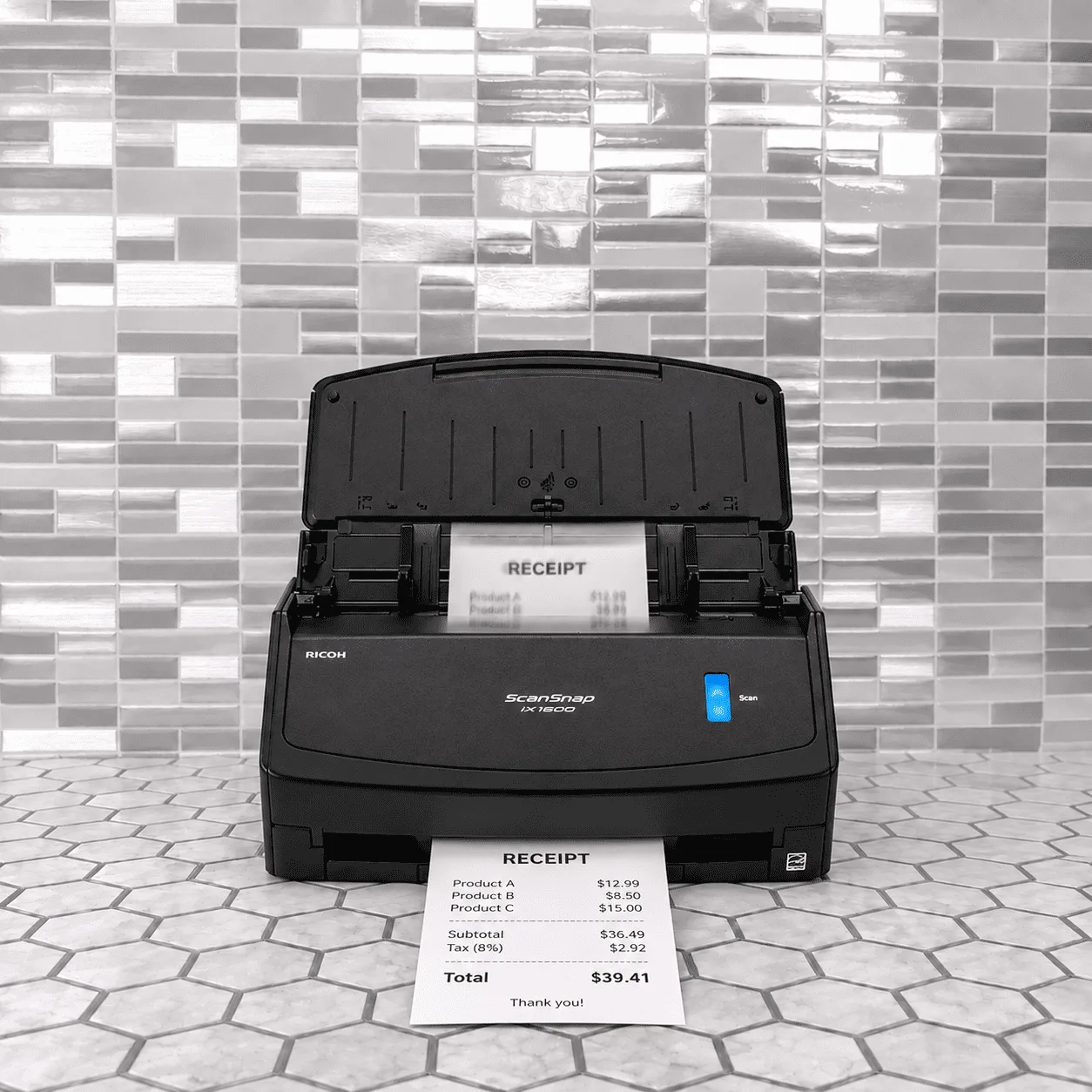
Client intake rarely arrives in crisp 8.5×11 sheets. Taxpayers frequently hand over stacks containing crumpled thermal paper receipts, thick plastic driver’s licenses, and unevenly cut income slips.
| Feature / Need | Dedicated Desktop Scanner | All-in-One Laser Printer |
| Feeding Mechanism | Heavy-duty active rollers & ultrasonic sensors | Standard gravity/friction feeds |
| Mixed-Media Stacks | Scans receipts, ID cards, & legal paper together | Requires pre-sorting by weight/size |
| Double-Feed Protection | Ultrasonic detection alerts on stuck pages | Frequently pulls 2+ thin pages without warning |
| Fragile Documents | Smooth paper path reduces tears | High-friction rollers can jam thin thermal receipts |
The Quick Summary (TL;DR)
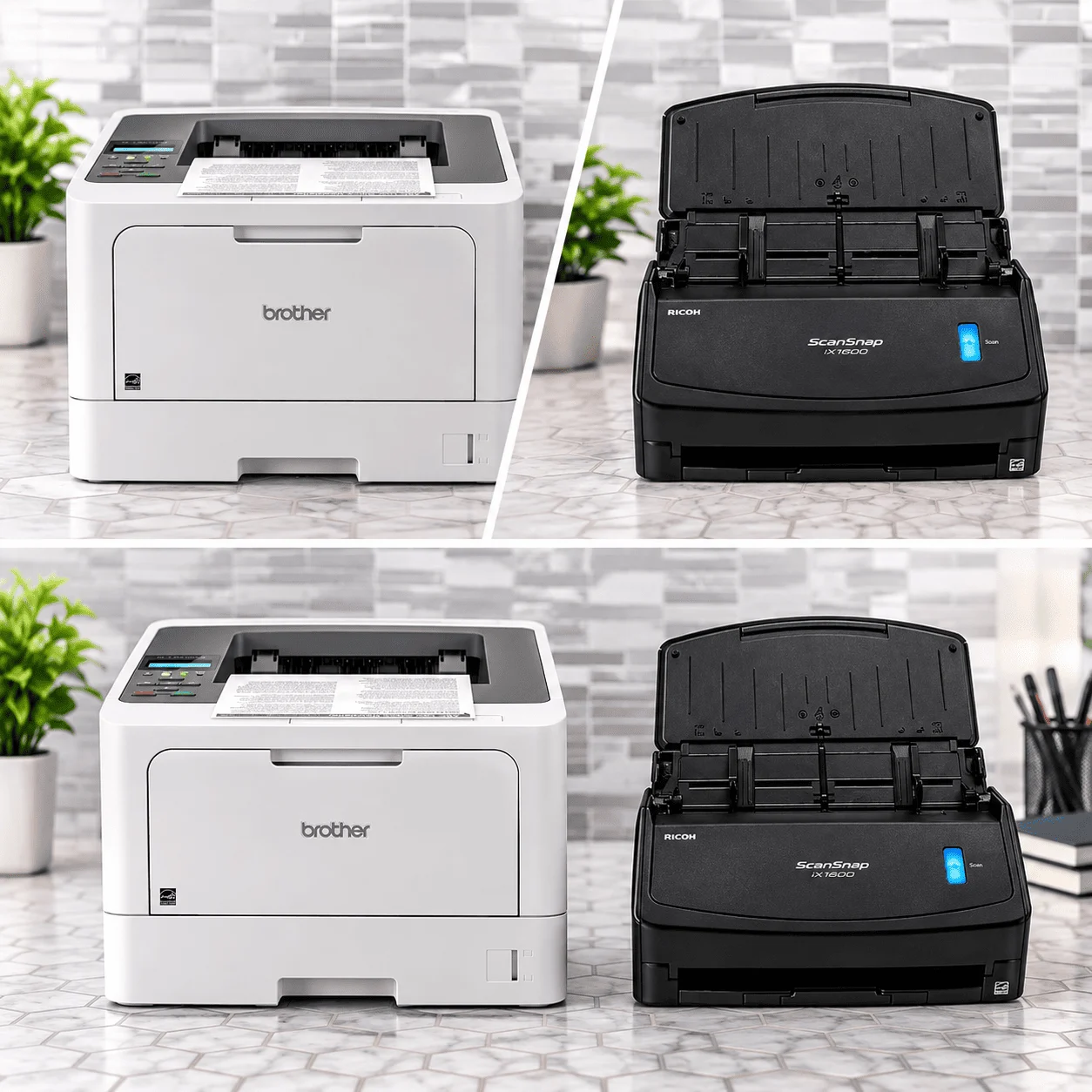
– Choose a Standalone Desktop Scanner if: You process more than 10 client packets per week, scan mixed media (small receipts + legal pages + ID cards), or want one-touch PDF routing directly into tax document portals without opening desktop software.
– Choose an All-in-One Laser Printer if: You work in a compact or home office space, handle low-to-moderate scanning volume, and want a single device to print, copy, and scan without managing multiple power bricks and USB cables.
– The High-ROI Hybrid Setup: Many high-volume tax practices pair a dedicated scanner like the Ricoh ScanSnap iX1600 with a dedicated monochrome print workhorse like the Brother HL-L6210DW.
💡 Need help picking the base printer before buying expansion trays? Check out our complete review guide: Best Heavy-Duty Laser Printers for Home Tax Professionals and Accountants.
Anatomy of the Contenders
A. The Standalone Desktop Scanner
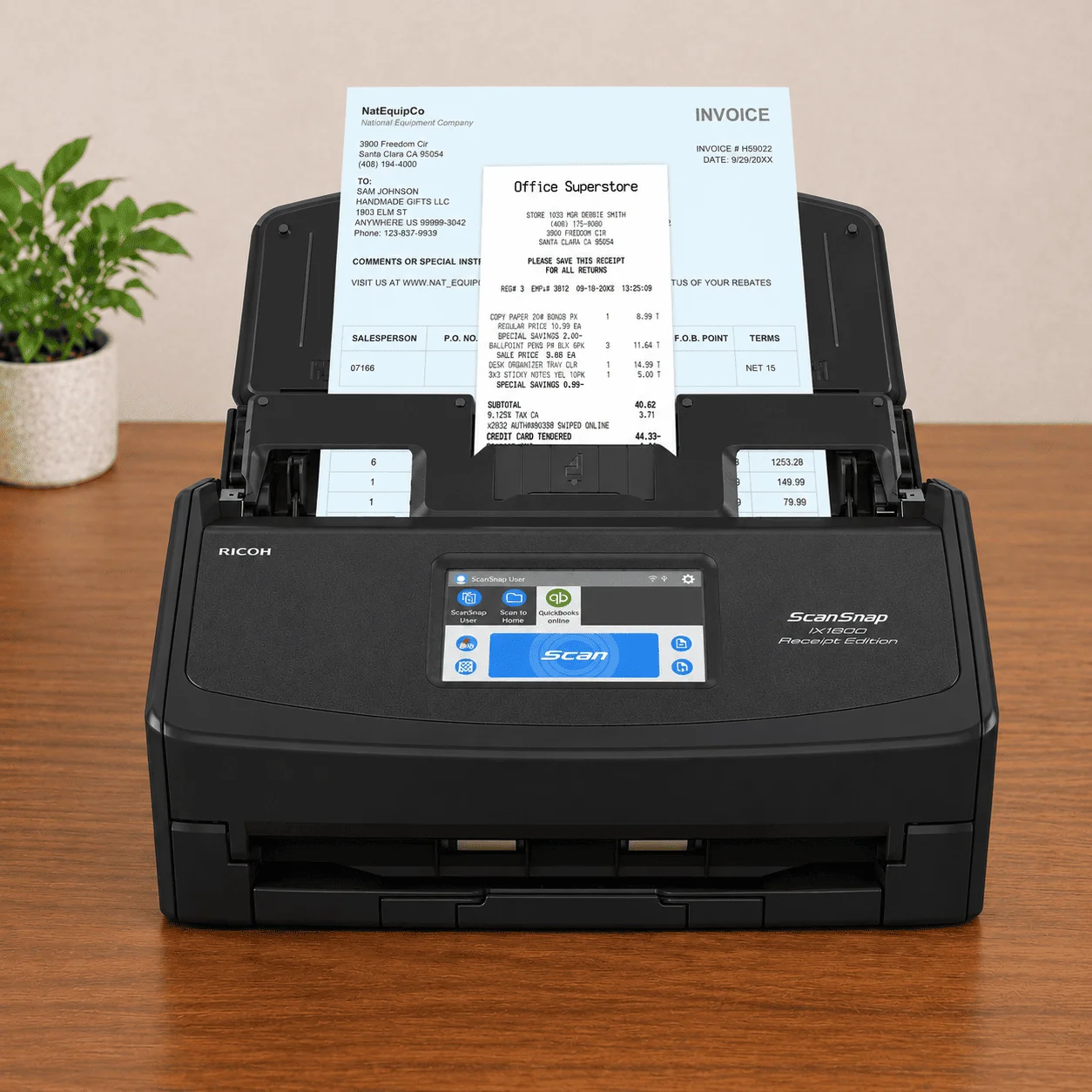
– Types: Sheet-fed document scanners (ADF-heavy) vs. flatbed scanners (versatility and fragile/bound media).
– Primary Design Focus: Optical resolution, advanced image processing (deskew, auto-crop, blank page removal), and specialized feeder mechanisms.
– Consumables: Zero ink/toner costs; maintenance limited to occasional roller and pad kit replacements.
B. The All-in-One Laser Printer (MFP)
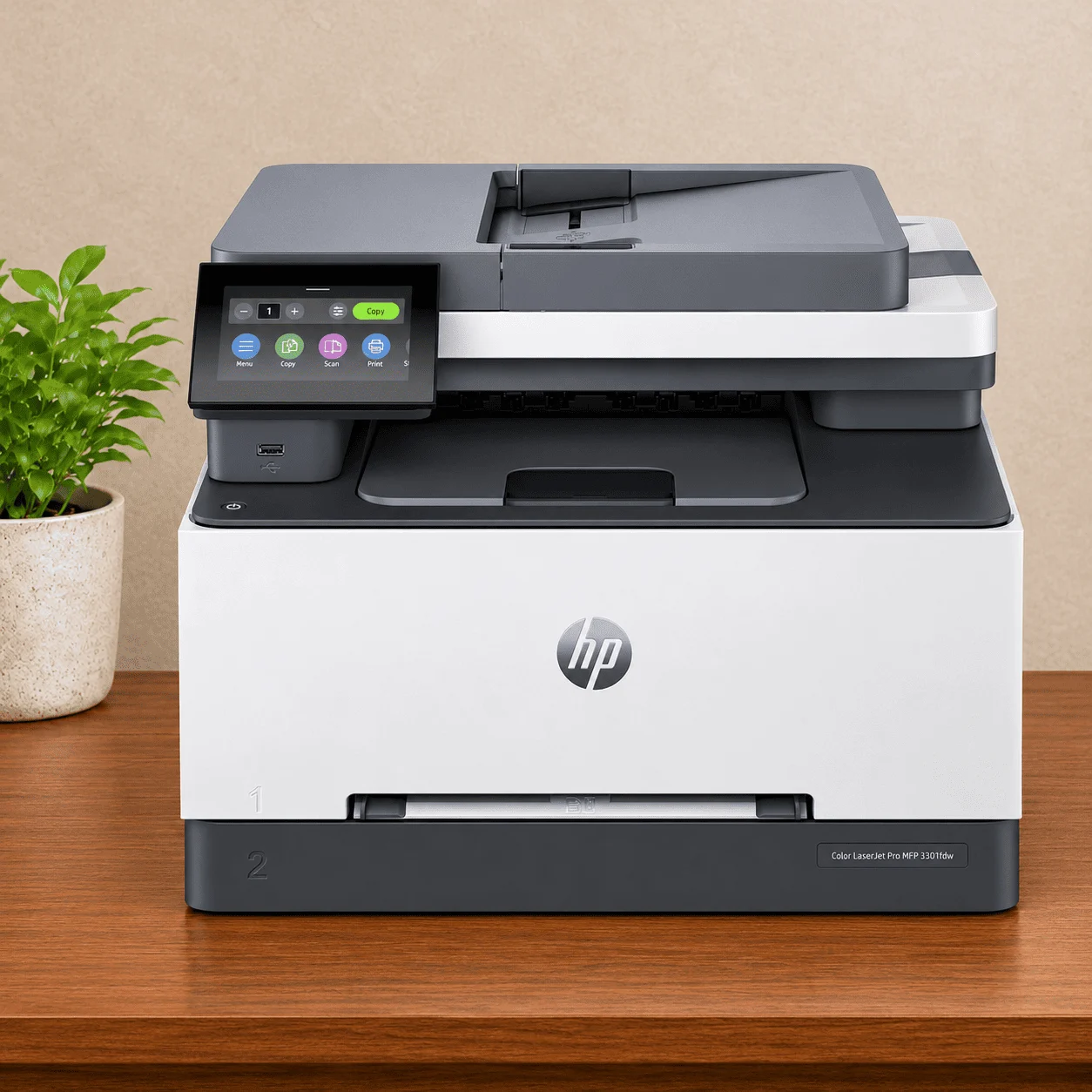
– Design Philosophy: Print-first architecture. Scanning is an integrated secondary feature utilizing either a flatbed platen or a standard multi-function Automatic Document Feeder (ADF).
– Consumables: Laser toner cartridges, drum units, and transfer belts.
Head-to-Head Performance Comparison
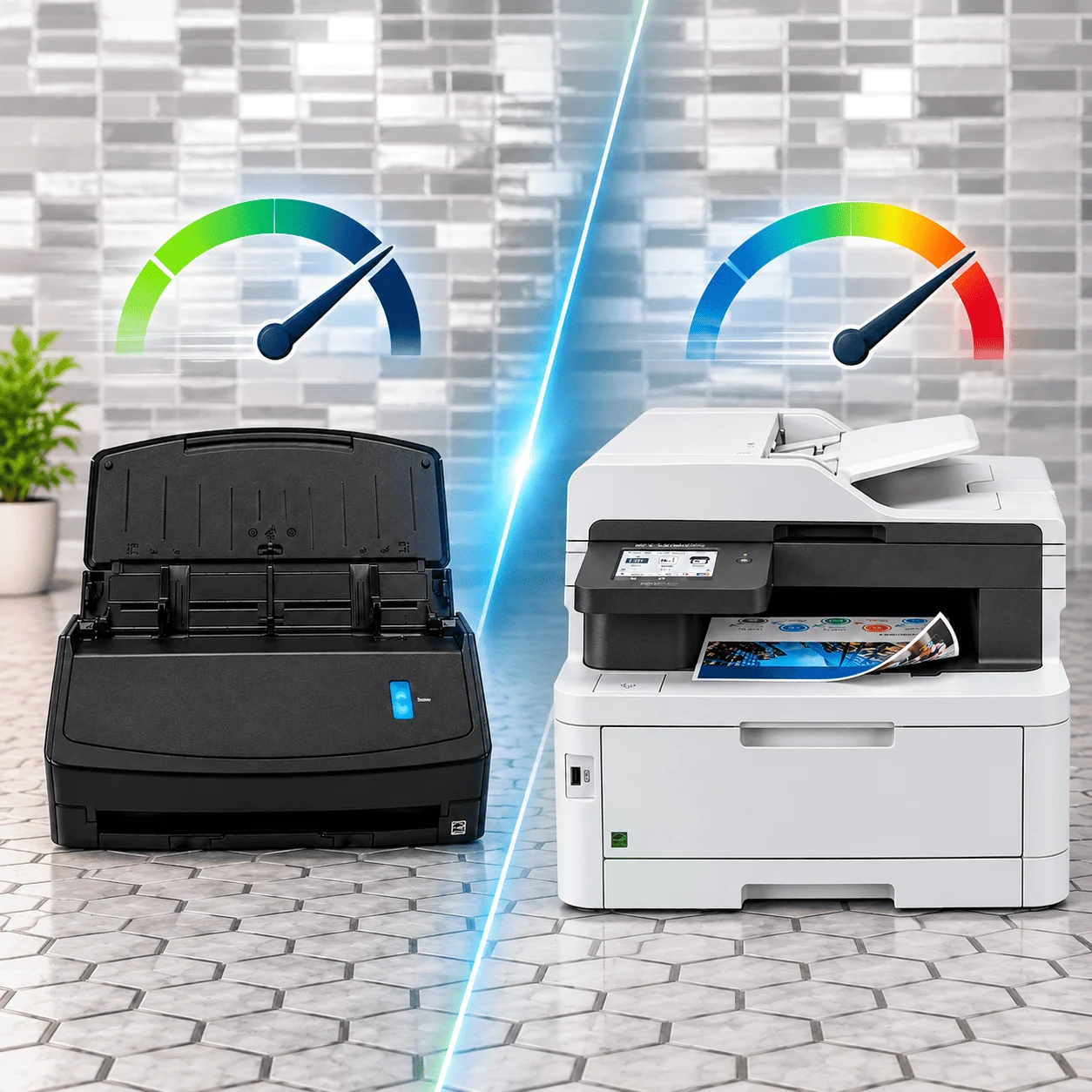
1. Speed & Batch Processing Performance
If your primary goal is going paperless, scan speed is the single most important factor.
Standalone Desktop Scanners
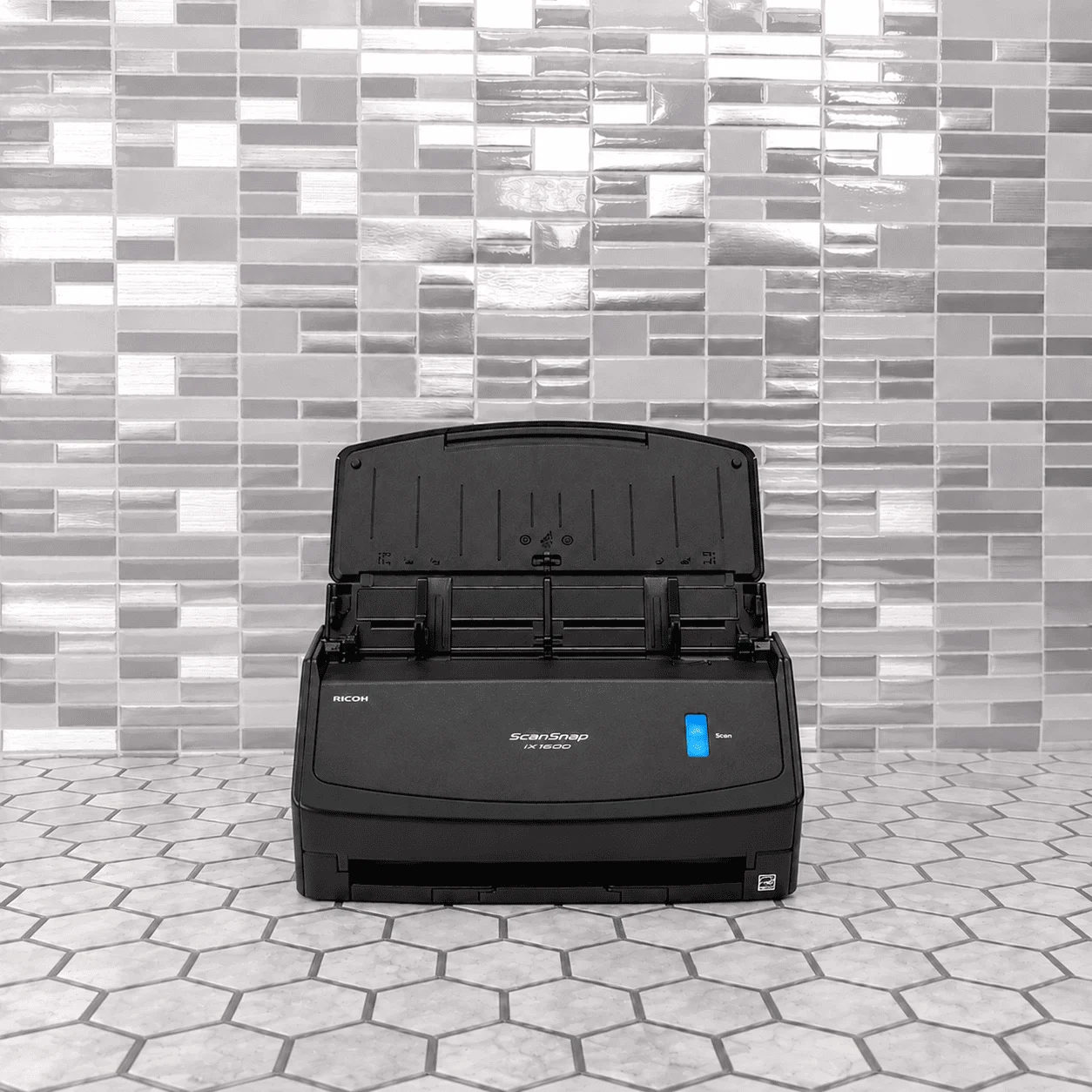
Dedicated sheet-fed scanners are built purely for speed. Mid-range models easily achieve speeds of 35 to 60 pages per minute (PPM)—or up to 120 images per minute (IPM) when scanning two-sided documents.
– Single-Pass Duplexing: Dedicated document scanners feature dual optical sensors (one for the front, one for the back). They capture both sides of a page in a single pass through the feeder.
– Large Capacity ADFs: Automatic Document Feeders on standalone scanners typically hold 50 to 100 sheets at once, letting you stack a massive pile of paper, press scan, and walk away.
All-in-One Laser Printers
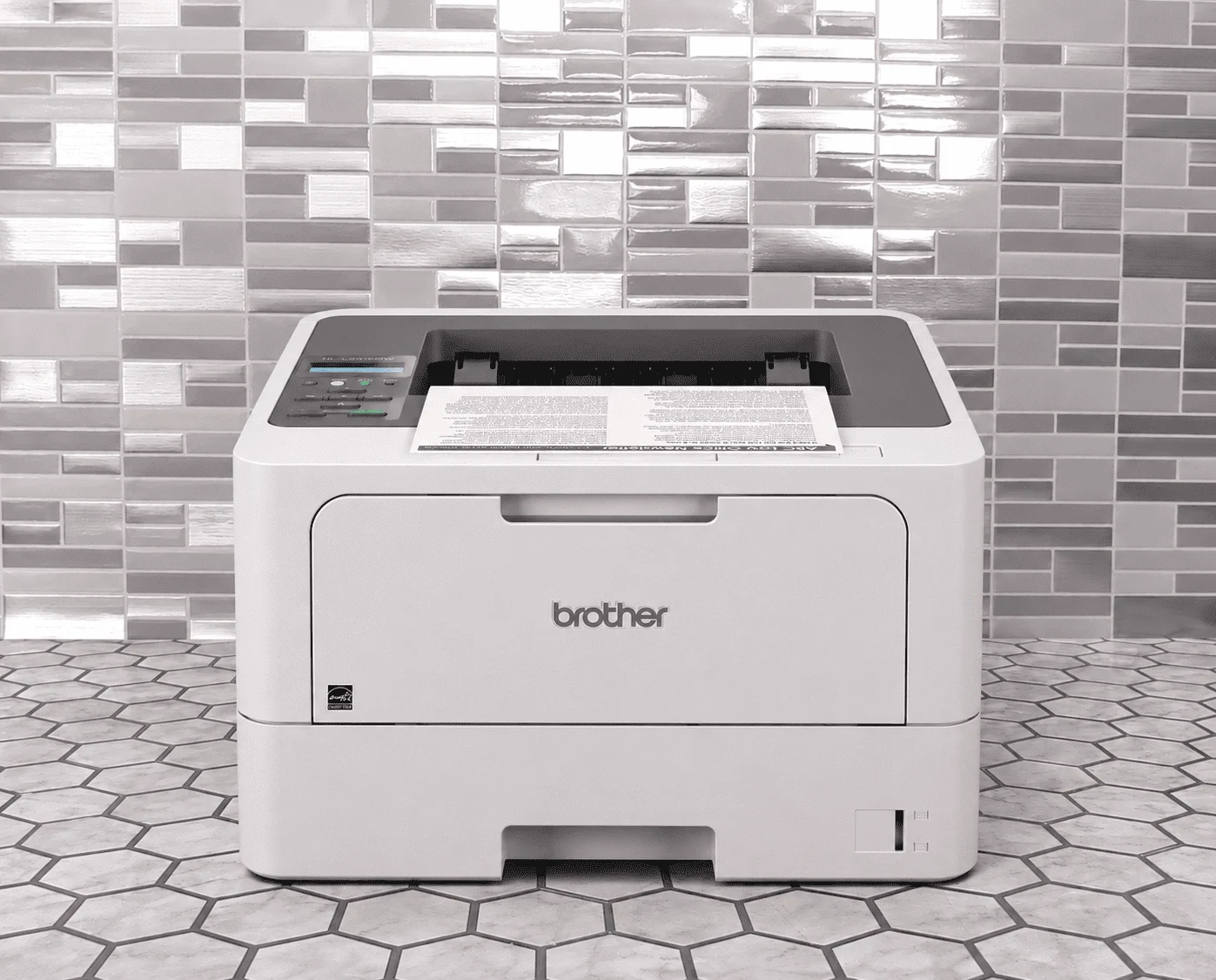
While laser printers excel at printing fast, their built-in scanners are often secondary features:
– Reversing ADF (RADF): Entry-level and mid-range laser MFPs frequently use a reversing mechanism. The printer pulls the page in, scans side A, mechanically flips the page, and feeds it back in to scan side B. This cuts duplex scanning speeds in half.
– Smaller ADF Capacity: Printer feeders usually max out around 35 to 50 sheets and struggle with uneven or worn paper stocks.
2. Document Handling: Receipts, IDs, and Mixed Paper
Paper doesn’t always come in crisp, standard 8.5×11 sheets.
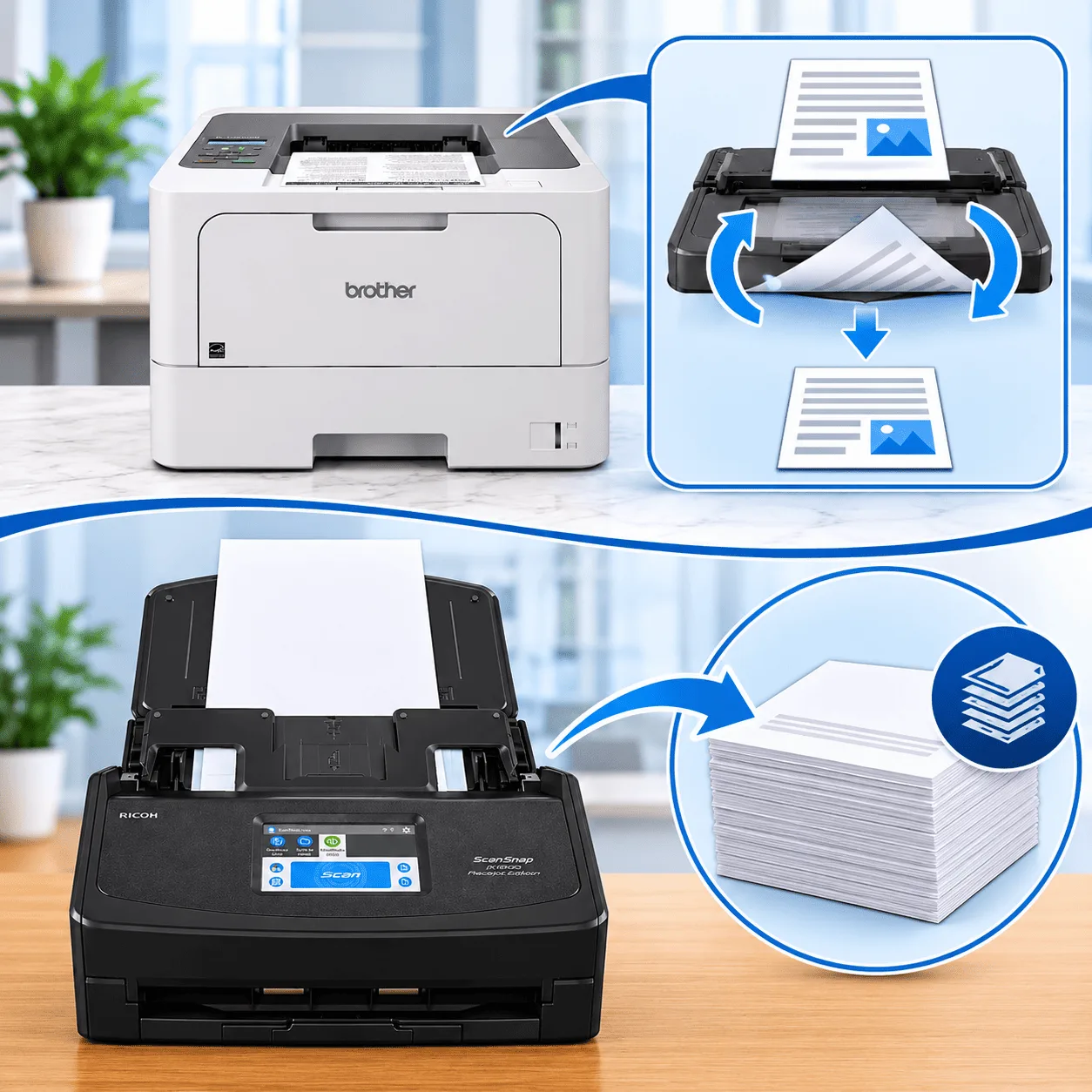
– Standalone Scanners: Outfitted with ultrasonic multi-feed sensors and specialized rubber rollers. They can seamlessly pull mixed stacks containing tiny thermal receipts, thick plastic driver’s licenses, and long legal pages in a single batch without double-feeding.
– All-in-One Printers: Printer paper feed paths are optimized for clean, uniform printer paper. Feeding fragile receipts or thick plastic cards through an MFP’s document feeder frequently results in paper jams or torn documents.
3. Optical Character Recognition (OCR) and Software
Paper doesn’t always come in crisp, standard 8.5×11 sheets.
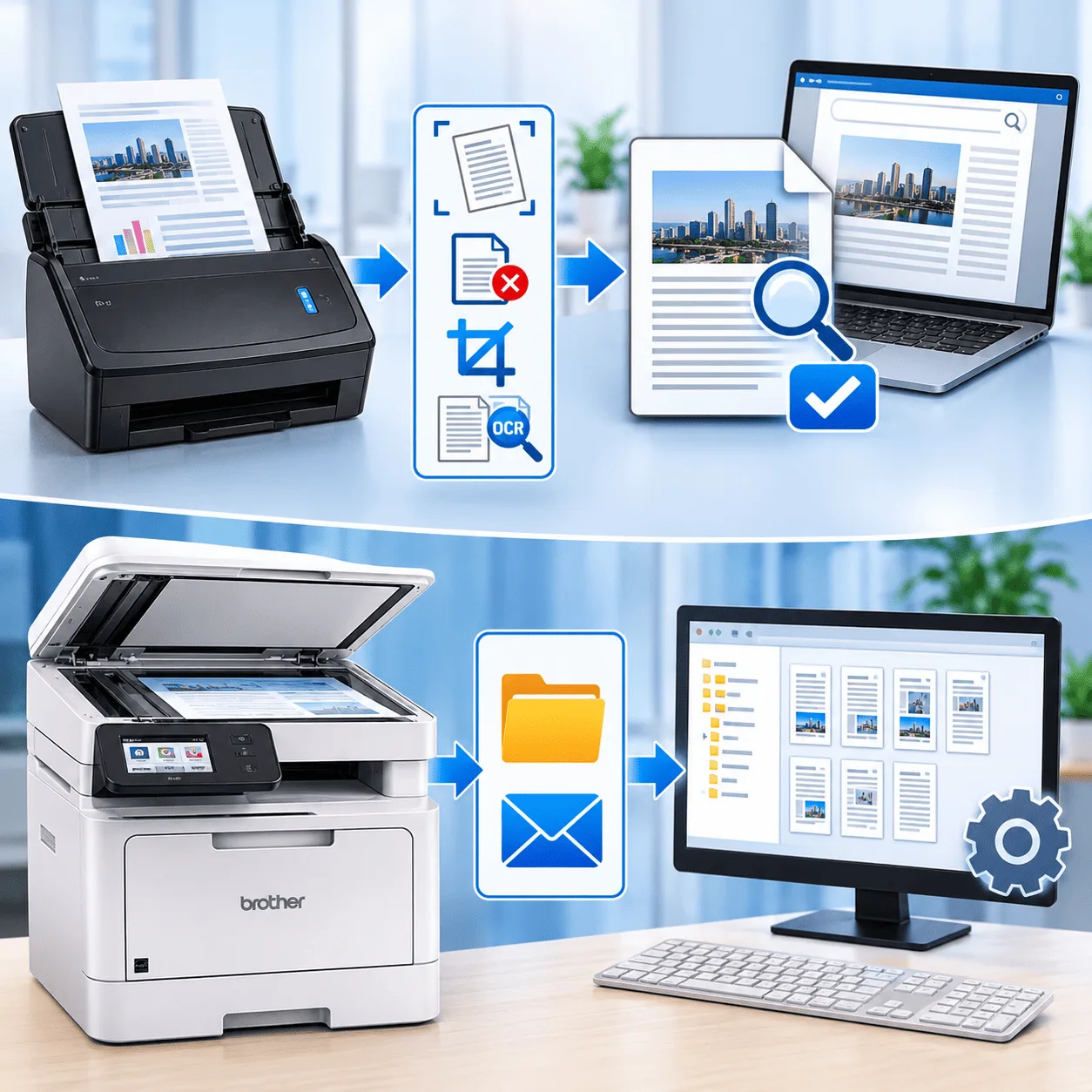
– Standalone Scanner Software: Dedicated devices bundle advanced scanning suites (such as Fujitsu/Ricoh PaperStream, Brother iPrint&Scan, or Kofax software). These automatically deskew tilted scans, remove blank pages, auto-crop margins, and run background OCR to turn documents into searchable PDFs.
– All-in-One Printer Software: MFP software often focuses on basic functions (Scan to Folder or Scan to Email). While capable, setting up automated scan workflows or continuous auto-indexing can require extra configuration steps.
4. Cost Analysis: Upfront Price vs. Long-Term Value
Standalone Desktop Scanner
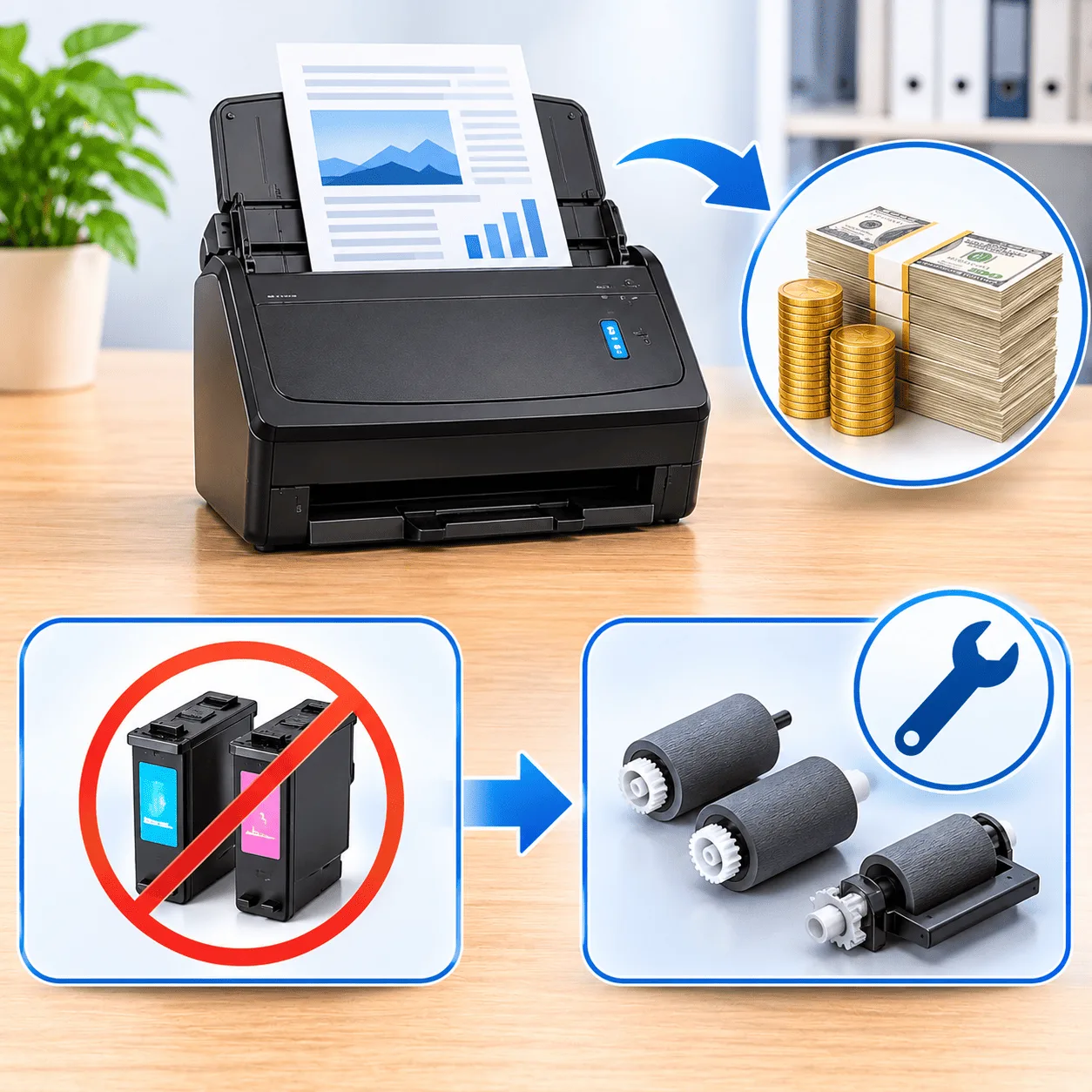
– Initial Cost: $300 – $500 for a quality desktop document scanner.
– Ongoing Costs: Virtually zero. No ink, no toner. Occasional roller replacement kits (20–40) after tens of thousands of scans.
All-in-One Laser Printer
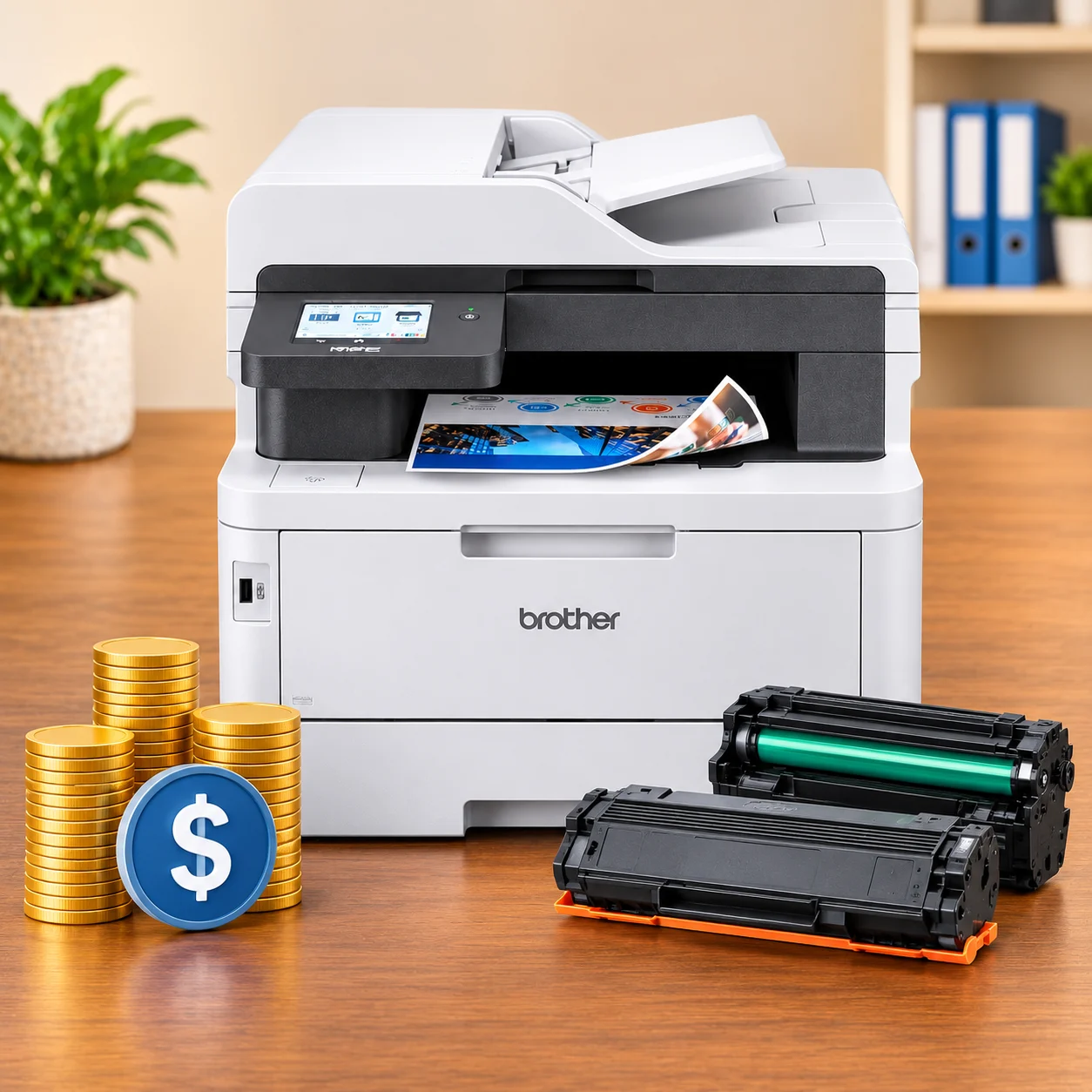
– Initial Cost: $250 – $600 depending on monochrome vs. color capabilities.
– Ongoing Costs: Requires ongoing cartridge purchases (toner, drum units). However, laser printers remain drastically more cost-effective per page than inkjet printers for heavy print runs.
Model-Specific Comparison
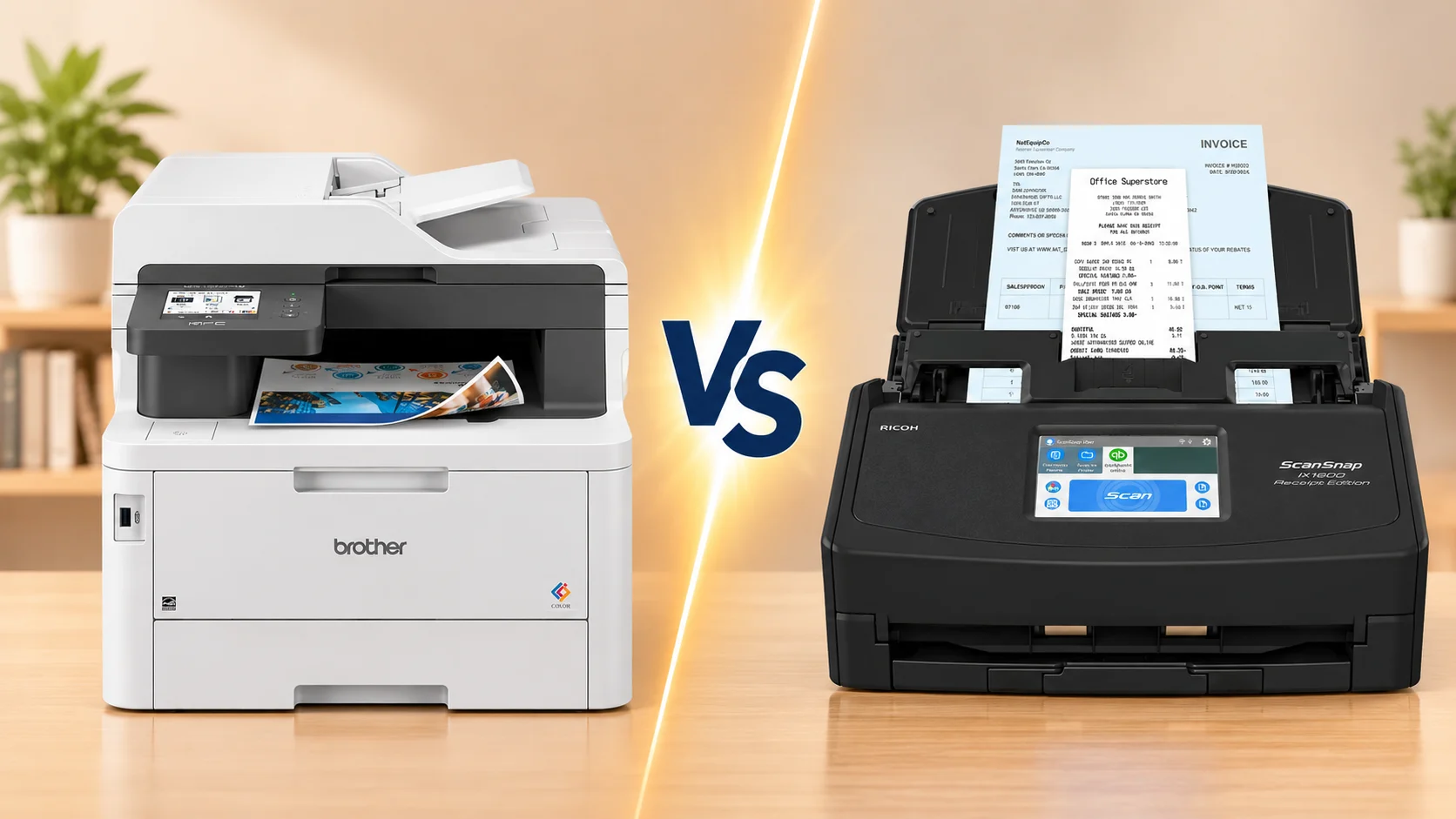
To help you understand the difference between these two digital devices, I provided a basic comparison using specific models.
| Feature / Dimension | Standalone Desktop Scanner | All-in-One (AIO) Laser Printer |
| Representative Hardware | Ricoh ScanSnap iX1600 | Brother MFC-L3780CDW |
| Typical Amazon Price Range | ~$350 – $490 | ~$490 – $570 |
| Duplex Scan Architecture | Single-Pass Dual CIS Sensors | Single-Pass Dual CIS Sensors |
| Rated Scan Speed | 40 ppm / 80 ipm (Color & Mono) | 29 ppm / 22 ipm (Mono / Color) |
| ADF Paper Capacity | 50 Sheets (Optimized for mixed thickness) | 50 Sheets (Standard office paper) |
| Mixed-Media Handling | Specialized receipt guides, plastic cards, thick stock | Standard paper sizes (Letter/Legal) |
| Desktop Footprint | Extremely Compact (11.5″ x 6.3″ x 6.0″) | Large Office Footprint (18.2″ x 15.8″ x 16.1″) |
| Hardware Reliability | Ultrasonic double-feed & dust detection | Standard mechanical pickup rollers |
Decision Matrix: Which Setup Fits Your Use Case?
| Feature / Need | Choose a Standalone Desktop Scanner If… | Choose an All-in-One Laser Printer If… |
| Primary Task | Heavy digitization, receipt tracking, moving paperless | Routine business document printing paired with occasional scanning |
| Scan Volume | High daily/weekly volume (dozens to hundreds of pages) | Low-to-moderate volume (a few pages a week) |
| Desk Space | You have room for a dedicated productivity tool or separate footprint | Space is strictly limited, and you need an all-in-one footprint |
| Physical Output | You never need to print hard copies locally (or use print-on-demand) | Printing text documents, invoices, and forms is a daily requirement |
Top Dedicated Desktop Scanners
If you handle heavy paperwork, tax documents, or receipt logging:
From: Ricoh
ScanSnap iX1600
The gold standard for home office digitization. Features a 4.3-inch touchscreen, blazing 40 PPM speed, intuitive cloud routing, and seamless Wi-Fi connectivity.
From: Brother
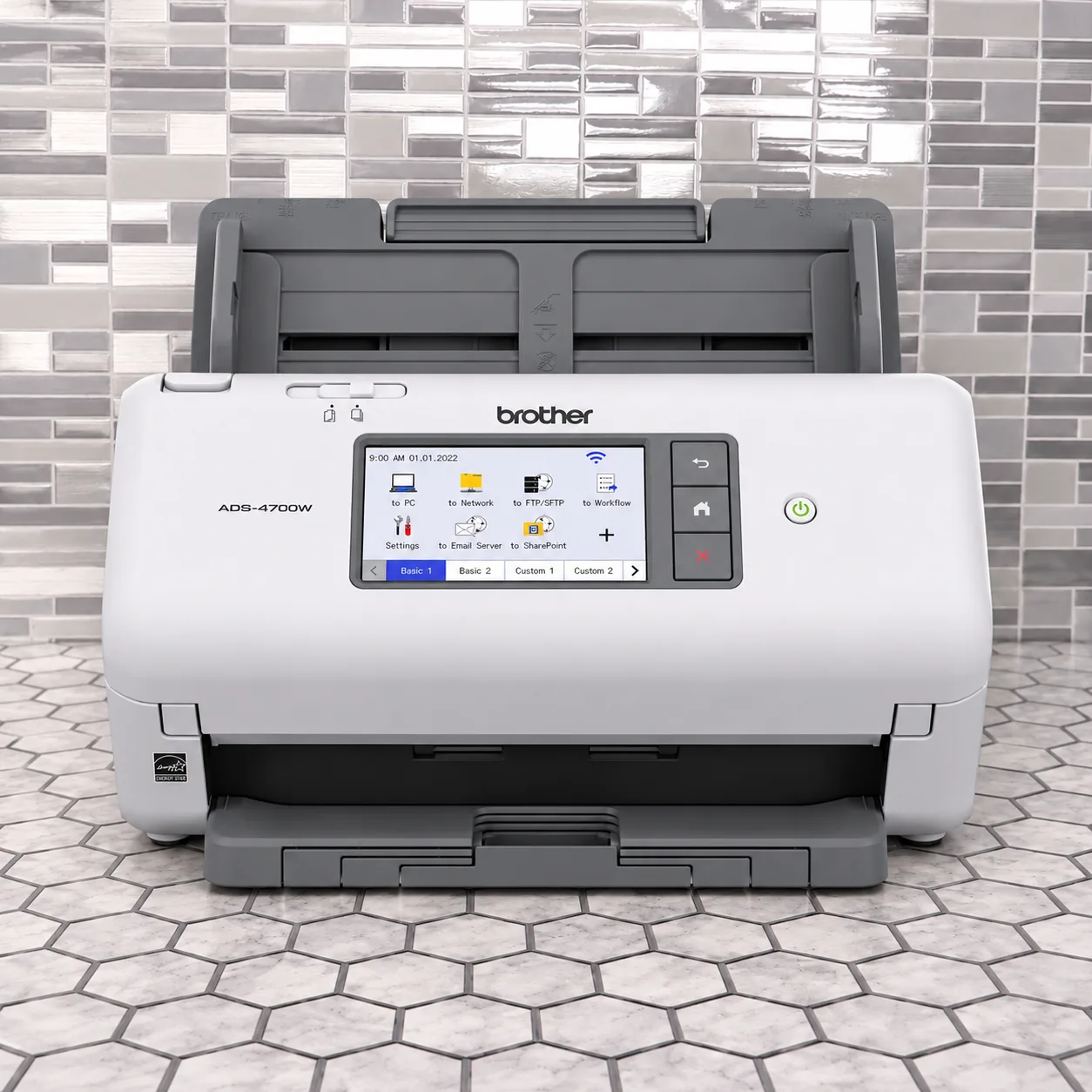
Brother ADS-4700W
A heavy-duty desktop scanner built for speed and reliability, featuring robust ultrasonic multi-feed detection and direct integration with major cloud services.
From: Epson
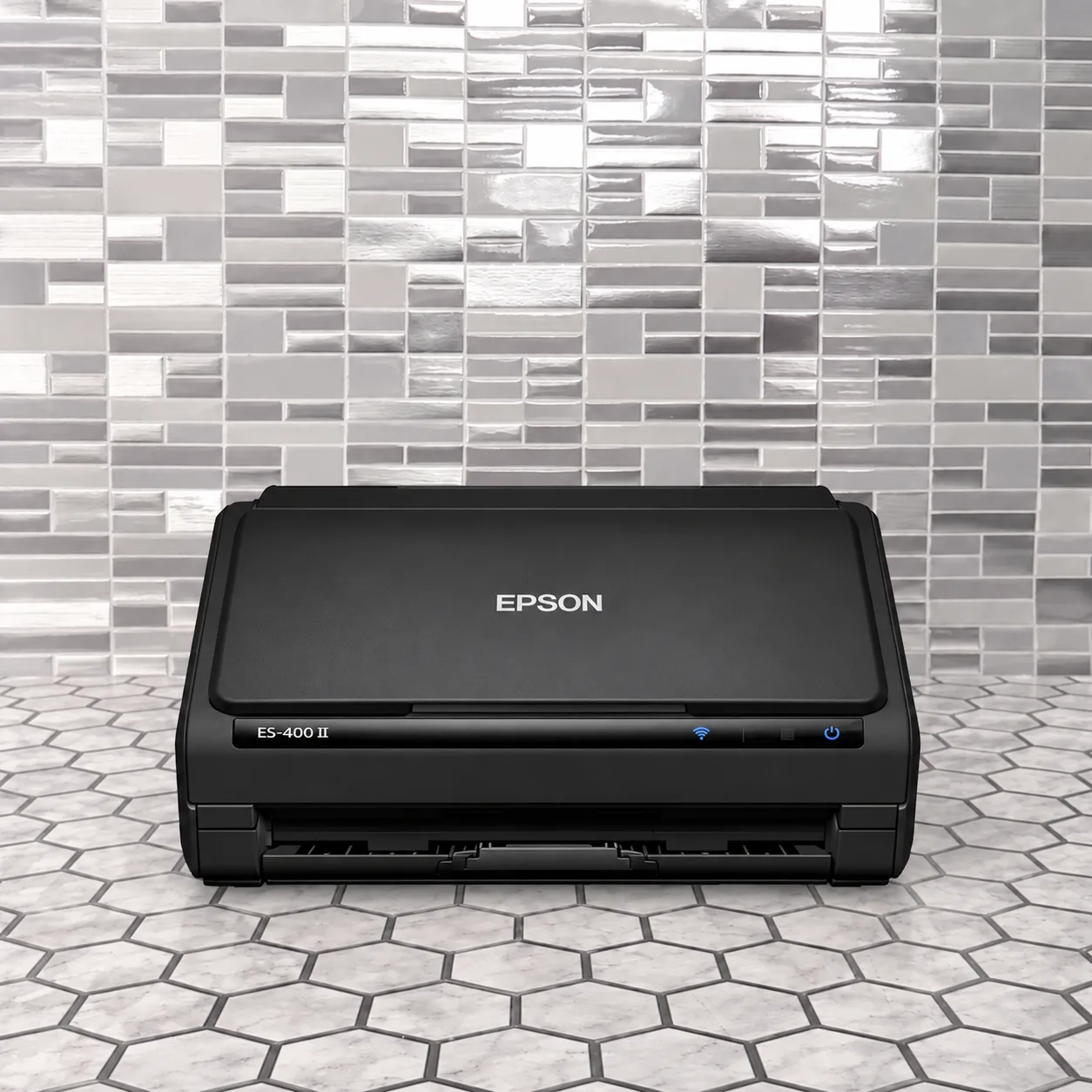
WorkForce ES-500W II
An excellent value wireless scanner featuring fast auto-duplexing and smooth integration with QuickBooks and Excel for receipt tracking.
Top All-in-One Laser Printers
From: Brother
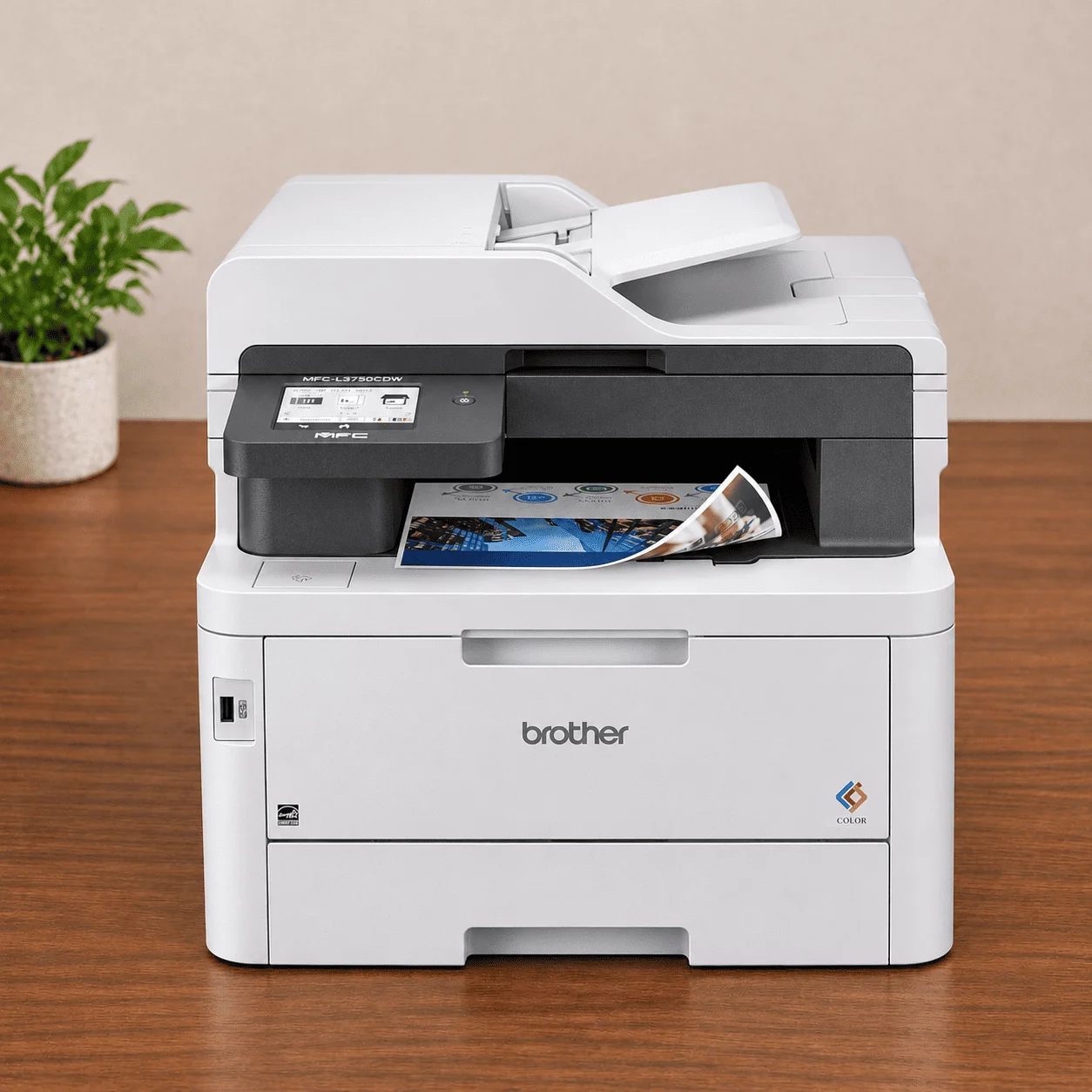
Brother MFC-L3780CDW / L2750DW
Known for low cost-per-page laser printing, single-pass duplex scanning on higher trims, and dependable wireless performance.
From: HP
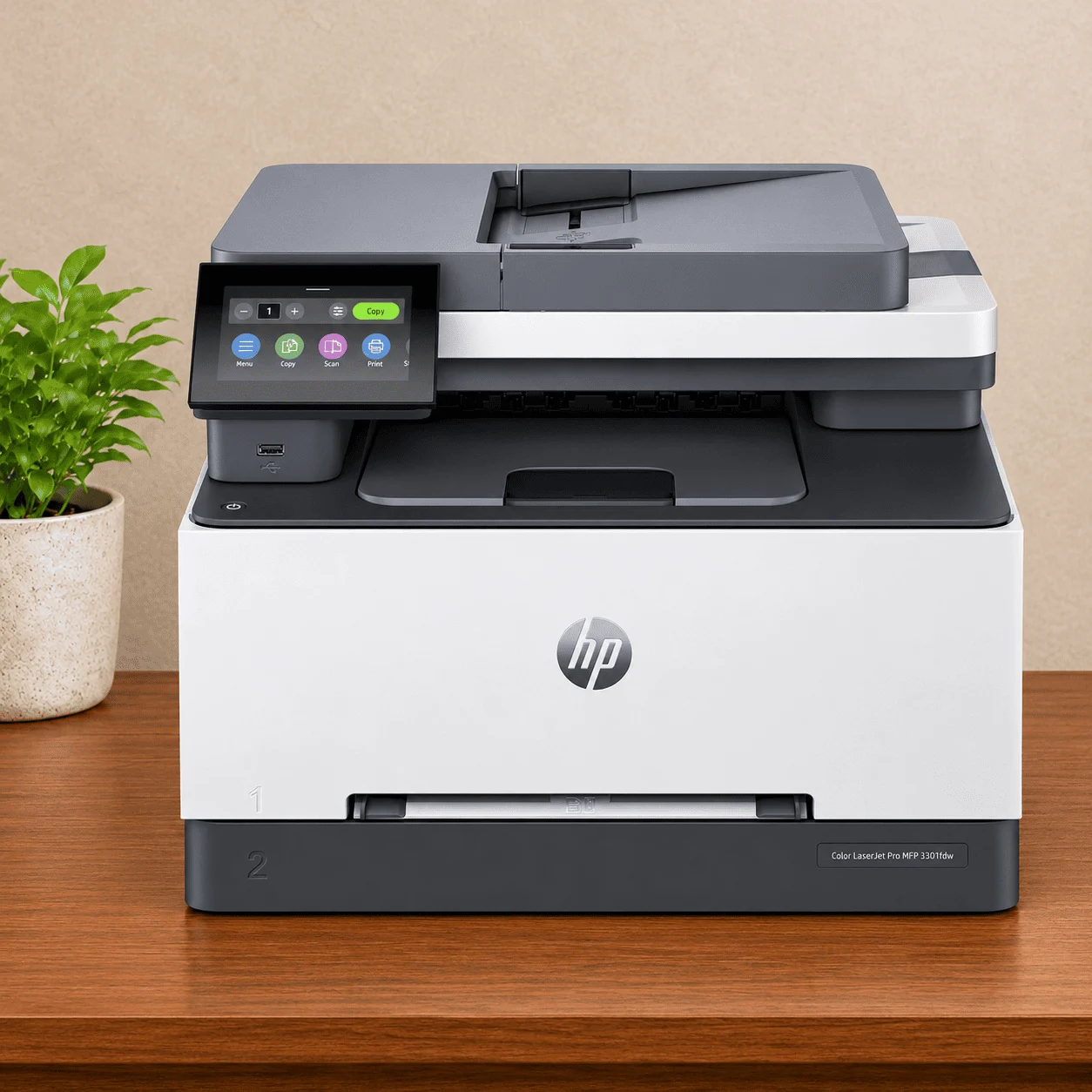
HP MFP 3301fdw
Offers sharp color printing, easy mobile setup, and a compact desktop footprint ideal for small businesses.
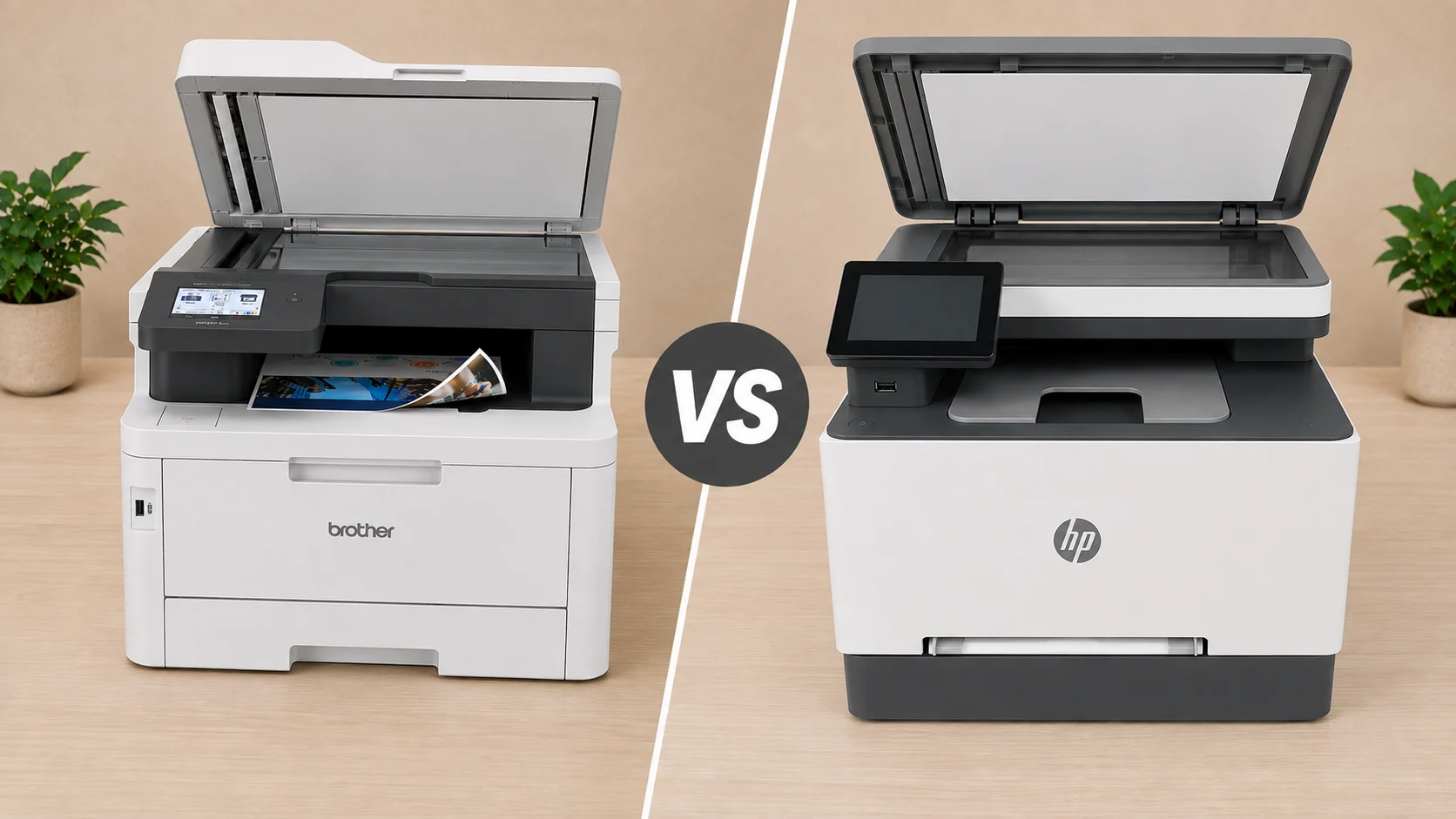
Final Verdict: Which Should You Choose?
– Buy a Standalone Desktop Scanner if: Your main bottleneck is paper entering your office. If you process stacks of receipts, multi-page contracts, or tax forms weekly, a dedicated scanner will save you hours of manual work.
– Buy an All-in-One Laser Printer if: Printing hard copies is your primary daily task, and you only need to scan or copy a couple of pages occasionally.
– The Power User Setup: For the ultimate home office productivity setup, pair a dedicated high-speed scanner with a single-function monochrome laser printer. This keeps your printing costs low while giving you top-tier scanning speed.
Frequently Asked Questions (FAQs)
Can I use a desktop scanner for heavy photo scanning?
Yes. Dedicated desktop scanners equipped with CCD sensors and flatbed attachments or specialized photo-feeding paths excel at digitizing old photo collections. They handle fragile, non-standard photo sizes safely and feature software enhancement tools to restore faded colors and remove dust.
Do all-in-one printers require special scanning software?
Most modern all-in-one printers include manufacturer-supplied software (like Brother iPrint&Scan or HP Smart) for basic scanning. However, for advanced automation, continuous multi-page OCR indexing, and direct-to-cloud routing, third-party document management suites are often required.