Letter vs. Legal Paper Setup: How to Configure Dual-Tray Printers for Seamless Tax Returns
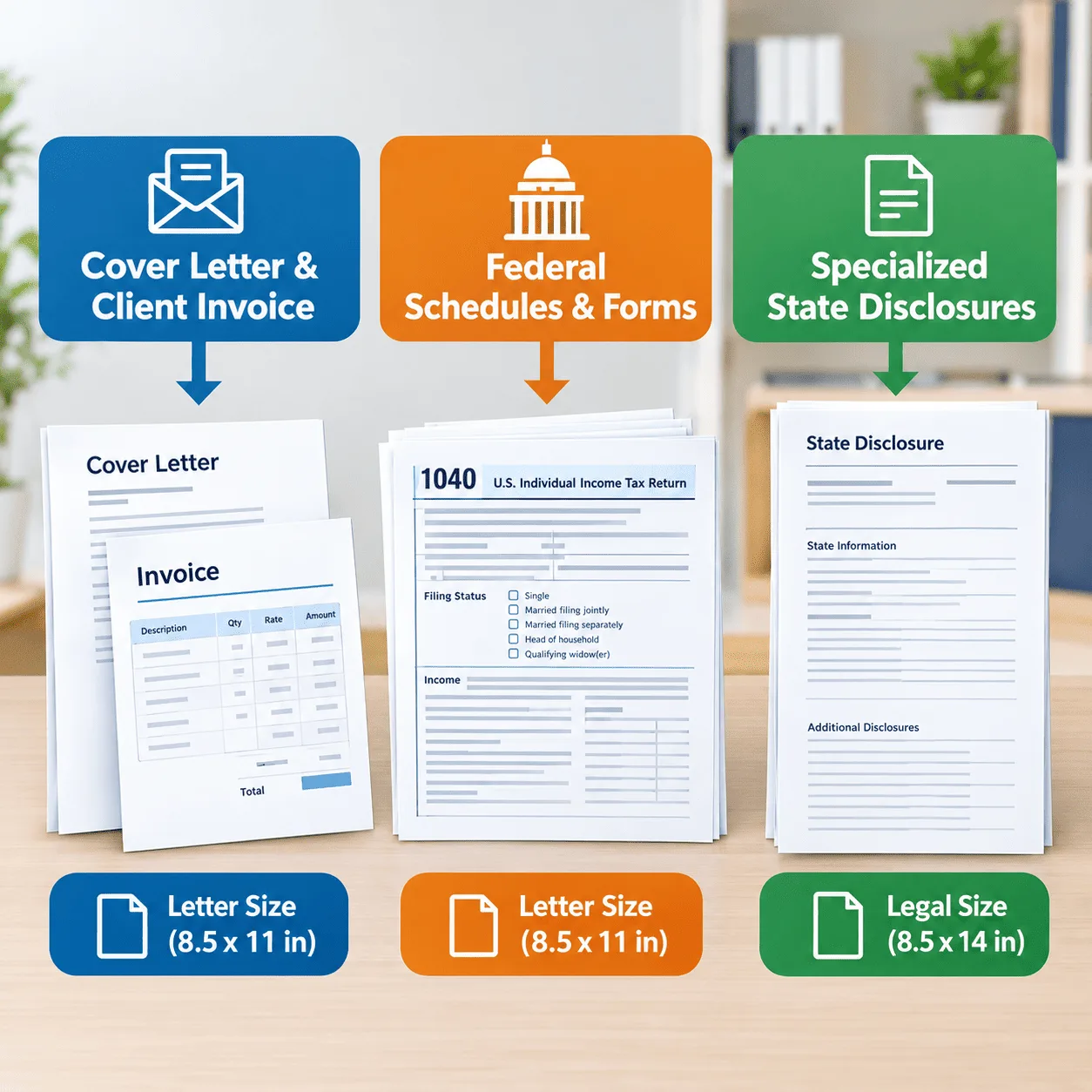
Ask any tax professional about their biggest hardware headache during peak season, and you will rarely hear about print speed or ink smudges. Instead, you will hear about paper handling: sending an 80-page tax package to the printer, only to have the job halt halfway through because a state schedule requires Legal-size paper (8.514 inches) while the cover letter and federal schedules run on standard Letter paper (8.511 inches).
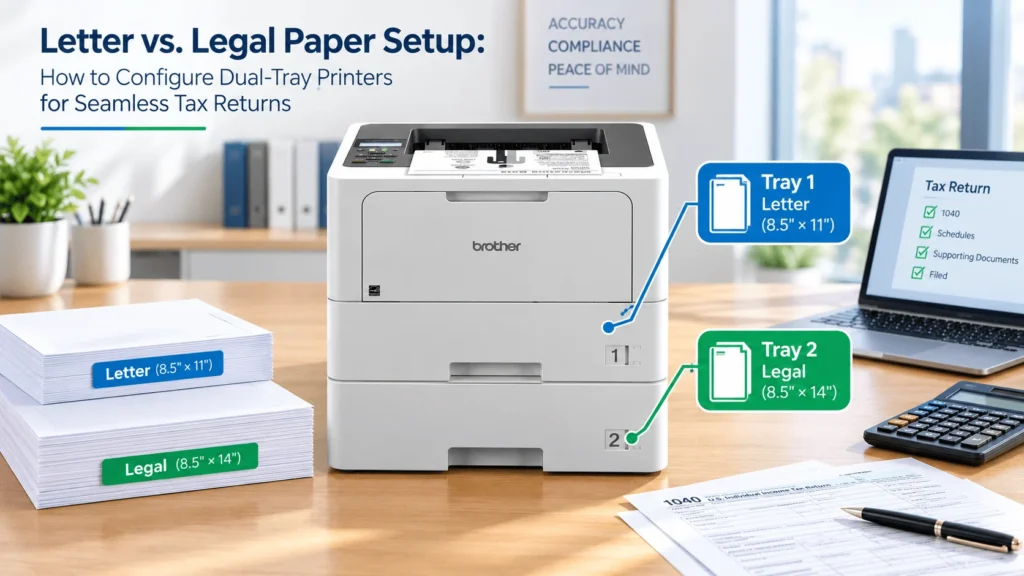
Manually swapping paper media out of a single tray drains billable hours and introduces misprints. Setting up a dedicated dual-tray laser printer—or adding an expansion lower tray to your existing machine—allows your software to dynamically pull the right paper size for every page in a single document automatically.
Below is a complete operational guide to choosing dual-tray hardware, configuring print drivers, and setting up tax software for seamless printing.
The Quick Summary (TL;DR)
– The Ideal Setup: Tray 1 loaded with Letter paper (8.511″); Tray 2 loaded with Legal paper (8.514″).
– Hardware Pick for Heavy Text Volume: Brother HL-L6210DW paired with the LT-5505 (250-sheet) or LT-6505 (520-sheet) expansion paper tray.
– Key Driver Setting: In Adobe Acrobat or your tax software, enable “Choose paper source by PDF page size” to automate tray selection per page without manual intervention.
Why Dual-Tray Printing is Mandatory for Tax Practices
A single tax return assembly often contains mixed media requirements:
– Workflow Interruption: The printer pauses and throws a “Load Tray / Size Mismatch” error, waiting for someone to walk over and swap paper manually.
– Format Distortion: Printing a Legal document onto Letter paper forces scaling down, making fine-print financial disclosures unreadable to clients and tax authorities.
– Paper Jam Wear-and-Tear: Constantly adjusting the physical paper guides inside a single tray wears down plastic positioning latches, leading to crooked feeds and roller jams.
Top Dual-Tray & Expandable Laser Printers
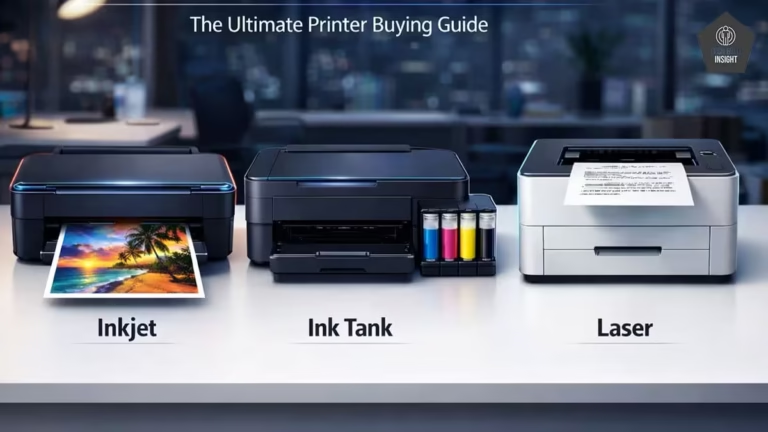
Most entry-level desktop laser printers ship with only one primary paper drawer. To get true dual-tray functionality, you need a machine that supports an optional lower paper feeder attachment or has built-in secondary trays.
Top Expandable Laser Printers
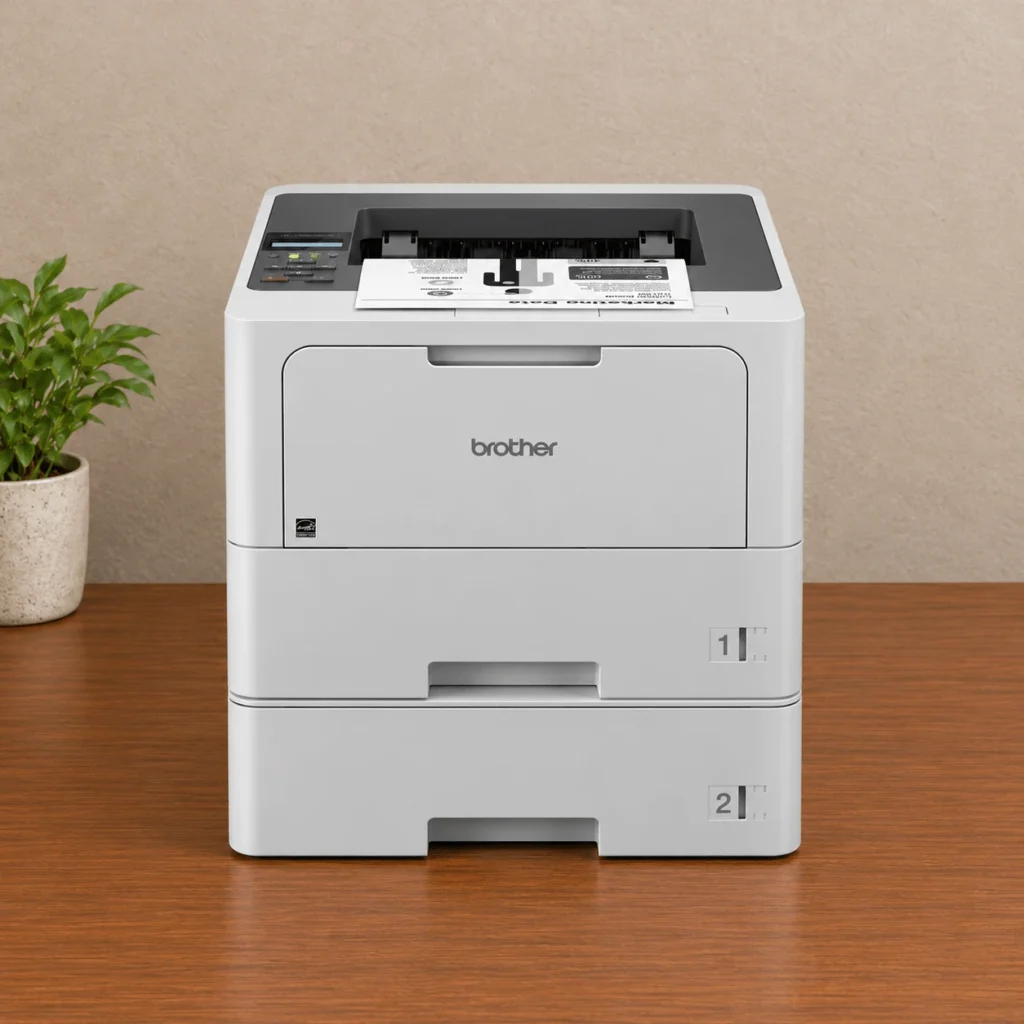
Type: Laser (Mono). Standard Base: 520-Sheet Main Tray, Expansion Tray: LT-5505 (250 sh) or LT-6505 (520 sh), Total: 1,040 Sheets
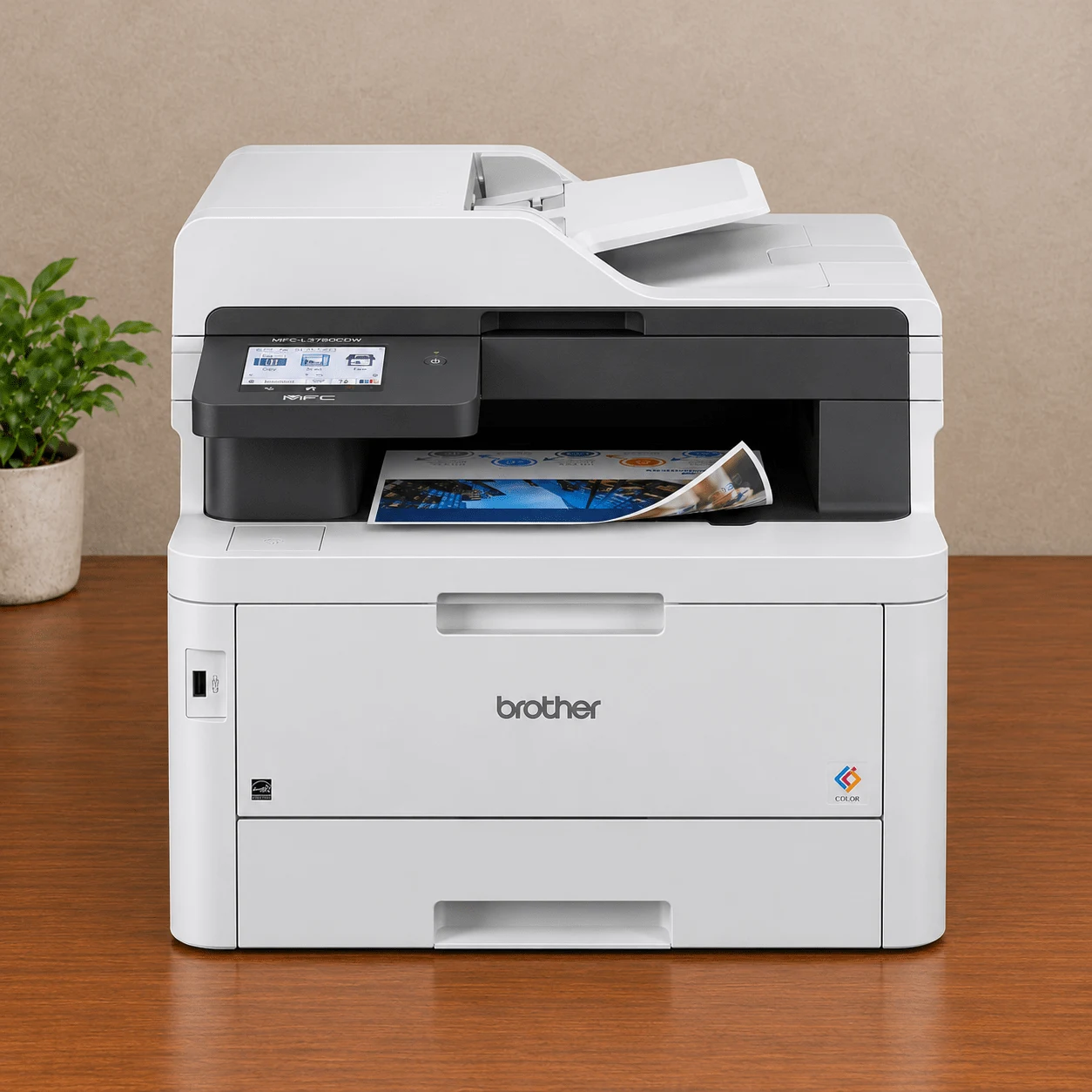
Type: Laser (Color). Standard Base: 250-Sheet Main Tray, Expansion Tray: LT-277CW (250 sh), Total: 500 Sheets
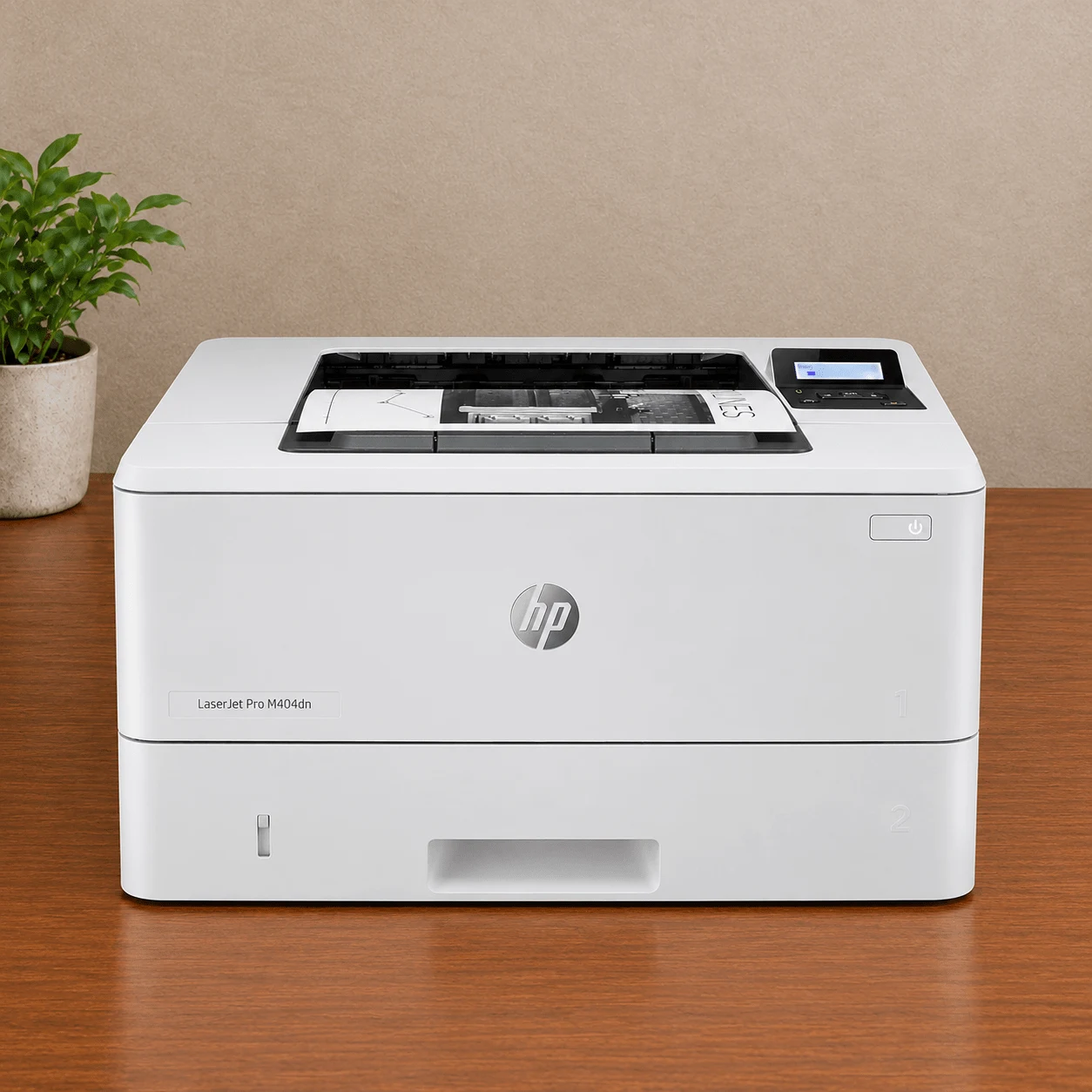
Type: Laser (Mono). Standard Base: 250-Sheet Main Tray, Expansion Tray: D9P29A (550 sh), Total: 800 Sheets
Top Dual-Tray
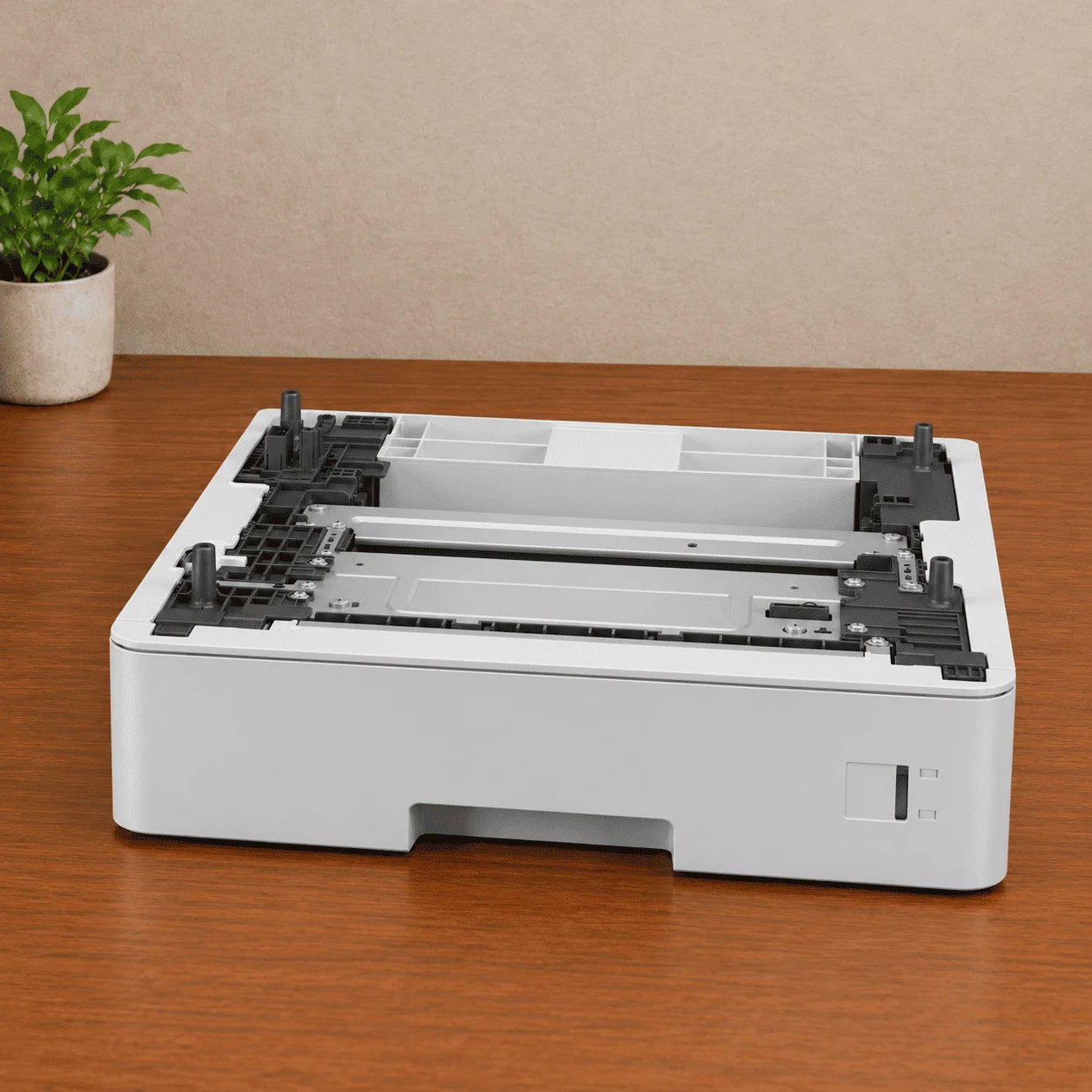
– 250-Sheet Capacity: Holds up to a half-ream of paper to reduce manual refills.
– Letter & Legal Support: Handles Letter, Legal, Executive, A4, and letterhead stock.
– Auto-Tray Switching: Enables automatic switching between Letter (Tray 1) and Legal (Tray 2).
– Stackable Design: Connects underneath the base printer without taking up extra desk space.
– Broad Model Support: Compatible with Brother HL-L6210DW, HL-L5210DW, and MFC-L5710/L5915 series.
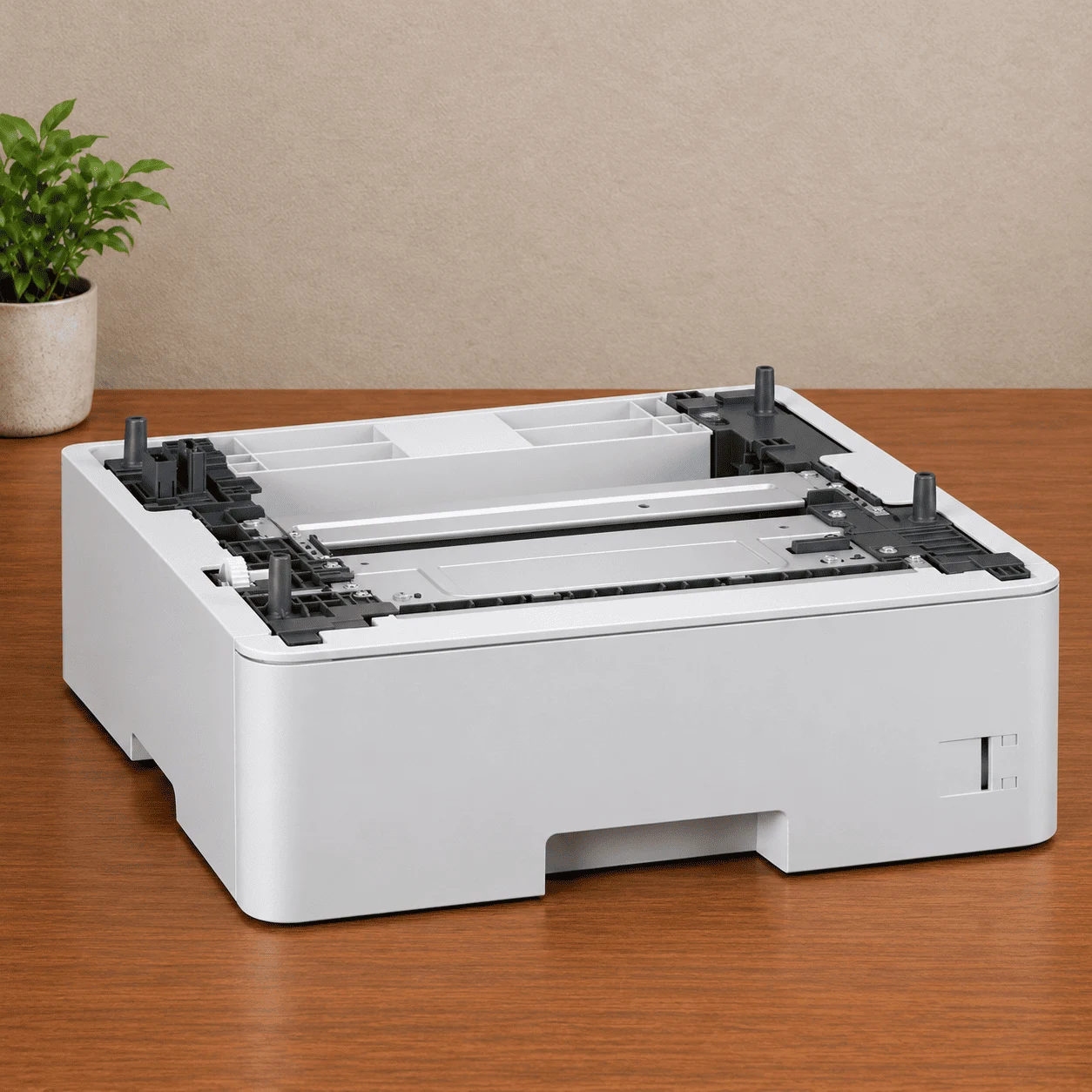
– 520-Sheet Capacity: Holds a full ream of paper to eliminate refills during peak tax season.
– Letter & Legal Support: Accommodates Letter, Legal, Executive, A4, and heavy paper stock.
– Dual-Tray Switching: Pairs seamlessly with Tray 1 for hands-free Letter/Legal form switching.
– Under-Unit Mounting: Installs directly beneath the printer base to maximize workspace efficiency.
– Enterprise Model Support: Compatible with Brother HL-L6210DW, HL-L6400DW, and high-volume MFC laser series.
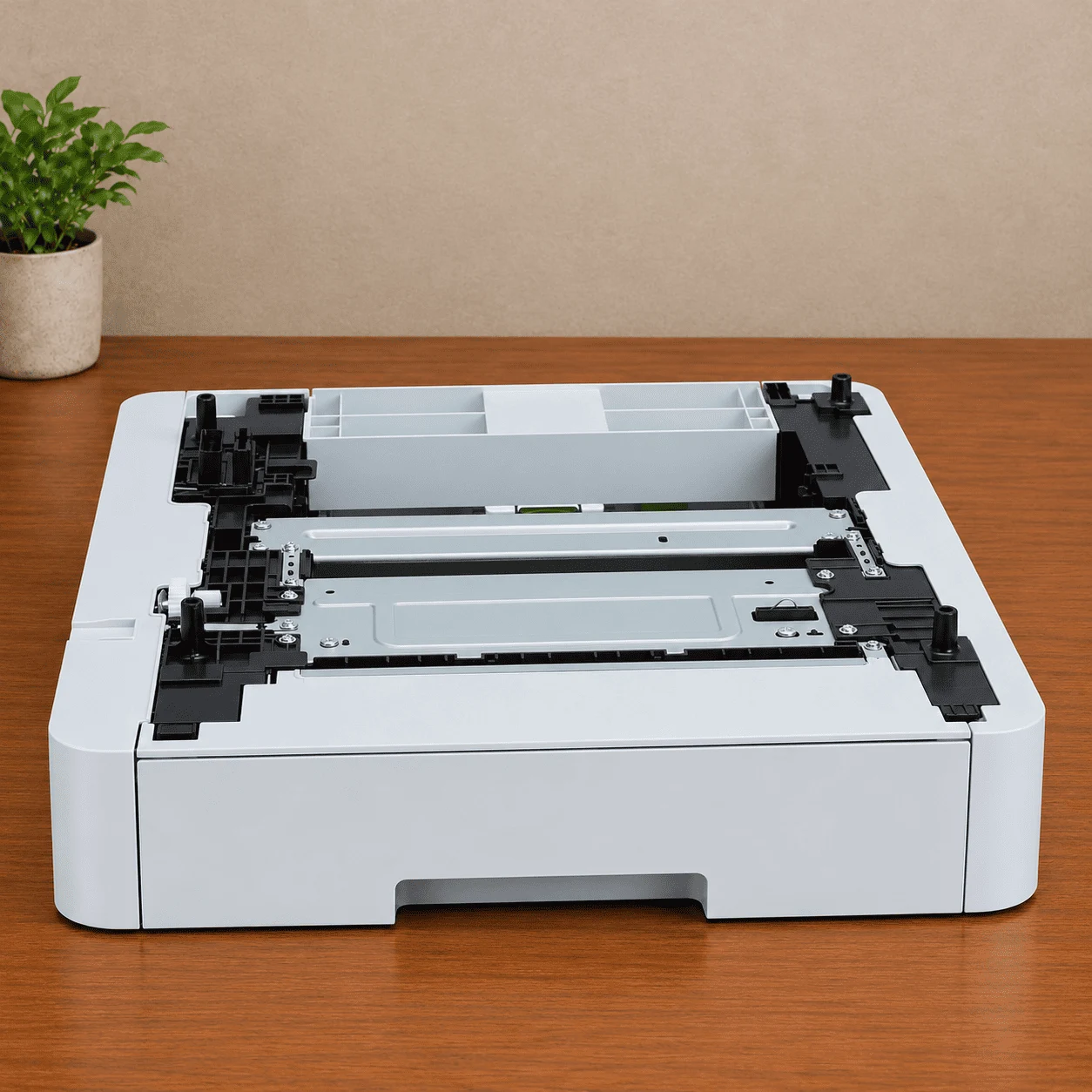
– 250-Sheet Capacity: Doubles paper capacity to 500 sheets to minimize manual refills during heavy print jobs.
– Letter & Legal Support: Handles Letter, Legal, Executive, A4, and letterhead paper.
– Auto-Tray Switching: Enables seamless dynamic switching between Letter (Tray 1) and Legal (Tray 2).
– Under-Unit Mounting: Installs directly beneath the printer base to preserve valuable desk space.
– Color Laser Support: Designed specifically for Brother digital color series, including the MFC-L3780CDW, HL-L3295CDW, and HL-L8245CDW.
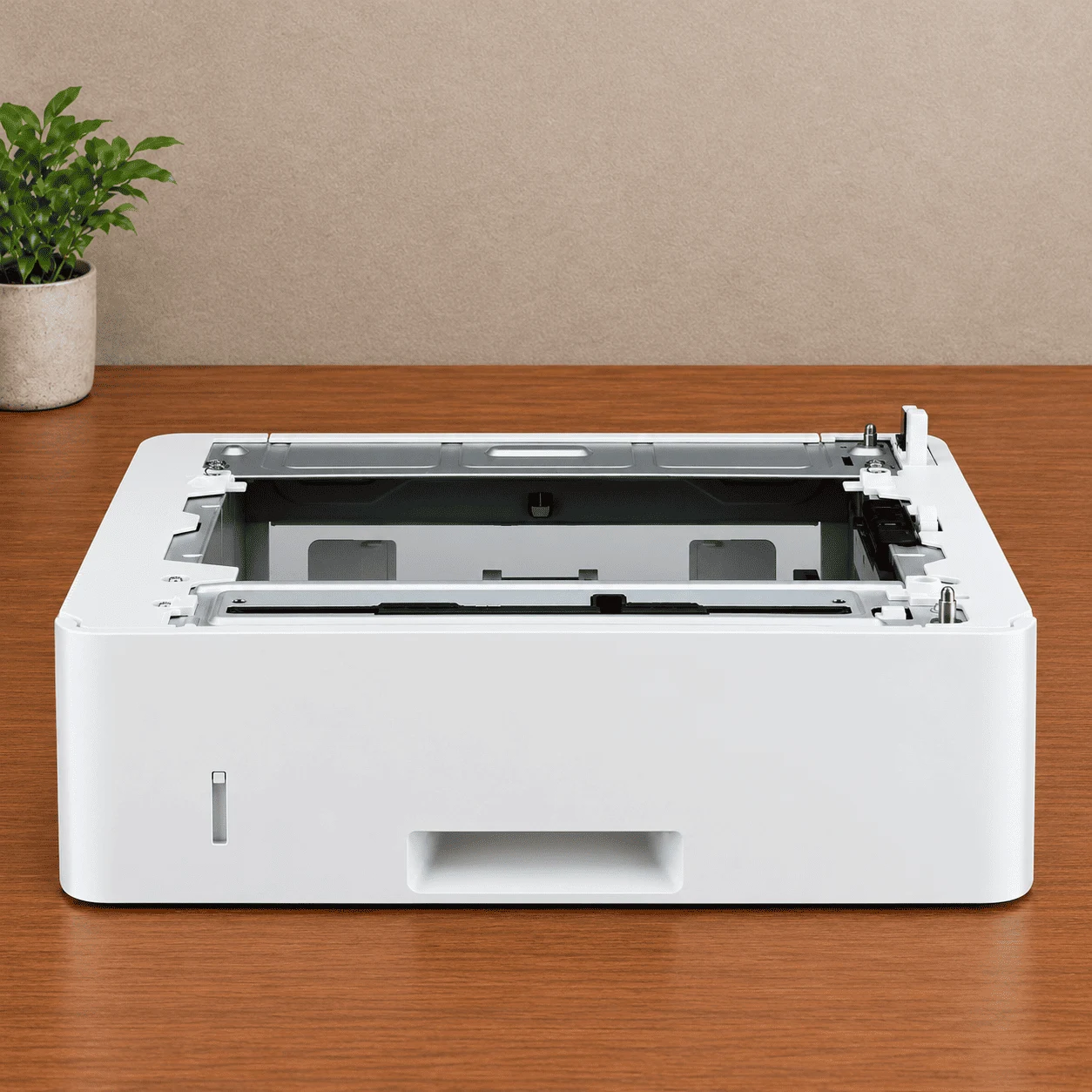
– 550-Sheet Capacity: Holds a full 500-sheet paper ream with room to spare, eliminating mid-job refills.
– Letter & Legal Support: Handles standard Letter, Legal, Executive, A4, and heavy paper stocks.
– Automated Dual-Tray Switching: Integrates with the main input tray to enable dynamic Letter/Legal switching.
– Expandable Total Input: Increases total printer capacity up to 900 sheets for long, uninterrupted print runs.
– Broad HP Compatibility: Fits HP LaserJet Pro M402, M404, 4001 series, and MFP M426/M428/4102 models.
Note:** Always verify lower tray accessory compatibility with your exact base model before purchasing. If you need any information about the lower tray accessory compatibility with any specific printer model, you can contact me; I try to help you as best as I can.
Pro Tip: When expanding your hardware, permanently assign Tray 1 (Top) to standard Letter paper for everyday printing and Tray 2 (Lower) to Legal paper. Because lower expansion trays sit on the bottom, loading heavier Legal paper stock there keeps the machine’s center of gravity stable.
Step-by-Step Configuration Guide
Having the hardware connected is only half the battle; you must tell your operating system and tax software how to handle media assignment.
Step 1: Configure the Device in Operating System Settings
Before opening your tax software, assign paper sizes to physical trays at the driver level:
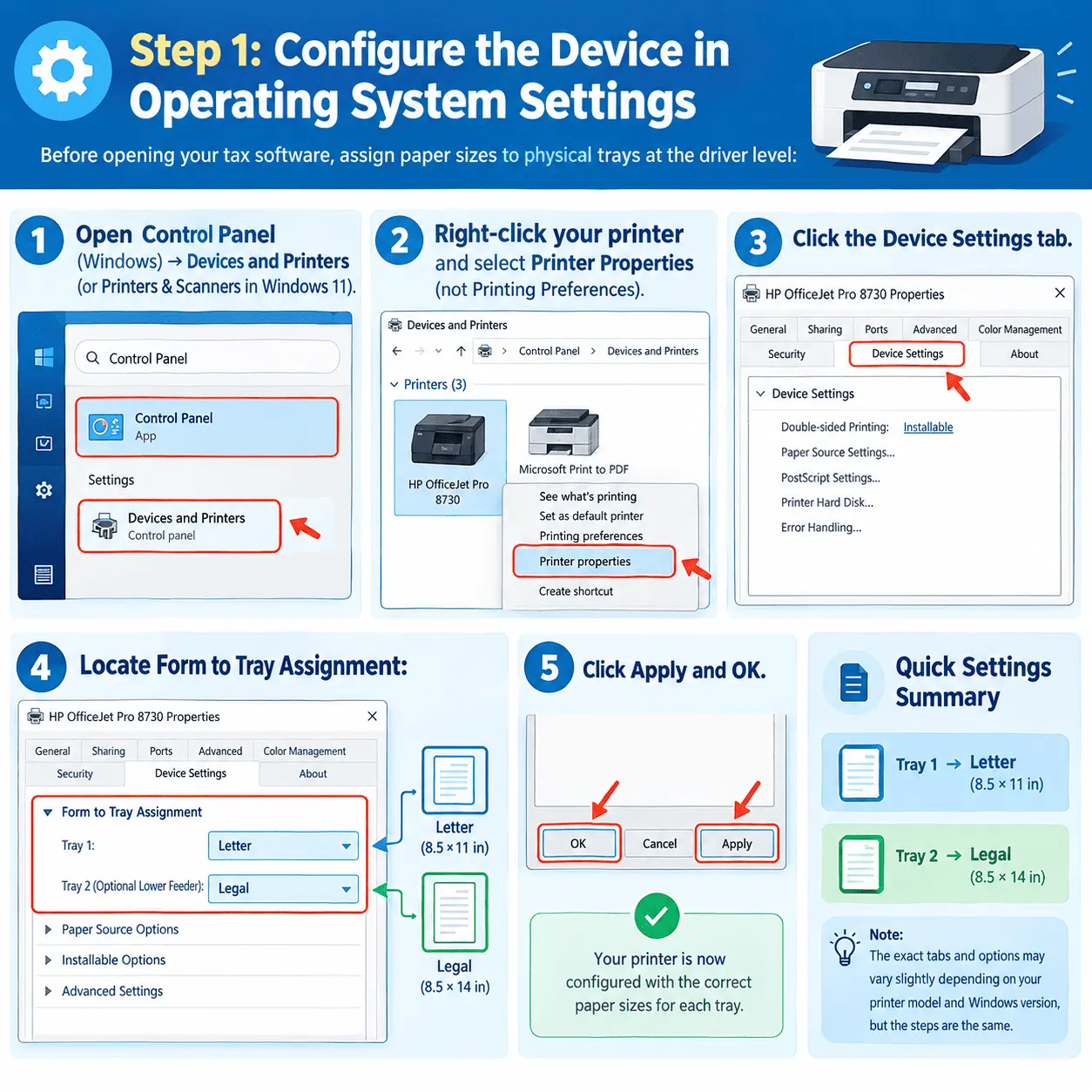
– Open Control Panel (Windows) Devices and Printers (or Printers & Scanners in Windows 11).
– Right-click your printer and select Printer Properties (not Printing Preferences).
– Click the Device Settings tab.
– Locate Form to Tray Assignment:
– Set Tray 1 to Letter.
– Set Tray 2 (Optional Lower Feeder) to Legal.
– Click Apply and OK.
Step 2: Set Up PDF Output in Tax Software (Drake, UltraTax, ProConnect)
Most major professional tax preparation suites render final tax packets as multi-page PDFs before sending them to the spooler.
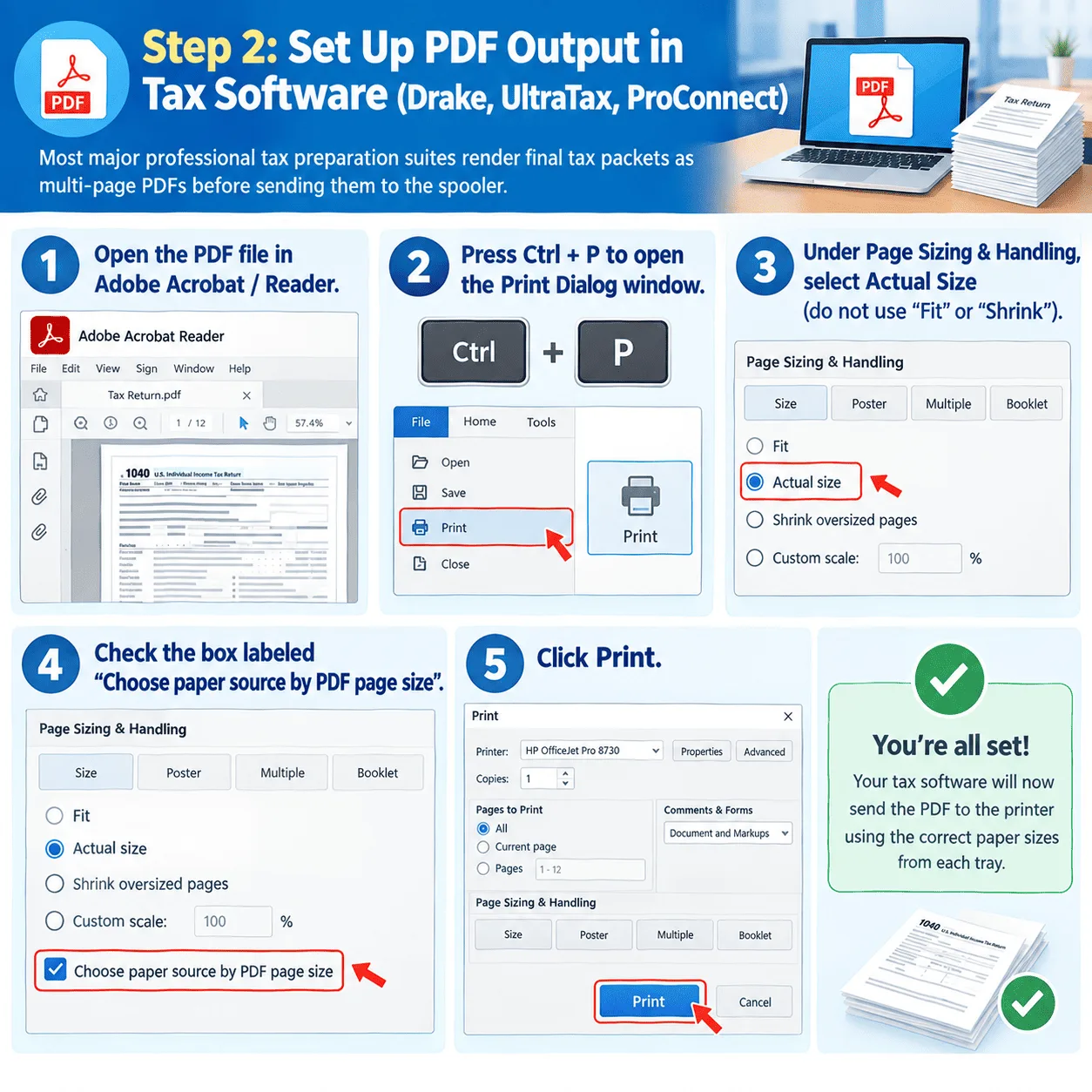
– Open the PDF file in Adobe Acrobat / Reader.
– Press Ctrl + P to open the Print Dialog window.
– Under Page Sizing & Handling, select Actual Size (do not use “Fit” or “Shrink”).
– Check the box labeled “Choose paper source by PDF page size”.
– Click Print.
💡 Need help picking the base printer before buying expansion trays? Check out our complete review guide: Best Heavy-Duty Laser Printers for Home Tax Professionals and Accountants.
Troubleshooting Common Dual-Tray Failures
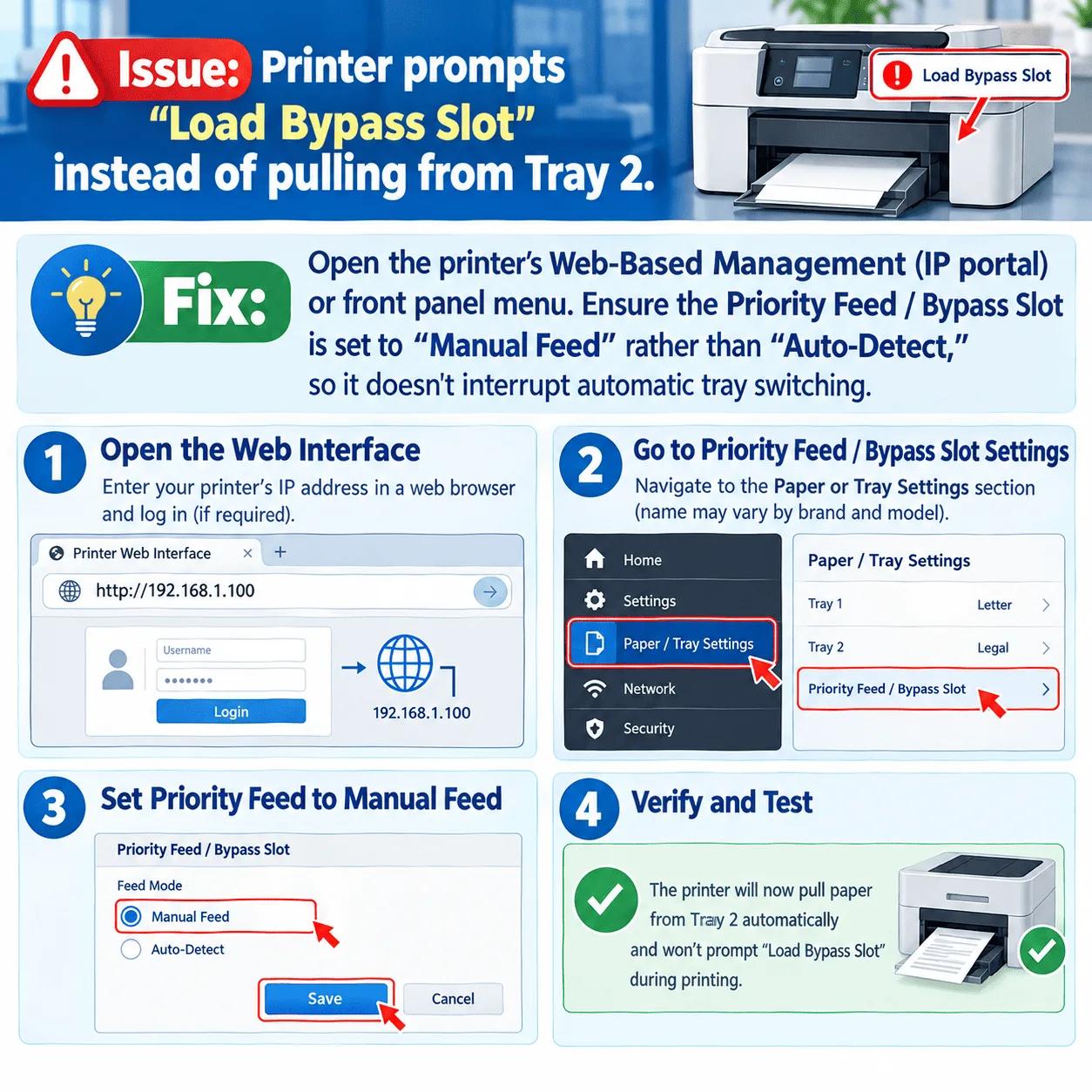
Issue: Printer prompts “Load Bypass Slot” instead of pulling from Tray 2.
Fix: Open the printer’s Web-Based Management (IP portal) or front panel menu. Ensure the Priority Feed / Bypass Slot is set to “Manual Feed” rather than “Auto-Detect,” so it doesn’t interrupt automatic tray switching.

Issue: Legal pages print with cropped margins on Letter paper.
Fix: The driver is overriding your PDF application settings. Re-check Step 1 above to ensure Tray 2 is explicitly assigned to “Legal” in Windows Device Settings, not set to “Auto Select.”
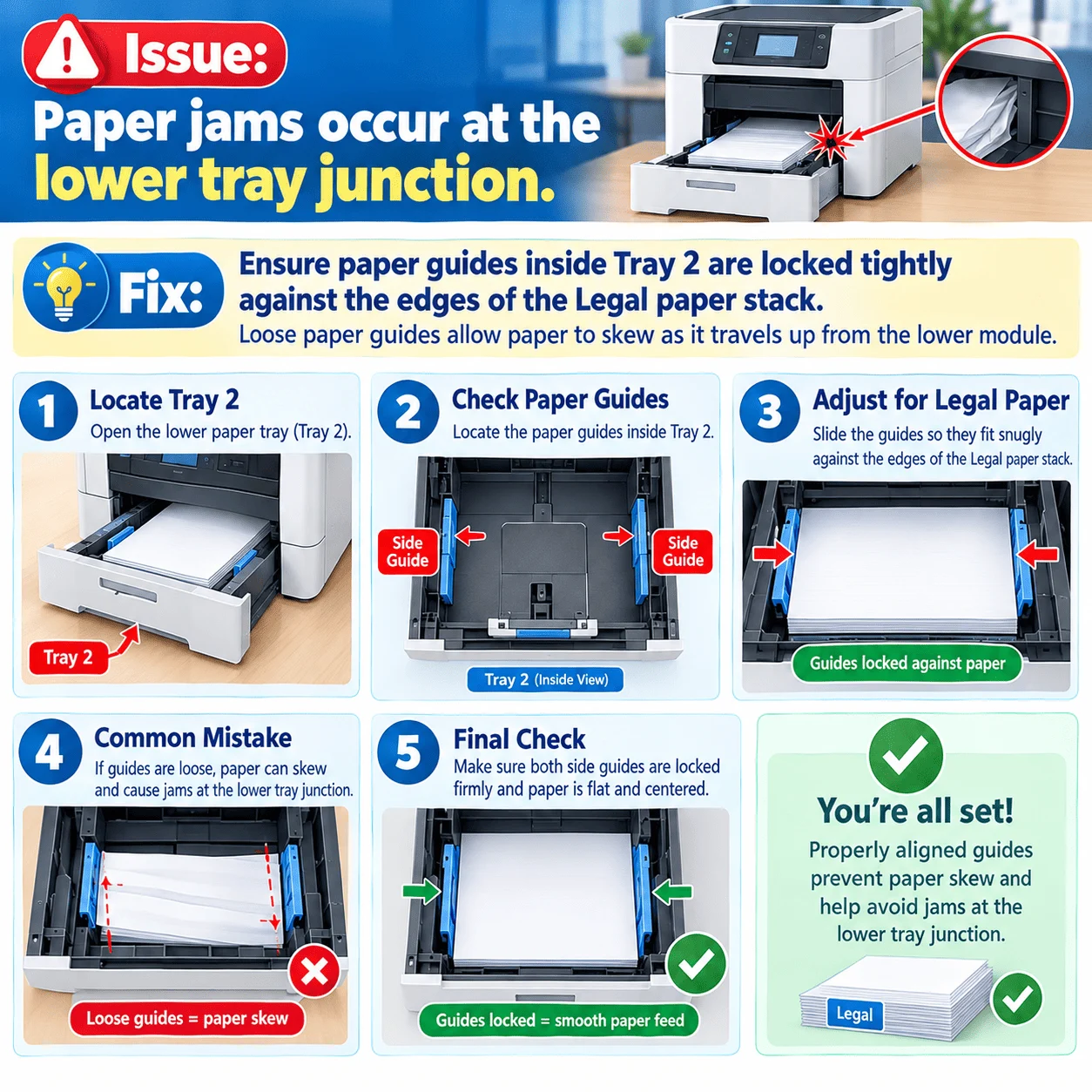
Issue: Paper jams occur at the lower tray junction.
Fix: Ensure paper guides inside Tray 2 are locked tightly against the edges of the Legal paper stack. Loose paper guides allow paper to skew as it travels up from the lower module.