9 Easy Fixes If Your Printer Prints Lines or Streaks
Printers are essential tools for both home and office use. Whether you’re printing documents, photos, or reports, you expect clear and professional results. However, one frustrating issue many users encounter is lines or streaks appearing on printed pages.
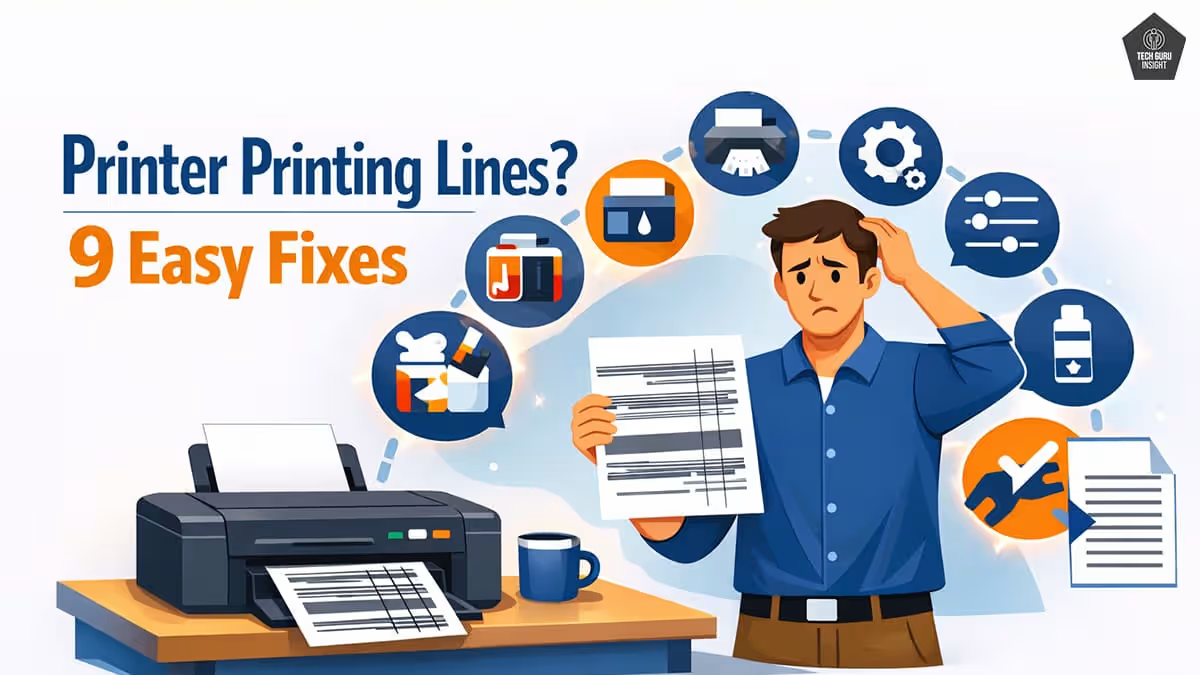
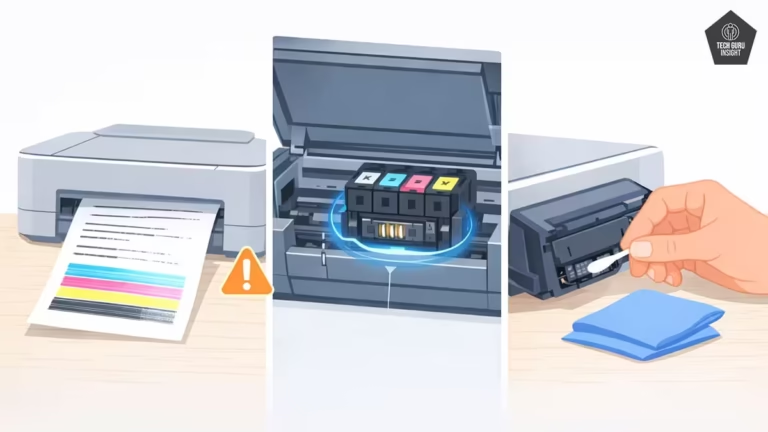
These lines can appear as horizontal or vertical streaks, white gaps, or dark bands, reducing print quality. The good news is that most of these problems are not serious and can usually be fixed with simple maintenance steps.
In this guide, you’ll learn why your printer prints lines or streaks and how to fix the problem step by step. We will also show you how to prevent this issue from recurring.
Download our Printer Streak Troubleshooting Checklist (PDF) to quickly diagnose and fix printing lines.
How to Identify the Type of Lines Your Printer Is Producing
Before fixing the issue, it helps to identify what type of lines appear on your prints, because different line patterns usually indicate different problems.
| Type of Line | Most Likely Cause |
| Horizontal lines | Clogged printhead |
| Vertical streaks | Dirty rollers or drum |
| White lines | Blocked printhead nozzles |
| Black streaks | Dirty toner or drum |
| Colored streaks | Low or clogged color cartridge |
Identifying the type of lines can help you solve the issue faster without unnecessary troubleshooting steps.
Pro Tip
Before running a printhead cleaning cycle, print a nozzle check pattern from the printer’s maintenance menu. This pattern shows which ink channels are blocked. If only one color is missing, running a full cleaning cycle may waste ink. Instead, repeat the nozzle test once or twice before cleaning.
My Experience:
I once encountered a printer that produced vertical streaks on every page. After checking the cartridges and cleaning the printhead, the issue remained. It turned out the paper rollers had accumulated dust from low-quality paper. Cleaning the rollers solved the problem immediately.
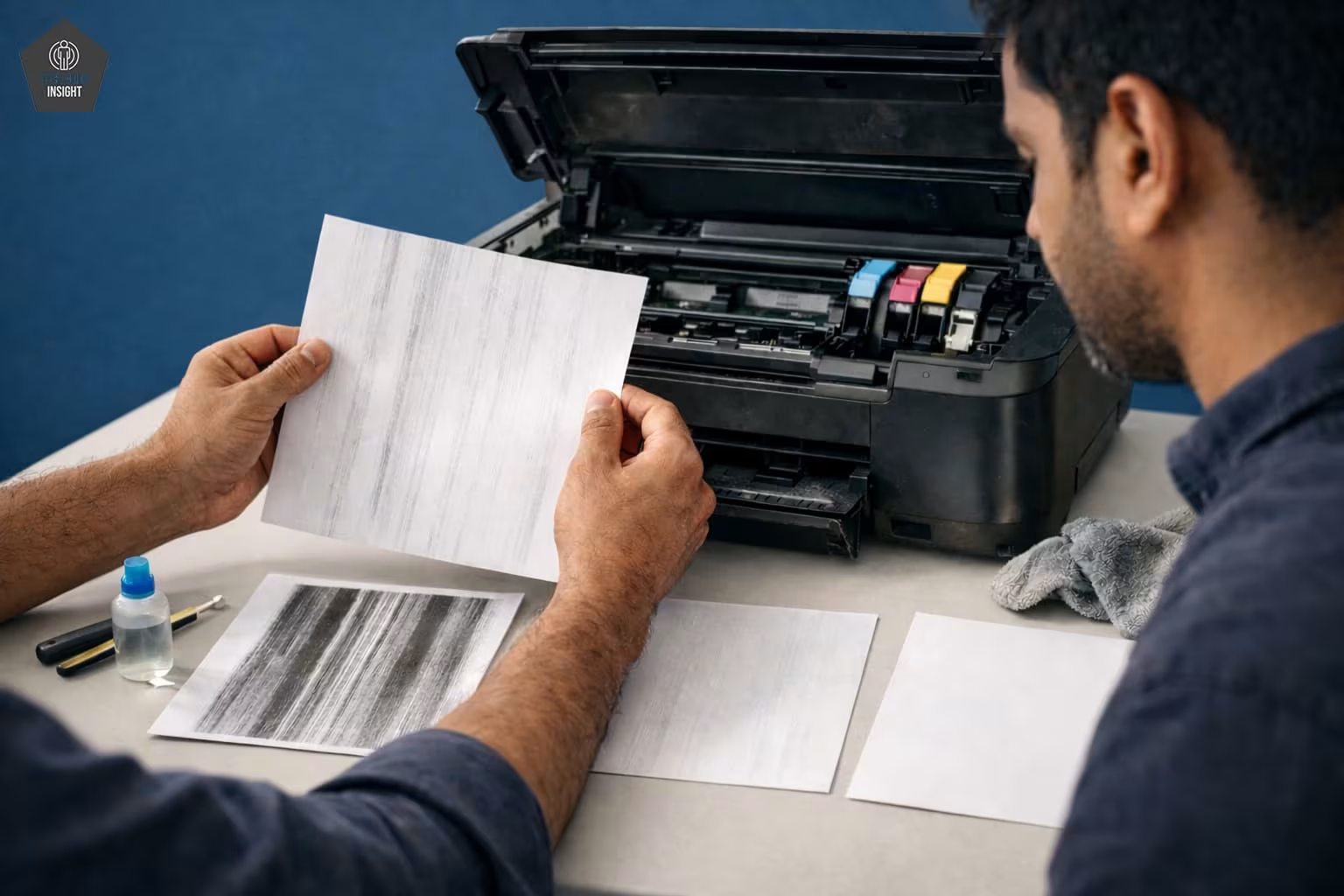
In many cases, streaks appear simply because the printer has not been used for several weeks. I’ve personally seen this happen with many inkjet printers used in home offices. After running one or two printhead cleaning cycles, the lines usually disappear.
However, if the lines repeat at the same distance on every page, the issue is often related to the drum unit in laser printers.
Before You Start Fixing the Printer
Before trying the fixes below, check these simple things:
• Restart the printer once.
• Make sure the paper tray is properly loaded.
• Check that cartridges are installed correctly.
• Print a test page from the printer settings.
These simple checks can sometimes resolve the issue immediately.
Why Your Printer Is Printing Lines or Streaks?
There are several common reasons why printers produce lines or streaks. Below are the nine most common causes and how to fix them.
✅ Clogged Printhead
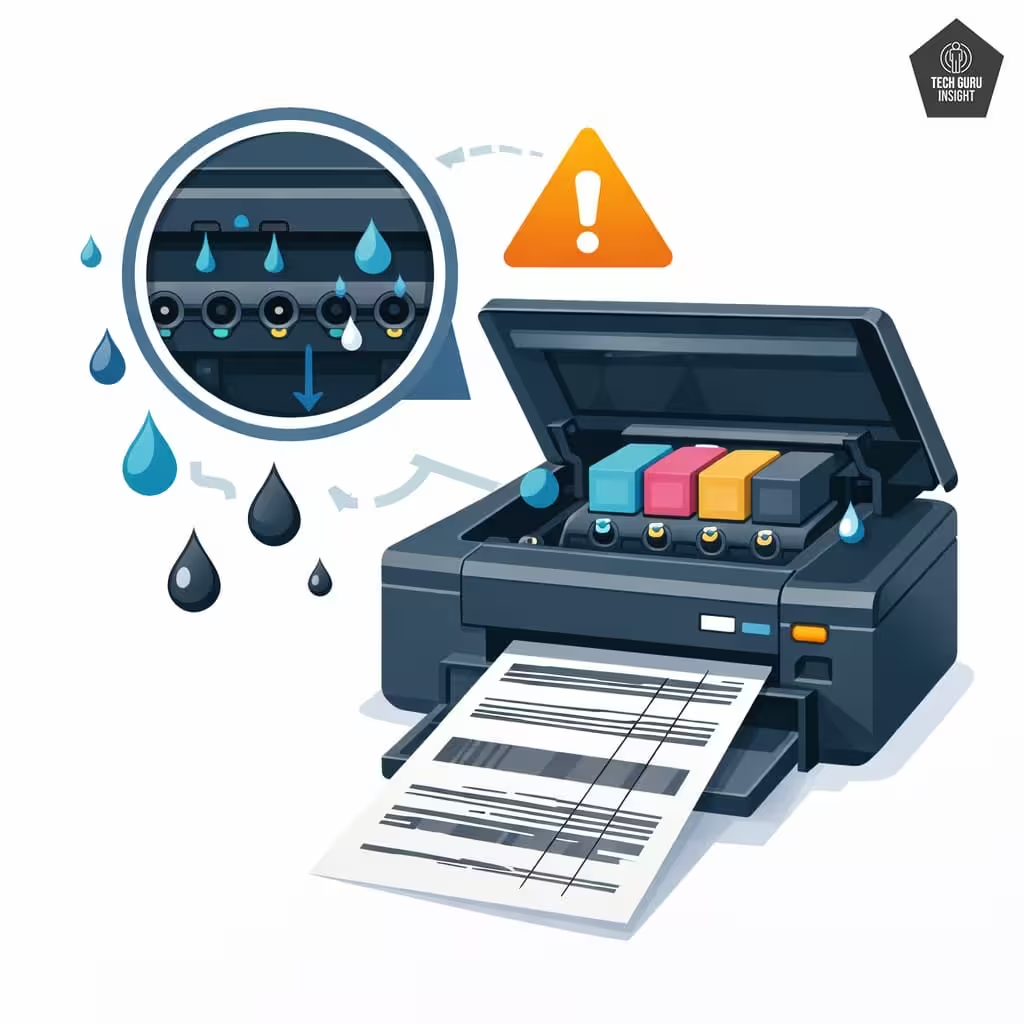
A clogged printhead is the most common cause of lines in inkjet printers.
Ink inside the printhead nozzles can dry out when the printer is not used for a long time. When this happens, ink cannot flow evenly onto the paper, causing horizontal lines or missing sections in printed text and images.
How to fix it
Follow these steps:
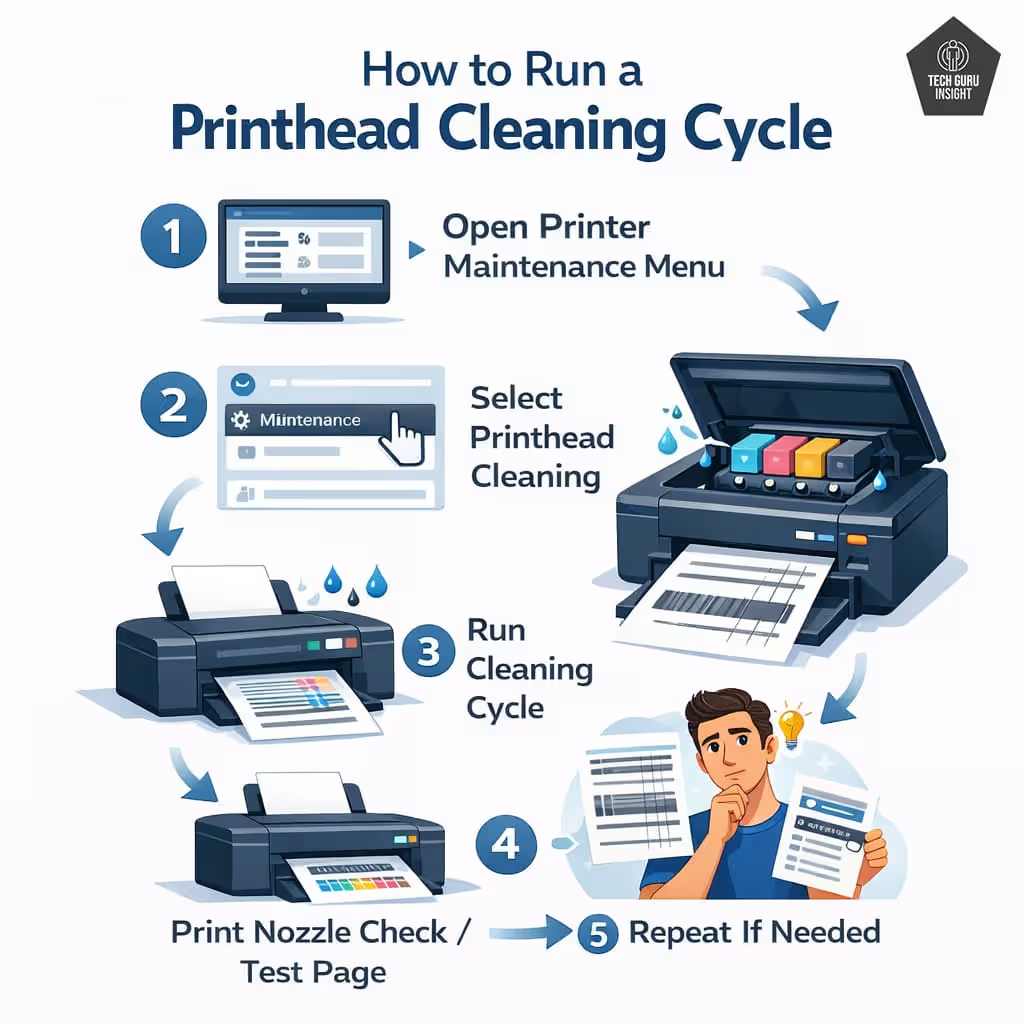
1. Open your printer’s maintenance or settings menu.
2. Select Printhead Cleaning.
3. Run the cleaning cycle.
4. Print a Nozzle Check or Test Page.
5. If lines remain, repeat the cleaning once more.
Avoid running more than two cleaning cycles in a row, as excessive cleaning wastes ink.
✅ Low or Dried Ink Cartridges
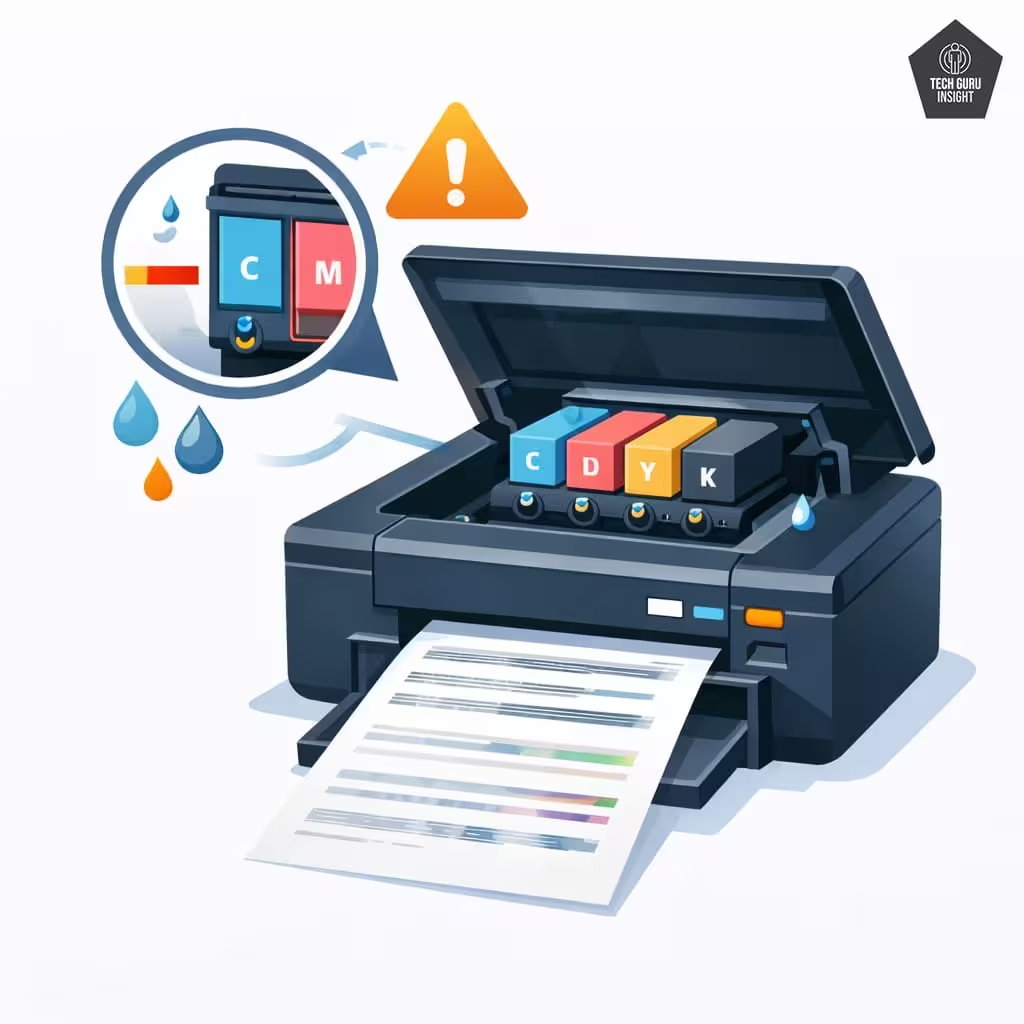
Another common cause of streaky printing is low or dried ink cartridges. When ink levels become too low, the printer cannot deliver ink consistently, which leads to broken lines or faded streaks.
Old cartridges can also dry out internally, especially if they have not been used for months.
How to fix it
Follow these steps:
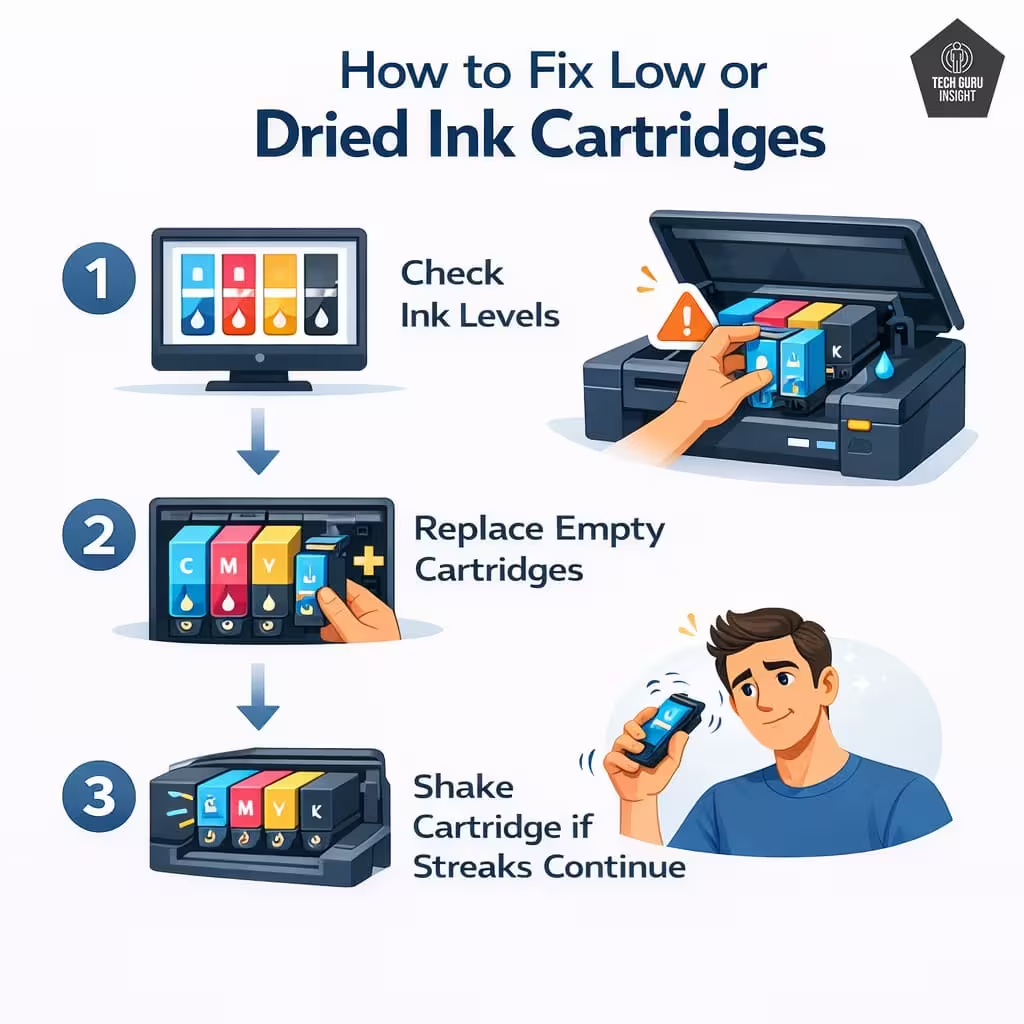
1. Check your printer’s ink level indicator.
2. Replace any cartridges that are empty or nearly empty.
3. If the cartridge is new but still causing streaks, remove it and gently shake it before reinstalling.
Using high-quality or genuine cartridges can also improve print consistency.
👉 Hidden Cause Many Users Miss: Some ink cartridges have tiny vent holes that allow air to enter as ink flows out. If this vent becomes blocked by packaging tape or dust, the cartridge may produce streaks even when it is full. Check that the protective tape has been completely removed.
✅ Misaligned Printhead
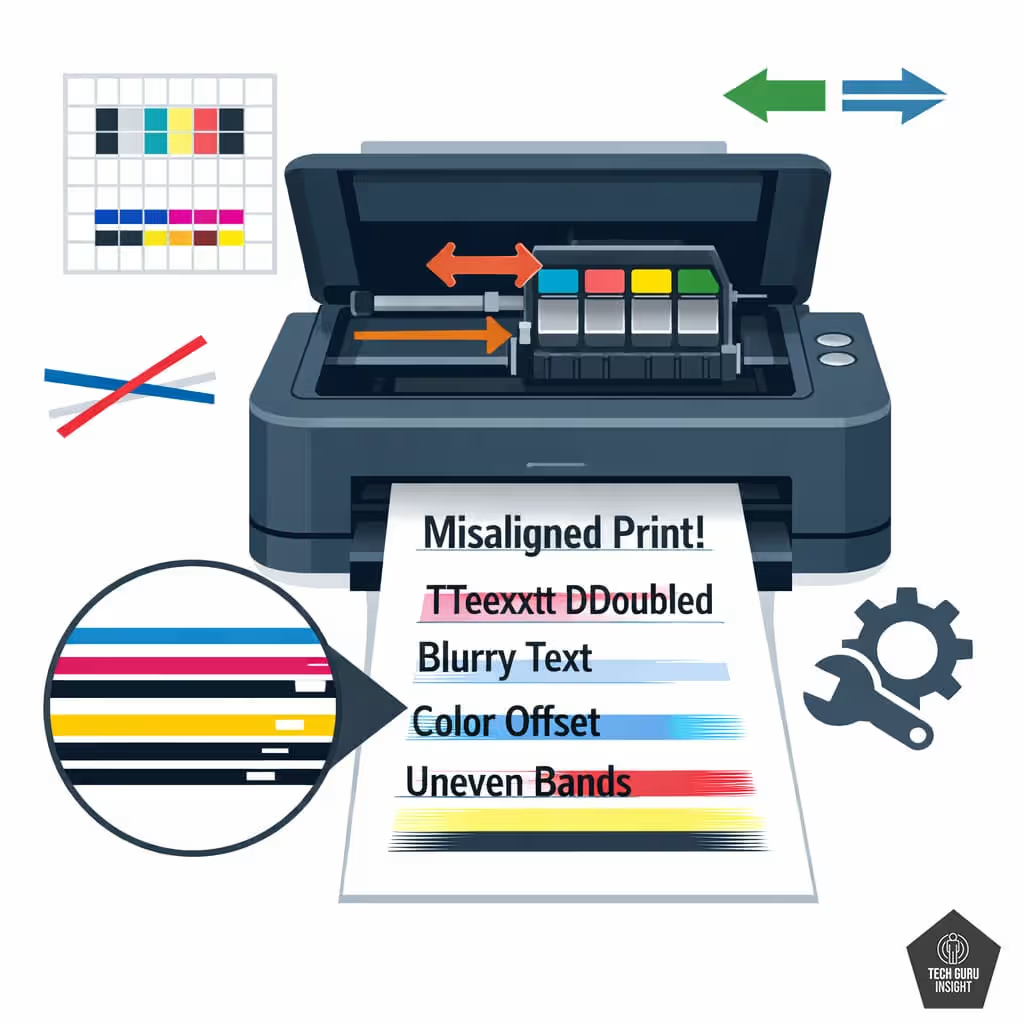
When the printhead becomes misaligned, the printer may place ink slightly off position. This results in shadowed text, blurry graphics, or lines running across printed pages.
This issue sometimes occurs after installing new cartridges or moving the printer.
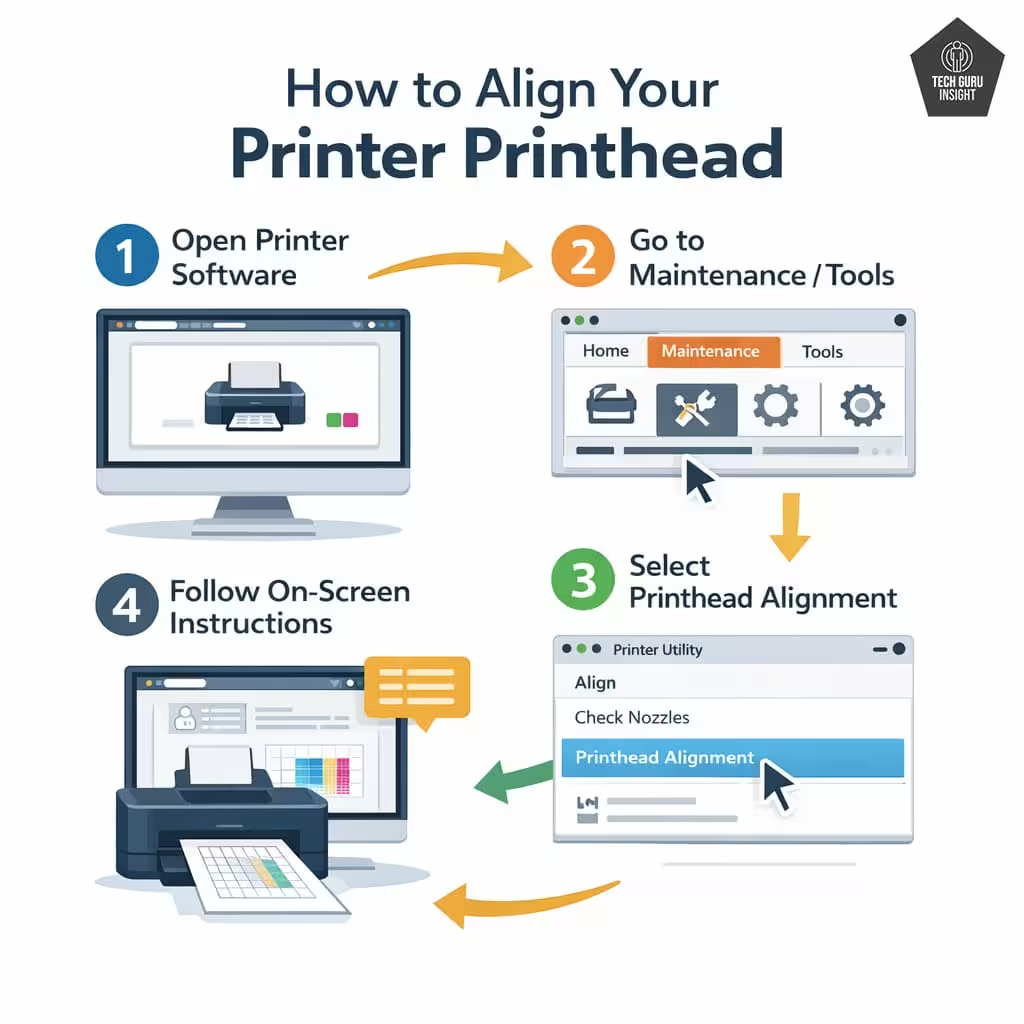
How to fix it
Follow these steps:
1. Open the printer software on your computer.
2. Go to Maintenance or Tools.
3. Select Printhead Alignment.
4. Follow the instructions displayed on the screen.
The printer will print a test pattern and automatically adjust alignment.
✅ Dirty Printer Rollers
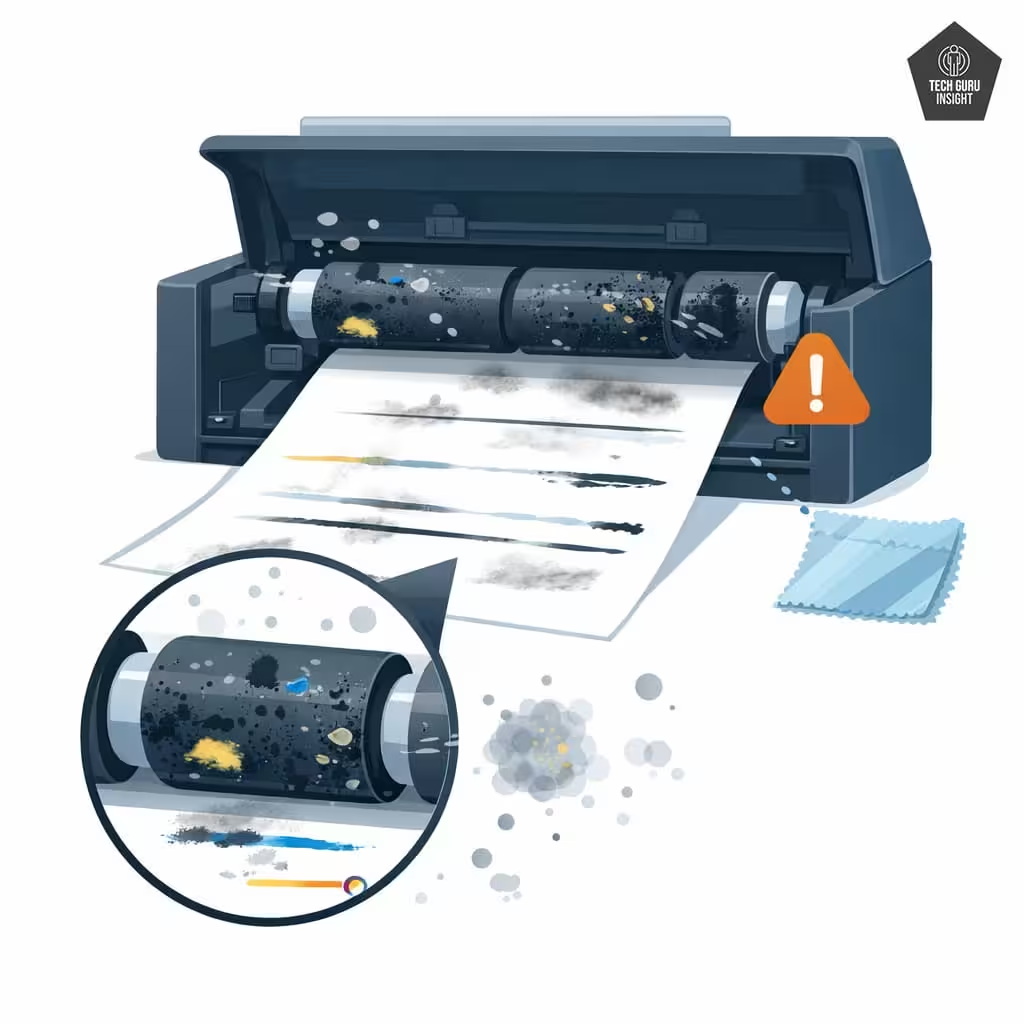
Printer rollers help move paper smoothly through the machine. Over time, dust, ink residue, and paper particles can accumulate on the rollers.
Dirty rollers may cause vertical streaks or uneven lines because the paper does not move correctly during printing.
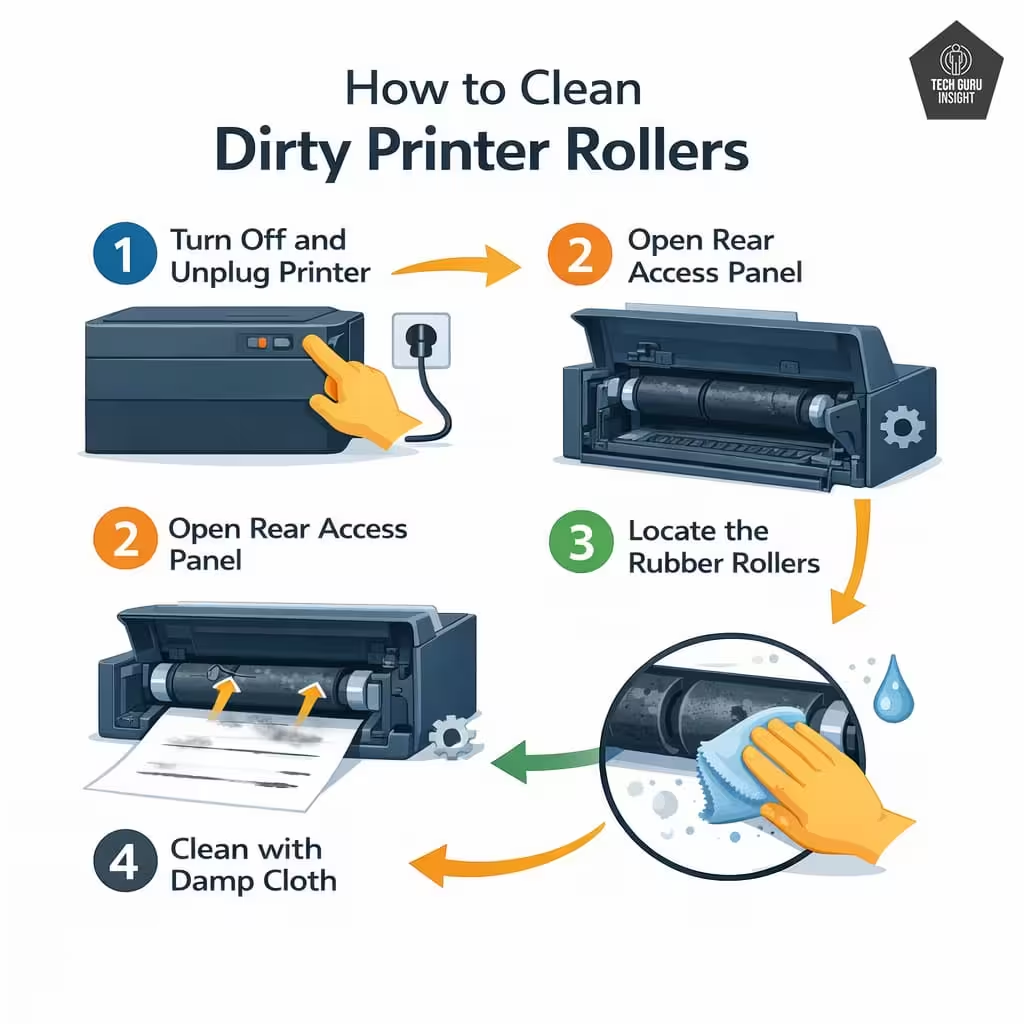
How to fix it
Follow these steps:
1. Turn off the printer and unplug it.
2. Open the rear access panel.
3. Locate the rubber rollers.
4. Wipe them gently using a lint-free cloth slightly dampened with water.
Allow the rollers to dry before using the printer again.
👉 Real-World Observation: Low-quality paper sheds small paper fibers. Over time, these fibers accumulate on printer rollers and inside the paper path, which can cause vertical streaks or uneven ink transfer. Using higher-quality paper can significantly reduce this issue.
✅ Damaged Drum Unit (Laser Printers)
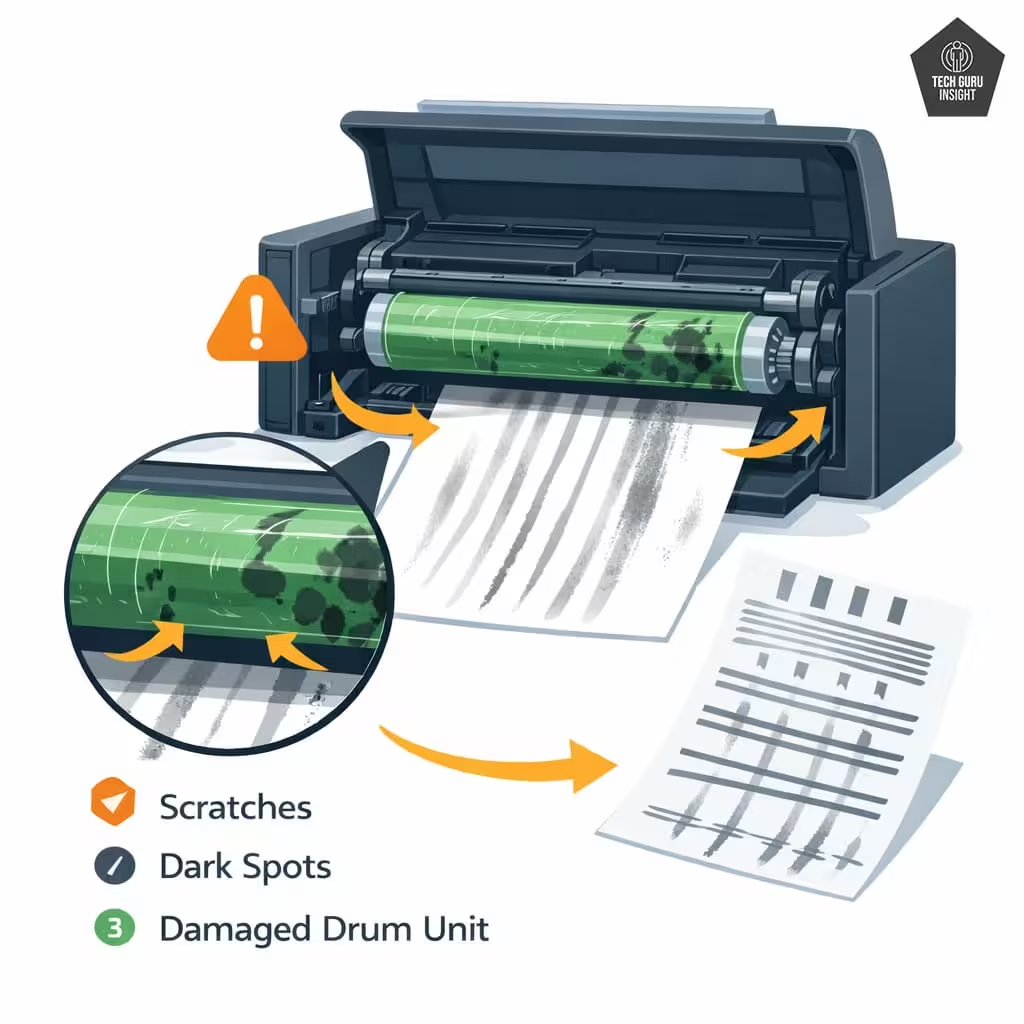
Laser printers use a drum unit to transfer toner onto the paper. If the drum becomes scratched, worn, or dirty, it may produce repeating lines or streaks on printed pages.
Technician Insight: If the streak or mark repeats at exactly the same distance down every page, the issue is often caused by the drum unit or internal rollers. Mechanical components rotate at fixed intervals, so defects appear in a repeating pattern.
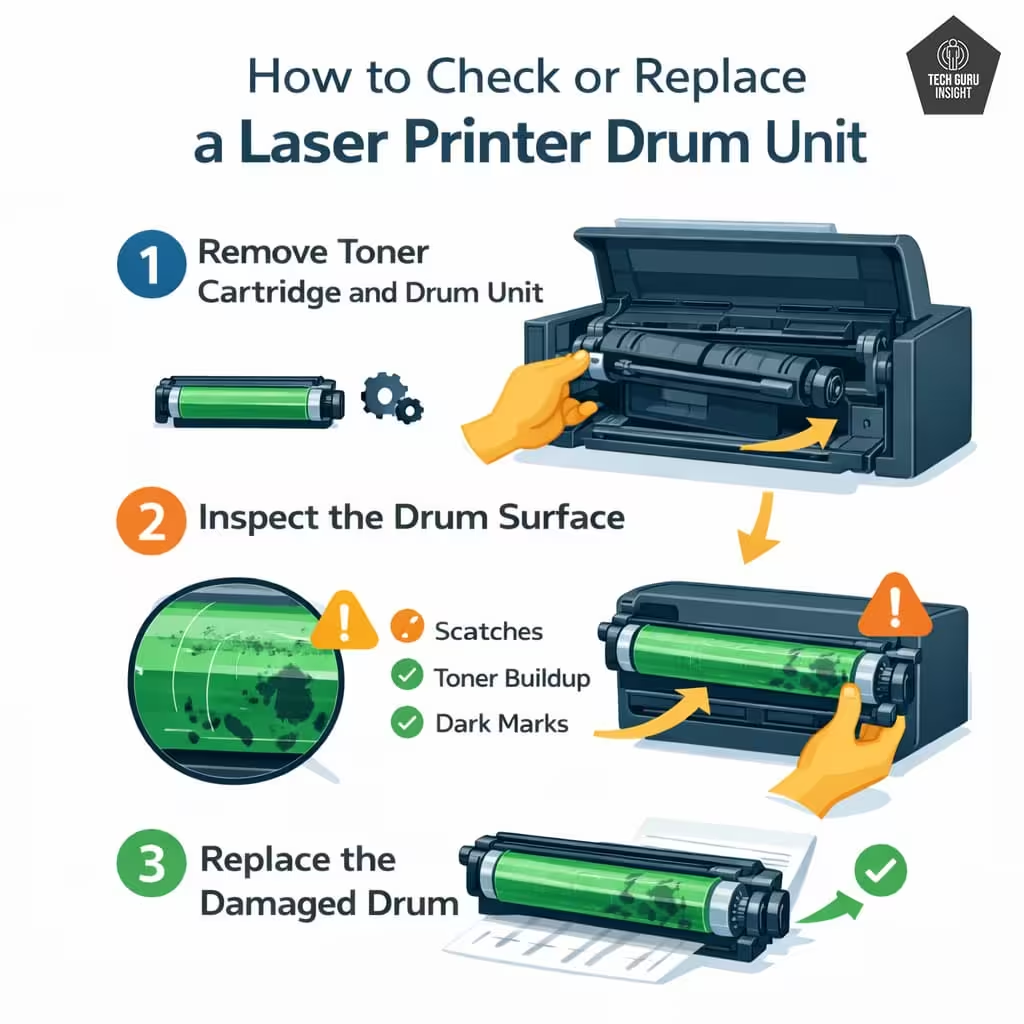
How to fix it
Follow these steps:
1. Remove the toner cartridge and drum unit.
2. Inspect the drum surface for scratches or toner buildup.
3. If the drum is damaged, replace it with a new one.
Many laser printers allow the drum to be replaced separately from the toner cartridge.
✅ Dirty Cartridge Contacts
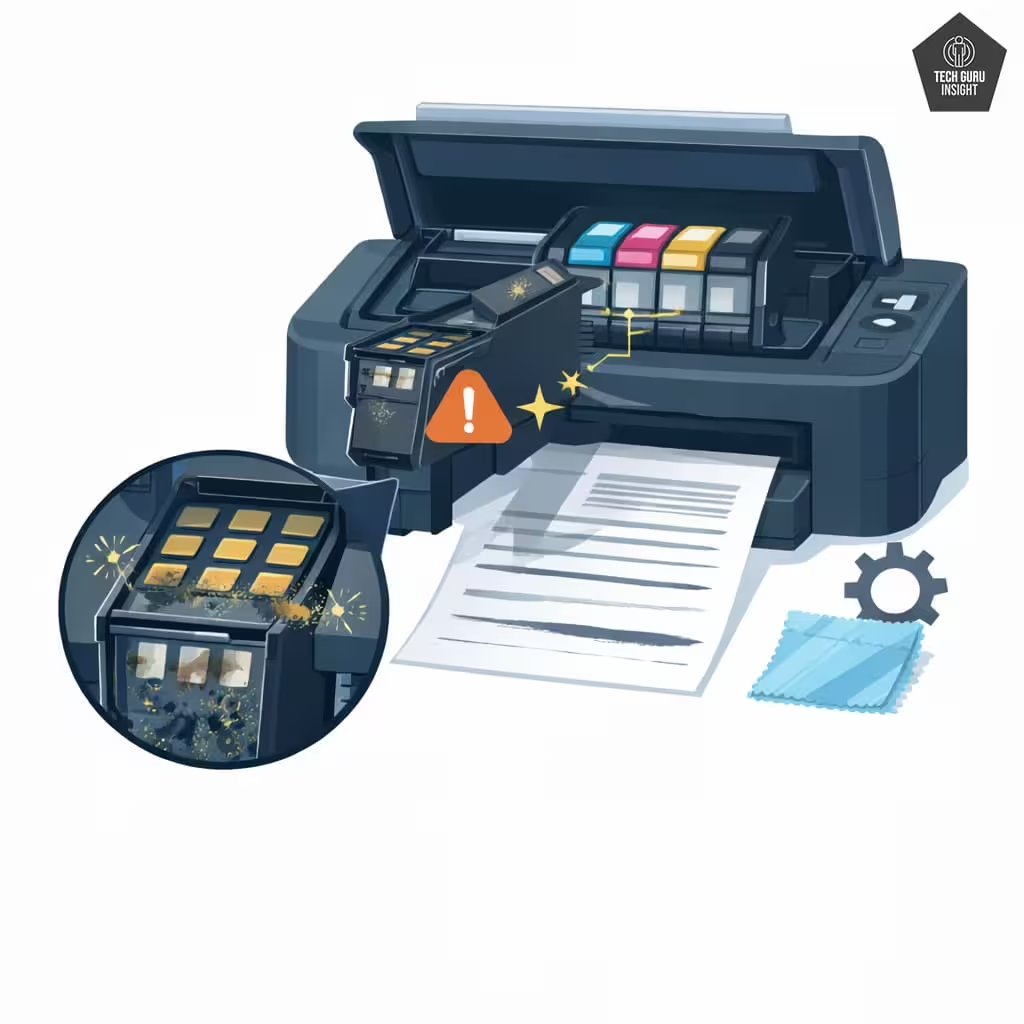
Ink cartridges communicate with the printer through small metal contacts. If these contacts become dirty or covered with dried ink, the printer may not deliver ink properly.
This can lead to missing colors, streaks, or inconsistent printing.
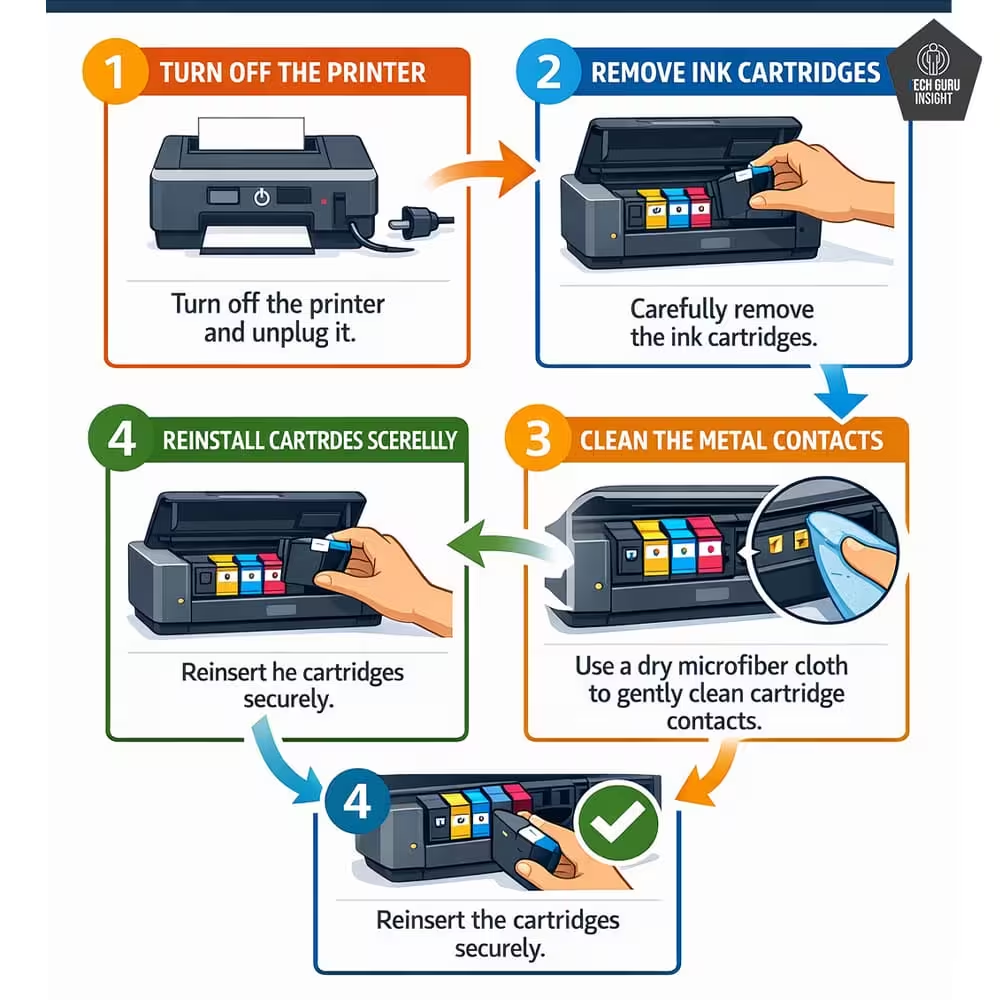
How to fix it
Follow these steps:
1. Turn off the printer.
2. Remove the ink cartridges.
3. Use a dry microfiber cloth to clean the
metal contacts.
4. Reinstall the cartridges carefully.
Avoid touching the contacts with your fingers.
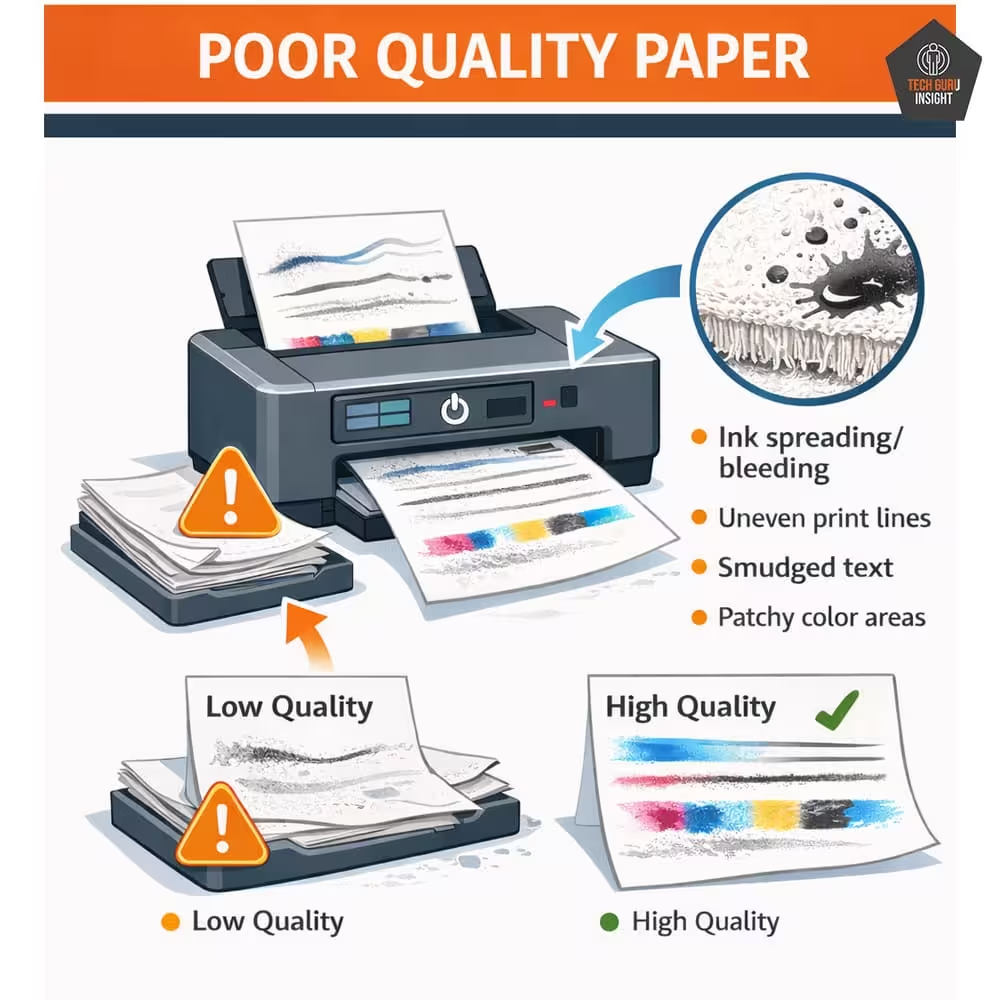
✅ Poor Quality Paper
Paper quality can also affect print results. Cheap or low-quality paper may absorb ink unevenly, causing streaks, smudges, or lines across the page.
This problem is especially noticeable when printing images or color documents.
How to fix it
Use high-quality printer paper recommended by the manufacturer. Also, make sure the paper is stored in a dry place to prevent moisture damage.
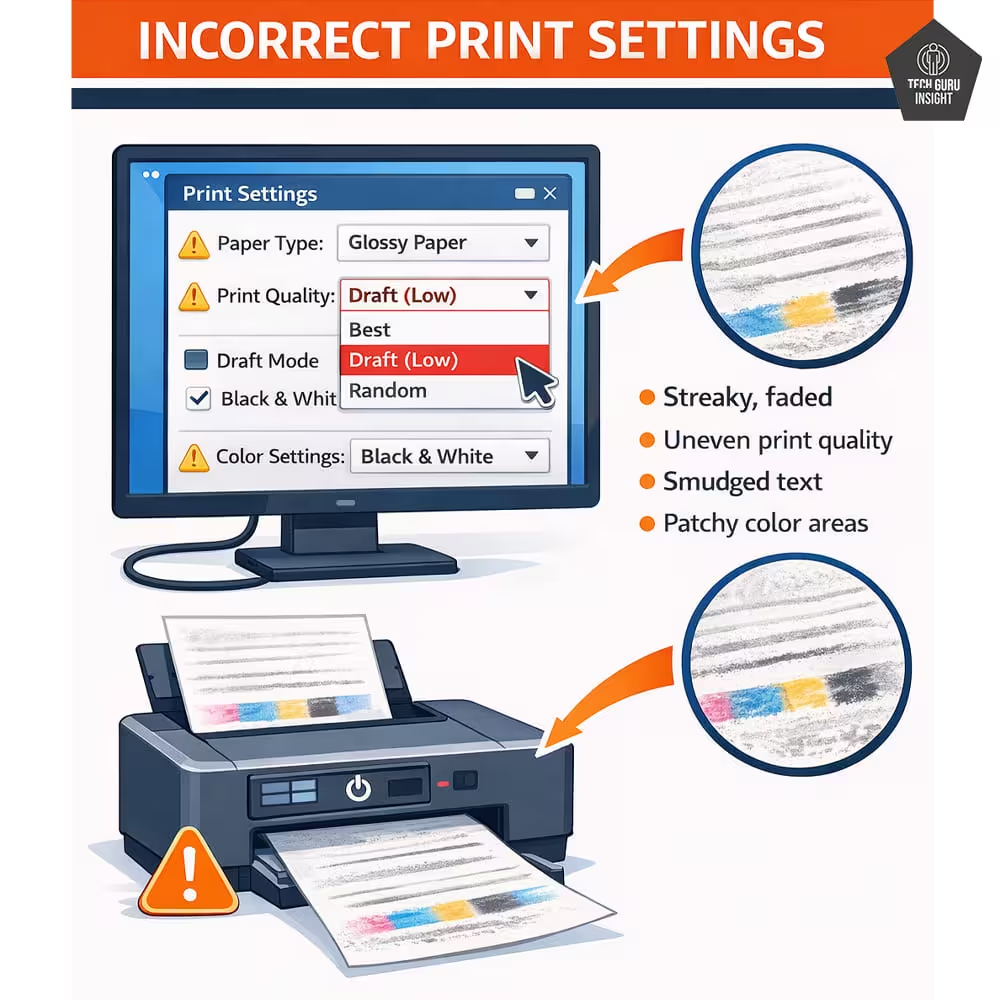
✅ Incorrect Print Settings
Sometimes the problem is not mechanical at all. If the printer is set to Draft Mode or Economy Mode, it may intentionally reduce ink usage, resulting in lighter prints and visible streaks.
How to fix it
Follow these steps:
1. Open the print dialog box on your computer.
2. Select Printer Properties.
3. Change the quality setting from Draft to Standard or Best.
Higher quality settings allow the printer to apply ink more evenly.
👉 Quick Diagnostic Tip: Sometimes streaks appear only when printing a specific document. Try printing a different file or a built-in test page. If the streaks disappear, the problem may be related to the file or print settings rather than the printer itself.
✅ Worn Printer Components
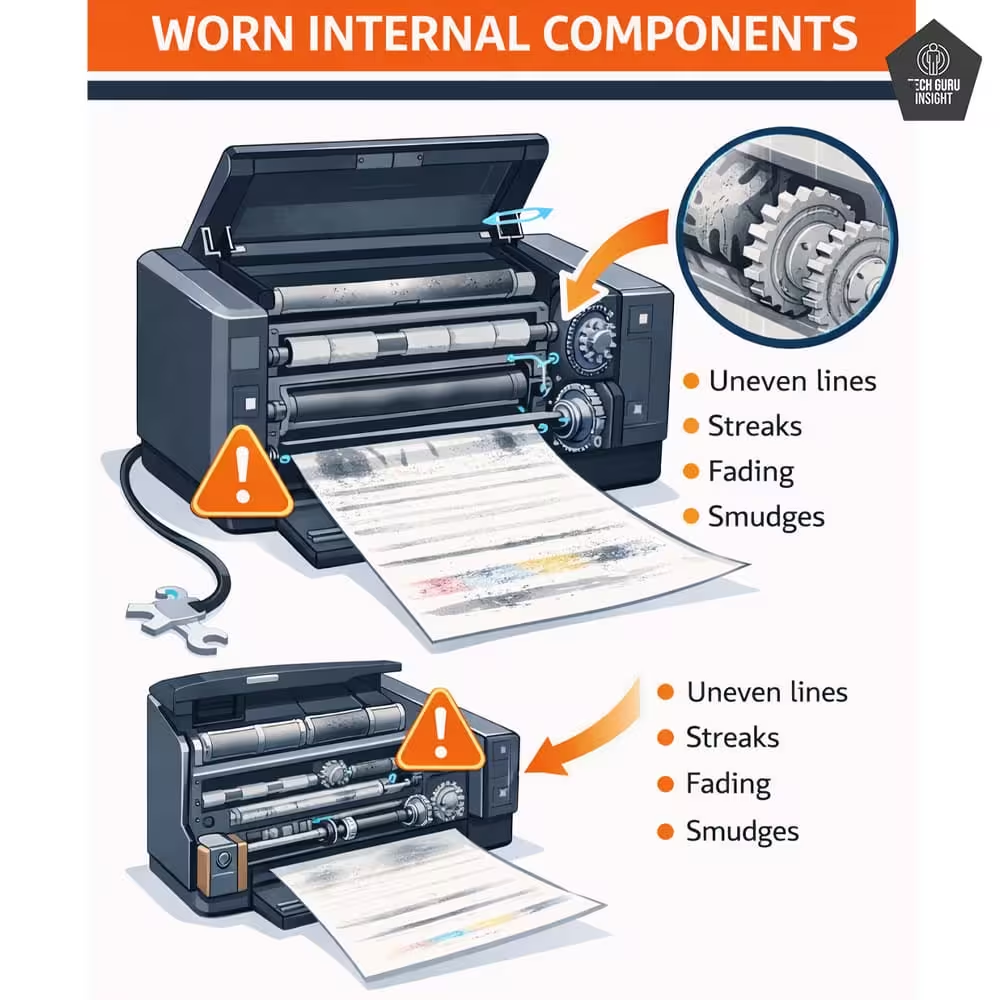
If your printer is several years old, internal components such as printheads, rollers, or belts may start to wear out.
This can result in consistent lines or streaks that cannot be fixed with cleaning or alignment.
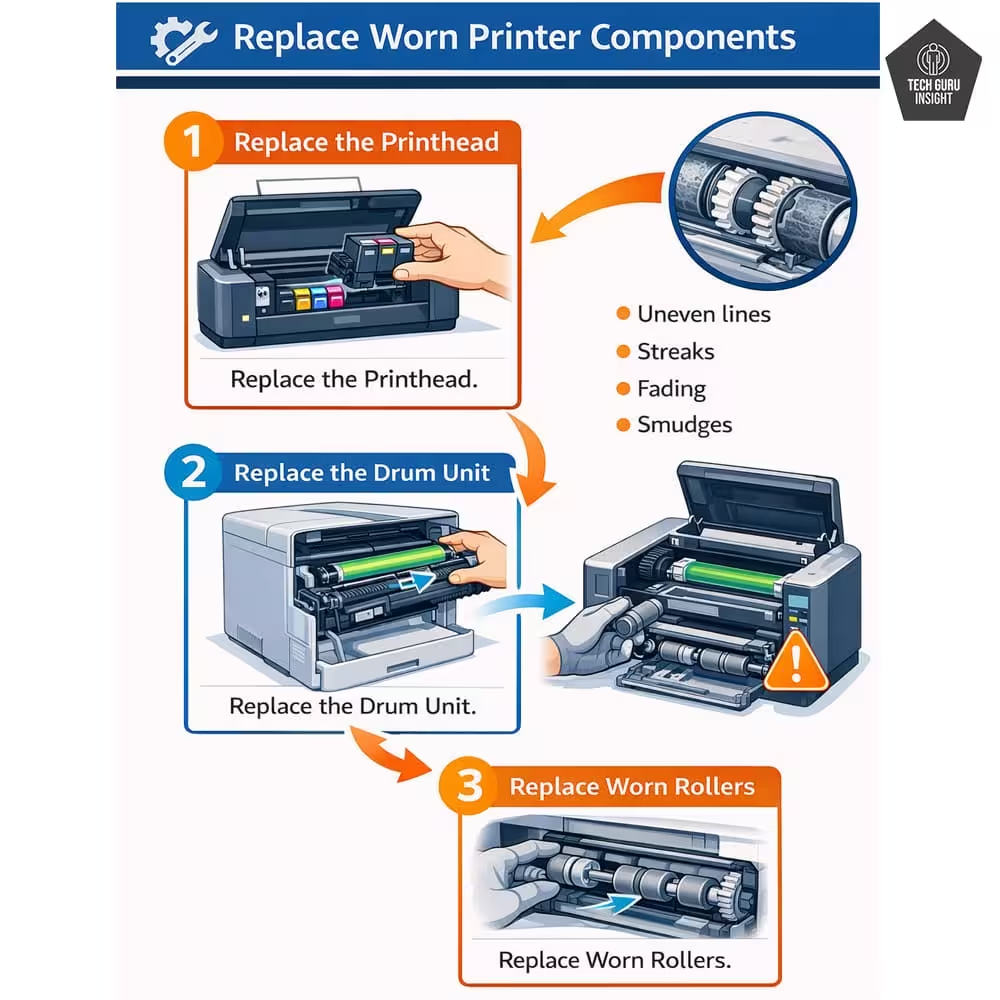
How to fix it
In such cases, you may need to replace specific parts such as:
1. Printhead
2. Drum unit
3. Rollers
If the repair cost is high, it may be more economical to upgrade to a newer printer model.
Advanced Troubleshooting Trick:
To determine whether the issue occurs during printing or after the paper moves through the printer, start a print job and open the printer cover halfway through printing (only on printers that allow safe interruption).
If the streaks already appear on the partially printed page, the issue is related to the printhead or toner. If they appear later, the problem may be caused by rollers or the paper path.
Inkjet vs Laser Printer Line Problems
The cause of streaks can also depend on the type of printer you use.
| Printer Type | Most Common Cause |
| Inkjet printers | Clogged printhead |
| Laser printers | Damaged drum unit |
| Ink tank printers | Air bubbles or dried ink |
Understanding the difference can help you troubleshoot the issue more effectively.
Advanced Tip
If the printer cannot detect the black cartridge properly, gently clean the gold or copper contacts on the cartridge using a dry microfiber cloth. Avoid using water or alcohol unless recommended by the manufacturer.
Which Printer Brands Are Most Commonly Mentioned in Streaking or Banding Issues?
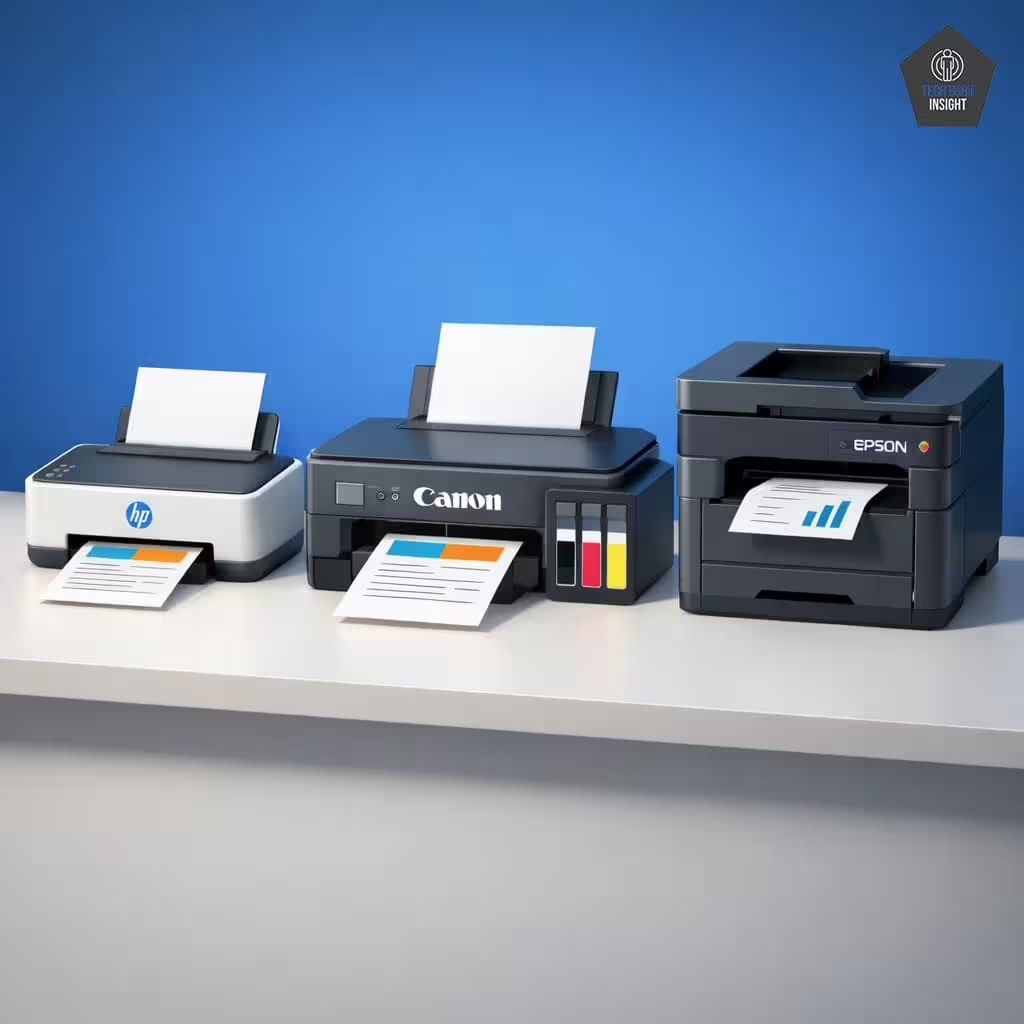
Lines or banding in printed pages are rarely caused by the brand of the printer alone. In most situations, the underlying reason is the type of printing technology being used, such as inkjet or laser, rather than the manufacturer itself.
That said, large market surveys and user discussions often mention certain brands more frequently. This happens mainly because these companies sell a significant share of printers worldwide, so naturally, more users report issues related to their devices.
Printer Brands Frequently Mentioned in Streaking Complaints
| Brand | Common Printer Technology | Typical Reason for Streaking |
| HP | Inkjet and ink-tank models | Printhead clogging or dried ink cartridges |
| Canon | Inkjet and photo printers | Nozzle blockage during detailed photo printing |
| Epson | Ink-tank and inkjet systems | Air bubbles or dried ink in the printhead |
| Brother Industries | Laser and ink-tank printers | Drum wear or uneven toner transfer |
| Xerox | Laser printers | Worn drum units or aging fuser components |
Many streaking complaints are linked to inkjet-based printers, particularly when the printer is used infrequently. Inkjet systems rely on extremely small nozzles to spray liquid ink onto paper, and these nozzles can become blocked if ink dries inside them.
Reliability studies analyzing thousands of consumer printers also suggest that inkjet printers are more likely to experience maintenance-related issues than laser printers, regardless of brand. This is mainly due to the nature of liquid ink systems, which require regular use to maintain smooth ink flow.
Which Printers Are Most Prone to Printing Lines?
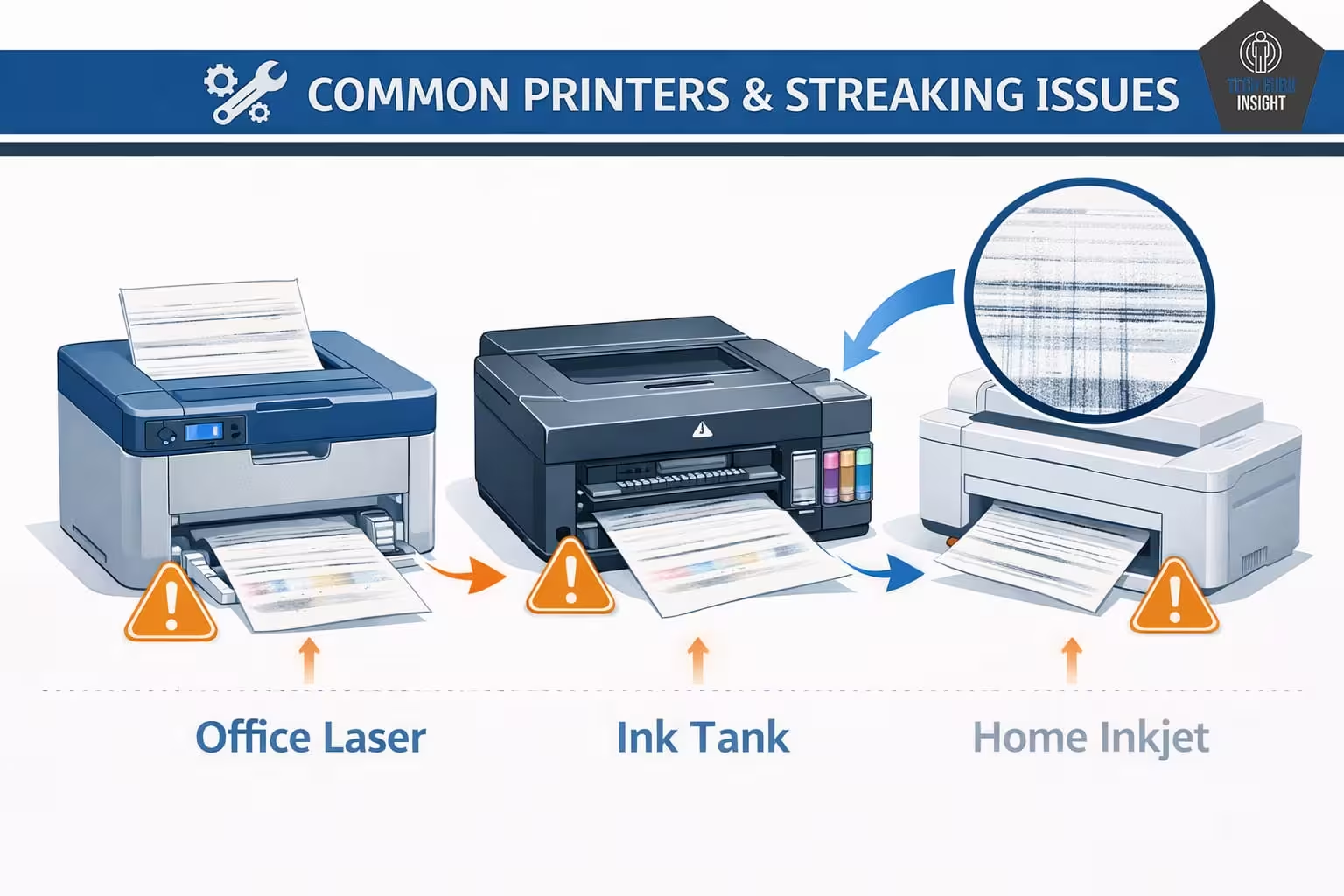
Not all printers experience streaking problems at the same rate. Because each printing technology works differently, some printers are naturally more susceptible to lines or banding in printed documents.
The table below summarizes how often this issue typically appears across different printer types and the most common reasons behind it.
| Printer Type | Chance of Streaking | Typical Cause |
| Inkjet Printers | High | Blocked or partially clogged printhead nozzles |
| Ink Tank Printers | Moderate | Air bubbles in ink tubes or inconsistent ink flow |
| Laser Printers | Low | Worn drum unit or uneven toner distribution |
| Industrial Inkjet Printers | Very High | High-speed ink droplet placement during rapid printing |
Inkjet-based printing systems tend to show streaks more frequently than laser printers because they rely on extremely precise placement of microscopic ink droplets. If even a small number of nozzles fail to release ink correctly, visible banding or lines can appear on the page.
On the other hand, laser printers use powdered toner and electrostatic transfer, which generally produces more uniform coverage and reduces the likelihood of streaking caused by fluid flow issues.
How to Prevent Printer Lines and Streaks?
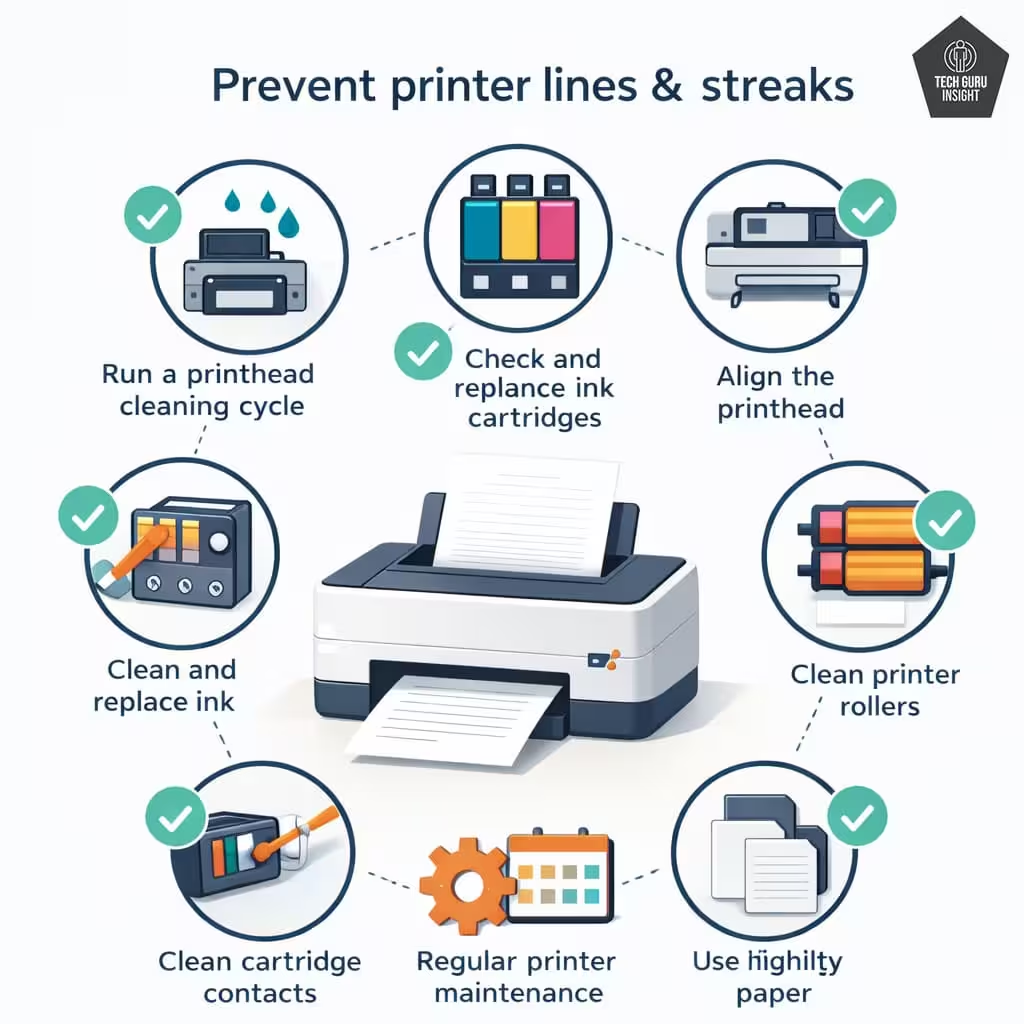
Regular maintenance can prevent most print quality problems.
Here are some simple habits that keep your printer working properly.
Print Regularly: Try to print at least once a week. This prevents ink from drying inside the printhead.
Use Quality Ink: Cheap refilled cartridges may contain low-quality ink that can clog nozzles.
Clean Your Printer Periodically: Dust and debris can accumulate inside the printer. Occasional cleaning helps maintain consistent performance.
Keep the Printer in a Clean Environment: Avoid placing the printer in dusty or humid areas.
Update Printer Firmware: Manufacturers sometimes release firmware updates that improve print performance and reliability.
Maintenance Tip
Instead of printing a simple black text page, print a small color image once per week. This keeps all ink channels active and prevents individual color nozzles from clogging.
When You Should Replace Your Printer
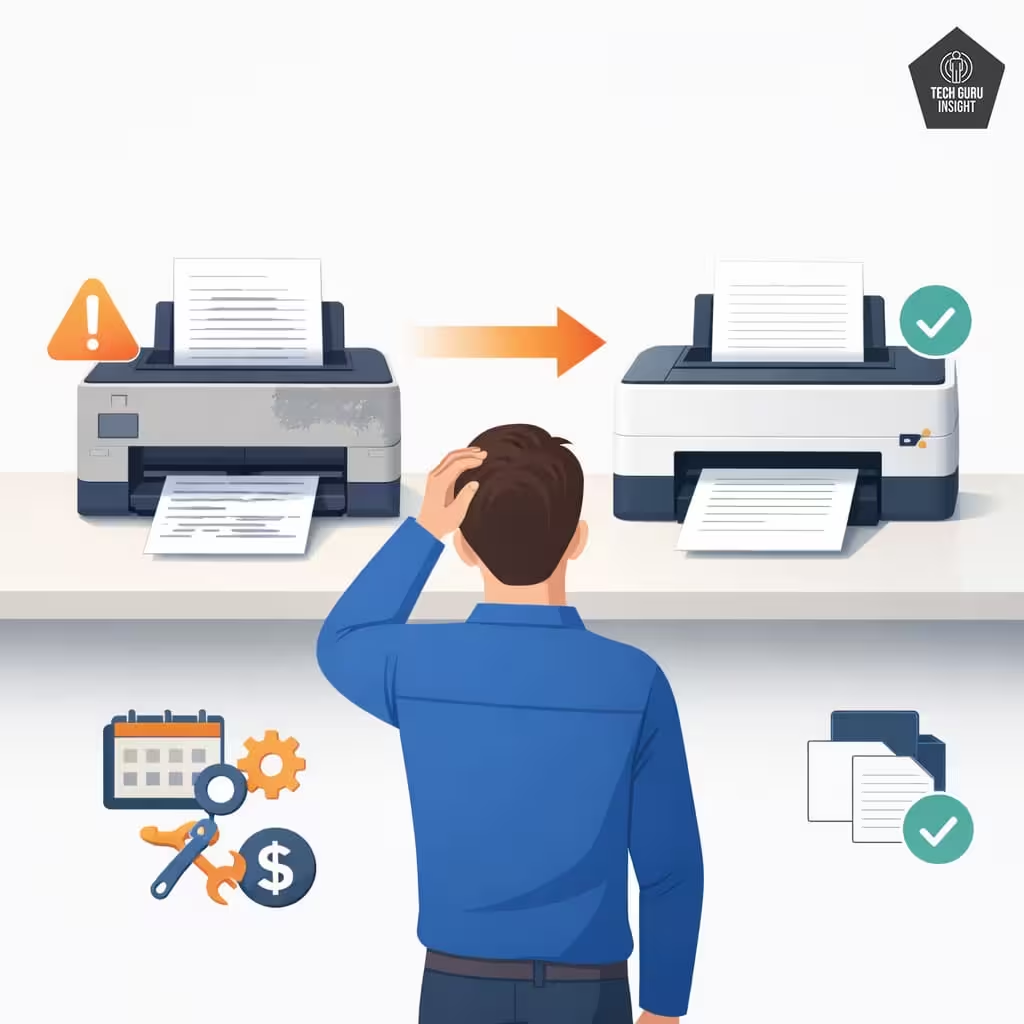
Sometimes repairing a printer is not worth the cost. You should consider replacing your printer if:
- The printhead is permanently clogged.
- The drum unit replacement is expensive.
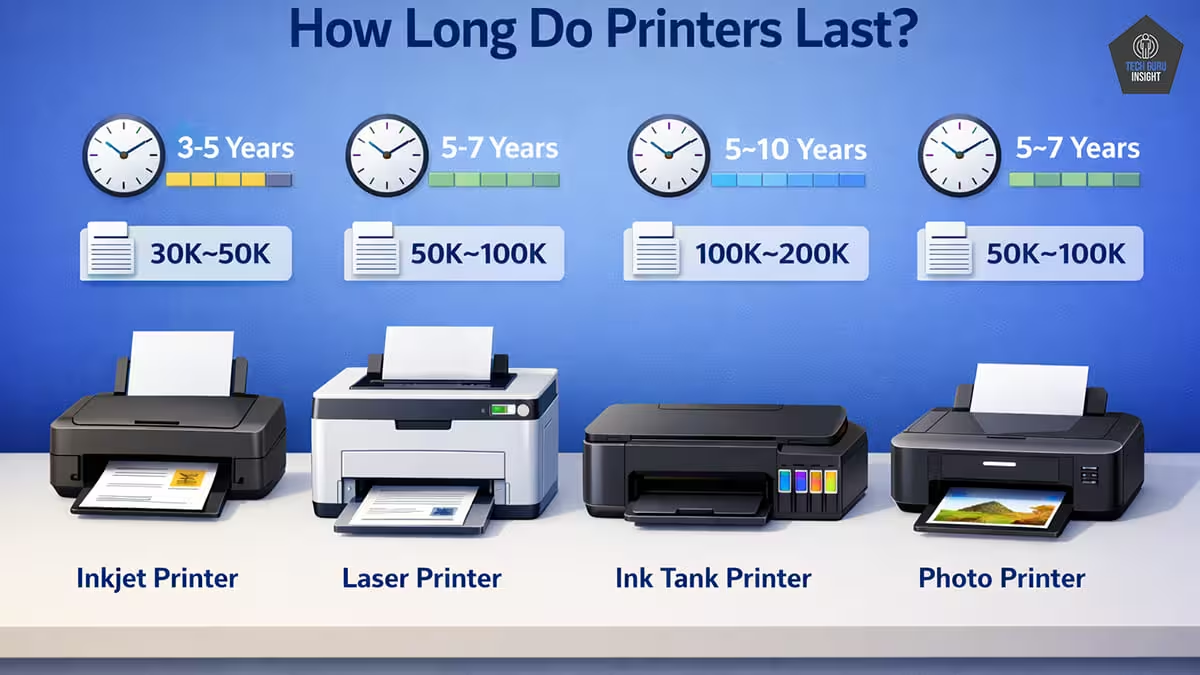
- The printer is more than five years old.
- Repair costs exceed half the price of a new printer.
Modern printers often include better ink systems and improved maintenance features, which can reduce future printing issues.
Quick Fix Summary
If your printer is printing lines or streaks: Recommended Troubleshooting Order
Try the fixes in this order:
- Check ink or toner levels
- Run printhead cleaning
- Align the printhead
- Clean rollers
- Inspect cartridges
- Check print settings
- Inspect the drum unit (laser printers)
This prevents unnecessary maintenance steps. Most users solve the problem within 5–10 minutes.
Expert Tip
If you don’t use your printer regularly, print a simple test page once a week. This keeps ink flowing through the printhead and prevents clogs. I recommend printing a small color image rather than a text-only page to keep all ink channels active.
FAQ
Q1. Why does my printer print horizontal lines?
Horizontal lines usually occur when the printhead nozzles are clogged. Running a printhead cleaning cycle typically fixes this problem.
Q2. Why is my printer printing vertical streaks?
Vertical streaks often indicate dirty rollers or a damaged drum unit, especially in laser printers.
Q3. Can old ink cartridges cause streaks?
Yes. Ink cartridges that have dried out or expired may not distribute ink evenly, leading to streaky prints.
Q4. How many times should I run printhead cleaning?
Most manufacturers recommend running no more than two consecutive cleaning cycles, because excessive cleaning wastes ink.
Q5. Why are there white lines in my prints?
White lines usually indicate blocked nozzles in the printhead or low ink levels.
👉 When Streaks Appear Only on Photos: If lines appear mainly when printing photos but not text documents, try switching to photo printing mode. Photo mode uses more precise ink placement and can reduce banding.
Final Thoughts
Printer lines and streaks can make even simple documents look unprofessional, but the issue is usually easy to resolve. In most cases, the problem is caused by clogged printheads, low ink levels, dirty rollers, or alignment issues.
By following the troubleshooting steps in this guide, you can quickly restore your printer’s print quality and prevent similar problems in the future.
Regular maintenance, proper ink usage, and occasional cleaning can go a long way in keeping your printer running smoothly.