How to Secure a Home Office Printer: A Data Compliance Guide for Remote Tax Pros & CPAs
Regulatory Notice & Disclaimer:** This guide outlines cybersecurity and data compliance best practices for information technology management within remote environments. It is intended for educational purposes only and does not constitute formal legal or regulatory counsel. Because state privacy statutes and specific IRS/FTC interpretations can vary, readers must consult their firm’s designated “Qualified Individual” or a certified data privacy attorney to verify absolute compliance for their specific operational infrastructure.
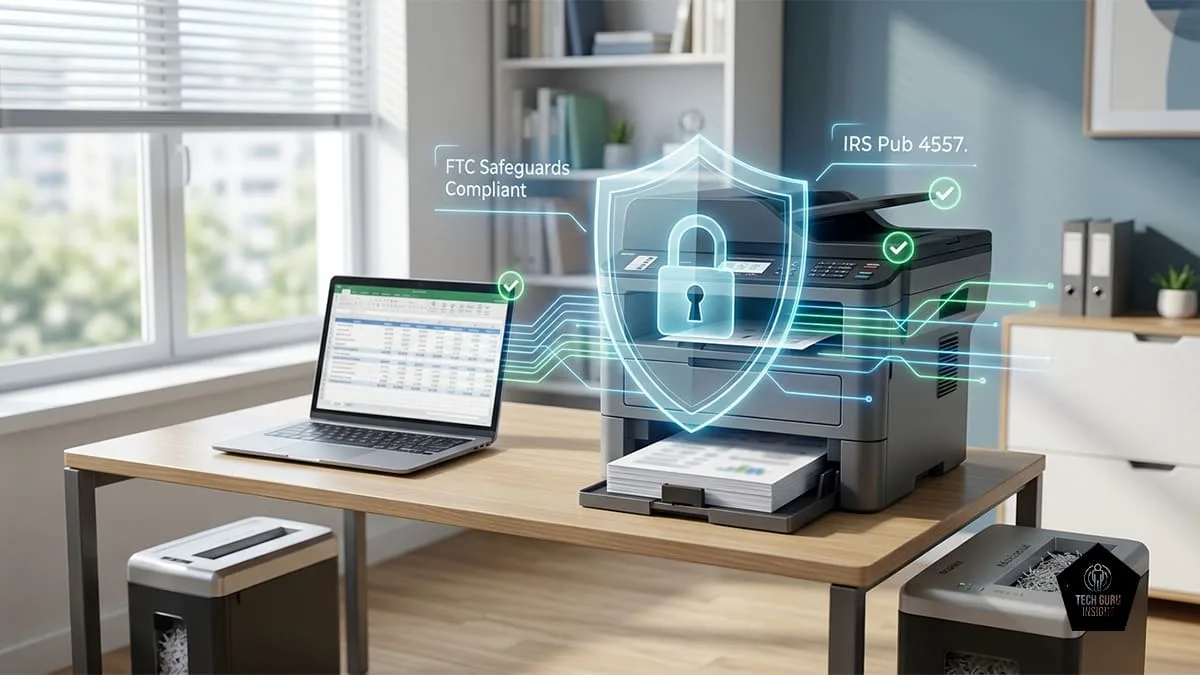
Every year, accounting firms invest heavily in cybersecurity with encrypted cloud storage, multi-factor authentication, firewalls, and employee security training. However, one of the biggest security risks for remote CPAs and tax professionals is often the home office printer.
Modern printers are network-connected devices with their own operating systems, storage, and wireless connectivity. If left unsecured, they can become an entry point for cybercriminals and expose sensitive taxpayer information.
Since tax professionals handle highly confidential data such as Social Security numbers, bank details, and financial records, they must comply with regulations like the Gramm-Leach-Bliley Act (GLBA), the FTC Safeguards Rule, and IRS Publication 4557. An unsecured printer can lead to data breaches, regulatory penalties, costly fines, and reputational damage.
Securing your home office printer is just as important as protecting your computer and cloud systems. This guide explains how to secure your printing environment, protect client data, and maintain compliance while working remotely.
The Anatomy of a Printer Security Risk
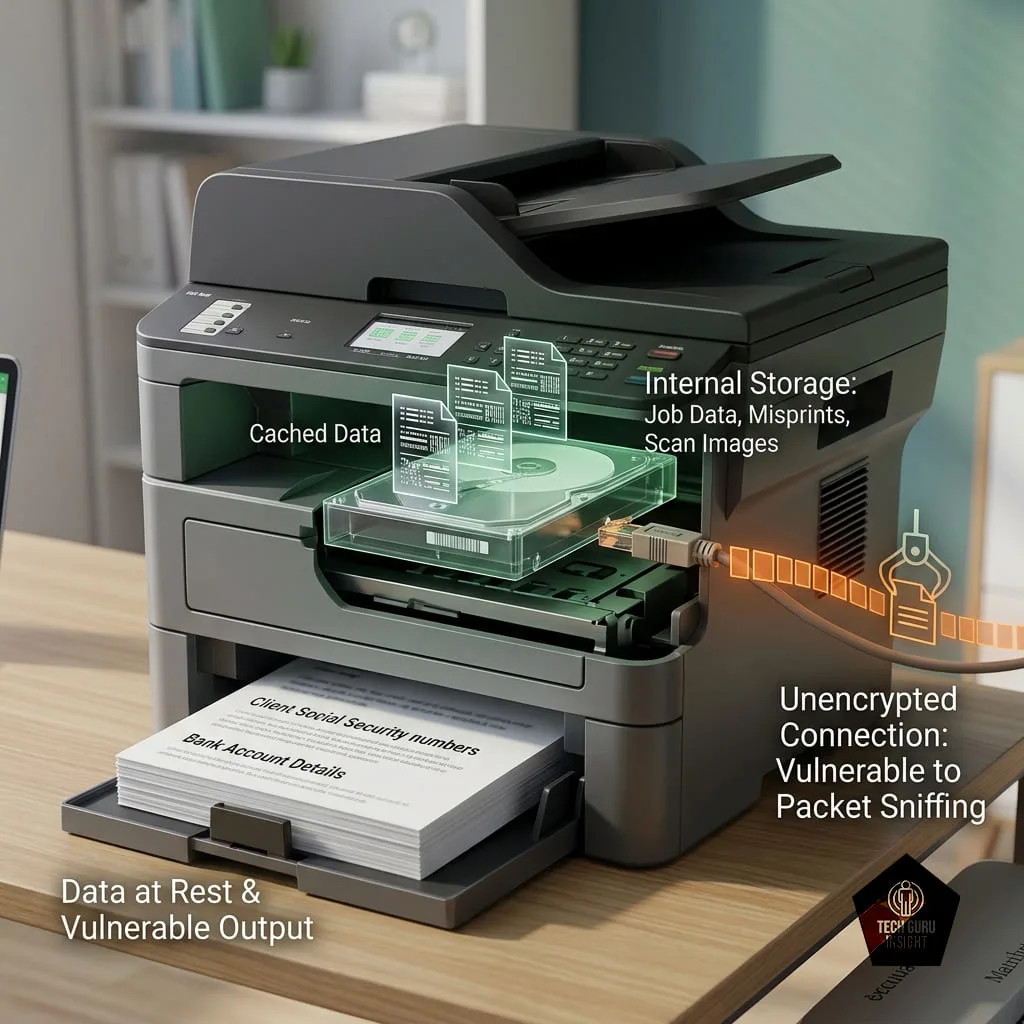
Data at Rest: The Ghost in the Internal Storage
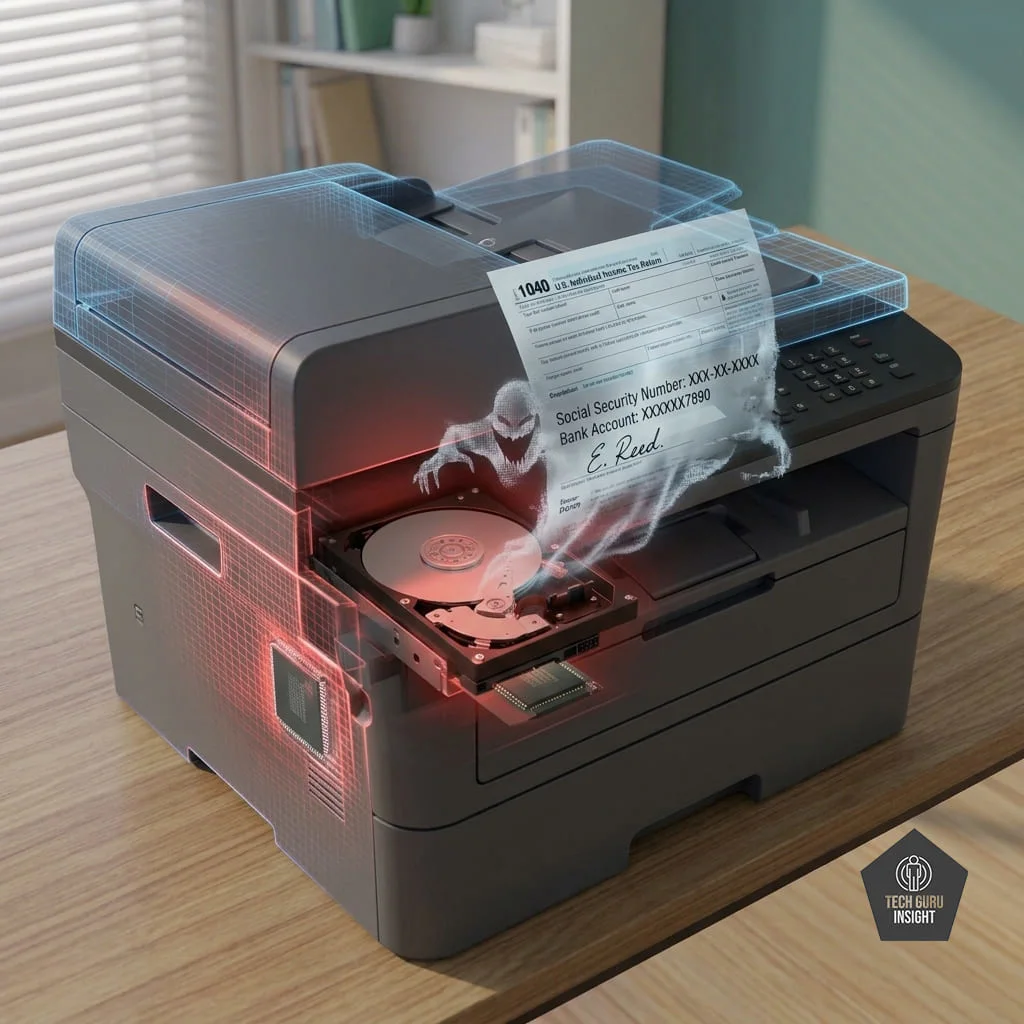
When you click “Print” on a 50-page corporate tax return, your laptop does not stream the document line-by-line in real time. Instead, the computer sends a large, compiled data file to the printer. To process this efficiently, modern printers utilize internal flash memory or physical hard disk drives (HDDs) to cache the print jobs.
– The Exposure: This cached data does not automatically vanish when the paper slides into the output tray. Unless explicitly configured otherwise, copies of highly sensitive documents remain stored in the printer’s local memory long after the job is completed.
– The Risk: If the printer is compromised remotely via the network, or if the physical hardware is disposed of at the end of its lifecycle without being sanitized, an attacker can extract these cached images. A single extracted file could yield dozens of client Social Security numbers, bank accounts, and signatures.
Data in Transit: Over-the-Air Eavesdropping
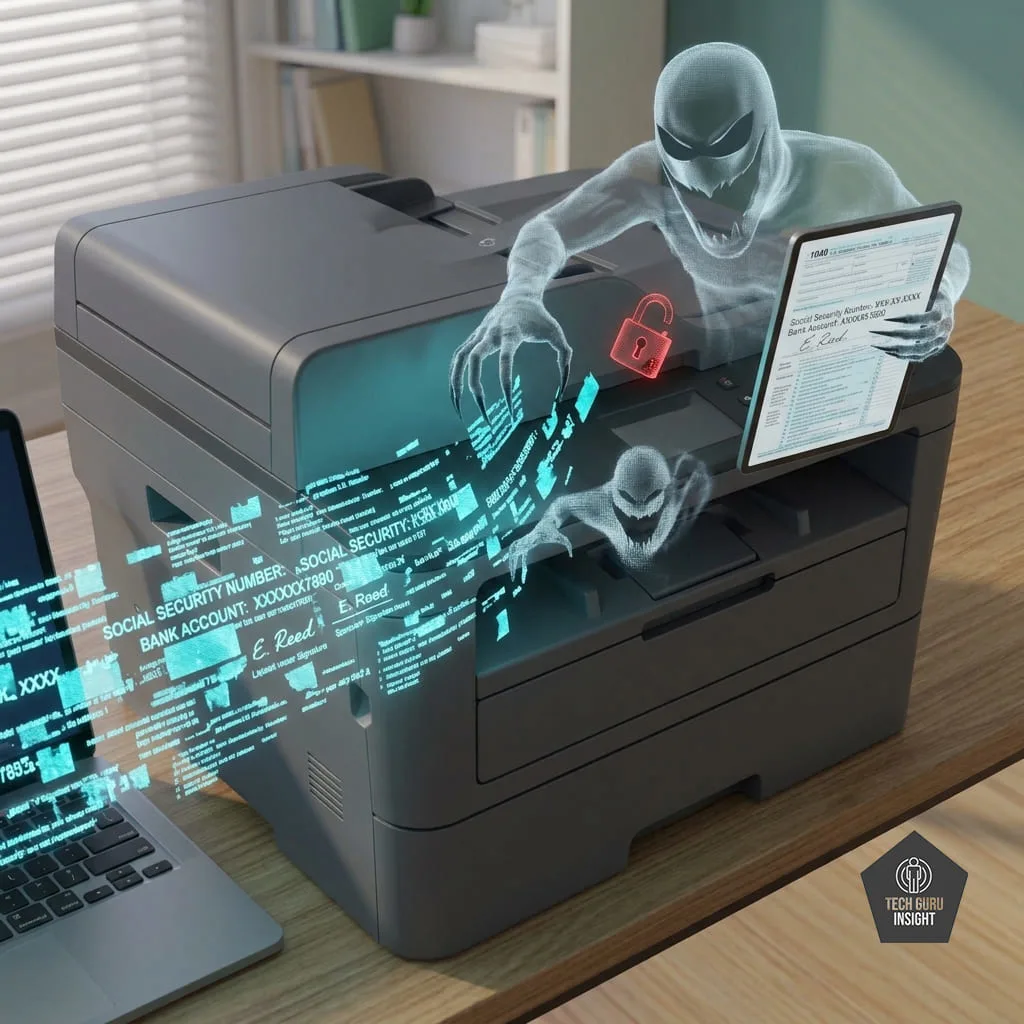
In a standard home setup, print jobs are frequently transmitted wirelessly from a laptop to the printer over the local Wi-Fi network. By default, many consumer and older enterprise printers rely on unencrypted, legacy communication channels like standard TCP/IP printing (Port 9100) or HTTP protocols.
– The Exposure: When data is sent unencrypted, it travels across your home network as raw text and graphics.
– The Risk: If a bad actor gains access to your home Wi-Fi—whether by cracking a weak router password, exploiting an unpatched smart-home IoT device (like a smart thermostat), or sitting on the street intercepting signals—they can use basic network sniffing tools to capture the data packets. Because the data is unencrypted, the hacker can effortlessly reconstruct the entire visual layout of the printed tax documents.
Legacy Protocols and Default Open Ports
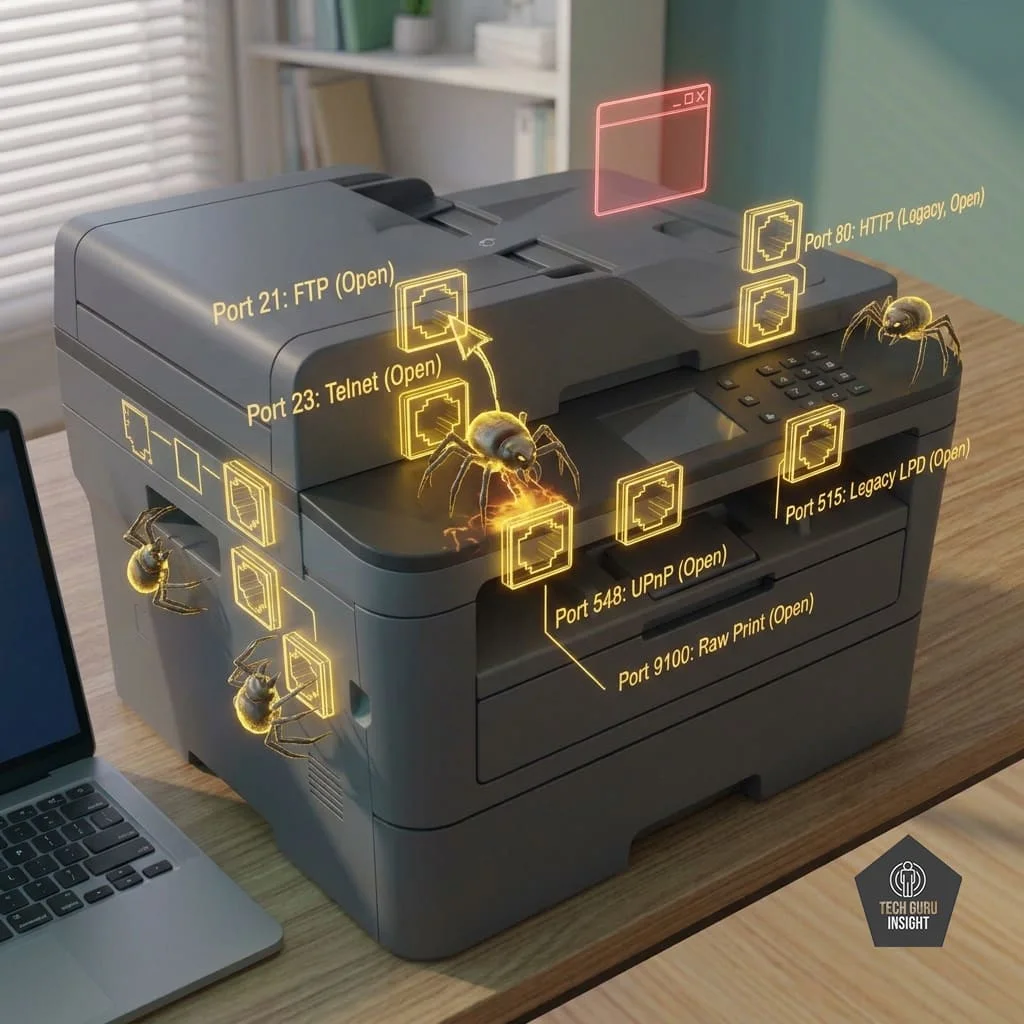
To ensure a frictionless, “plug-and-play” user experience, manufacturers ship printers with almost every conceivable network protocol turned on by default. Features like Apple AirPrint, Universal Plug and Play (UPnP), legacy File Transfer Protocol (FTP), and Telnet are routinely left wide open.
– The Exposure: Every active protocol corresponds to an open digital “port” on the device. Think of these as unlatched windows on a house.
– The Risk: Automated malware bots constantly scan home networks for these exact open legacy ports. Once found, hackers can exploit well-known software vulnerabilities in out-of-date printer firmware to turn the device into a “beachhead.” From there, they can bypass your computer’s local defenses and pivot into the rest of your corporate environment.
The “Abandonment” Risk: Physical Vulnerability
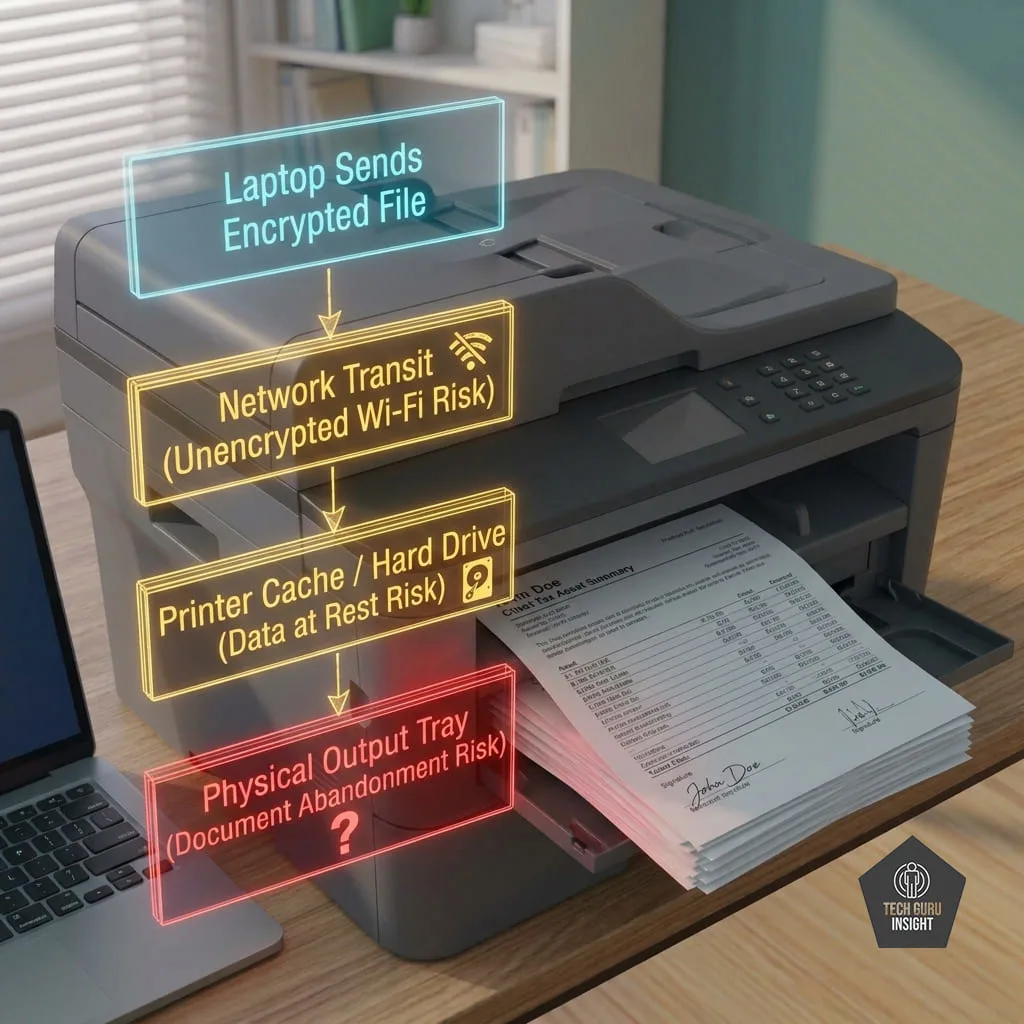
Not all printer vulnerabilities are digital. The most immediate threat to data compliance under IRS Pub 4557 is often entirely physical: leaving completed print jobs sitting exposed in the output tray.
[ Laptop Sends Encrypted File ] – [ Network Transit (Unencrypted Wi-Fi Risk) ] – [ Printer Cache / Hard Drive (Data at Rest Risk) ] – [ Physical Output Tray (Document Abandonment Risk) ]
– The Exposure: A home office is rarely a completely isolated vault. Family members, house cleaners, maintenance workers, and guests routinely pass through the space.
– The Risk: Printing a high-net-worth client’s tax asset summary and leaving it unattended for hours violates the basic physical custody mandates of the FTC Safeguards Rule. Accidental exposure, casual glances, or misplaced papers constitute a physical data breach just as severely as a network hack.
Phase 1: Securing the Device Hardware & Software
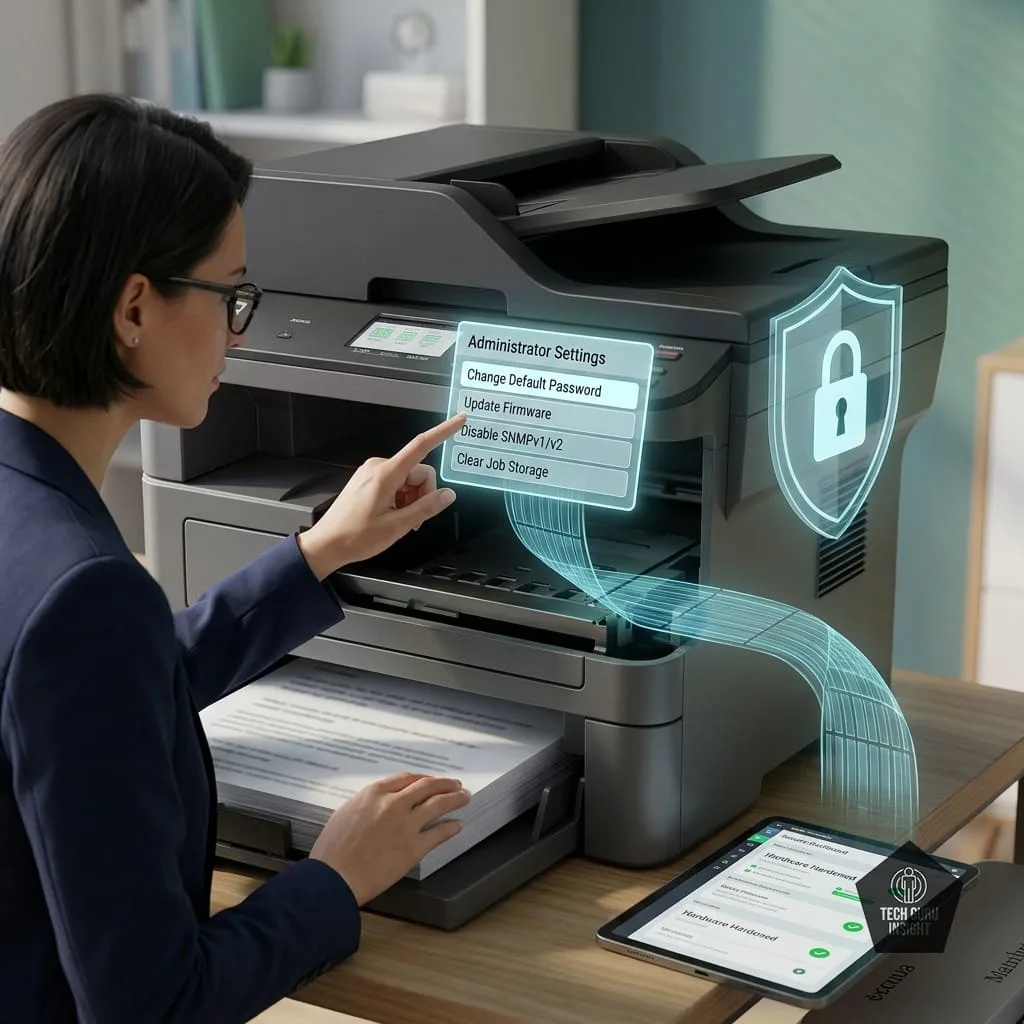
Hardening your printing environment begins directly on the device itself. To satisfy the technical safeguards mandated by the FTC Safeguards Rule, you must transition your printer from its vulnerable “out-of-the-box” factory configuration into a locked-down, compliant workstation.
Follow this sequential configuration process to secure your printer’s internal hardware and software interface.
The Device Hardening Protocol
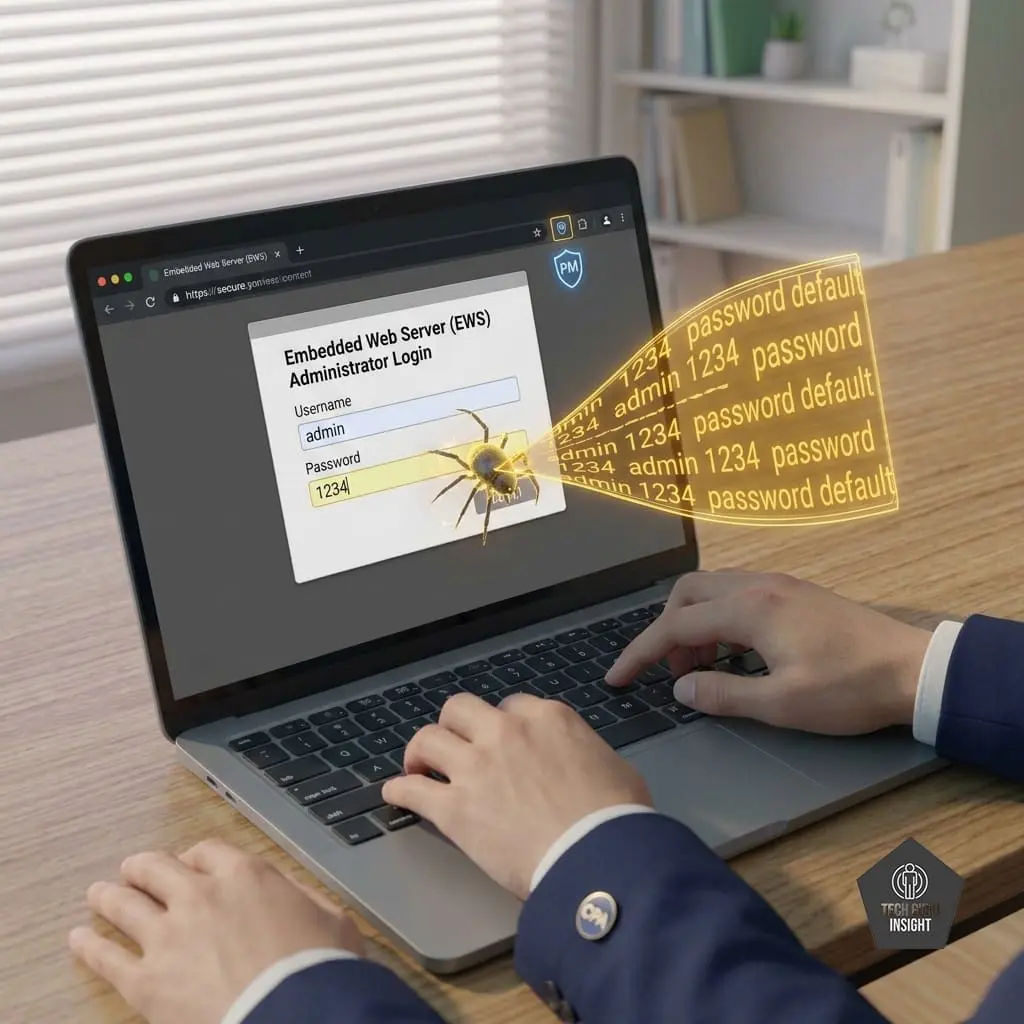
1. Access the Web Inspector and Change Default Credentials:Prerequisite: Administrator Access.
Locate your printer’s local IP address (typically found in the network settings menu on the device’s physical screen). Type this IP address into a secure web browser on your computer to open the Embedded Web Server (EWS) or admin dashboard.
Manufacturers ship printers with well-documented, identical default admin passwords (e.g., “admin” or “1234”). Change these credentials immediately. Create a unique, complex password of at least 14 characters and store it securely in your firm-approved password manager.
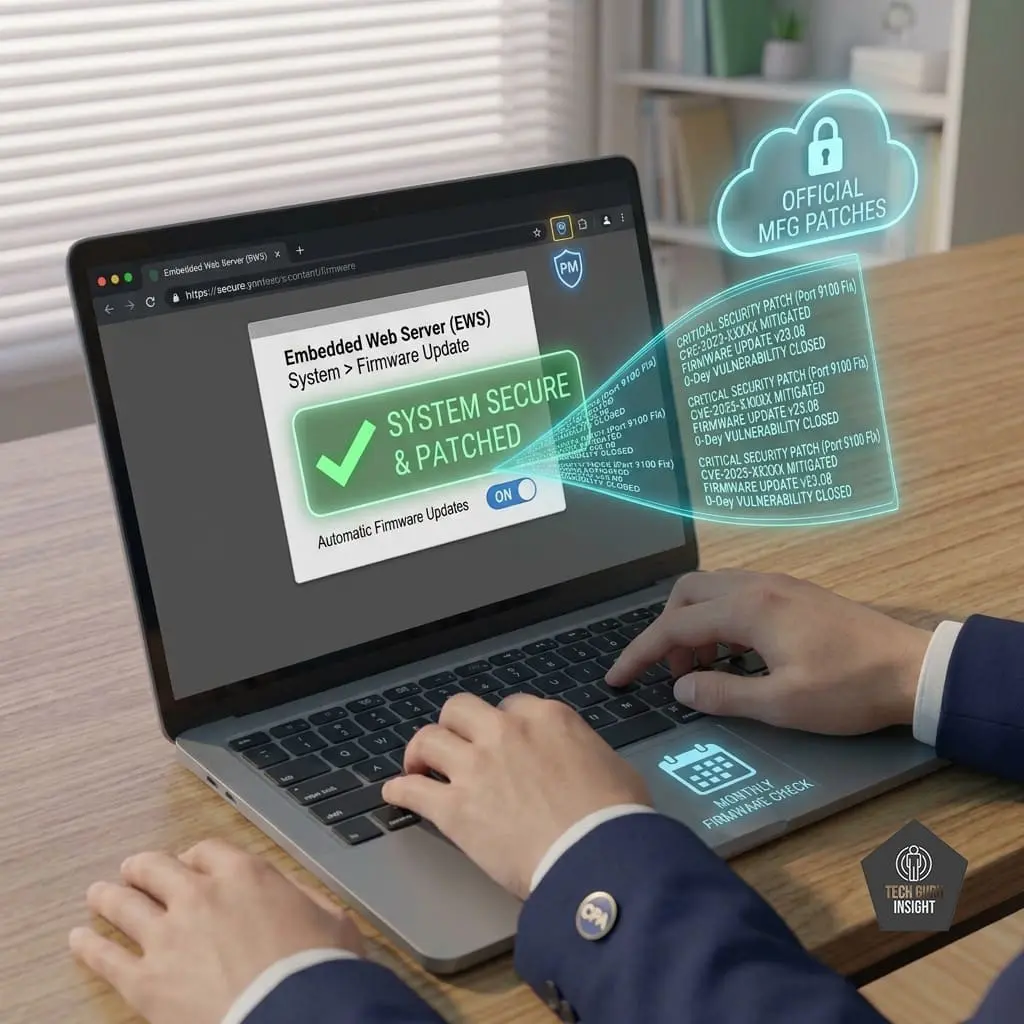
2. Establish a Rigorous Firmware Patching Routine: Mitigates Zero-Day Vulnerabilities.
Navigate to the “System” or “Maintenance” tab within the admin dashboard. Check for any pending firmware updates and install them immediately.
If your printer supports it, toggle Automatic Firmware Updates to “On.” If your device does not feature automatic updates, create a recurring monthly reminder in your calendar to check the manufacturer’s official support site manually. Firmware updates contain critical security patches that close newly discovered entry points exploited by hackers.

3. Disable Unused Network Protocols and Endpoints: Reduces attack surface area.
Printers are built to be highly compatible, meaning they leave dozens of unnecessary digital doors wide open. Audit your network settings menu and explicitly disable any features you do not actively use. Turn off:
– Legacy Protocols: FTP, Telnet, and SNMP v1/v2 (upgrade to SNMP v3 if network management is required).
– Discovery Services: UPnP (Universal Plug and Play) and SSDP.
– Unused Wireless Printing: Apple AirPrint, Wi-Fi Direct, and Bluetooth printing if your laptop connects via a secure local network or physical cable.
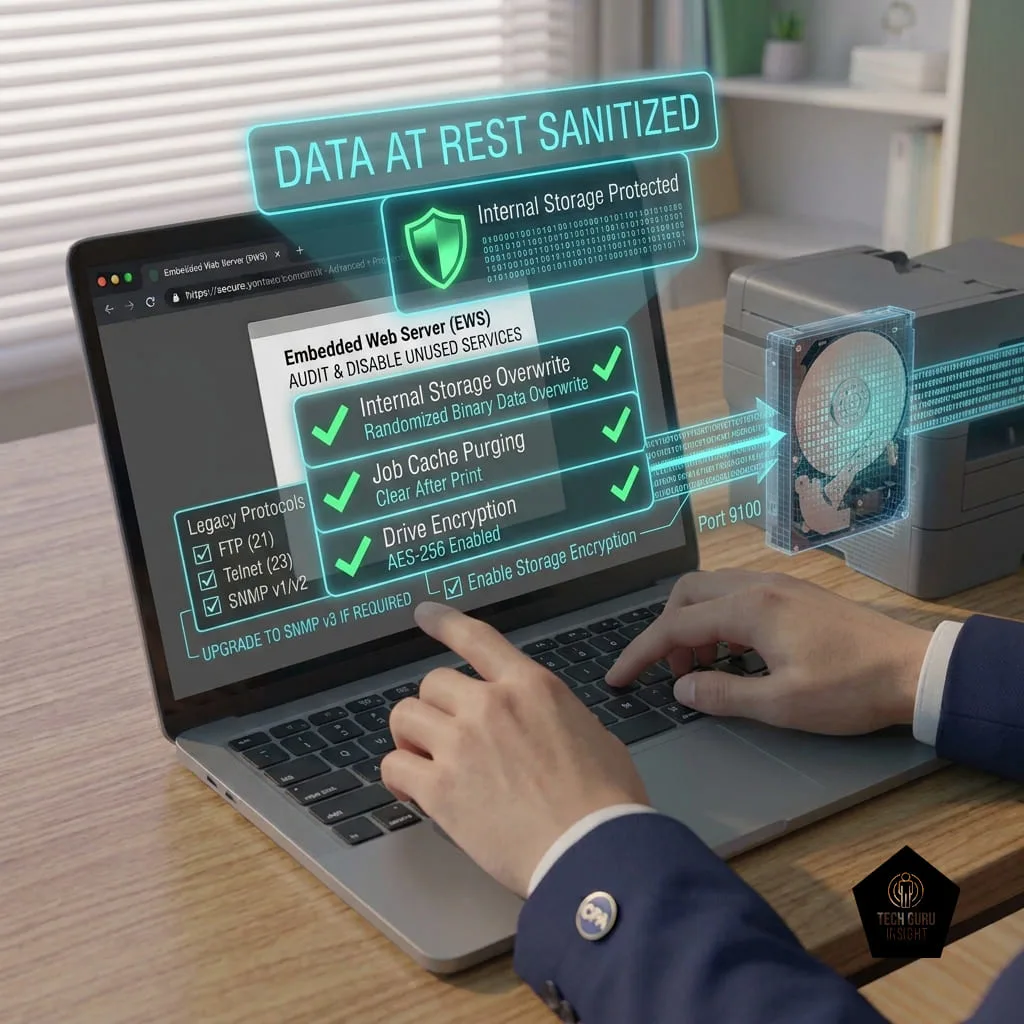
4. Configure Auto-Overwrite and Cache Purging: Protects data at Rest.
Locate the storage or security management settings. If your printer utilizes an internal hard drive or flash storage, enable Automatic Data Overwrite or Job Storage Erase.
This setting forces the printer to actively overwrite the memory sectors where a print job lived with randomized binary data immediately after the pages roll out, completely sanitizing the data at rest. If your printer supports storage encryption, ensure the internal drive encryption feature is enabled.
Compliance Note: Under IRS Publication 4557, failing to change default factory passwords on devices connected to networks containing tax software is flagged as a critical compliance deficiency during an audit.
By executing these four steps, you effectively neutralize the printer’s internal vulnerabilities. The device will no longer store legacy records, broadcast its presence to unauthorized guests, or host vulnerable pathways that invite automated network attacks.
Phase 2: Hardening the Network Connection
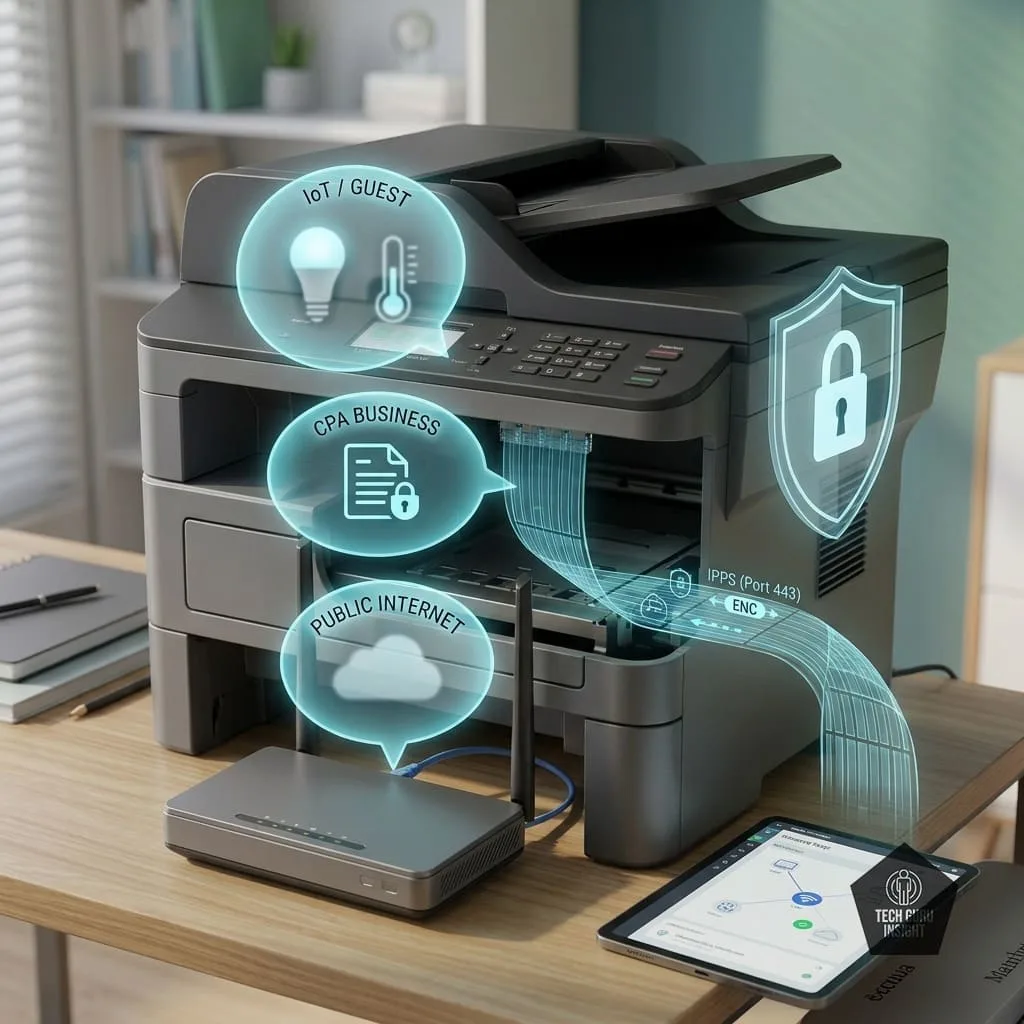
Implement Network Segmentation (The Guest Network Isolation)

The average home network is crowded with Internet of Things (IoT) devices—smart TVs, robotic vacuums, baby monitors, and connected appliances. These consumer gadgets are notorious for weak security updates and are prime targets for hackers looking to gain a foothold in a local network. If a hacker compromises a smart plug on a shared network, they can easily pivot to your office printer.
– The Action Item: Log into your home router’s administrative console and locate the wireless settings. Enable a Guest Network or a separate virtual local area network (VLAN).
– The Configuration: Move your work laptop and your office printer onto this isolated Guest Network. Ensure the router setting for “Allow guests to see each other and access my local network” is explicitly unchecked. This creates a secure digital silo. Even if a household smart device is compromised, the attacker is completely blocked from sniffing or accessing your printing workflow.
Transition from TCP/IP to Encrypted IPPS Printing
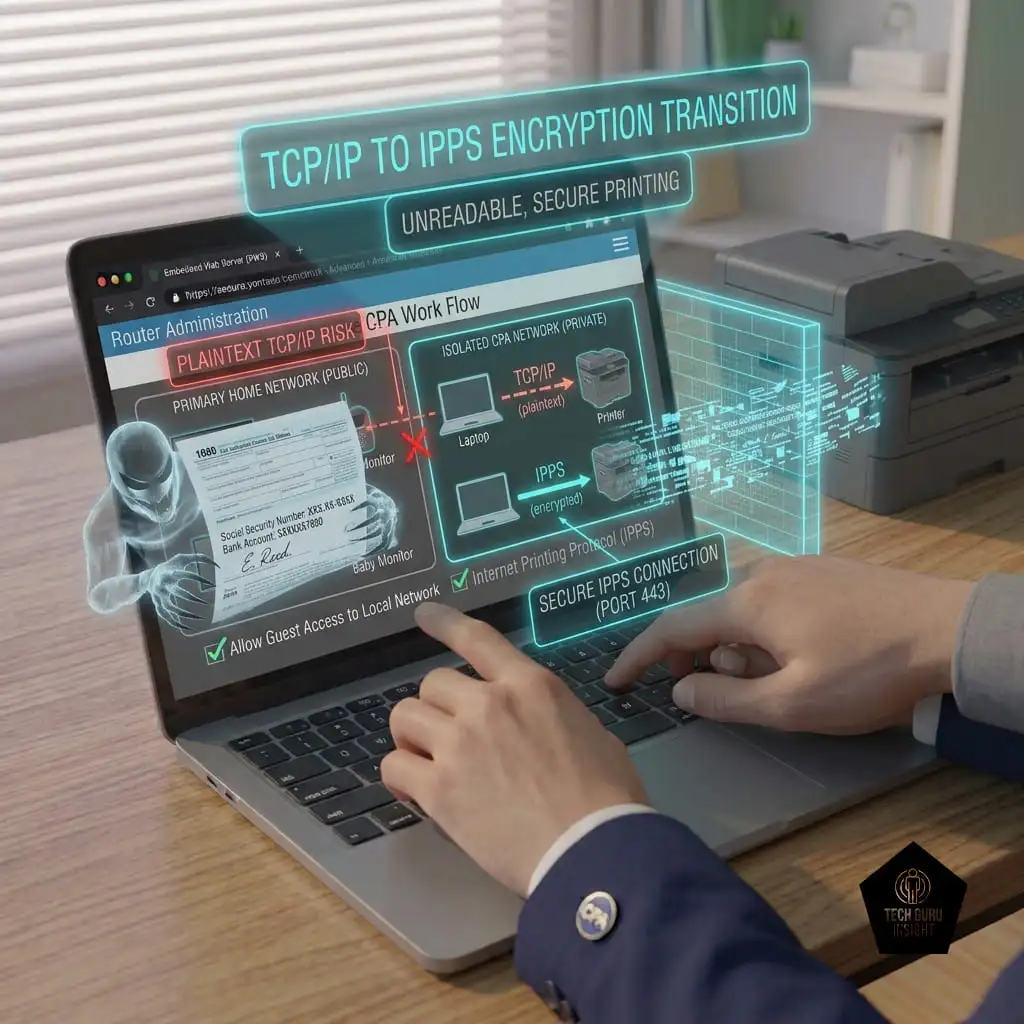
When adding a network printer to a computer, operating systems frequently default to standard TCP/IP printing protocols via Port 9100 or standard HTTP. This transmits your printed data across the airwaves as plaintext, allowing anyone intercepting the packets to reconstruct the entire document.
– The Action Item: Transition your printer connection to IPPS (Internet Printing Protocol over HTTPS), which utilizes Port 443.
– The Configuration: In your printer’s web management dashboard, ensure IPPS printing is enabled. When configuring the printer on your computer, manually add the printer using its secure URL (typically formatted as https://[Printer_IP_Address]/ipp/print). This forces your computer to wrap every tax return in robust SSL/TLS encryption before sending it through the air. Even if someone intercepts the wireless signal, they will see nothing but unreadable, scrambled data.
Disable Remote Cloud Printing Services
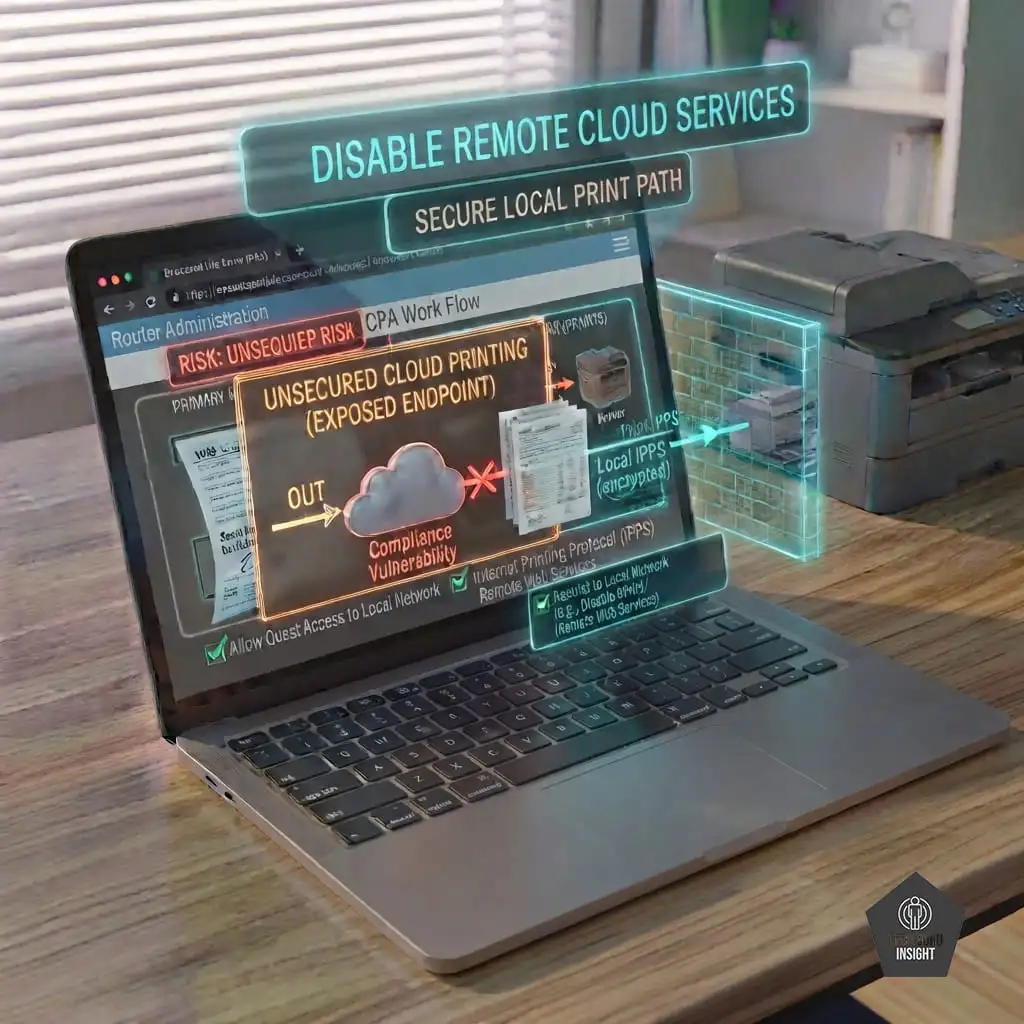
Convenience features like HP ePrint or legacy cloud printing protocols allow users to print documents by emailing them directly to a unique address assigned to the printer. This functionality opens up an unmonitored external endpoint that routes your data through third-party public cloud servers.
[ Unsecured Cloud Printing ] ── Routes through external public servers ── [ Compliance Vulnerability ]
[ Secure Local IPPS ] ── Direct, HTTPS-encrypted local link ── [ Compliant Pathway ]
– The Action Item: Navigate to the Web Services or Cloud Connect settings in your printer’s admin console.
– The Configuration: Explicitly turn off all remote web printing and email-to-print functions. Restrict the printer to accepting jobs exclusively via the secure local network. Client tax documents should never leave your controlled local environment until they are intentionally uploaded to your firm’s secure cloud portal.
A Note on Wi-Fi Direct: Ensure that Wi-Fi Direct or HP Wireless Direct is disabled. These features broadcast a separate, independent Wi-Fi signal directly from the printer itself, completely bypassing your router’s firewall and creating an unmonitored, ad-hoc wireless doorway into the device.
Web Dashboard Configuration Summary
| Feature / Setting | Default Factory State | Compliant Target State | Mandated By |
| Admin Password | “admin”, “1234”, or blank | 14+ Character Unique String | IRS Pub 4557 |
| Firmware Updates | Manual / Disabled | Enabled (Automatic Updates) | FTC Safeguards |
| Network Protocols | UPnP, FTP, AirPrint Active | Disabled (Only Secure Local Link) | FTC Safeguards |
| Print Link | Standard TCP/IP (Port 9100) | Enforced IPPS over HTTPS (Port 443) | GLBA Encryption |
| Storage Management | Cache Data Retained | Auto-Overwrite / Clear Job Storage | IRS Pub 4557 |
Phase 3: Physical Security & Document Lifecycles

While digital hardening protects your printer from remote exploitation, compliance under the FTC Safeguards Rule and IRS Publication 4557 will instantly fail if physical document security is treated as an afterthought. Data breaches do not just happen across networks; they happen when a visitor catches a casual glance of a tax return sitting in an output tray, or when draft tax documents are tossed into a standard home recycling bin.
To maintain a legally defensible workspace, remote tax professionals must enforce strict physical custody and define a compliant lifecycle for every sheet of paper.
Establish Physical Custody and Environmental Control
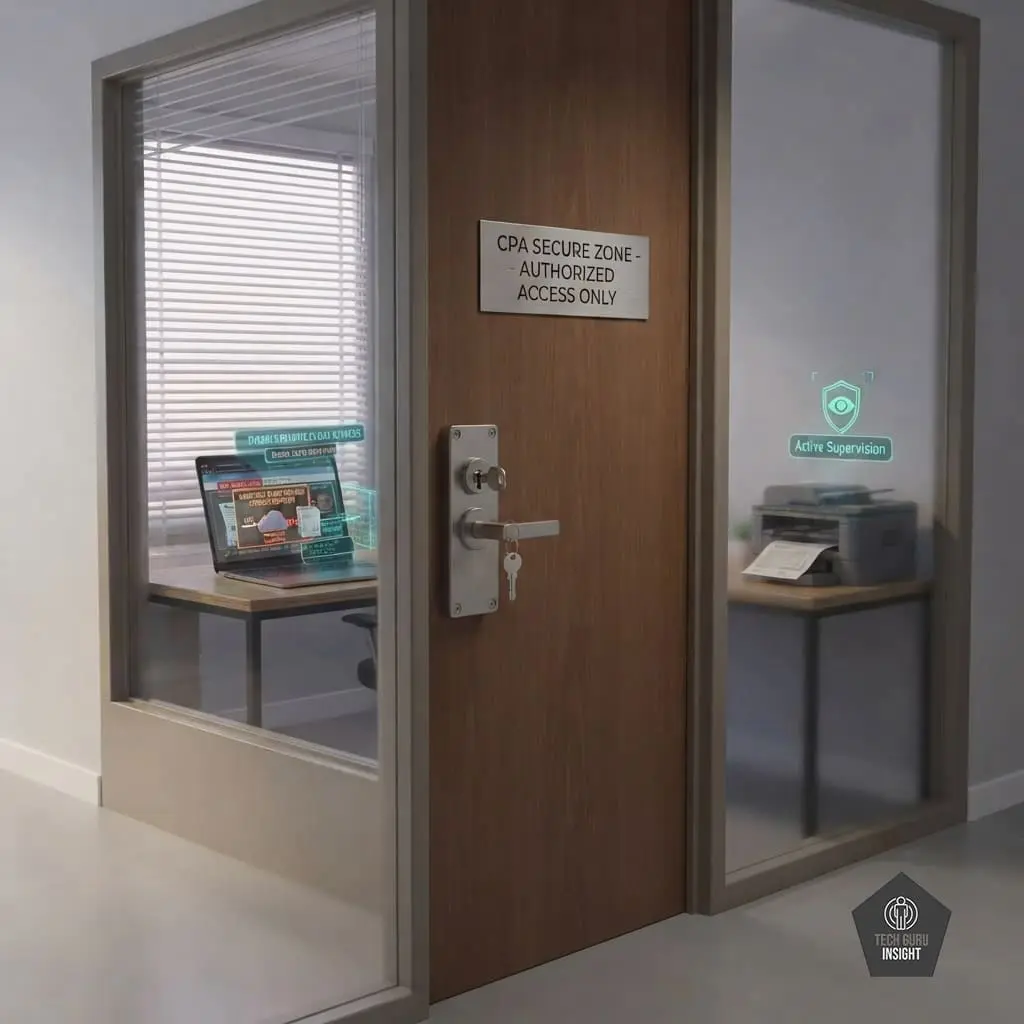
A primary requirement of IRS Pub 4557 is restricting unauthorized access to taxpayer data. In a corporate office, this is handled by keycard locks and security guards. In a remote home office, the responsibility falls entirely on the practitioner.
– Zone Isolation: The printer must reside within a dedicated, lockable room—not in high-traffic, communal areas like the kitchen, living room, or a shared home hallway.
– The Closed-Door Rule: When clients’ physical files are being processed, the office door must be closed and locked to prevent accidental exposure to family members, cleaners, guests, or maintenance workers.
– Active Supervision: If you must leave the room while a large document is printing, the office door must be locked behind you. Client data must never sit in an unmonitored space.
Implement Secure Print Release (Pull Printing)
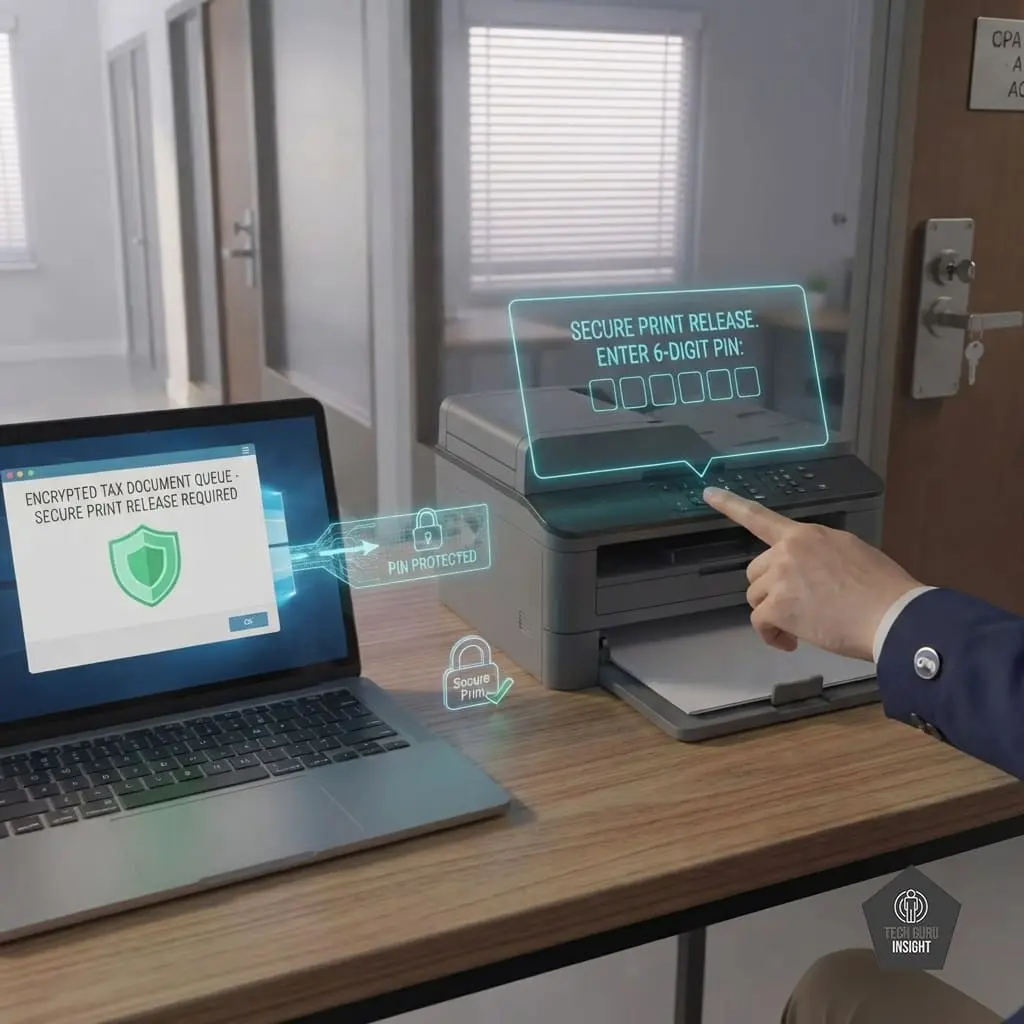
The most common point of physical data exposure occurs during the “print and sprint”—clicking print on your computer and leaving the document sitting exposed in the output tray until you walk over to collect it.
The Action Item: Enable Secure Print Release (also known as PIN Printing or Pull Printing) in your printer’s configuration menu.
The Workflow: When you send a tax document to print from your tax software, the printer holds the file in its encrypted queue without rolling the paper. The document will only print once you physically walk to the device and input a unique 6-digit PIN on the printer’s control panel, or authenticate using a firm-approved mobile app. This guarantees that you are standing at the device the exact moment the PII becomes physical paper.
The Compliant Document Destruction Chain

Under federal guidelines, throwing any document containing client PII into standard trash or municipal recycling bins constitutes a severe data breach. Every piece of paper generated—including misprints, calculated scratchpad notes, draft returns, and client copies—must be destroyed using precise, certified protocols.
[ Sensitive Physical Document ] – [ Lockable Shredding Console (Data at Rest) ] – [ Micro-Cut Shredder: DIN 66399 Level P-4 / P-5 ] – [ Irreversible Cross-Cut Fragments (<30 mm²) ]
– Baseline Equipment: Abandon standard “strip-cut” shredders, which cut paper into vertical ribbons that can easily be reassembled. CPAs must use a high-security cross-cut or micro-cut shredder that meets the international DIN 66399 Level P-4 or P-5 standard.
– The P-5 Standard: A Level P-5 micro-cut shredder reduces a single sheet of A4 paper into more than 2,000 irregular particles measuring less than 30 square millimeters (typically 2 x 15 mm). At this level, data reconstruction is legally recognized as practically impossible.
– Interim Storage: If you do not shred documents immediately, they cannot sit in an open wastebasket. They must be dropped into a heavy-duty, lockable document destruction container under your desk until you run the shredding cycle.
End-of-Lifecycle Sanitization

When a printer is leased, sold, or recycled at the end of its useful life, it frequently carries a literal archive of client data inside its storage chips.
– The Action Item: Before any printing device leaves your home office, you must perform a certified hardware sanitization.
– The Execution: Access the system menu and execute a secure “Factory Reset and NVRAM Purge” to wipe local chip memory. If the device contains an internal hard disk drive (HDD), it must be physically extracted from the chassis. Use a drilling device or a professional degausser to permanently destroy the drive mechanism before disposing of the remaining plastic and metal components. Never return a leased printer or trade in an old device with its storage drive intact.
Compliance Tip: Keep a physical “Destruction Log” next to your shredding station. Documenting the date, general category of records destroyed, and method of disposal creates a vital paper trail that reinforces your Written Information Security Plan (WISP) during an IRS or FTC compliance audit.
Documenting Compliance for the WISP (Written Information Security Plan)

Under federal law, technical and physical security adjustments mean very little if they are not formalized. The IRS and the FTC do not operate on an honor system. If your remote tax practice is audited, or if you face a data security inquiry, regulators will immediately demand to see your Written Information Security Plan (WISP).
A WISP is a comprehensive, legally mandated document that outlines exactly how your practice protects taxpayer data. Under the FTC Safeguards Rule, every tax professional—including solo practitioners and home-based CPAs—must have a WISP in place.
To ensure your home office printing infrastructure stands up to regulatory scrutiny, you must formally integrate your printer security protocols into your firm’s WISP. Here is how to document that compliance.
The Home Office Device Inventory Log

An undocumented asset is a compliance liability. Your WISP must feature a live, dedicated asset registry that accounts for every peripheral processing client data outside the centralized office.
For your home office printer, you must record the following specific details in your WISP appendix:
– Device Identification: Make, exact model, serial number, and current firmware version.
– Ownership Status: Clearly denote whether the printer is firm-issued, personally owned (BYOD), or leased from a third party.
– Physical Location: Specify the exact room where the device operates (e.g., “Isolated home office room, 2nd floor, north wing”).
Documenting the Technical Baseline Configuration
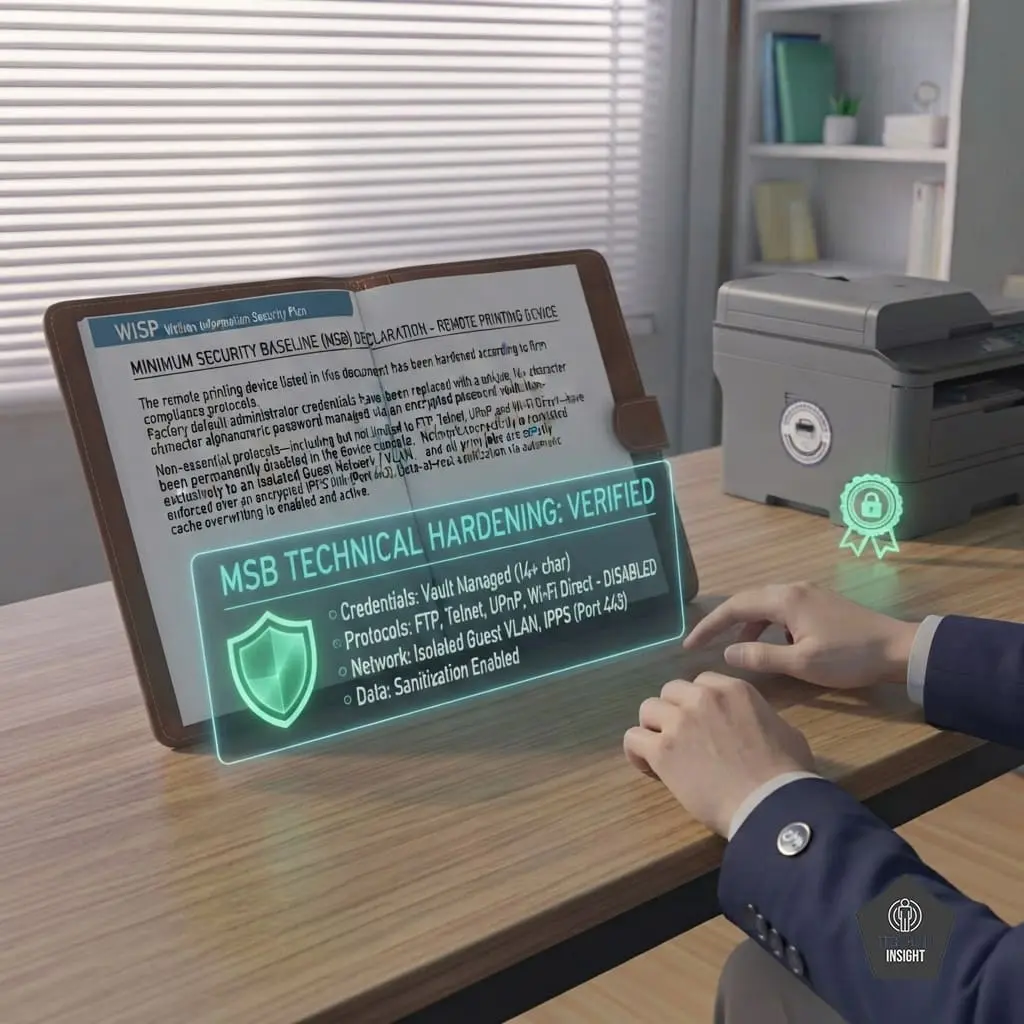
Regulators need proof that your printer isn’t running on vulnerable factory settings. Your WISP must contain a written declaration of the exact technical hardening steps you executed in Phase 1 and Phase 2.
In corporate compliance terms, this is called your Minimum Security Baseline (MSB). Your WISP should explicitly state:
“The remote printing device listed in this document has been hardened according to firm compliance protocols. Factory default administrator credentials have been replaced with a unique, 14+ character alphanumeric password managed via an encrypted password vault. Non-essential protocols—including but not limited to FTP, Telnet, UPnP, and Wi-Fi Direct—have been permanently disabled in the device console. Network connectivity is restricted exclusively to an isolated Guest Network / VLAN, and all print jobs are strictly enforced over an encrypted IPPS link (Port 443). Data-at-rest sanitization via automatic cache overwriting is enabled and active.”
Physical Custody and Disposal Protocols
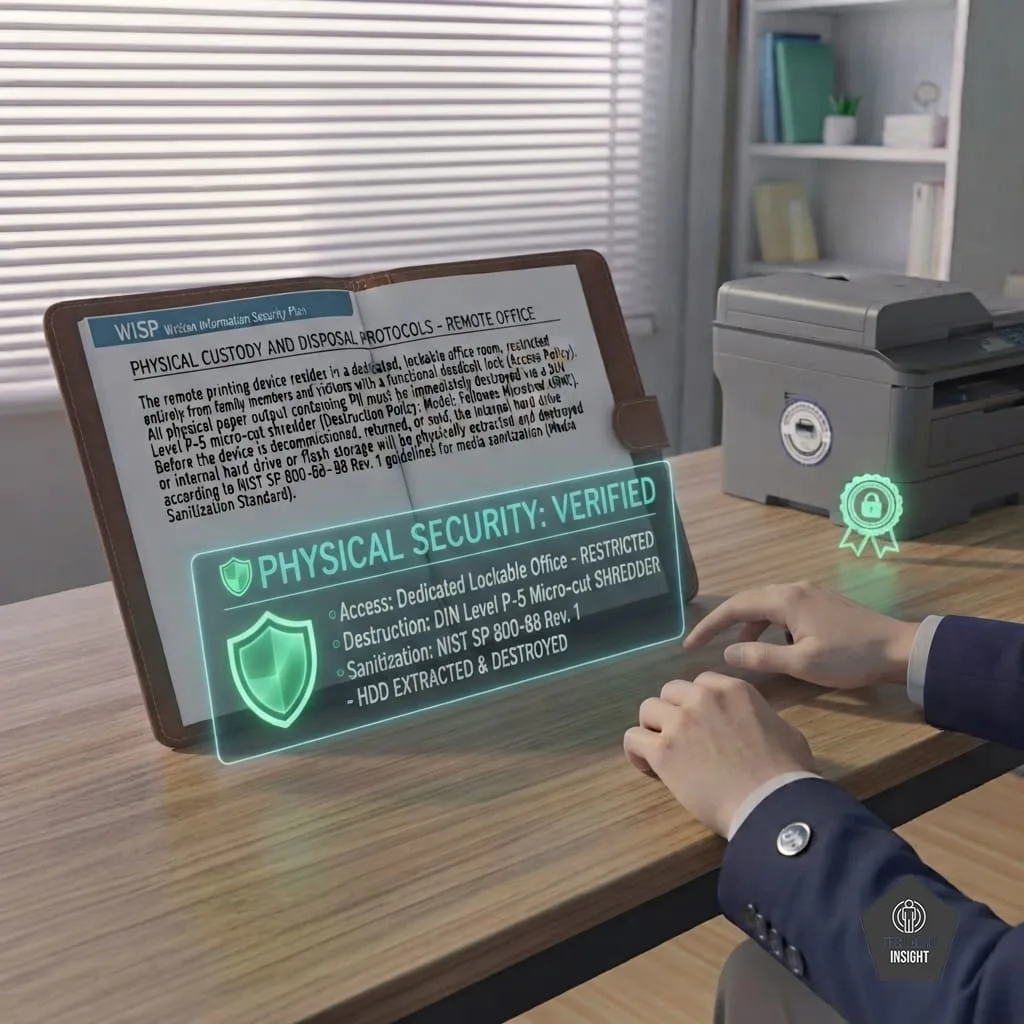
Your WISP must formalize the physical boundaries of your remote office that you established in Phase 3. It must cleanly document the lifecycle rules for physical paper to prove you maintain a chain of custody.
Ensure your WISP explicitly details:
– The Access Policy: A written statement confirming that the printing device resides in a room with a functional physical lock, restricted entirely from family members and visitors.
– The Destruction Policy: Explicitly specify the model and rating of your shredder (e.g., “All physical output containing PII must be immediately destroyed via a DIN Level P-5 micro-cut shredder”).
– The Media Sanitization Standard: A binding protocol stating that before the device is decommissioned, returned, or sold, the internal hard drive or flash storage will be physically extracted and destroyed according to NIST SP 800-88 Rev. 1 guidelines for media sanitization.
Navigating the “5,000 Records” Exemption & the 30-Day Reporting Mandate

When writing your WISP compliance parameters, it is critical to clarify two modern regulatory requirements often misunderstood by solo or small-firm practitioners:
– The 5,000 Consumer Exemption Nuance: Under the FTC Safeguards Rule, firms maintaining financial records for fewer than 5,000 unique consumers are technically exempt from specific administrative requirements, such as establishing written risk assessments or filing formal annual reports. However, the rule explicitly notes that **technical and physical safeguards (such as printer encryption, password hardening, and device network isolation) are non-negotiable regardless of firm size**. Furthermore, the IRS requires a functional WISP to maintain active filing credentials, providing zero exemption shortcuts for small practices.
– The 30-Day FTC Breach Reporting Mandate: If an unhardened remote printer’s local drive is exfiltrated
Employee Acknowledgment and Annual Auditing

If your firm employs other remote contractors or staff, a WISP is only legally binding if the employees have read, signed, and understood it.
– Sign-Offs: Every remote employee processing tax returns must sign a formal rider acknowledging that they understand the home printing policies, use the secure print release function, and possess a firm-approved micro-cut shredder.
– The Annual Audit Requirement: The FTC Safeguards Rule requires regular testing and monitoring of your security plan. At least once every 12 months, you must conduct a self-audit of your remote printing environment. Verify that the firmware is up to date, check that the guest network isolation is still active, and log the audit date directly inside your WISP document.
🔒 Security-Ready Hardware Recommendations
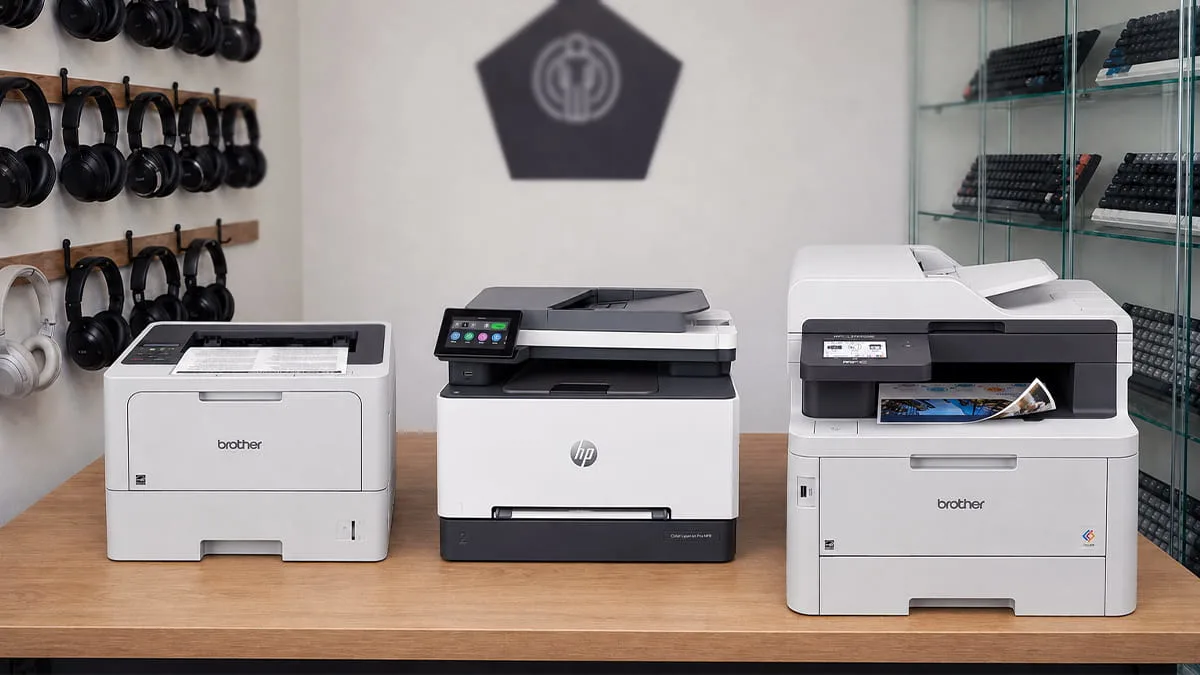
Below are the top security-focused models from our comprehensive hardware evaluations:
HP Color LaserJet Pro MFP 3301fdw (Best Smart Color All-in-One):
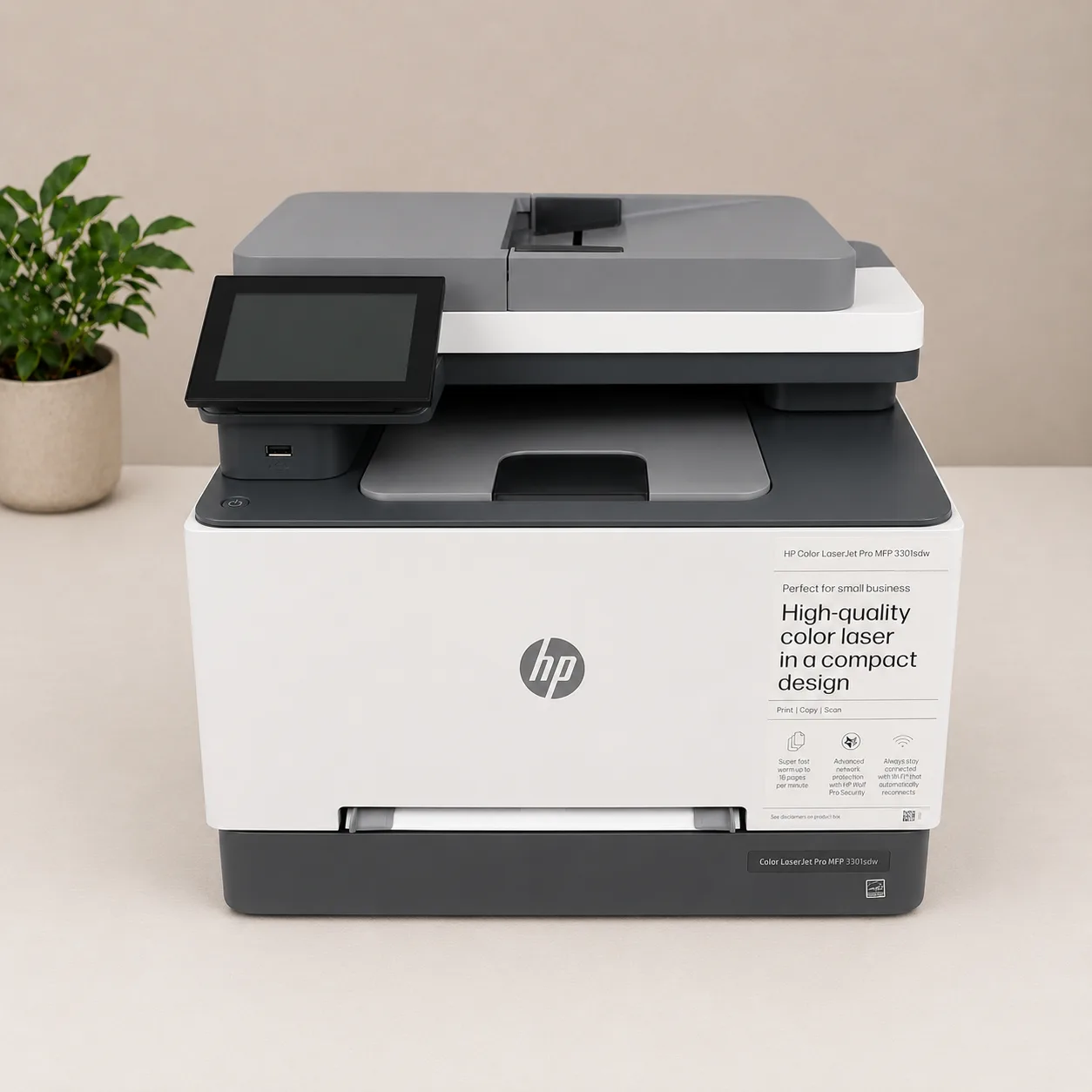
This all-in-one color laser comes pre-configured with **HP Wolf Pro Security**. It features continuous hardware-level monitoring, boot-code validation, and automatic firmware recovery to proactively stop malware attacks before they hit your home network.
Brother HL-L6210DW (Best Heavy-Duty Monochrome Workhorse):
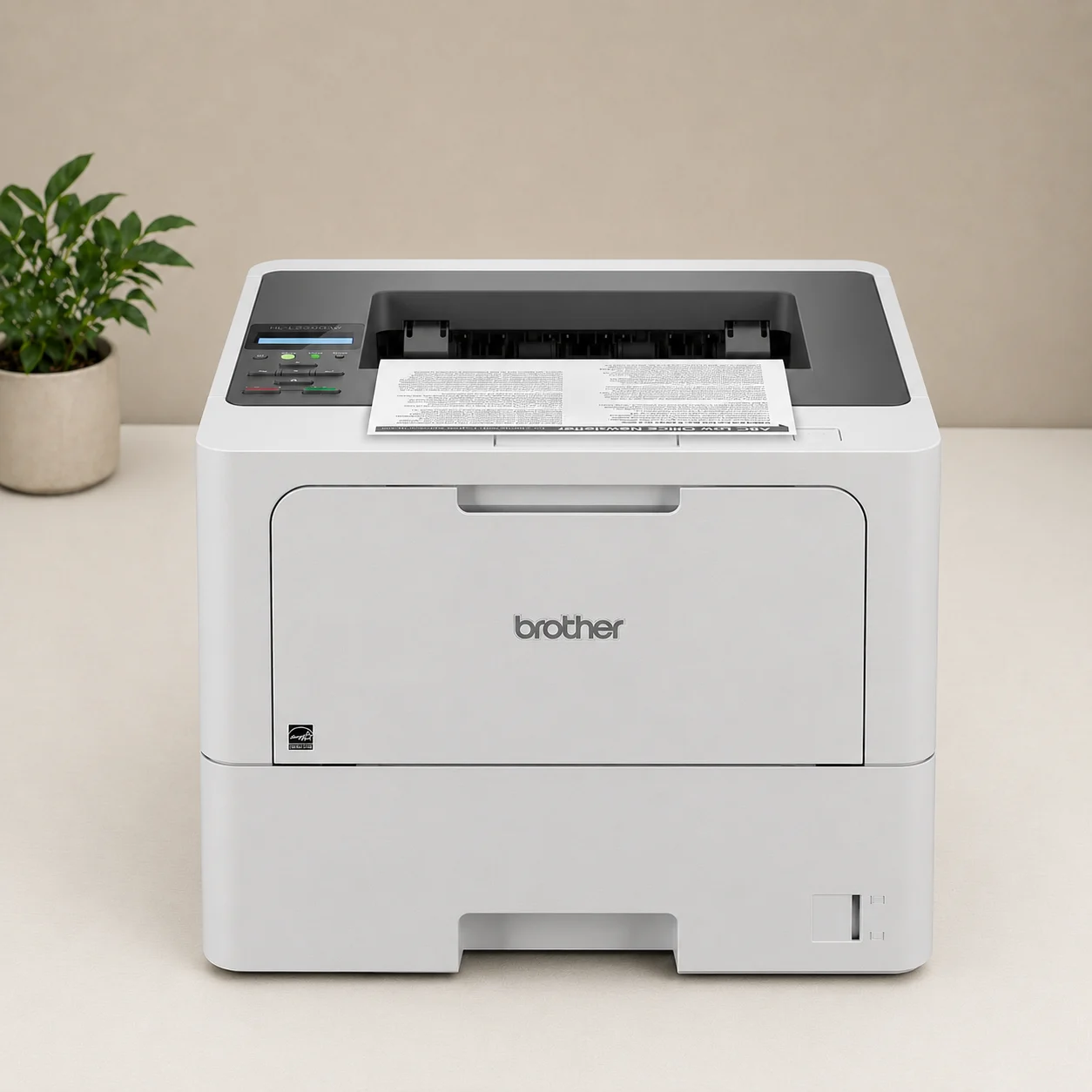
Built with enterprise-level security protocols, this rapid-fire text printer supports Secure Print (PIN Release), Active Directory integration, and Triple Layer Security features to restrict unauthorized access to client files.
👉 Looking for a deep dive into running costs, print speeds, and full performance reviews? Check out our complete, data-backed guide to the [Best Heavy-Duty Laser Printers for Home Tax Professionals and Accountants].
Conclusion & Checklist

Securing a remote tax practice is an ongoing discipline, not a one-time configuration. While cloud portals and multi-factor authentication protect your data at the digital perimeter, your hard-earned security baseline fails the moment client files materialize into unmonitored physical sheets or sit unencrypted in local hardware memory. Regulators do not differentiate between a network-based database hack and a casually stolen physical folder; under the FTC Safeguards Rule and IRS Publication 4557, a breach is a breach.
By implementing dedicated network isolation, enforcing endpoint encryption, establishing pull printing workflows, and using certified physical destruction methods, you successfully eliminate the hidden printer vulnerability. Ultimately, defending customer data shields the professional practice you’ve meticulously built from regulatory penalties, financial damages, and reputational ruin.
Remote Printer Compliance Audit Checklist
Print this quick-reference audit list or log these checkpoints directly into your Written Information Security Plan (WISP) to ensure strict annual compliance.
☐ 1. Device Hardware Hardening
– [ ] Custom Admin Credentials: Factory passwords are removed; a 14+ character unique password is active in a secure password vault.
– [ ] Automated Firmware: Automated updates are toggled on, or a monthly manual check schedule is formalized.
– [ ] Service Reduction: Unused protocols—specifically UPnP, FTP, Telnet, Apple AirPrint, and Wi-Fi Direct—are permanently disabled.
– [ ] Storage Hygiene: Automatic job storage overwrite or volatile cache purging features are turned on.
☐ 2. Network Transmission Security
– [ ] Network Isolation: The printer and work computer sit on an isolated Guest Network or dedicated business VLAN away from home IoT devices.
– [ ] Encrypted Transit: The local printing path uses secure IPPS (Internet Printing Protocol over HTTPS) via Port 443; unencrypted TCP/IP (Port 9100) is blocked.
– [ ] Cloud Cutoff: Public email-to-print or brand-specific remote web printing pathways are entirely disabled.
☐ 3. Physical Custody & Destruction
– [ ] Environmental Lock: The device operates within a room equipped with a physical door lock, strictly restricted from household occupants and guests.
– [ ] Authentication Release: Secure Print Release (PIN-to-print) is active, forcing the practitioner to stand at the tray before paper rolls.
– [ ] Micro-Cut Shredding: A certified DIN Level P-4 or P-5 micro-cut shredder handles all misprints and intermediate notes; standard wastebaskets are forbidden.
– [ ] Decommission Protocol: A written media sanitization mandate guarantees that the internal hard drive or flash storage will be physically destroyed before device disposal.
☐ 4. Administrative Controls
– [ ] Asset Tracking: The printer make, model, physical serial number, and firmware status are logged in the firm asset registry.
– [ ] WISP Integration: A written declaration of these exact home office printer configurations is formally embedded into the practice WISP document.
– [ ] Annual Review: A recurring compliance review date is scheduled to audit the remote print network environment every 12 months.