Printer Not Printing Black Ink – 6 Causes and Easy Fixes
Few printer problems are more frustrating than when your printer prints color perfectly but refuses to print black ink.
Many users experience this issue when printing documents, emails, or reports that rely heavily on black text.

In this complete guide, you’ll learn the most common causes of a printer not printing black ink and the easiest ways to fix the problem quickly. Whether you use an inkjet printer, an ink tank printer, or a cartridge-based printer, these solutions should help restore normal printing.
Common Signs Your Printer Is Not Printing Black Ink
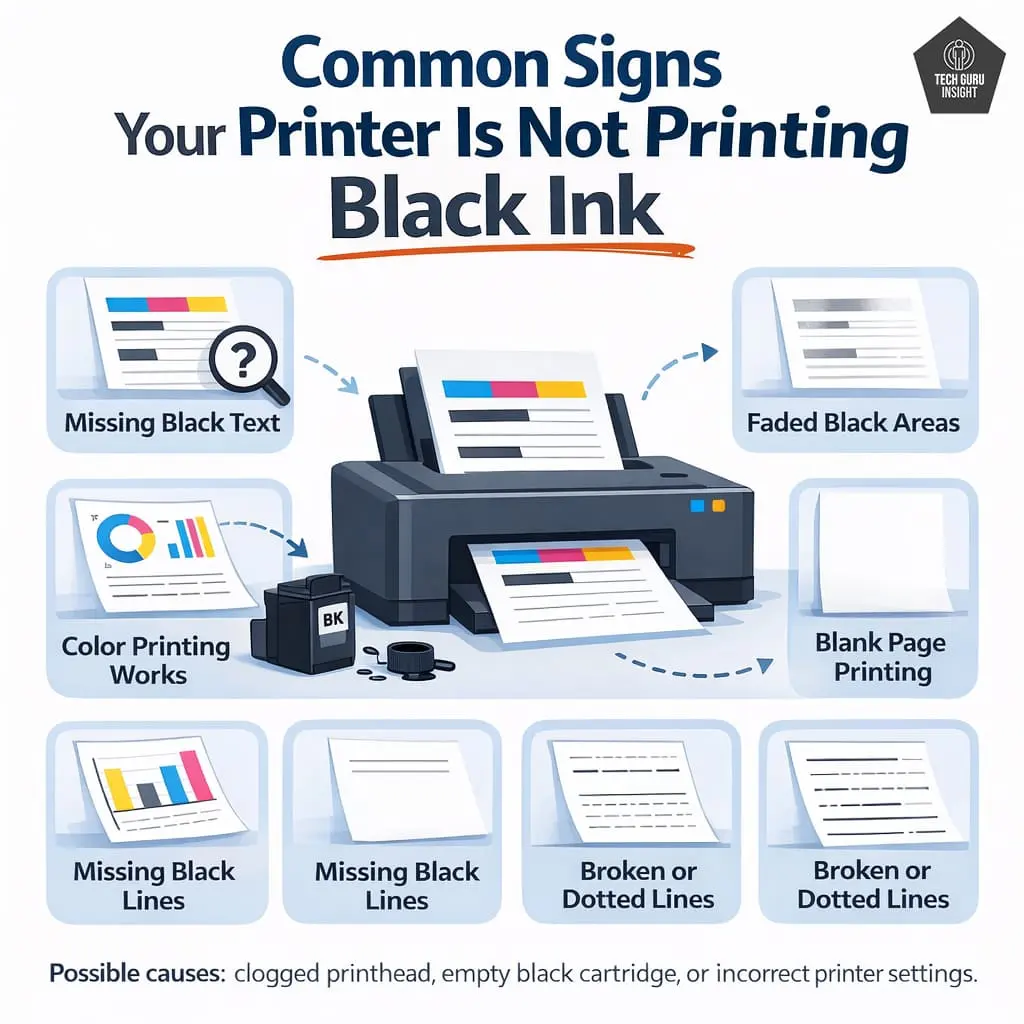
Before troubleshooting, it’s helpful to confirm that your printer is actually experiencing a black ink printing problem.
Here are the most common signs:
- Documents print without black text.
- Black areas appear faded or gray.
- Only color inks print properly.
- Black lines are missing from printouts.
- The printer produces blank pages when printing text documents.
- Printouts contain broken or dotted black lines.

If you see any of these symptoms, the issue is usually related to the black cartridge, printhead, or printer settings. The black cartridge stores liquid ink that is heated or pressurized to create droplets during printing, a process explained in detail on the Ink cartridge.
Quick Troubleshooting Checklist
Before trying advanced fixes, start with these quick checks. Sometimes the issue can be resolved in just a few minutes.
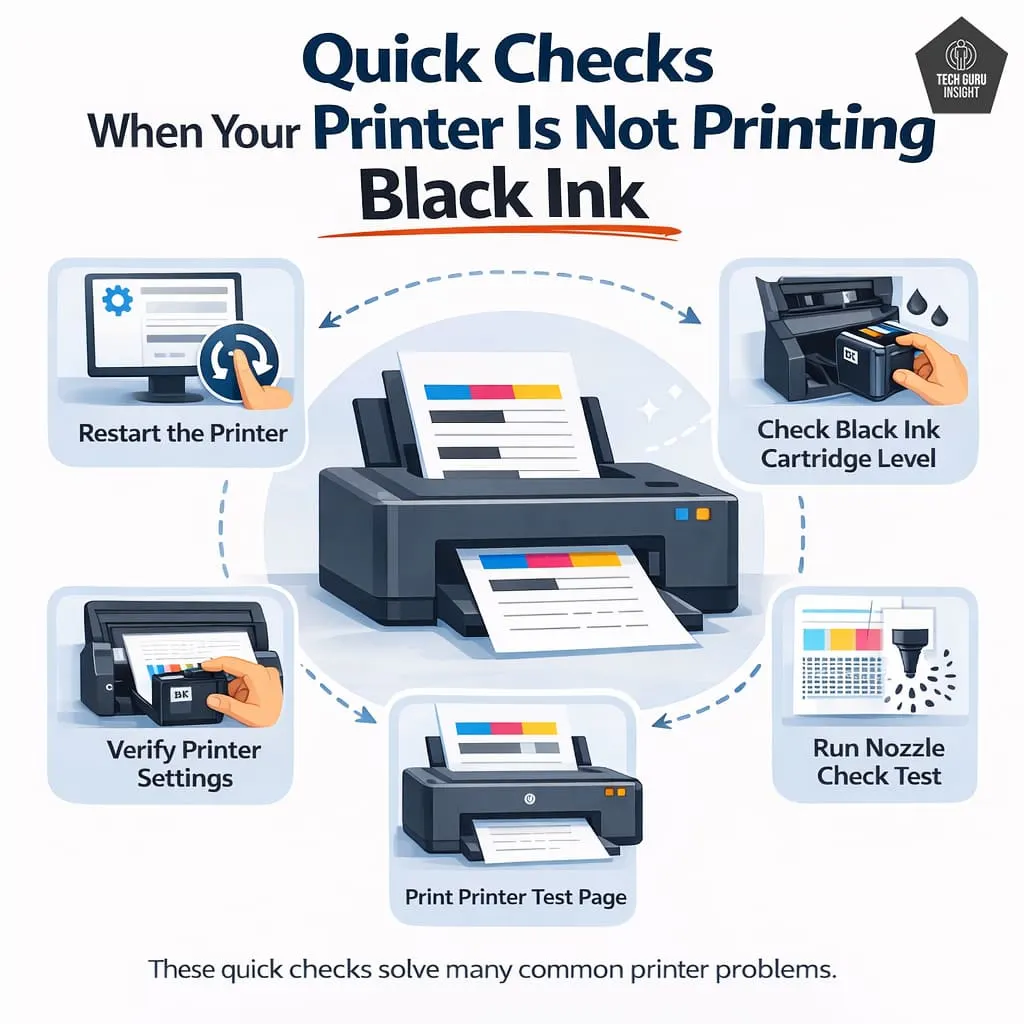
Try the following steps:
✔ Restart the printer.
✔ Check the black ink cartridge level.
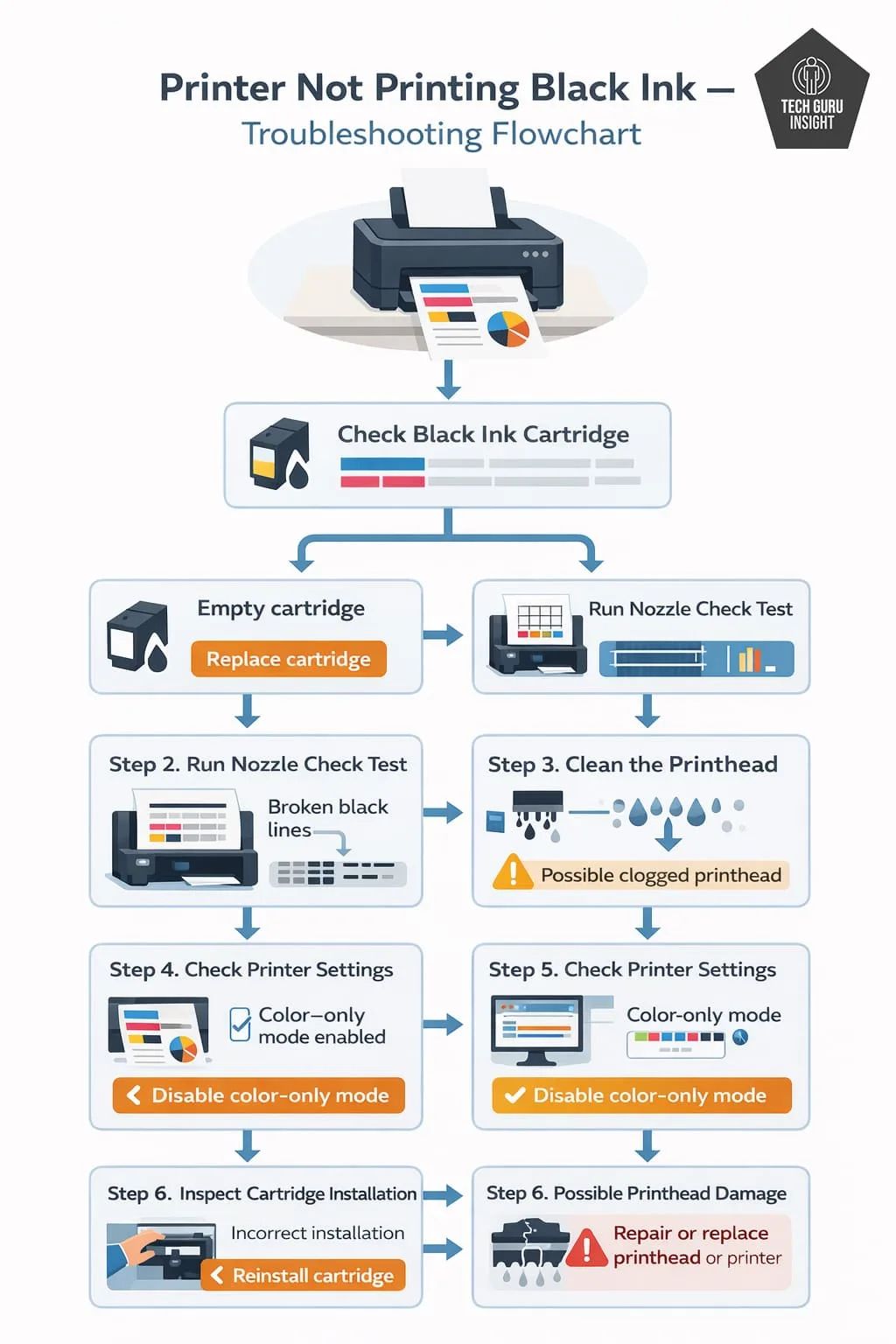
✔ Run a nozzle check test.
✔ Print a printer test page.
✔ Verify printer settings.
If the problem continues after these checks, continue with the detailed troubleshooting steps below.
Quick Tips
When restarting your printer, turn it off and unplug it for about 60 seconds. This performs a full reset and can clear minor software errors.
Run This Quick 1-Minute Printer Test
Before trying any fixes, print a nozzle check pattern.
Most printers include this option in:
Printer Settings → Maintenance → Nozzle Check
What to look for:
• Broken black lines
• Missing black segments
• Faded black patterns
If the black pattern is missing or broken, the printhead is likely clogged.
My Experience
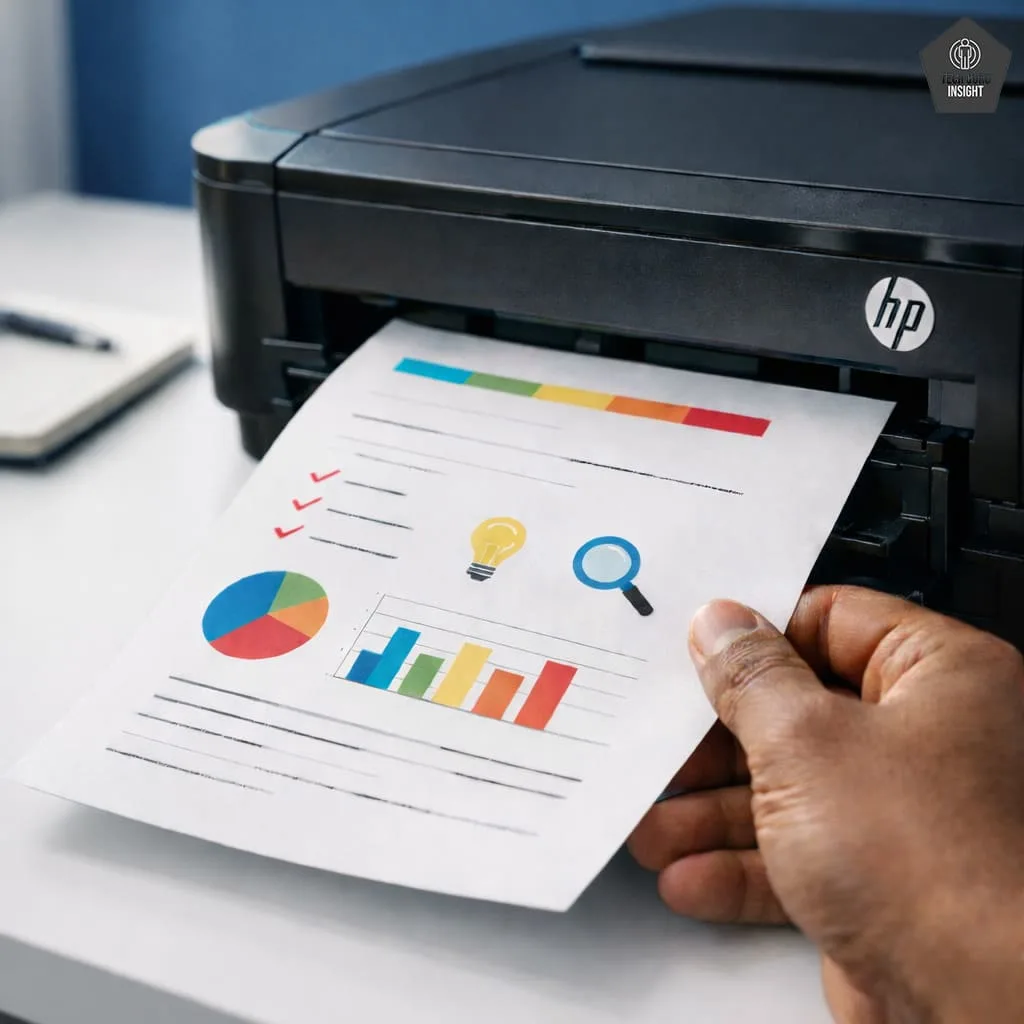
I have faced this problem with an inkjet printer where color prints worked perfectly, but black text completely disappeared. After running a nozzle check test, I noticed several broken black lines.
Running one printhead cleaning cycle solved the issue instantly. In many cases, the problem is simply dried ink clogging the printhead.
Printer Not Printing Black Ink – 6 Causes and Solutions
✅ Cause #1 – Empty or Low Black Ink Cartridge
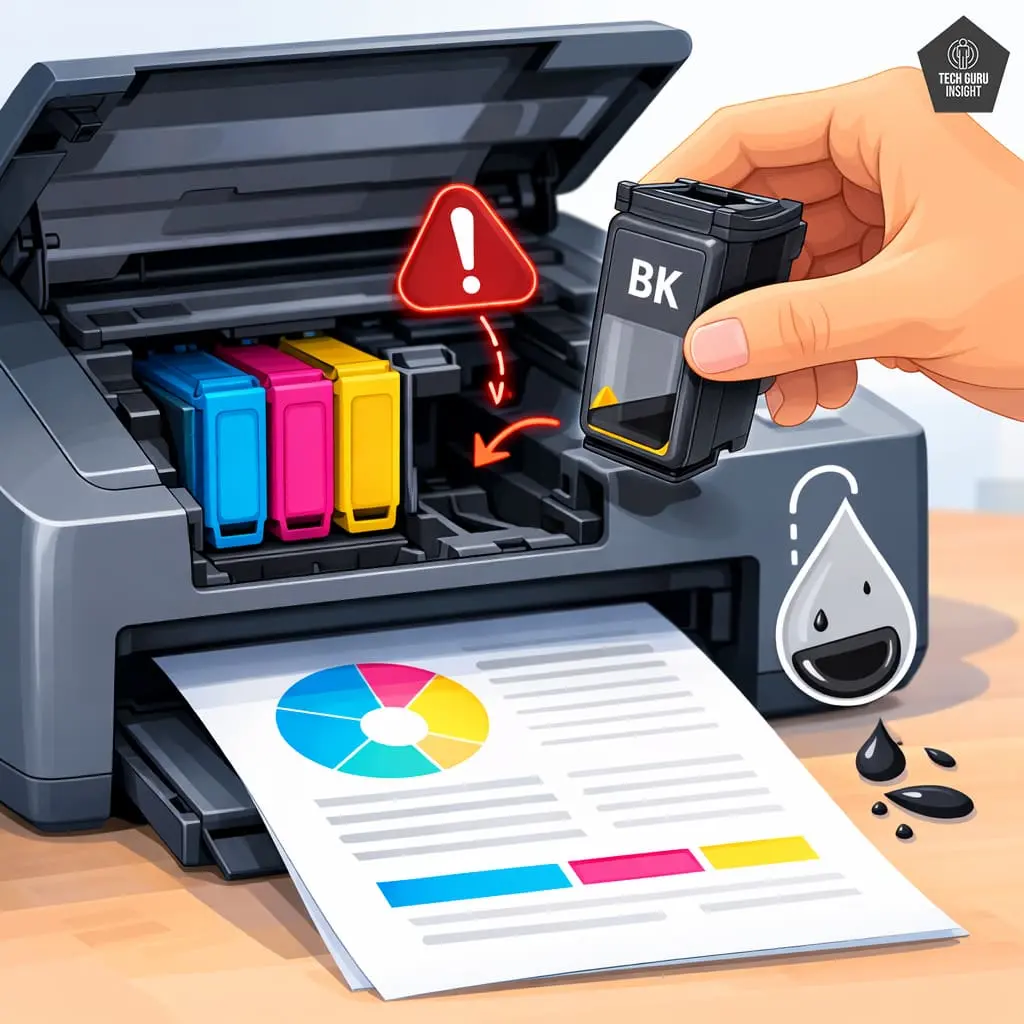
One of the most common reasons a printer stops printing black ink is simply that the black cartridge is empty or running very low.
Many printers will continue printing color even when the black cartridge has run out of ink.
Why this happens
Ink cartridges sometimes report incorrect ink levels. Even if the printer software shows that ink remains, the cartridge may actually be nearly empty.
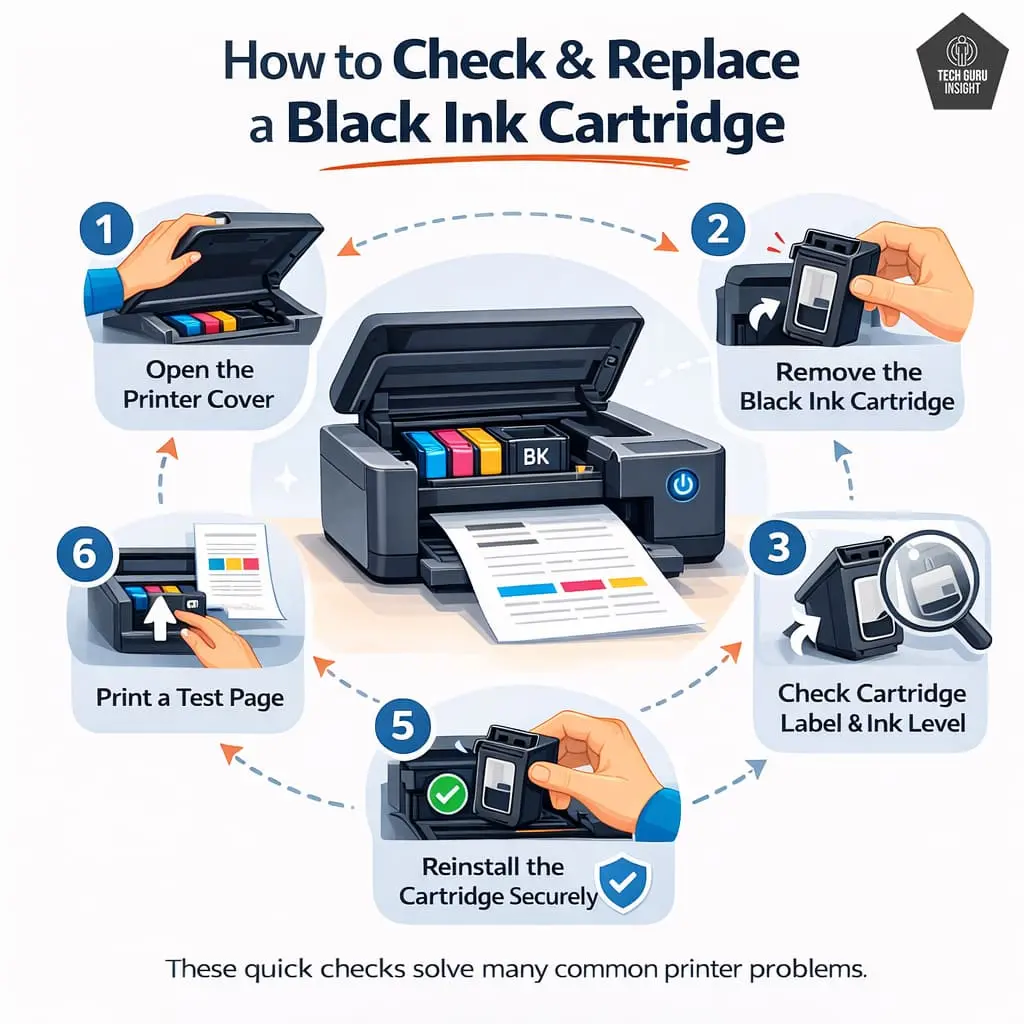
How to fix it
Follow these steps:
1. Open the printer cover.
2. Remove the black ink cartridge.
3. Check the cartridge label and ink level.
4. Replace the cartridge if it is empty.
5. Reinstall the cartridge securely.
6. Print a test page.
If the cartridge is old or refilled multiple times, replacing it with a new genuine cartridge often solves the problem.
Quick Tips
If you recently installed a new cartridge, make sure the protective plastic tape has been completely removed. Leaving this tape on can block ink flow.
✅ Cause #2 – Clogged Printhead Nozzles (Most Common Problem)
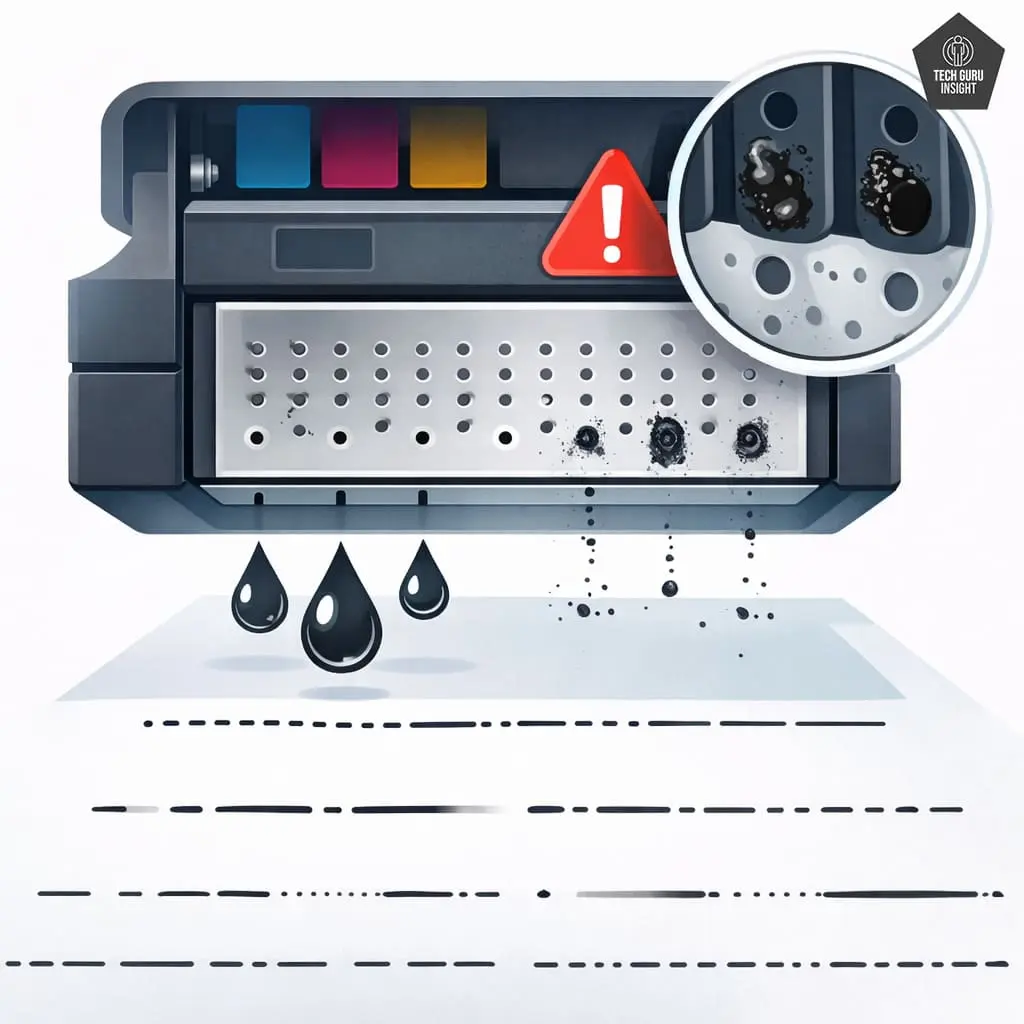
Clogged printhead nozzles are the most common reason printers stop printing black ink.
Inkjet printers use tiny nozzles to spray ink onto the paper. Over time, dried ink can block these nozzles.
Why printheads get clogged
Printhead clogs usually occur when:
- The printer is not used regularly.
- Cheap or low-quality ink is used.
- The printer is stored in dusty environments.
- The printer remains unused for weeks.
When the black ink nozzles become clogged, the printer cannot deliver ink properly to the paper.
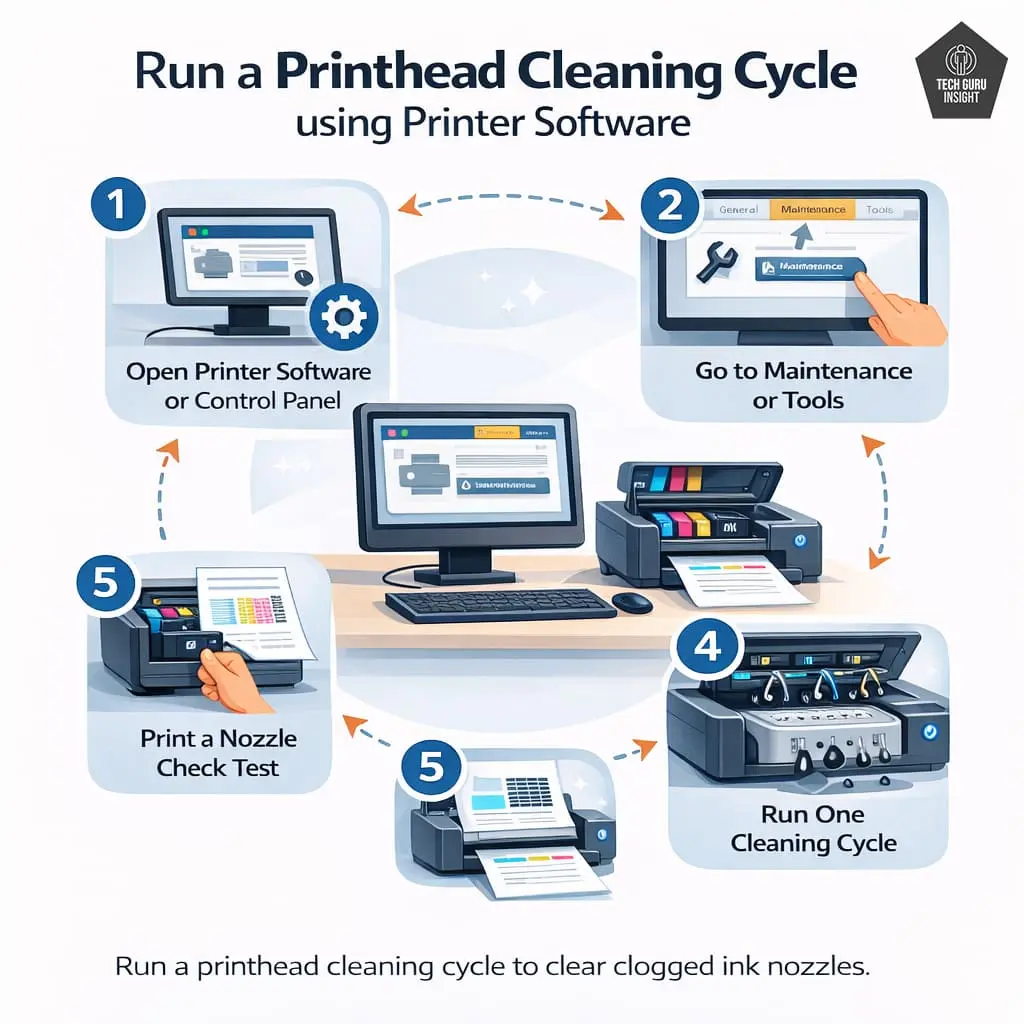
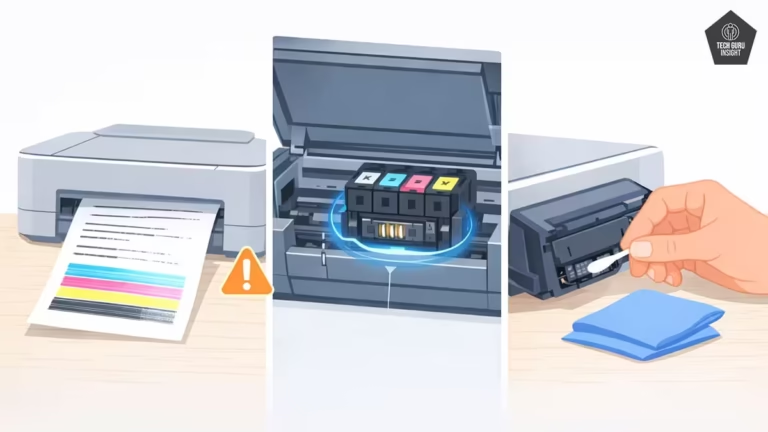
How to fix clogged printheads
Most printers include an automatic cleaning feature.
Follow these steps:
1. Open your printer software or control panel.
2. Go to Maintenance or Tools.
3. Select Printhead Cleaning.
4. Run one cleaning cycle.
5. Print a nozzle check test.
If the problem continues, run a second cleaning cycle. Avoid running too many cleaning cycles because it wastes ink.
If you want a detailed step-by-step cleaning method, you can read this guide:
Printer Printing Faded? Clean Printhead Without Removing Cartridge
This guide explains how to safely clean clogged printheads without removing the cartridge.
Quick Tips
After running a cleaning cycle, wait about 10 minutes before printing a test page. This allows the ink system to stabilize and sometimes improves the cleaning results.
✅ Cause #3 – Incorrect Printer Settings
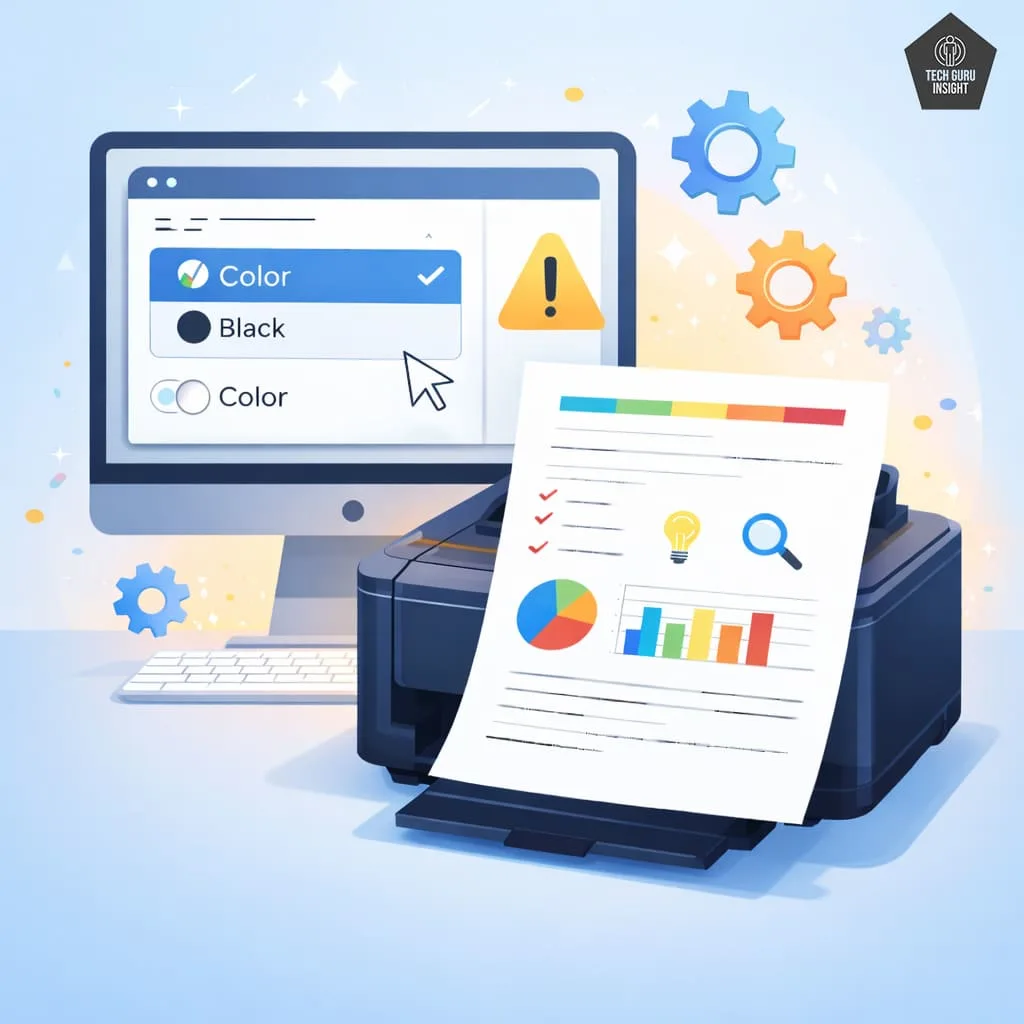
Sometimes the printer itself is not the problem. Incorrect settings may prevent the printer from using the black cartridge.
Common settings that cause black ink issues
Some printer modes can disable black ink printing, including:
- Color-only printing mode.
- Draft printing mode.
- Incorrect paper type settings.
- Grayscale or composite black settings.
These settings can cause the printer to use color inks instead of black.
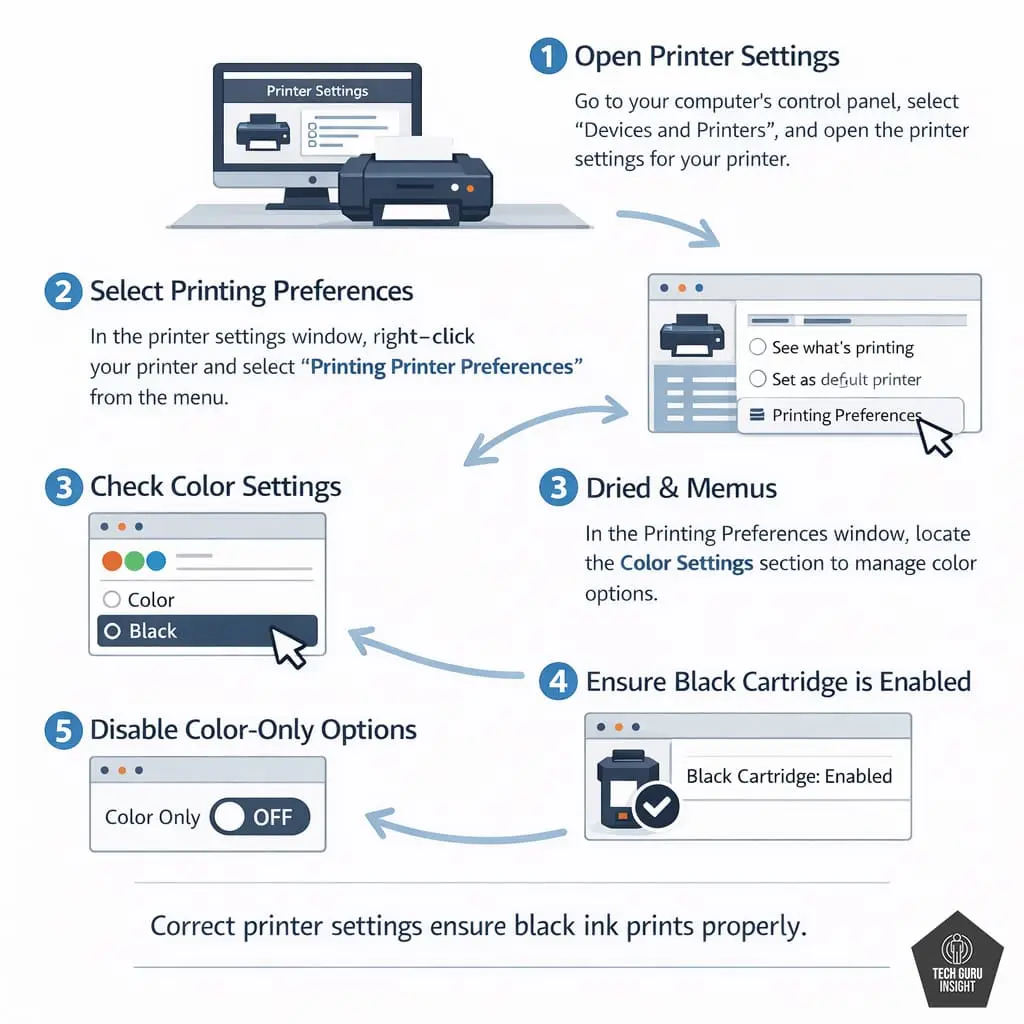
How to fix printer settings
Follow these steps:
1. Open Printer Settings on your computer.
2. Select Printing Preferences.
3. Check the Color Settings.
4. Ensure the printer is set to use a black cartridge.
5. Disable any color-only options.
After adjusting the settings, print another test page to confirm the fix.
Quick Tips
Instead of printing a regular document, print the printer’s built-in test page. This test bypasses software settings and shows whether the printer hardware itself is working properly.
✅ Cause #4 – Air Bubbles in the Ink Cartridge
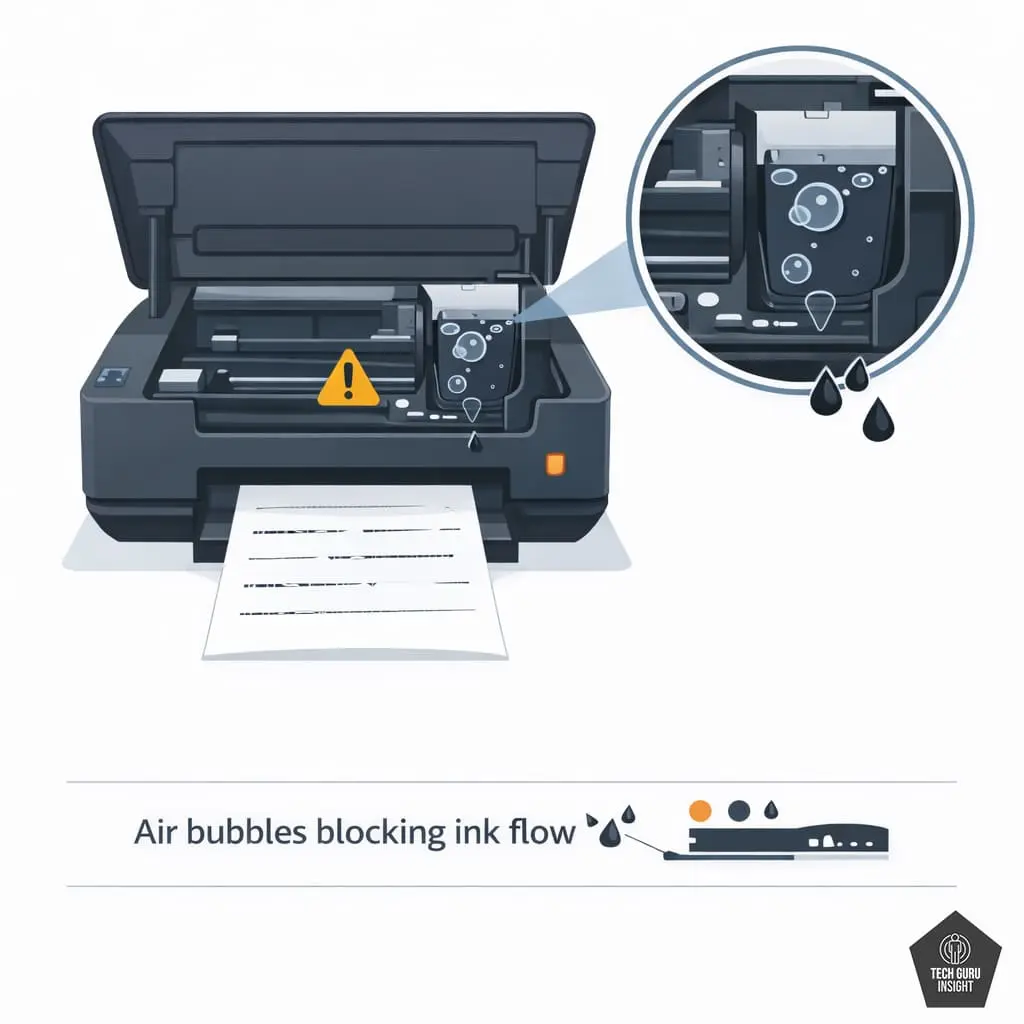
Air bubbles can sometimes block ink flow inside the cartridge.
This problem is especially common in:
- Refilled cartridges.
- Ink tank printers.
- Newly installed cartridges.
Symptoms of air bubbles
You may notice:
- Black ink suddenly stops printing.
- Cartridge still appears full.
- Cleaning cycles do not fix the problem.

How to remove air bubbles
Follow these steps:
1. Remove the black cartridge from the printer.
2. Hold it upright.
3. Gently shake the cartridge a few times.
4. Reinstall the cartridge.
5. Run one cleaning cycle.
This often helps restore proper ink flow.
Quick Tips
Very cold environments can slow down ink flow. If the printer has been stored in a cold room, let it sit at room temperature for 30 minutes before printing.
✅ Cause #5 – Cartridge Installed Incorrectly
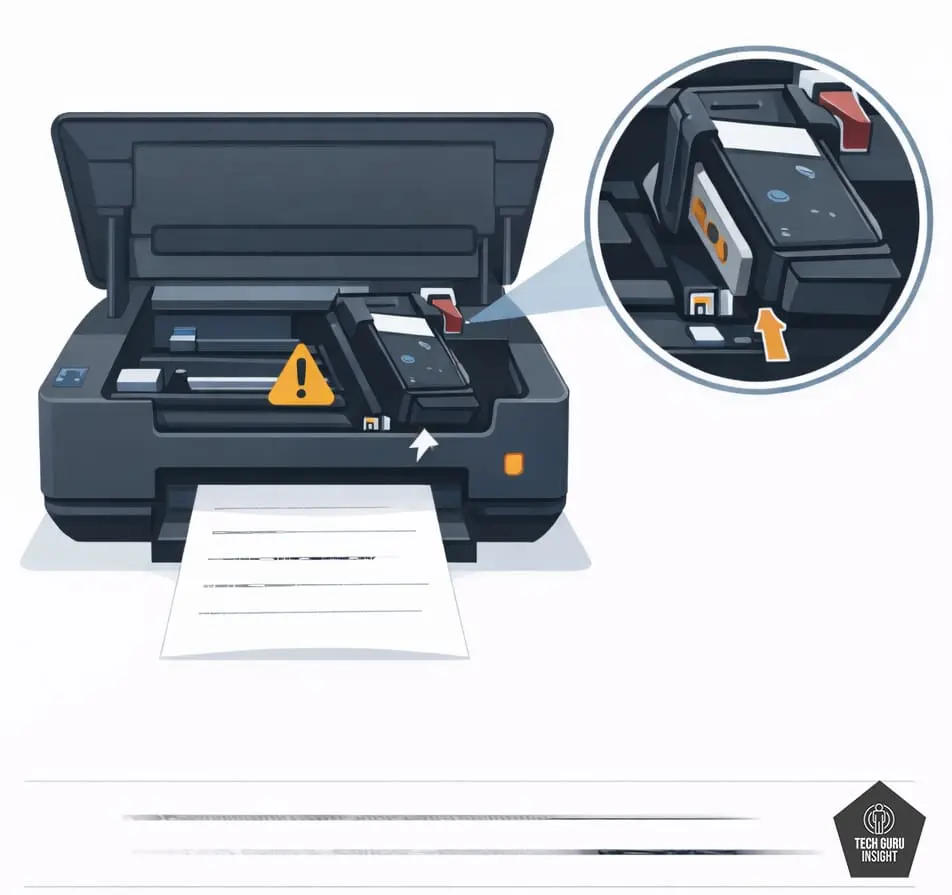
If the cartridge is not installed correctly, the printer may not detect it properly.
This can prevent the printer from using black ink.
How to fix cartridge installation issues
Follow these steps:
- Turn off the printer.
- Open the cartridge access door.
- Remove the black cartridge.
- Inspect the cartridge contacts.
- Clean the copper contacts with a lint-free cloth.
- Reinstall the cartridge firmly.
- Restart the printer.
Once the printer restarts, print a test page to see if the problem is resolved.
Quick Tips
If the printer cannot detect the black cartridge properly, gently clean the gold or copper contacts on the cartridge using a dry microfiber cloth. Avoid using water or alcohol unless recommended by the manufacturer.
✅ Cause #6 – Printhead Damage
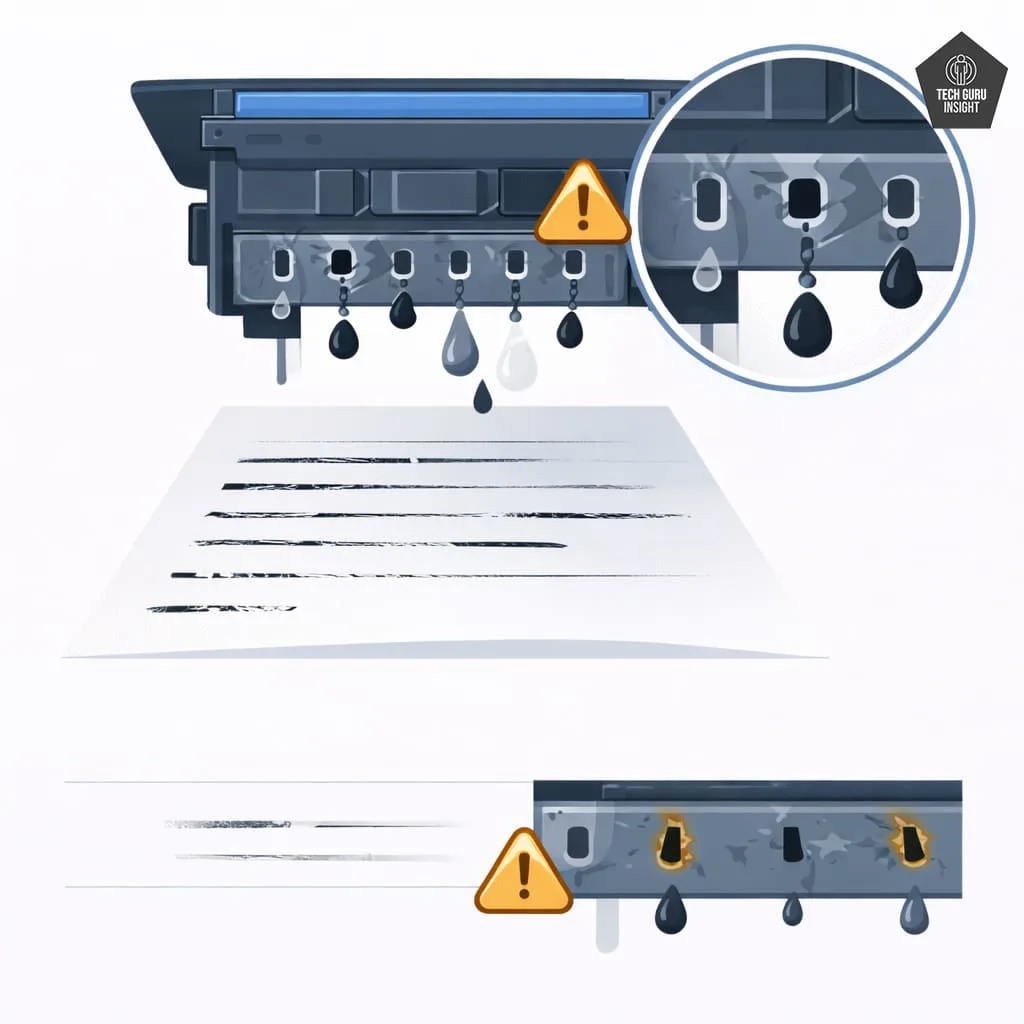
If none of the previous solutions work, the printhead itself may be damaged.
Printheads contain microscopic nozzles that control ink flow. Over time, they can wear out or become permanently blocked.
Signs of printhead damage
Common signs include:
- Cleaning cycles do not fix the problem.
- Black ink never appears on prints.
- The printer displays cartridge or printhead errors.
- The printer prints blank sections repeatedly.
Possible solutions
Depending on your printer model, you may need to:
- Replace the printhead.
- Replace the cartridge with an integrated printhead.
- Replace the printer if repair costs are too high.
For many low-cost printers, replacing the entire printer is often cheaper than replacing the printhead.
What If Your Printer Prints Completely Blank Pages?
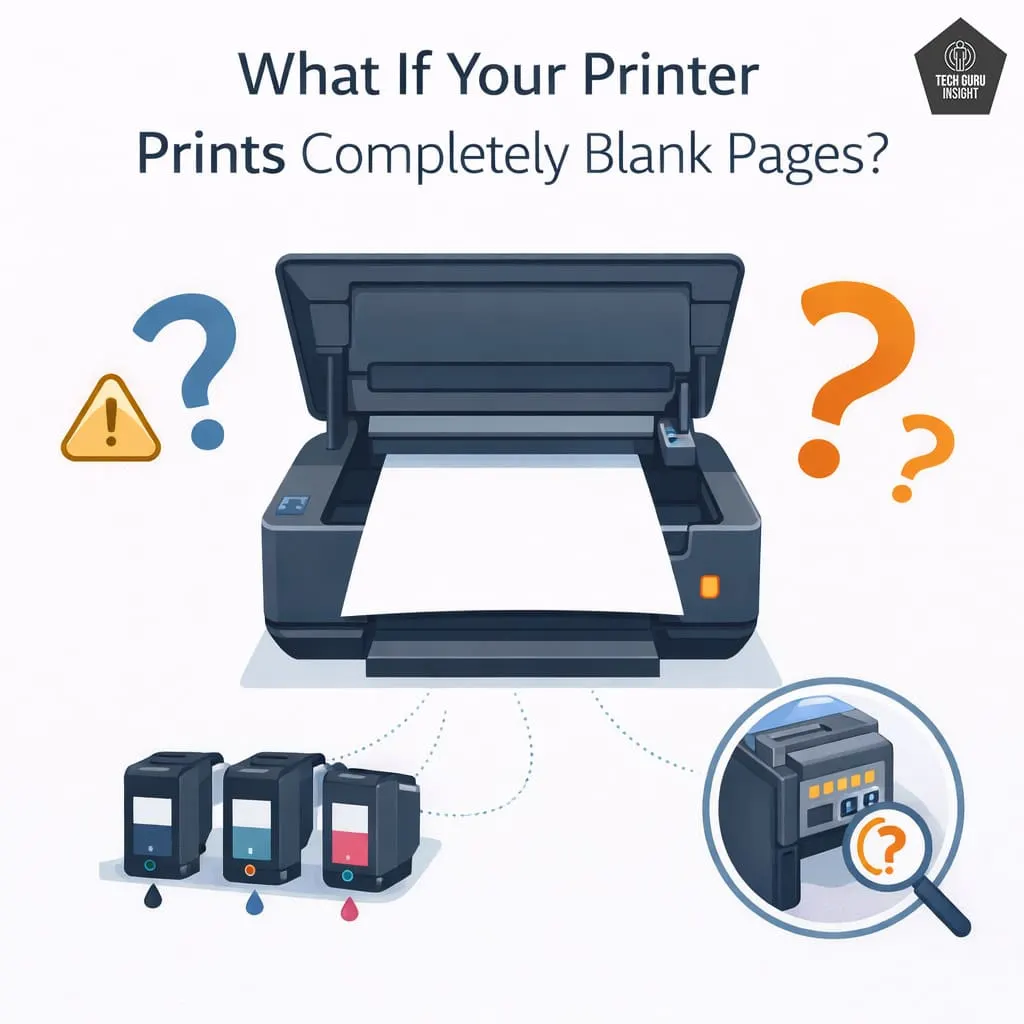
Sometimes the problem is not limited to black ink. Instead, the printer may produce completely blank pages.
This issue is usually caused by different problems, such as:
- Protective tape on new cartridges.
- Incorrect printer drivers.
- Severe printhead blockage.
- Firmware or software errors.
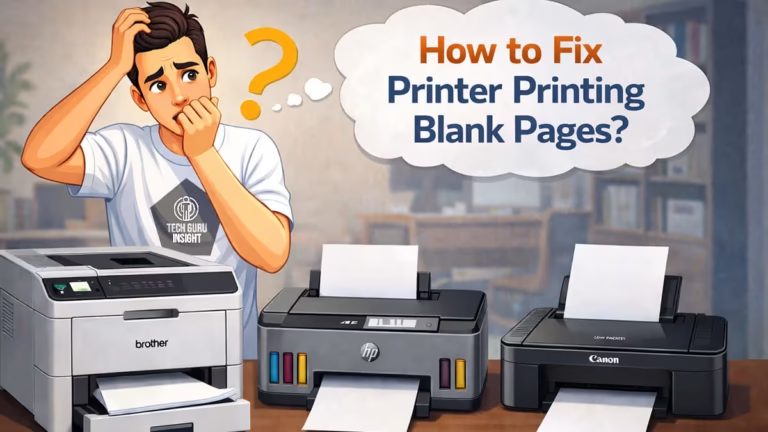
If your printer is producing completely blank pages, you can follow this detailed troubleshooting guide:
How to Fix Printer Printing Blank Pages
This guide covers all the common causes and solutions for blank page printing problems.
How to Prevent Black Ink Printing Problems?
Preventing printer issues is easier than fixing them later. With a few simple maintenance habits, you can avoid most black ink printing problems.
Follow these maintenance tips
✔ Print at least once per week.
✔ Use genuine or high-quality ink cartridges.
✔ Avoid extremely cheap refilled cartridges.
✔ Store the printer in a moderate temperature environment
✔ Run a nozzle check once a month.
✔ Keep printer firmware updated.
Regular use keeps the ink flowing and prevents dried ink from clogging the printhead.
When Should You Replace the Cartridge or Printer?

Sometimes, troubleshooting may not solve the problem. In these cases, replacing a component may be necessary.
Replace the cartridge if:
- The cartridge is empty.
- The cartridge has expired.
- The cartridge shows an error message.
- Ink flow cannot be restored.
Replace the printer if:
- The printhead is permanently damaged.
- Repair costs exceed the printer value.
- The printer is very old.
- Multiple components are failing.
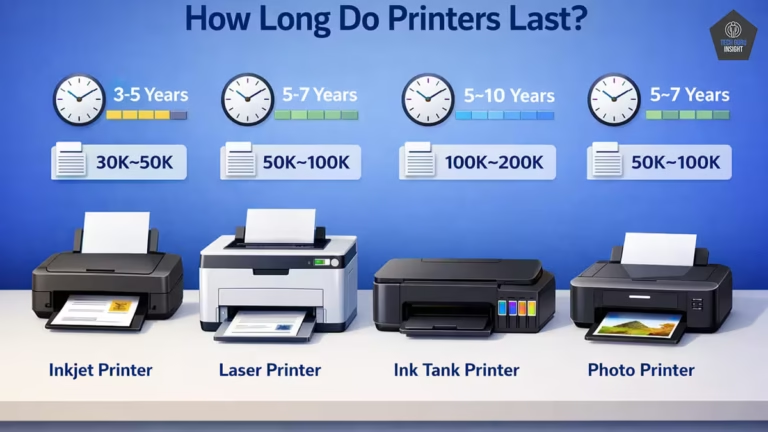
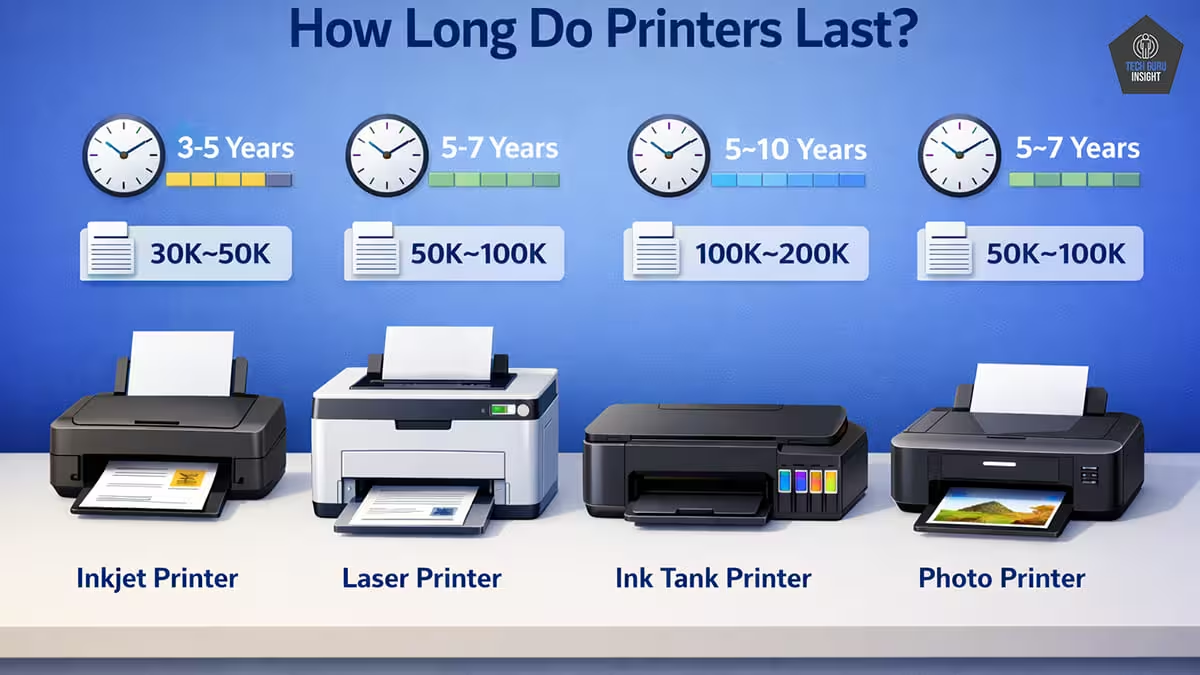
If your printer is more than 5–6 years old, upgrading to a newer model may also provide better efficiency and lower ink costs.
Printer Problem Comparison Table
| Problem | Most Likely Cause | Fix |
| Color prints, but black doesn’t | Clogged printhead | Run cleaning cycle |
| Black text faded | Low ink | Replace cartridge |
| Blank pages | Cartridge not installed | Reinstall cartridge |
| Broken black lines | Partial nozzle clog | Deep cleaning |
Common Mistakes to Avoid
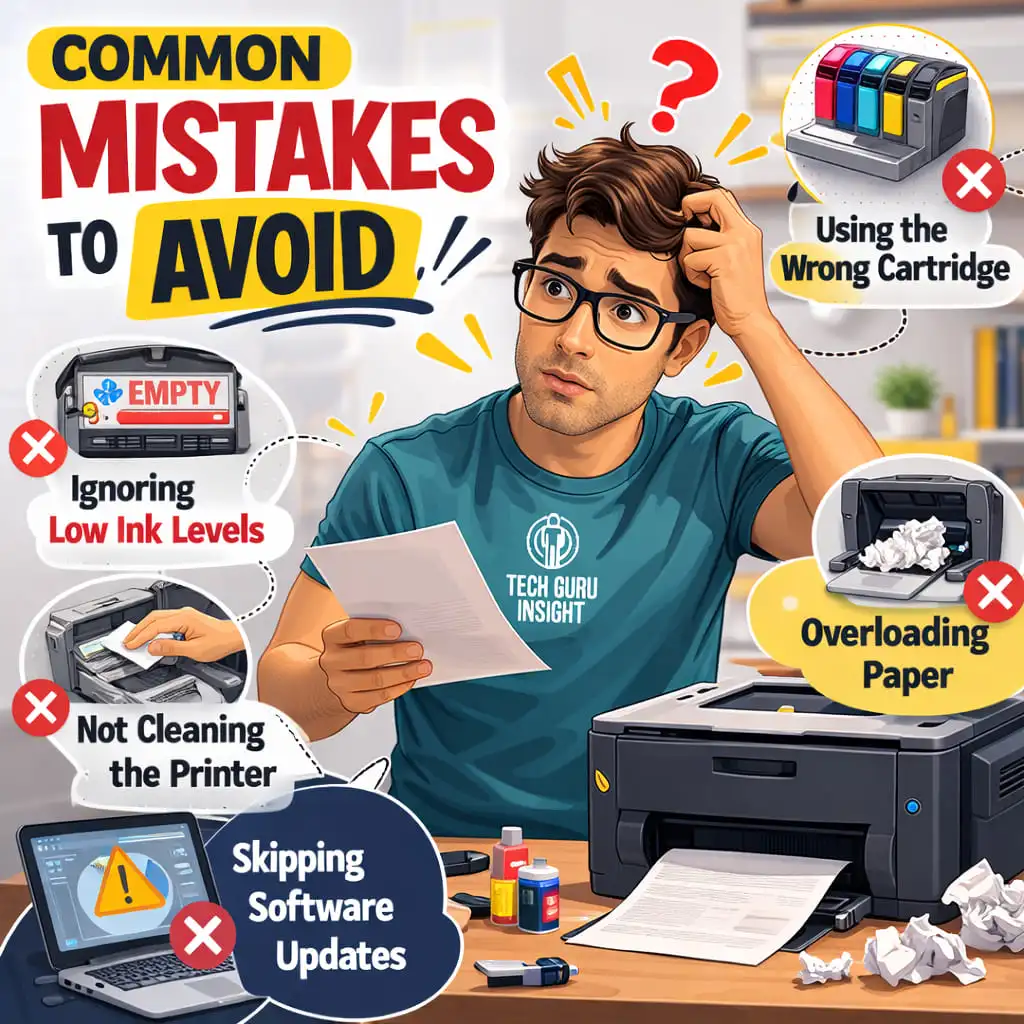
When fixing black ink printing problems, avoid these mistakes:
❌ Running too many cleaning cycles in a row (wastes ink).
❌ Touching cartridge electrical contacts with wet hands.
❌ Leaving the printer unused for months.
👉 Running too many cleaning cycles can actually make the problem worse.
Pro Tip
If you rarely use your printer, print a small test page once per week. Even a simple document with a few lines of text helps keep the ink flowing and prevents dried ink from clogging the printhead. This tiny habit can extend your printer’s life by years.
FAQ
Q1. Why is my printer printing color but not black?
This usually happens because the black cartridge is empty or the printhead nozzles are clogged. Running a printhead cleaning cycle often fixes the problem.
Q2. How do I force my printer to print black ink?
Open printer settings and select Printing Preferences, then disable color-only printing and enable the option to use the black cartridge.
Q3. Can dried ink stop a printer from printing black?
Yes. Dried ink can clog the printhead nozzles and block the flow of black ink. Running a cleaning cycle usually clears the blockage.
Q4. Why is my printer printing blank pages for text documents?
This often happens when the black ink cartridge is empty or the printhead is clogged. In some cases, incorrect printer settings may also cause blank prints.
Final Thoughts
A printer that refuses to print black ink can be frustrating, especially when you need to print important documents quickly. Fortunately, this problem is usually caused by common issues like clogged printheads, empty cartridges, or incorrect printer settings.
By following the troubleshooting steps in this guide, you can often fix the problem in just a few minutes. Regular printer maintenance, using quality ink cartridges, and printing occasionally can also help prevent these issues from happening in the future.
If your printer still refuses to print black ink after trying all the fixes, replacing the cartridge or upgrading the printer may be the best solution.