How to Fix Printer Printing Blank Pages (7 Easy Step-by-Step Guide)
Is your printer printing blank pages even though the ink cartridge is full?
You’re not alone.
Thousands of users search every month for:
printer printing blank pages.
The printer prints, but no ink on the paper.
The printer is not printing properly.
printer printing faded pages.
The good news? In most cases, this issue is fixable in under 10 minutes — without replacing your printer.
In this complete step-by-step troubleshooting guide, you’ll learn:
Why your printer is printing blank pages.
The most common causes (and how to fix them).
When it’s worth repairing vs replacing.
How to prevent it from happening again.
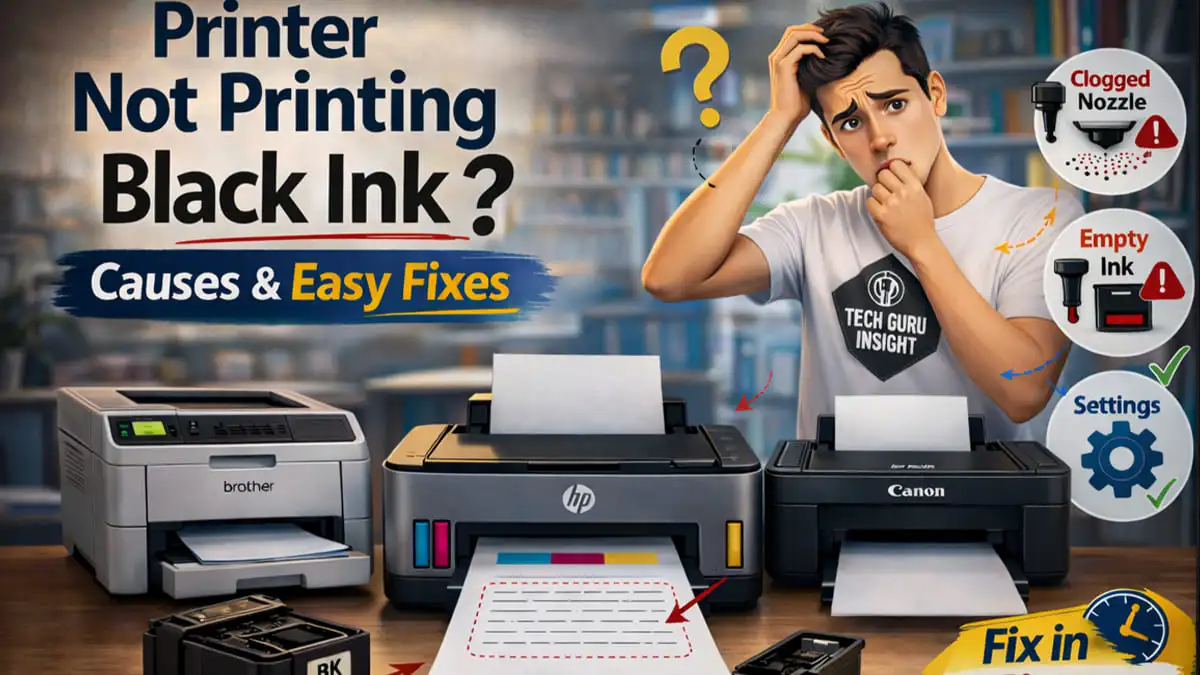
Why Is My Printer Printing Blank Pages?
Your printer may print blank pages due to:
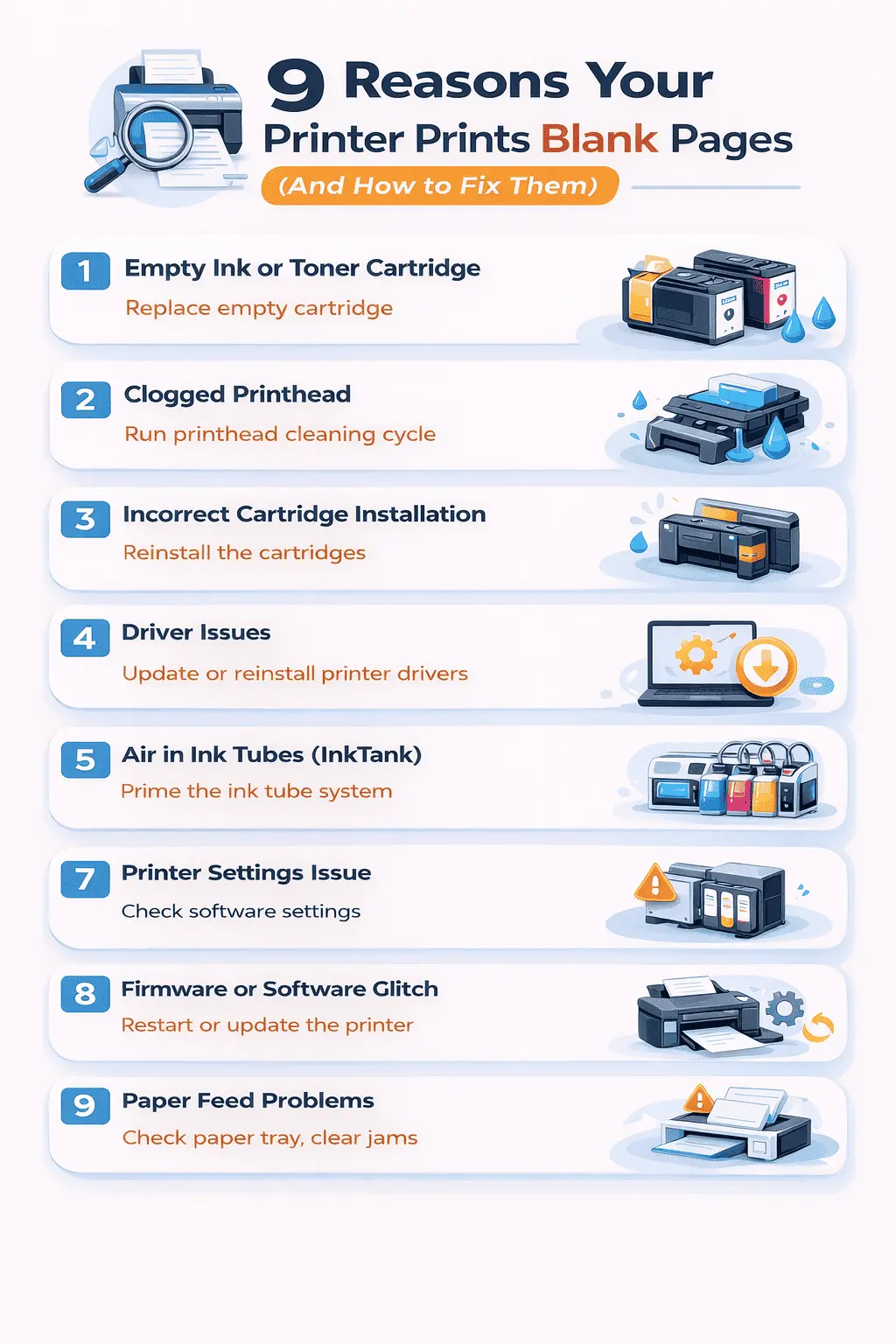
- Clogged printhead.
- Empty or dried-out cartridge.
- Improper cartridge installation.
- Incorrect printer driver.
- Wrong paper settings.
- The printer is overused beyond its duty cycle.
Clogged nozzles or cartridge problems cause most blank-page issues.
🛠 Step-by-Step: How to Fix a Printer Printing Blank Pages
✅ Step 1: Check Ink or Toner Levels
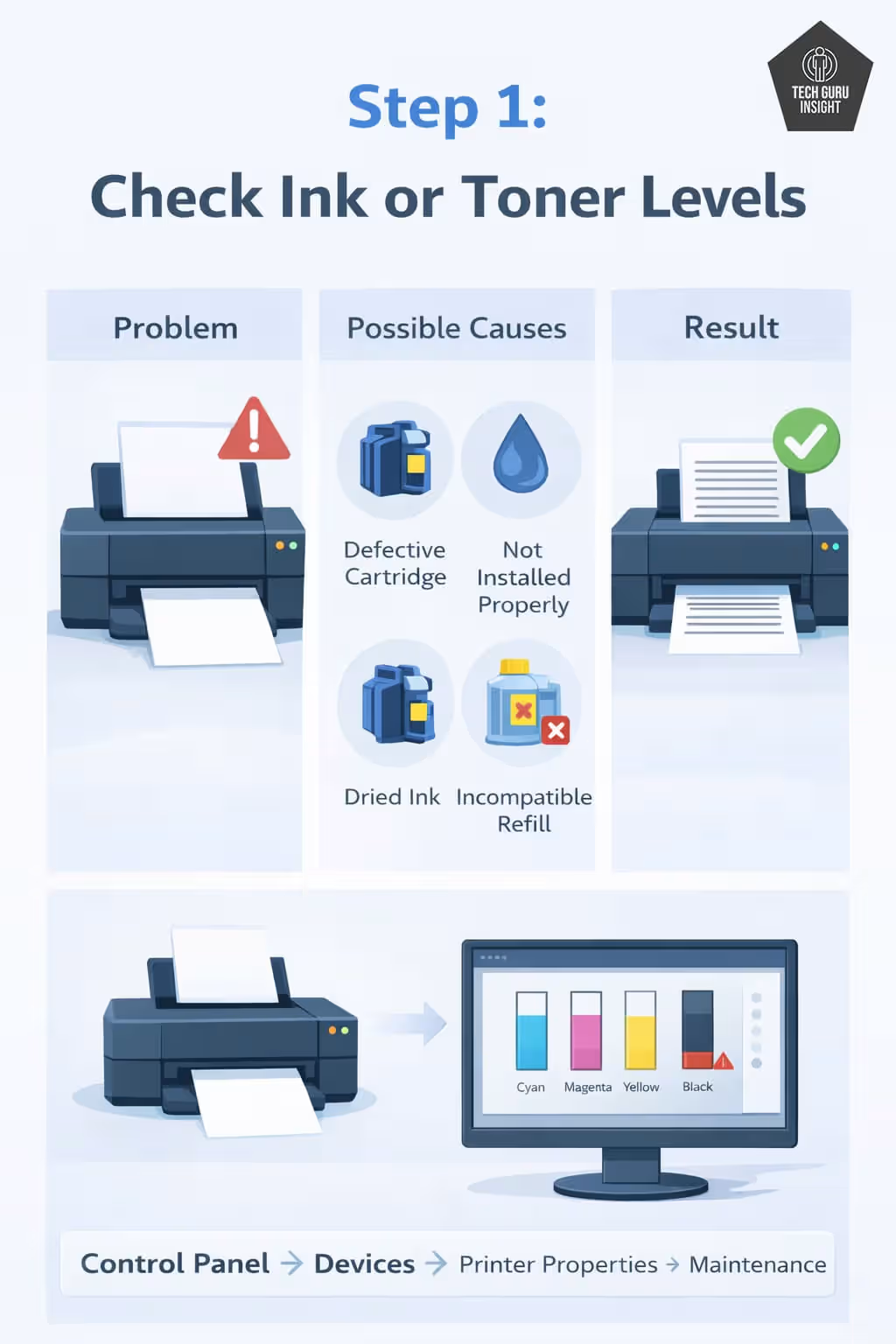
Even if you recently replaced the cartridge, it may:
– Be defective.
– Not installed properly.
– Contain dried ink.
– Be an incompatible refill.
Open your printer utility software and verify ink levels.
For most printers from HP, Canon, Epson, or Brother, you can check levels via:
Control Panel → Devices → Printer Properties → Maintenance
👉 If you’re using low-quality cartridges, read our guide on how to reduce printing costs.
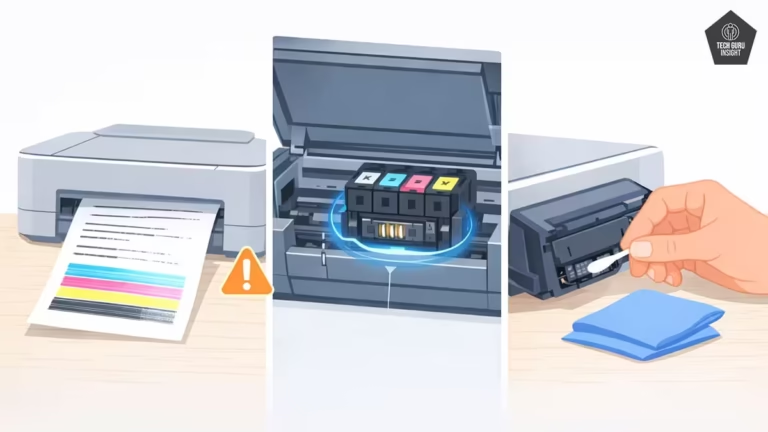
✅ Step 2: Run the Printhead Cleaning Utility (Most Common Fix)
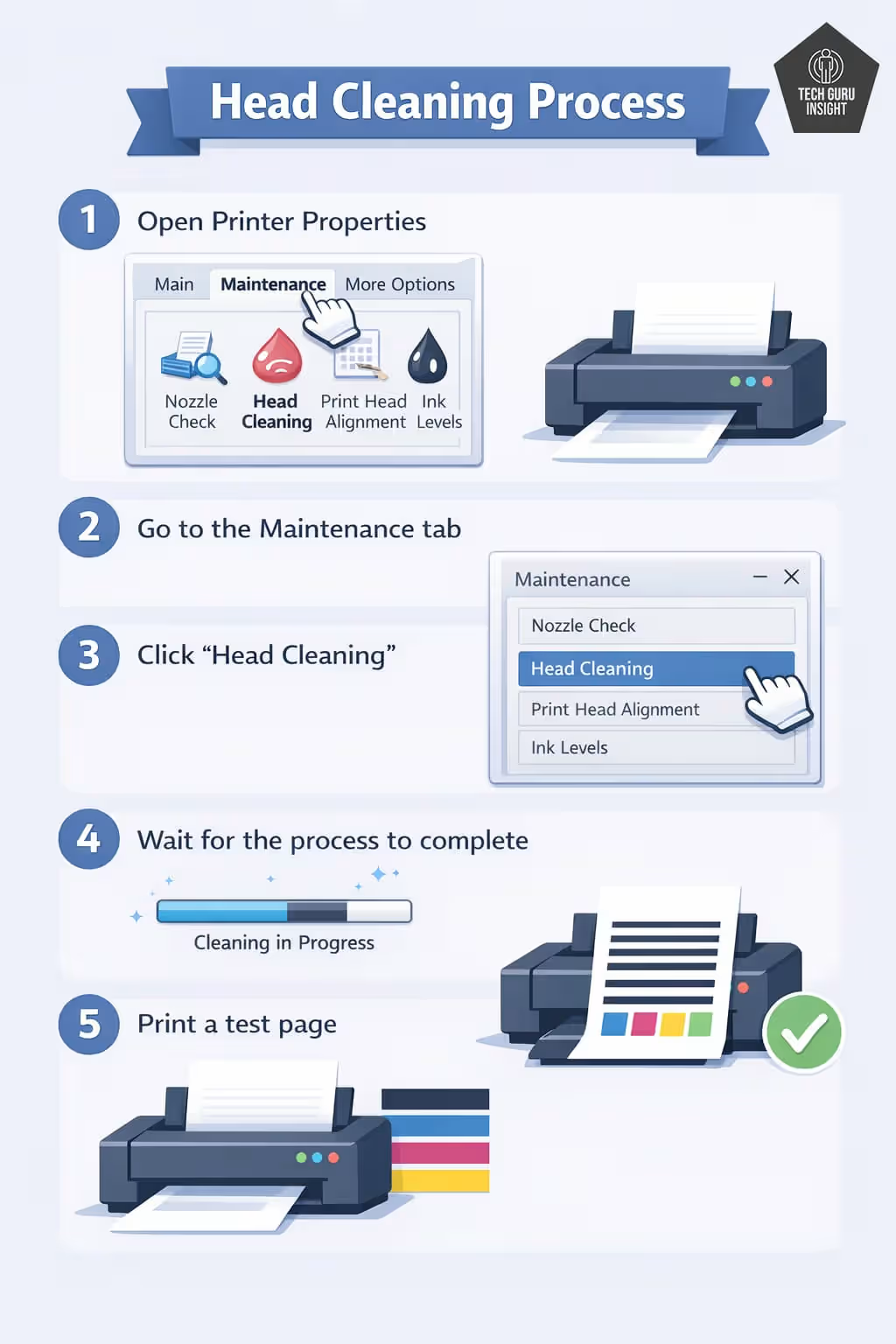
This fixes 70% of blank page issues.
If your printer hasn’t been used for days or weeks, the ink may dry inside the nozzles.
How to Run Printhead Cleaning:
- Open Printer Properties.
- Go to the Maintenance tab.
- Click “Head Cleaning”.
- Wait for the process to complete.
- Print a test page.
You may need to run cleaning 1–2 times.
👉 For detailed instructions with screenshots, see our full printhead cleaning guide.
Recommended Cleaning Kits
If automatic cleaning doesn’t work, manual cleaning may be required.

Look for:
- Microfiber or lint-free cloth
- Cotton swabs
- Distilled water (NOT tap water)
- Paper towels
These are inexpensive and often restore print quality instantly.
✅ Step 3: Remove and Reinstall the Cartridge
Sometimes the issue is as simple as incorrect installation.
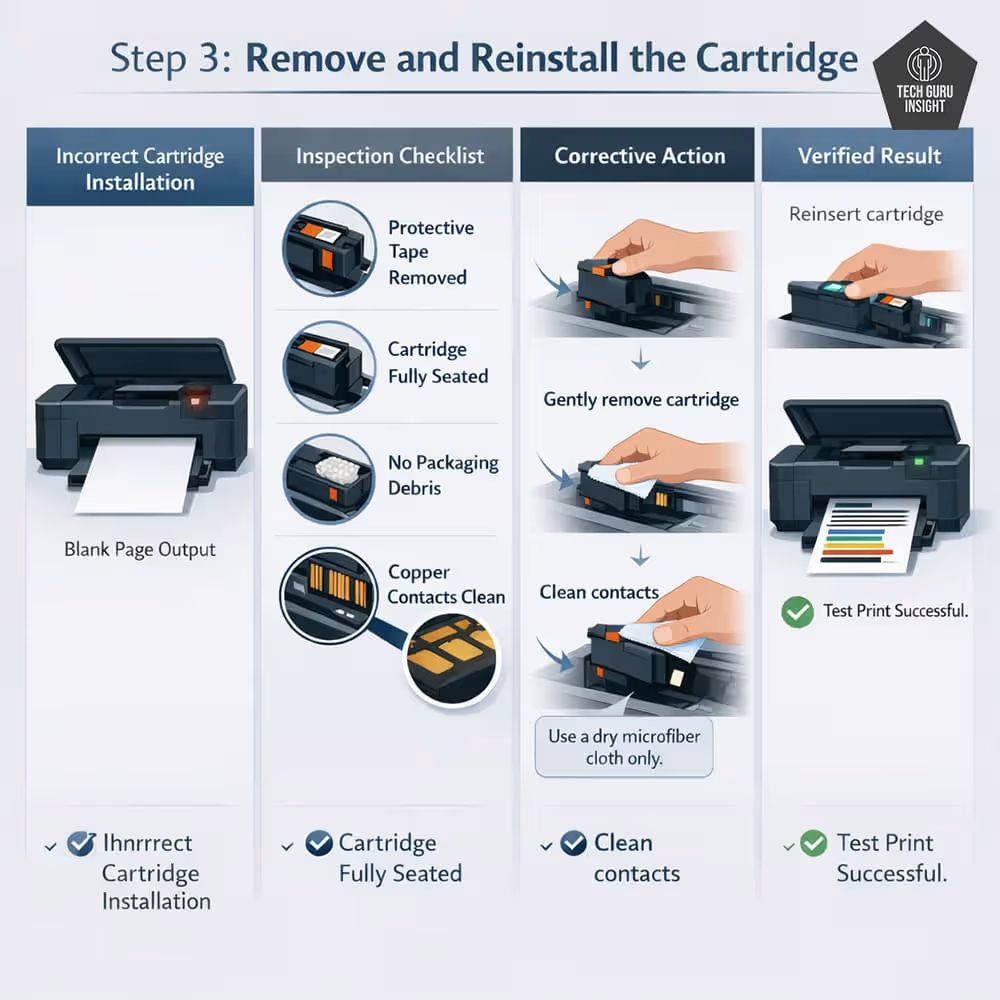
Check:
- Protective tape removed.
- Cartridge clicks firmly into place.
- No packaging left inside.
- Copper contacts are clean.
Gently wipe cartridge contacts with a microfiber cloth. Reinsert and test again.
Quick Tips
Inspect the small vent hole on top of the cartridge. If it’s blocked by adhesive or dried ink, gently clear it with a pin.
Consider Upgrading to High-Yield Cartridges
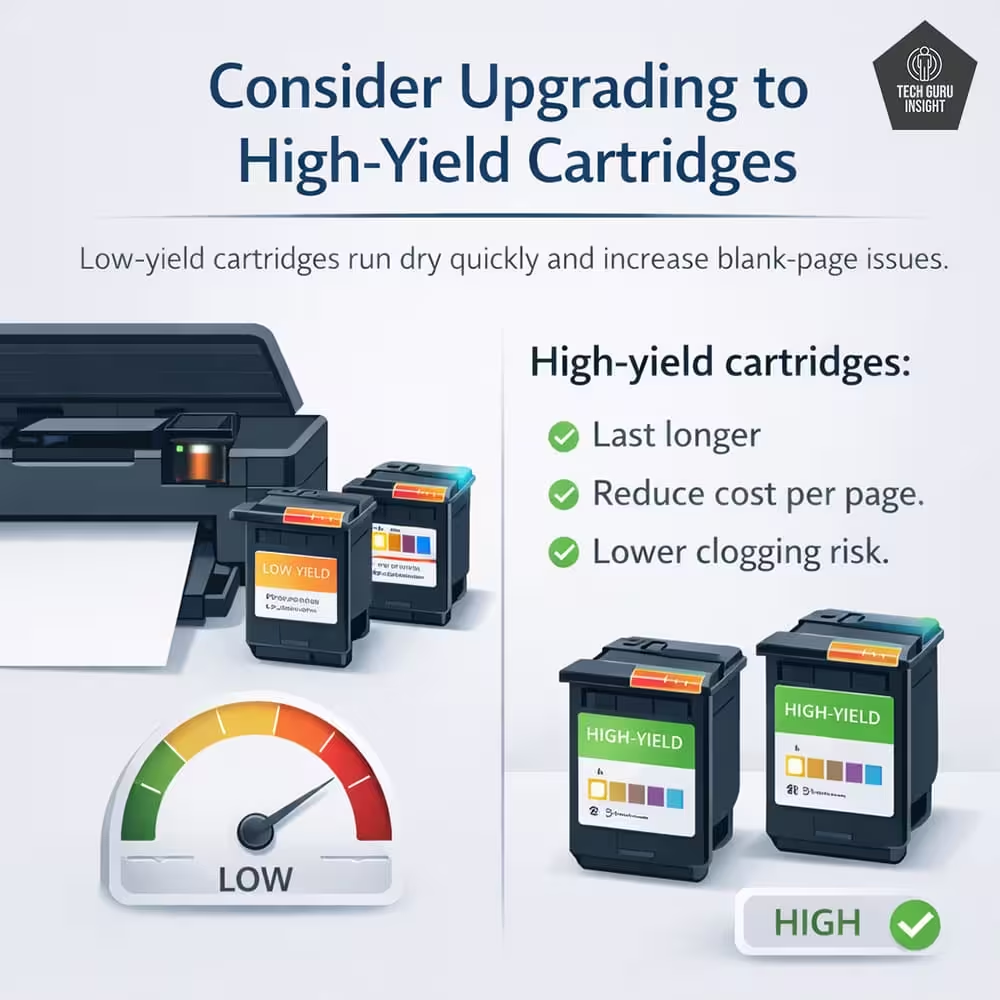
Low-yield cartridges run dry quickly and increase blank-page issues.
High-yield cartridges:
- Last longer.
- Reduce cost per page.
- Lower clogging risk.
✅ Step 4: Print a Nozzle Check Pattern
A nozzle check shows whether ink is flowing correctly.
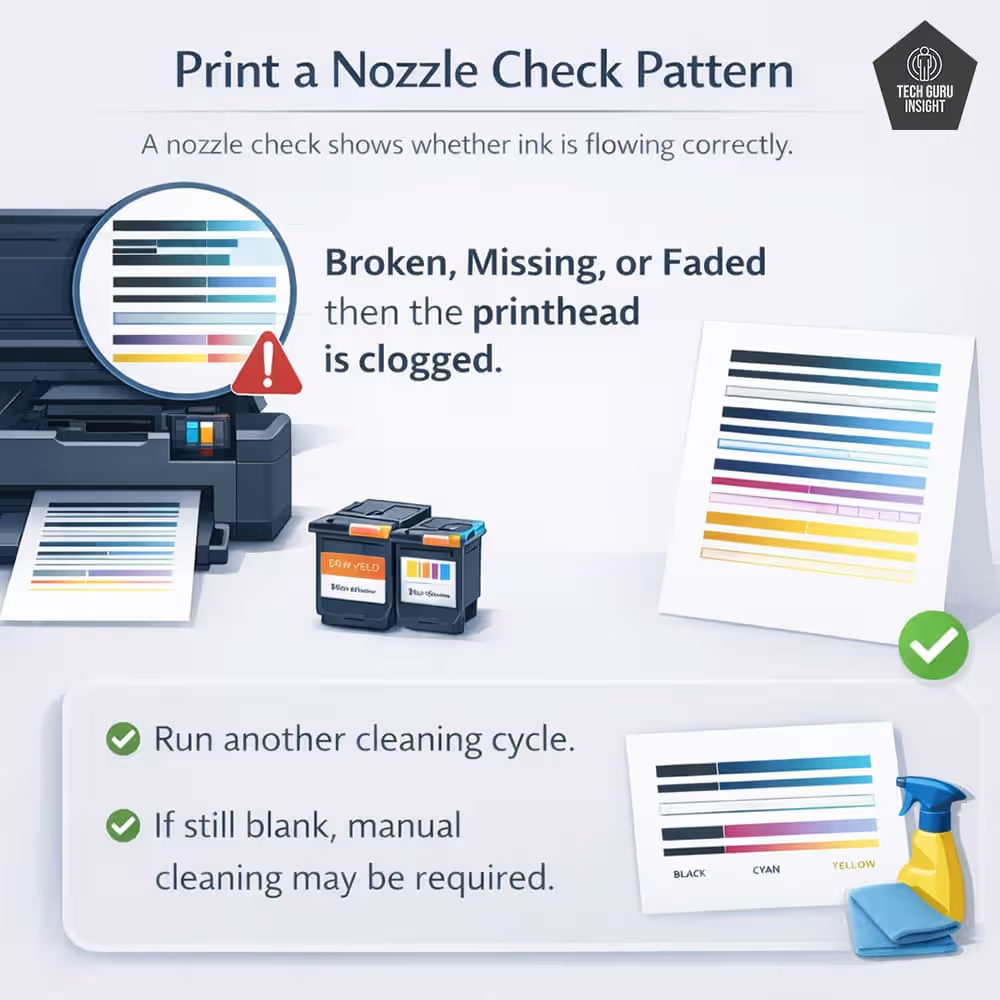
If lines are:
- Broken
- Missing
- Faded
Then the printhead is clogged. Run another cleaning cycle.
👉 If still blank, manual cleaning may be required.
✅ Step 5: Update or Reinstall Printer Drivers
Corrupt drivers can cause blank printing.
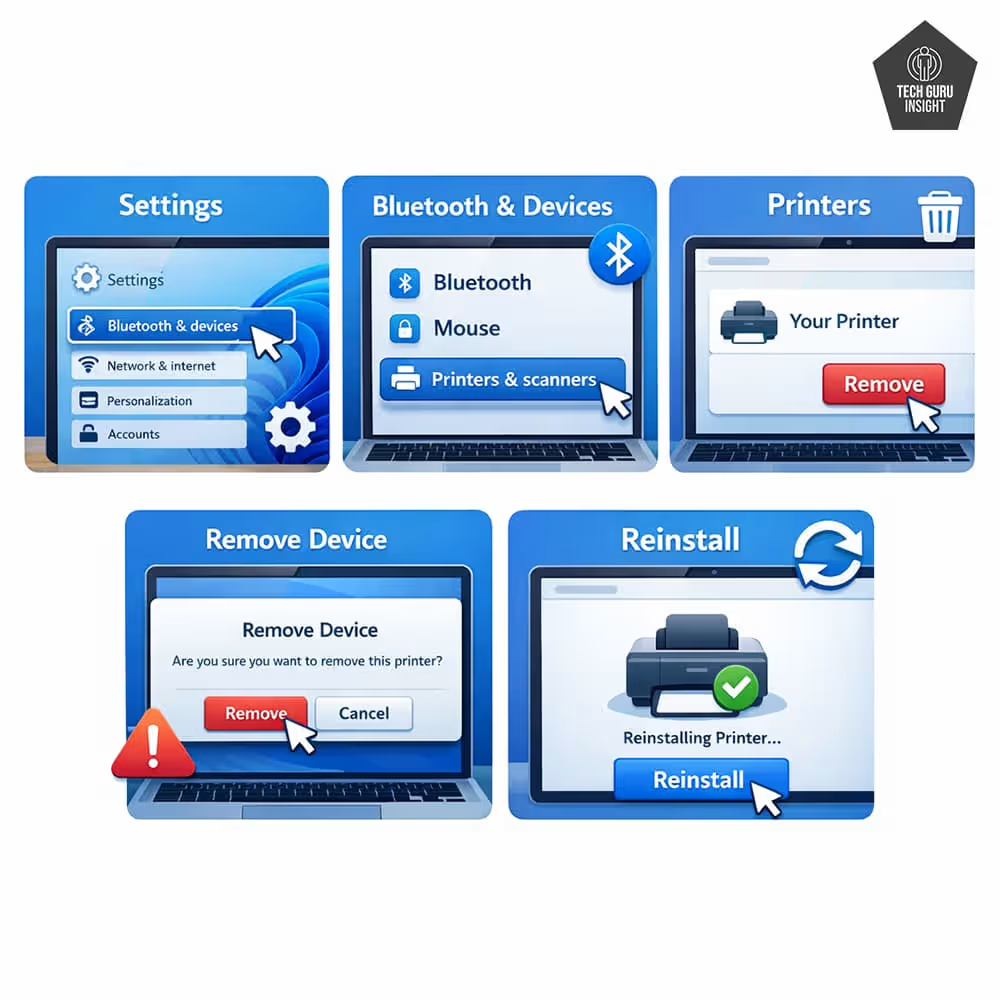
On Windows 11:
Settings → Bluetooth & Devices → Printers → Remove Device → Reinstall
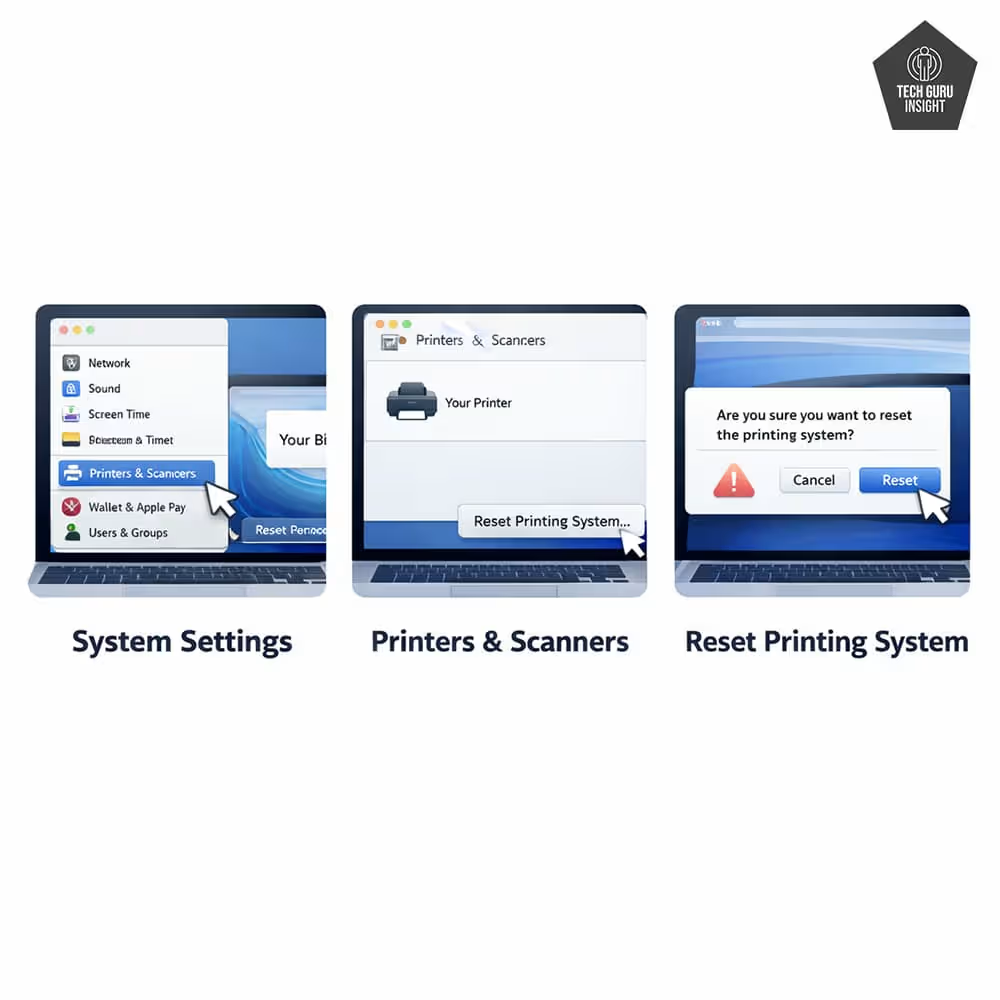
On macOS:
System Settings → Printers & Scanners → Reset printing system
Download the latest drivers from the manufacturer’s website.
Quick Tips
Open the print queue and cancel all pending jobs. Restart both the printer and your computer before trying again.
✅ Step 6: Check Paper & Print Settings
Surprisingly common issue.
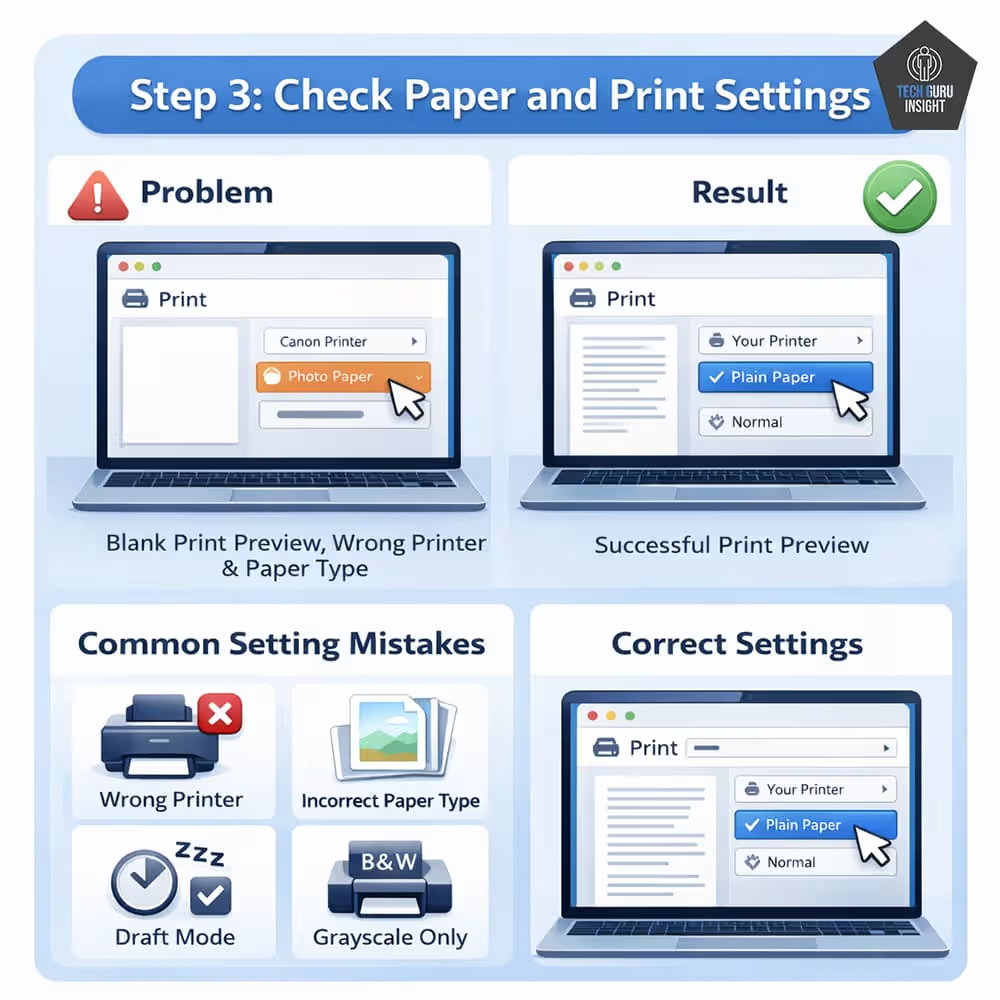
Make sure:
Paper type matches loaded paper.
Draft mode is disabled.
Correct printer selected.
Color settings enabled.
Using the wrong paper type (e.g., glossy mode on plain paper) may result in a faint output.
Quick Tips
Check if “Print Separator Page” is enabled in your printer settings. Some office configurations automatically insert a blank page between print jobs.
✅ Step 7: Check If You’ve Exceeded the Duty Cycle
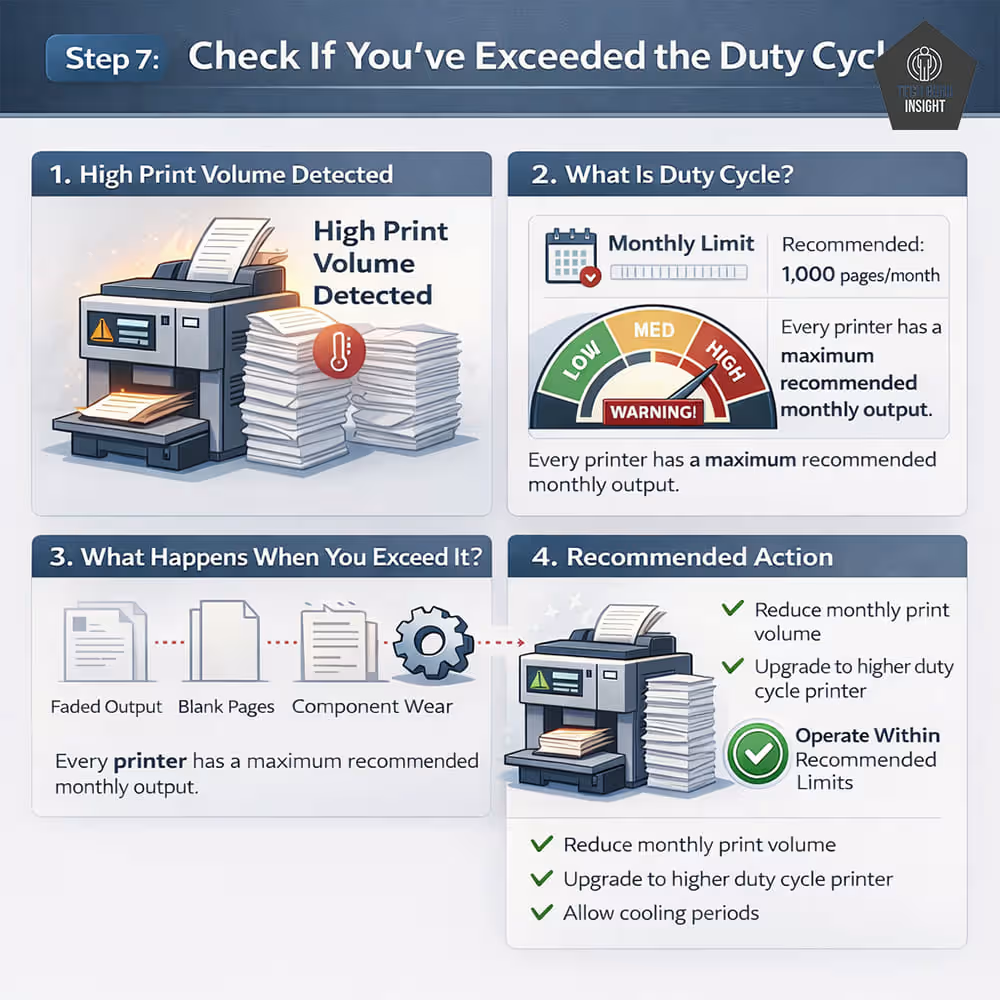
Every printer has a monthly duty cycle limit.
Exceeding it can cause:
Faded output
Blank pages
Component wear
👉 Learn more in our detailed duty cycle guide.
Check Toner Drum (Special Troubleshooting for Laser Printers Only)
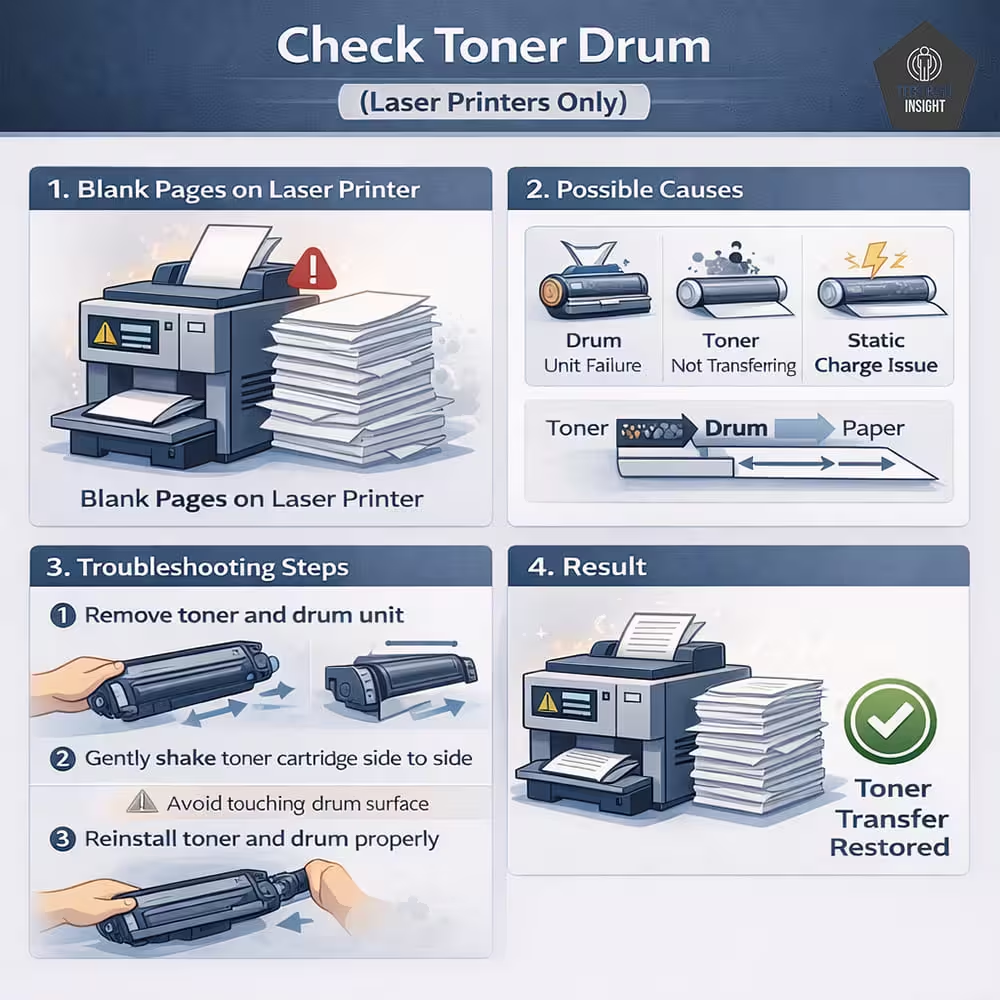
For laser printers, blank pages can be caused by:
Drum unit failure
Toner not transferring
Static charge issue
If you’re using a laser printer and getting completely blank pages, remove the toner and drum unit. Gently shake the toner cartridge and reinstall it properly.
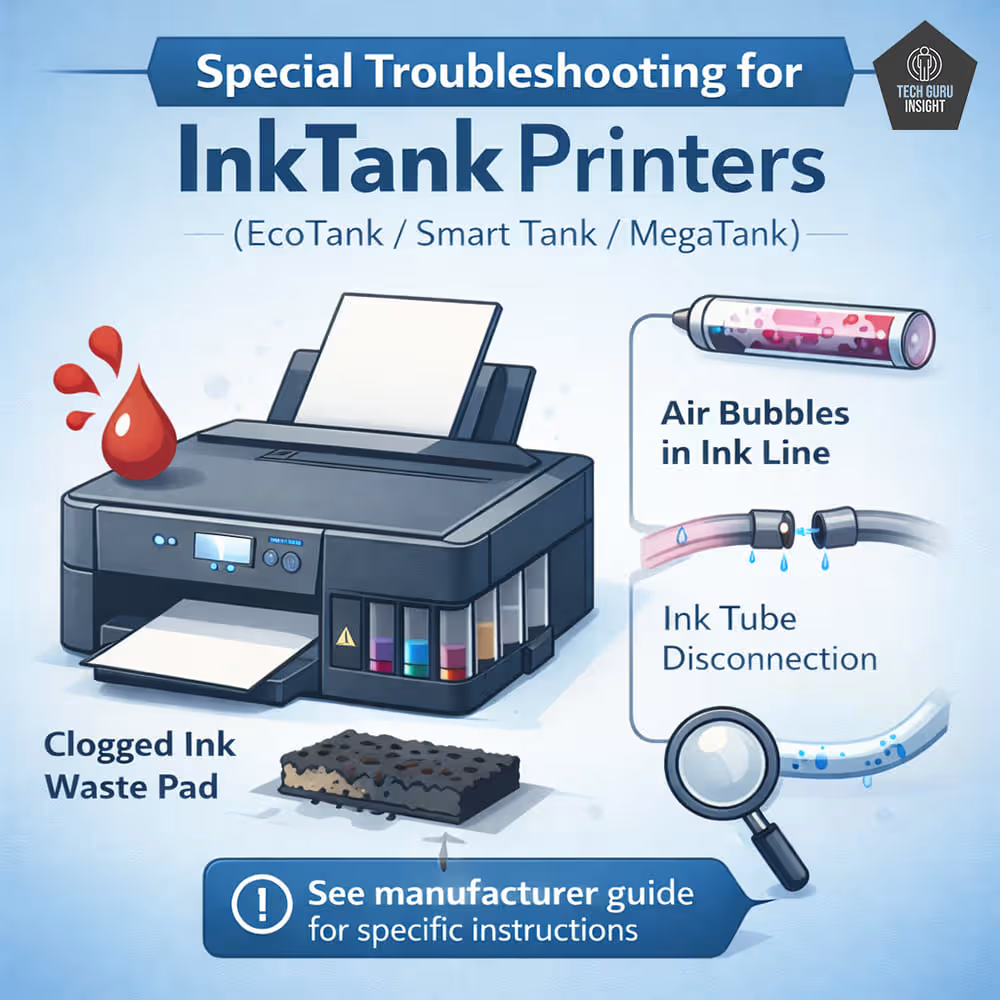
Special Troubleshooting for InkTank Printers (EcoTank / Smart Tank / MegaTank)
If you’re using an InkTank printer, the blank page issue may have a different cause than standard cartridge inkjet models.
InkTank printers from:
- Epson (EcoTank series)
- HP (Smart Tank series)
- Canon (MegaTank series)
Use refillable ink tanks and internal ink supply tubes instead of removable cartridges. Because of this design, blank page problems are usually caused by ink flow issues, not empty cartridges.
🔍 1. Check for Air Bubbles in the Ink Line (Most Common InkTank Issue)
InkTank printers rely on gravity and pressure to move ink from the tank to the printhead.
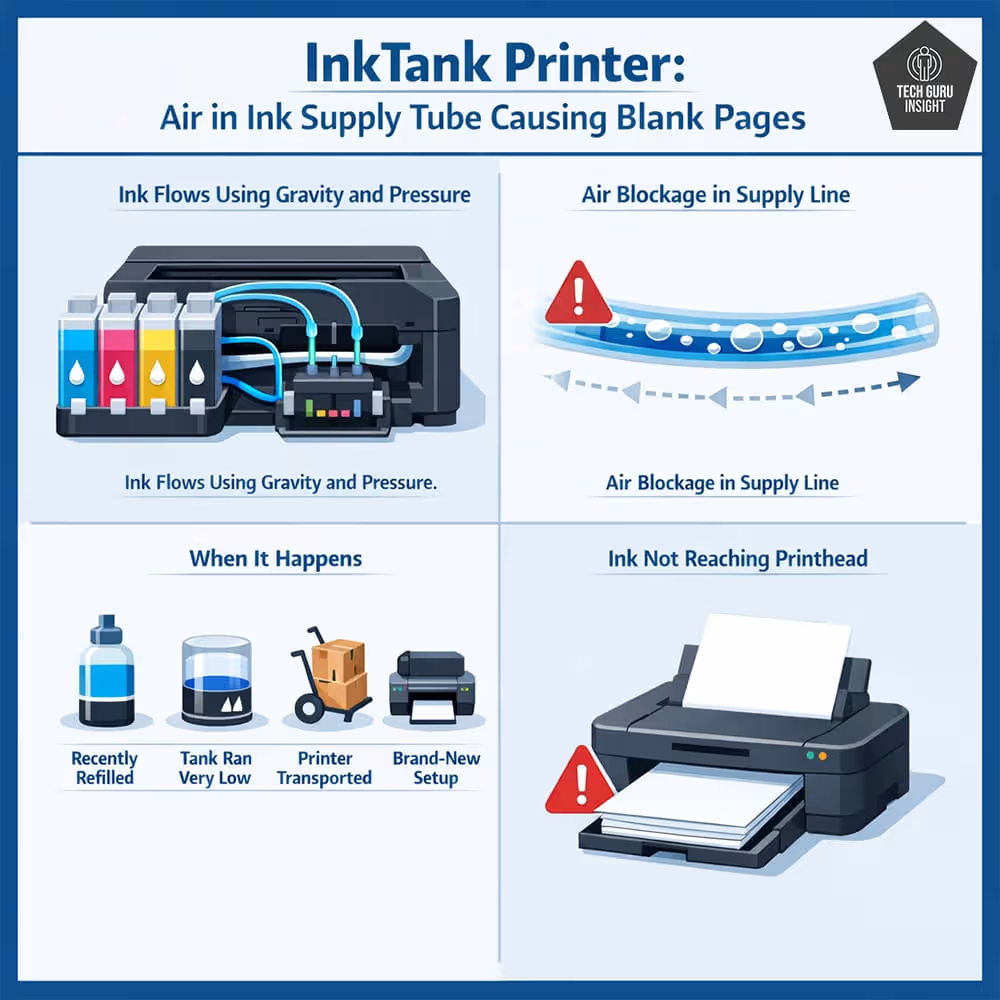
If:
The printer was recently refilled.
The ink tank ran very low.
The printer was transported.
It’s a brand-new setup.
Air can enter the ink supply tube.
This prevents ink from reaching the printhead — resulting in completely blank pages.
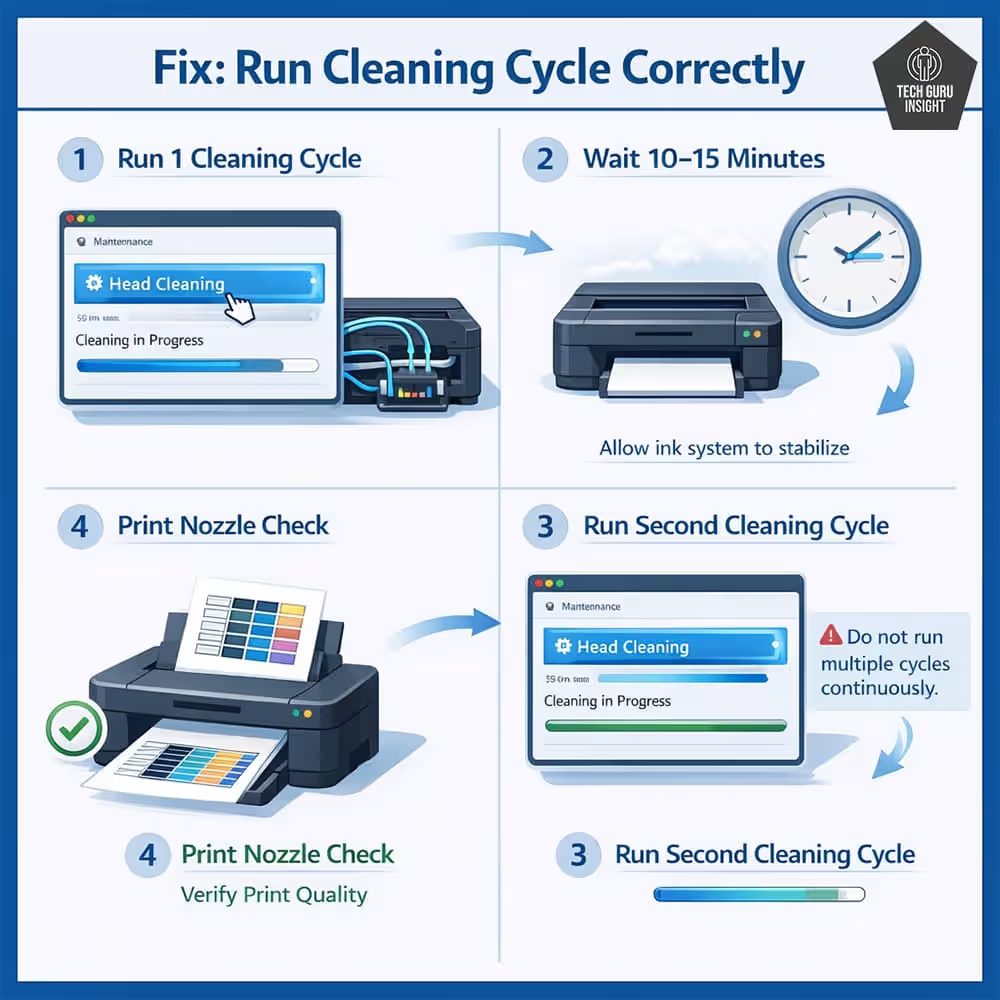
Fix:
Run 1 cleaning cycle.
Wait 10–15 minutes.
Run a second cycle.
Print a nozzle check.
Do NOT run multiple cleaning cycles back-to-back, as this wastes ink and may overheat components.
🔍 2. Make Sure Ink Tanks Are Above the Minimum Line
InkTank printers require an adequate ink level to maintain pressure.
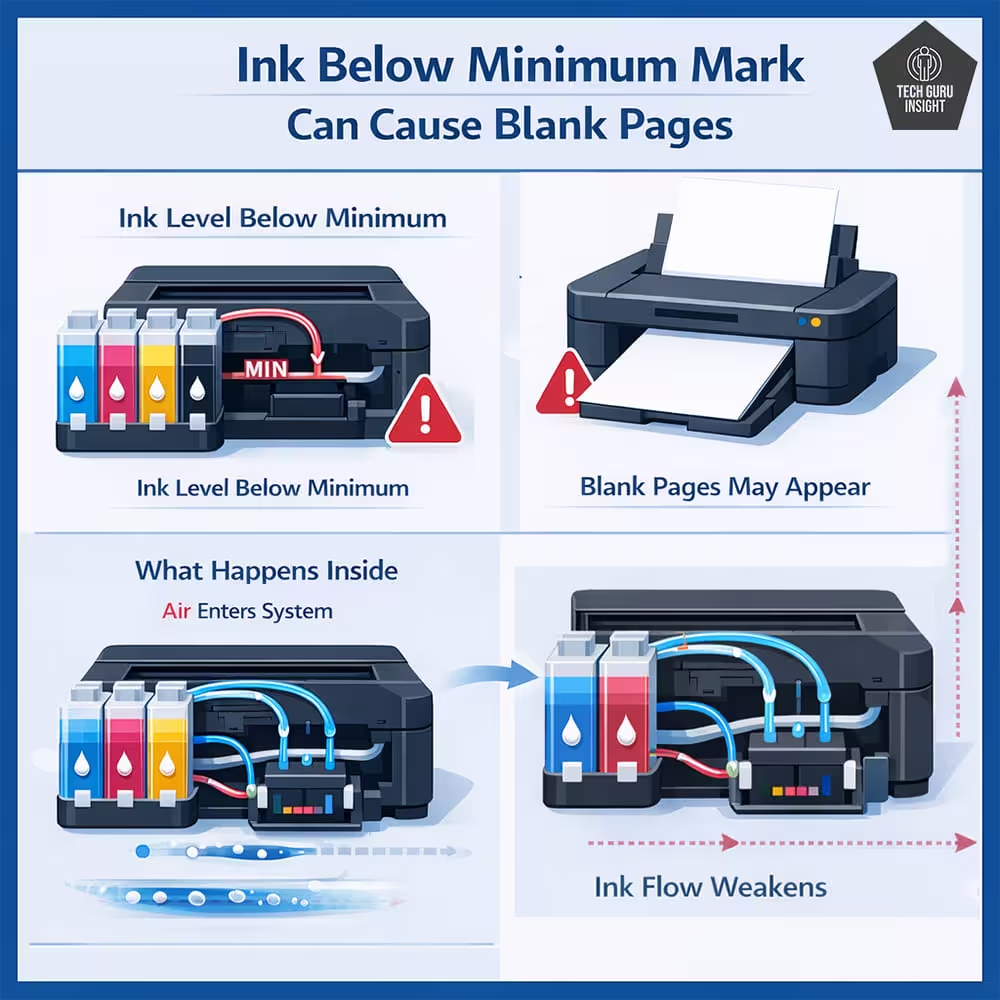
If ink drops below the minimum mark:
Ink flow weakens.
Air can enter the system.
Blank pages may appear.
Refill to the recommended level before running cleaning cycles.
🔍 3. Verify Transport Locks and Ink Valves
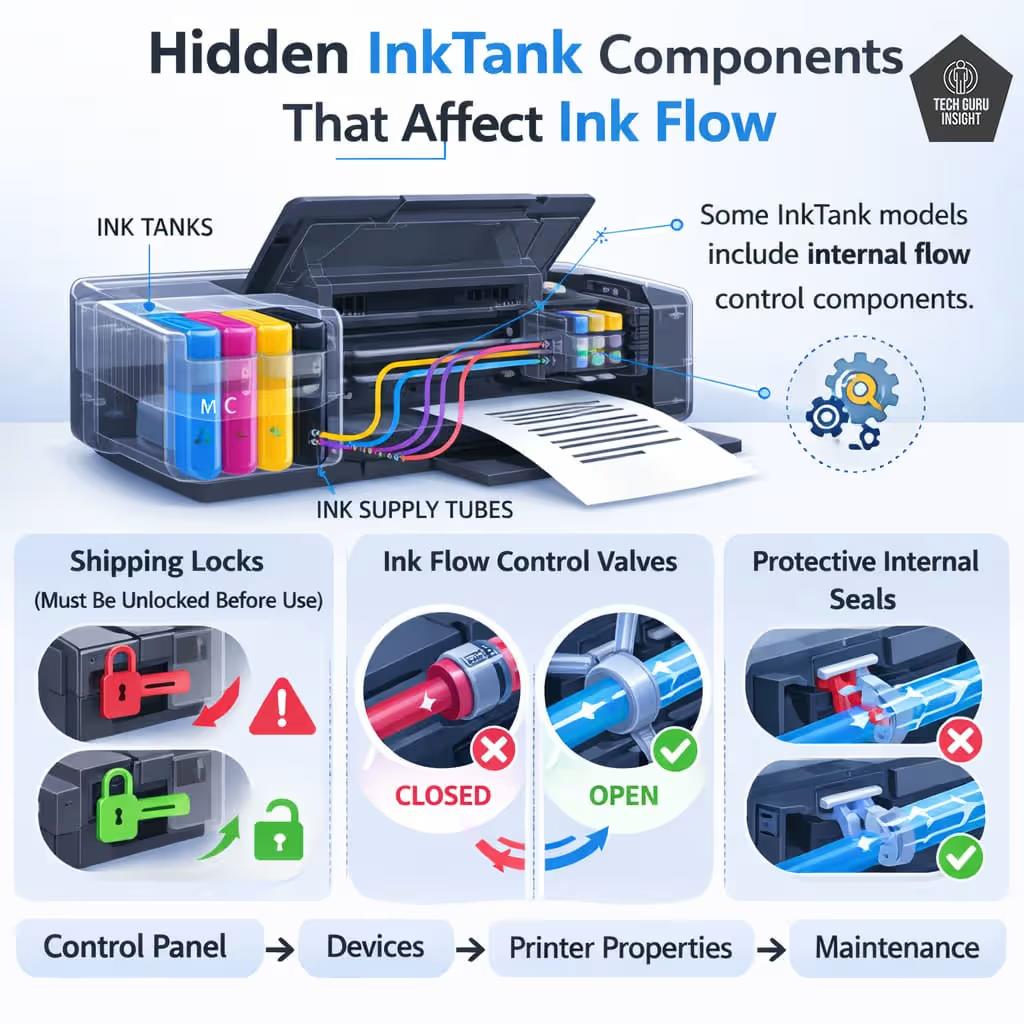
Some InkTank models include:
Shipping locks.
Ink flow control valves.
Protective internal seals.
If not fully opened or removed during setup, ink cannot flow properly.
This is especially common with new printers.
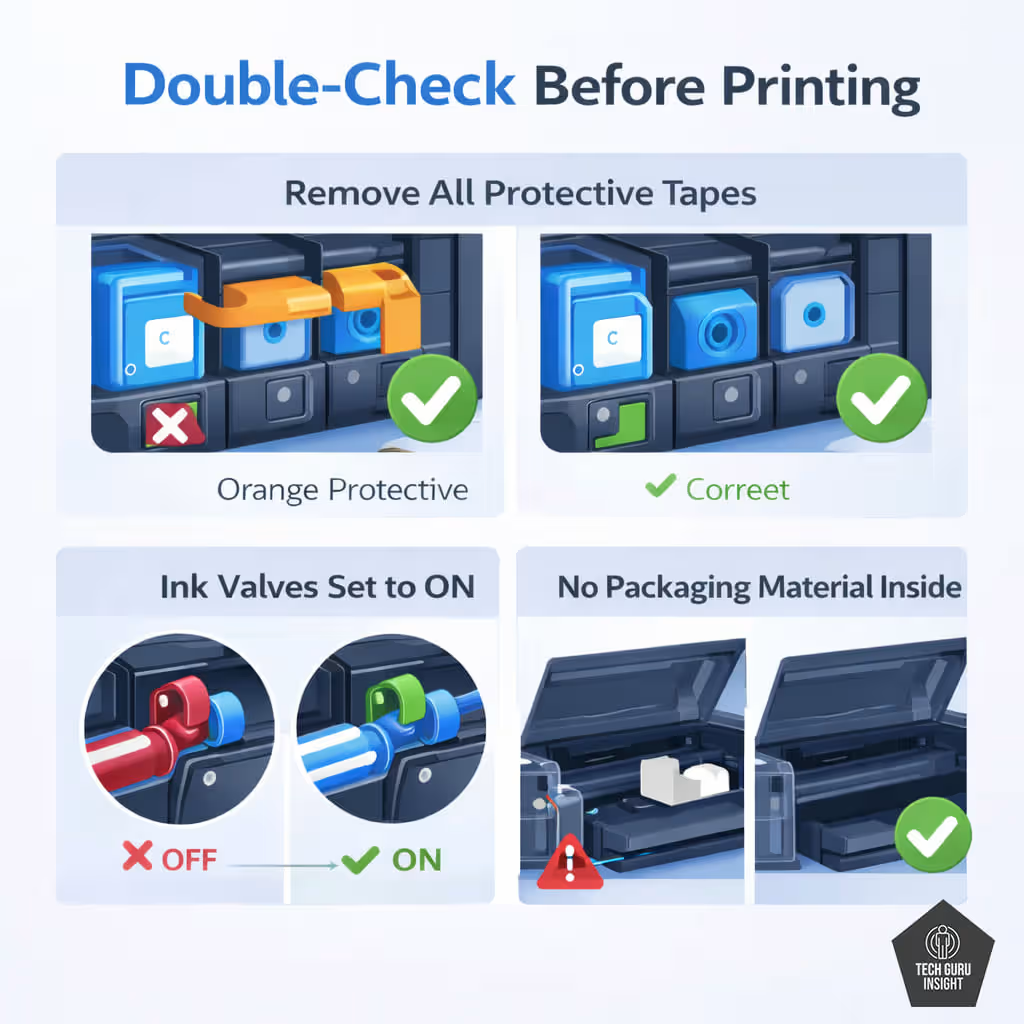
Double-check:
All orange protective tapes removed.
Ink valves are set to the “ON” position.
No visible packaging material inside.
🔍 4. Run Initial Ink Charging (New Printers Only)
InkTank printers require an initial ink charging process during setup.
If the setup process was interrupted:
- Ink may not have fully filled the internal lines.
- The printer may produce blank output.
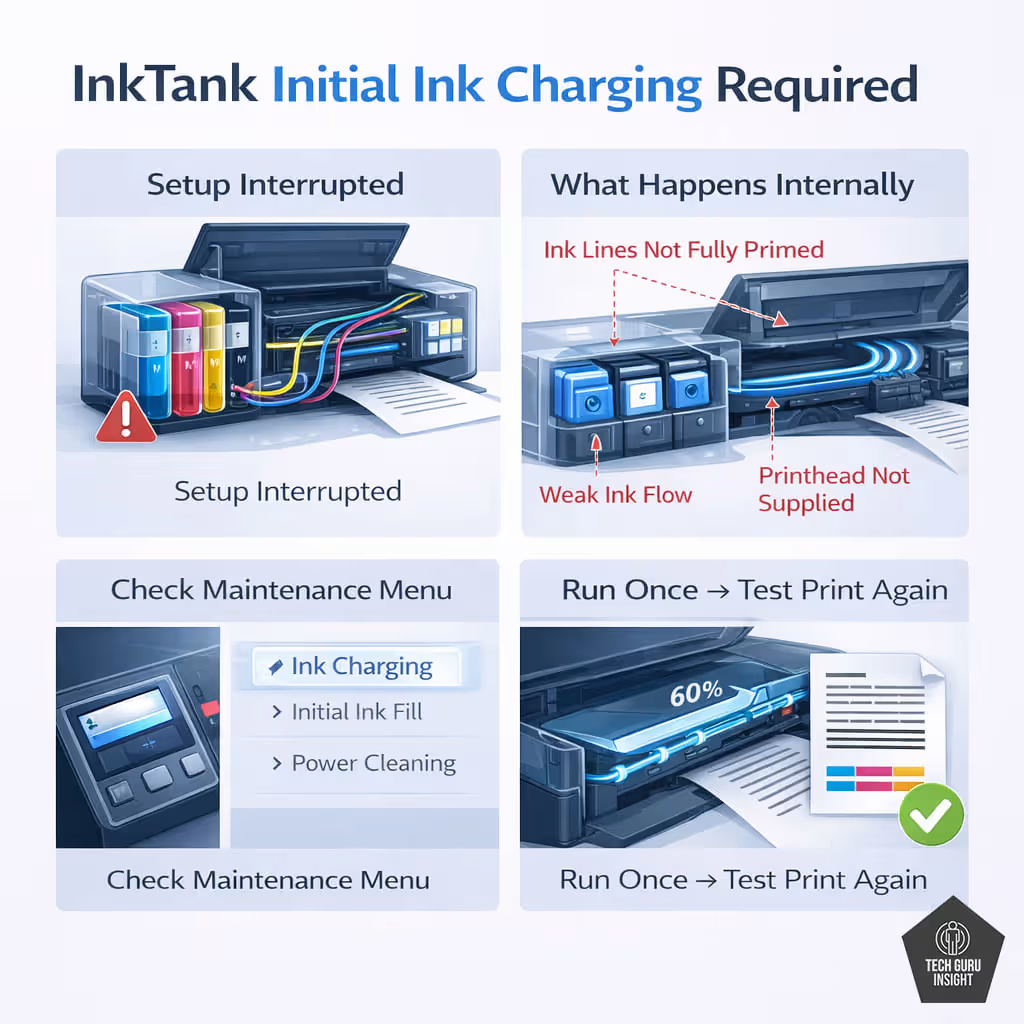
Check your maintenance menu for:
“Ink Charging”
“Initial Ink Fill”
“Power Cleaning”
Run it once and test print again.
🔍 5. Power Reset the Printer
InkTank models sometimes resolve ink-flow errors with a full reset.
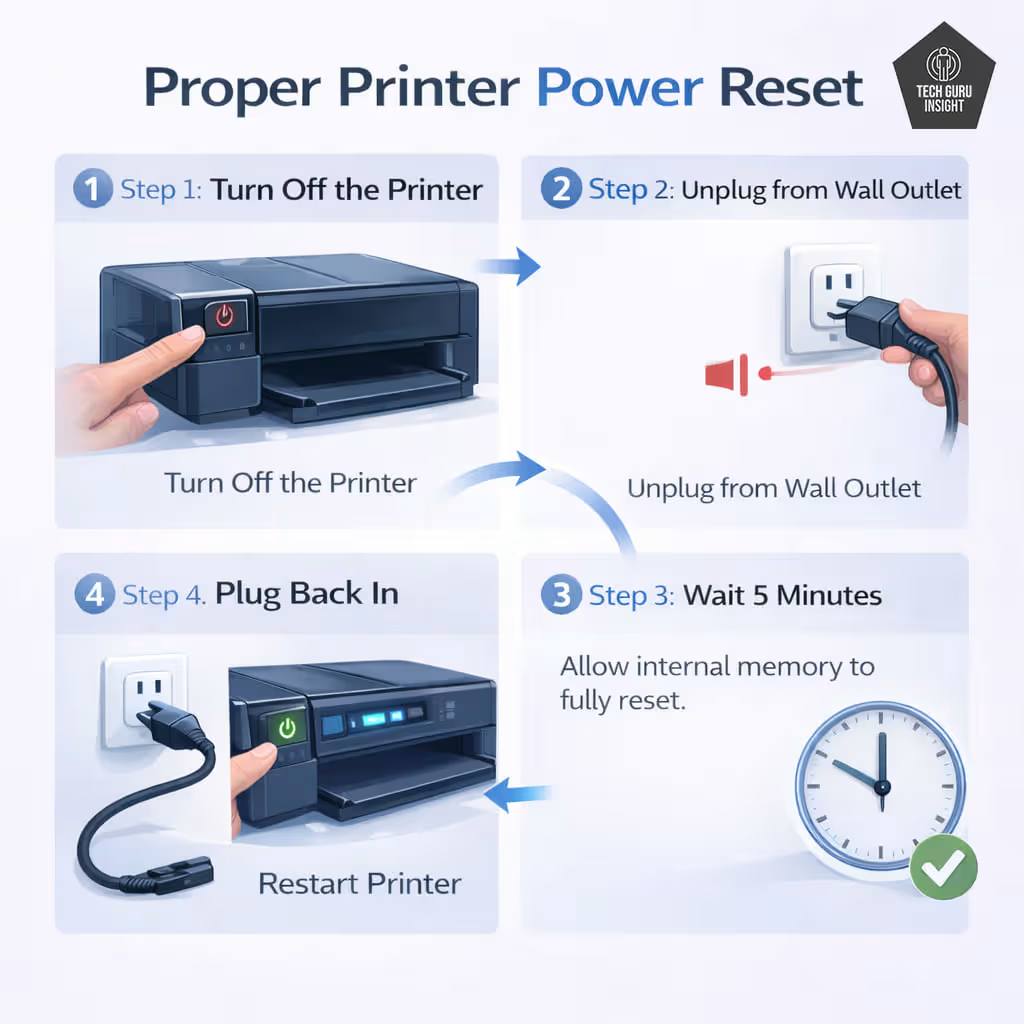
How to do it:
Turn off the printer.
Unplug from the wall outlet.
Wait 5 minutes.
Plug back in and restart.
This resets internal ink pressure systems.
Important Difference: InkTank vs Cartridge Inkjet
InkTank printers:
✔ Rarely print blank due to “empty cartridge.”
✔ Rarely have chip-detection issues
✔ Are more prone to air blockages
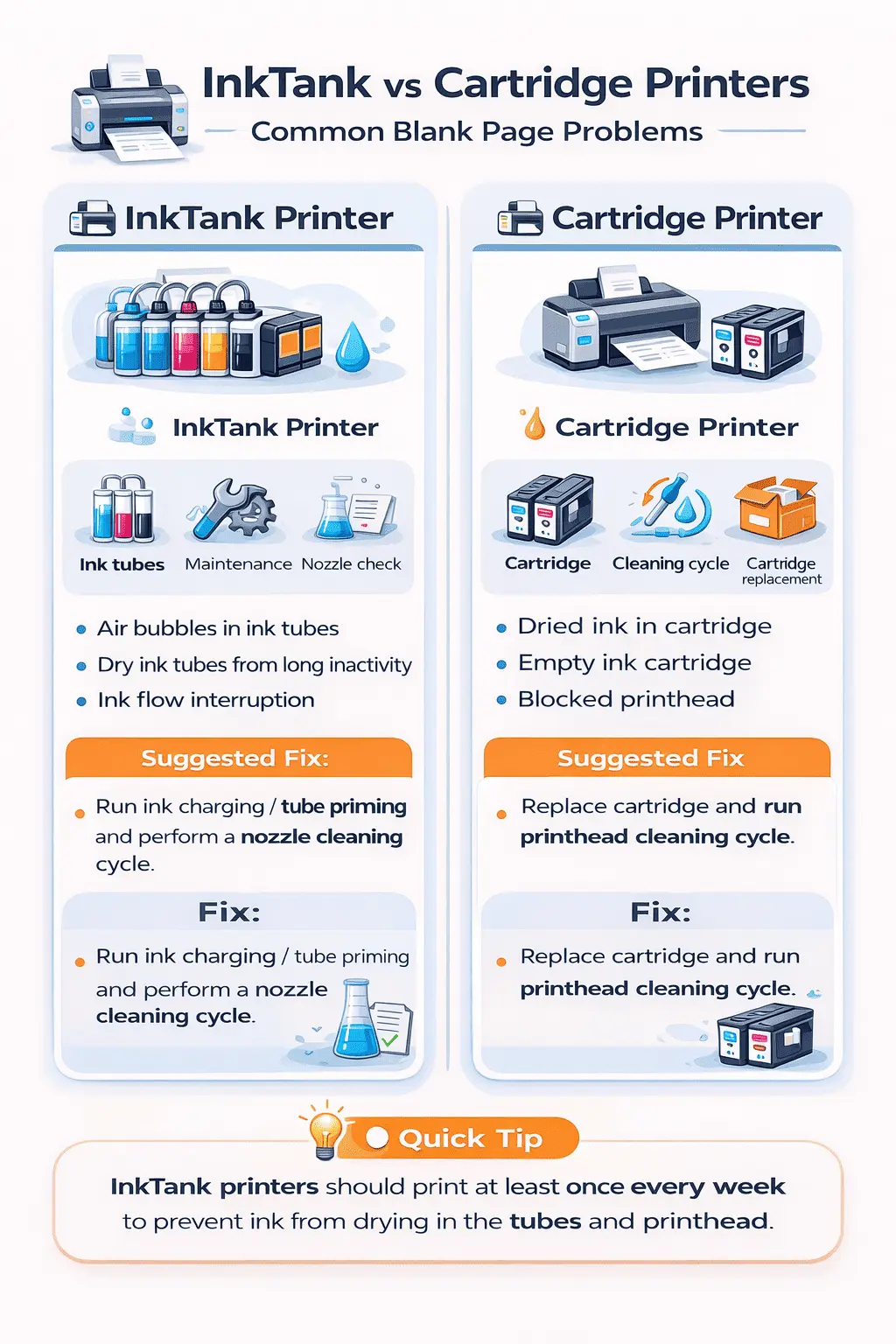
⚠ If repeated cleaning does not restore print output, the printhead may require manual servicing or replacement.
Why does this happen?
Inkjet printers spray microscopic droplets through tiny nozzles.
Laser printers use electrostatic imaging and toner powder.
If nozzles clog or toner transfer fails, the page may appear blank.
Understanding this helps you diagnose the issue faster.
Additional Checks (If Required)
1. Try Printing a Different File Format
Sometimes the issue is document-specific.
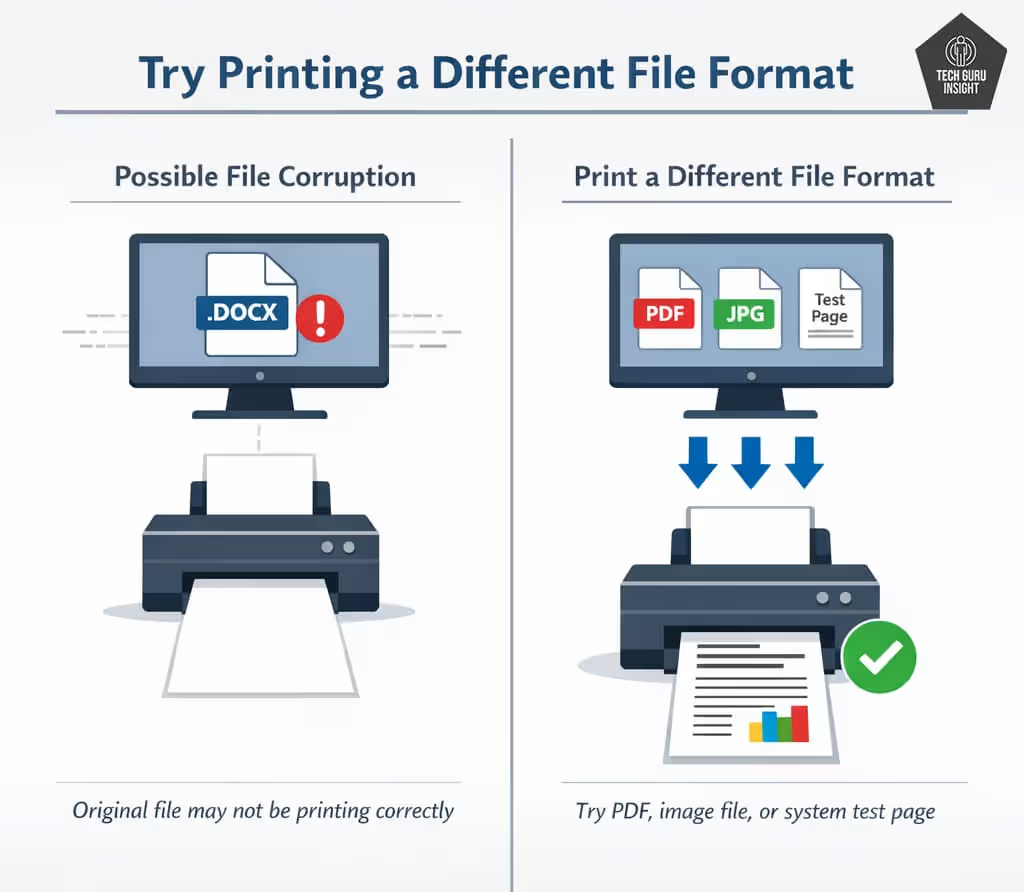
For example:
Corrupted PDF.
Font rendering issue.
Web page background disabled.
📌 Try printing a simple Notepad file or test page. If it prints normally, the problem is with the original document — not the printer.
2. Check for Firmware Corruption
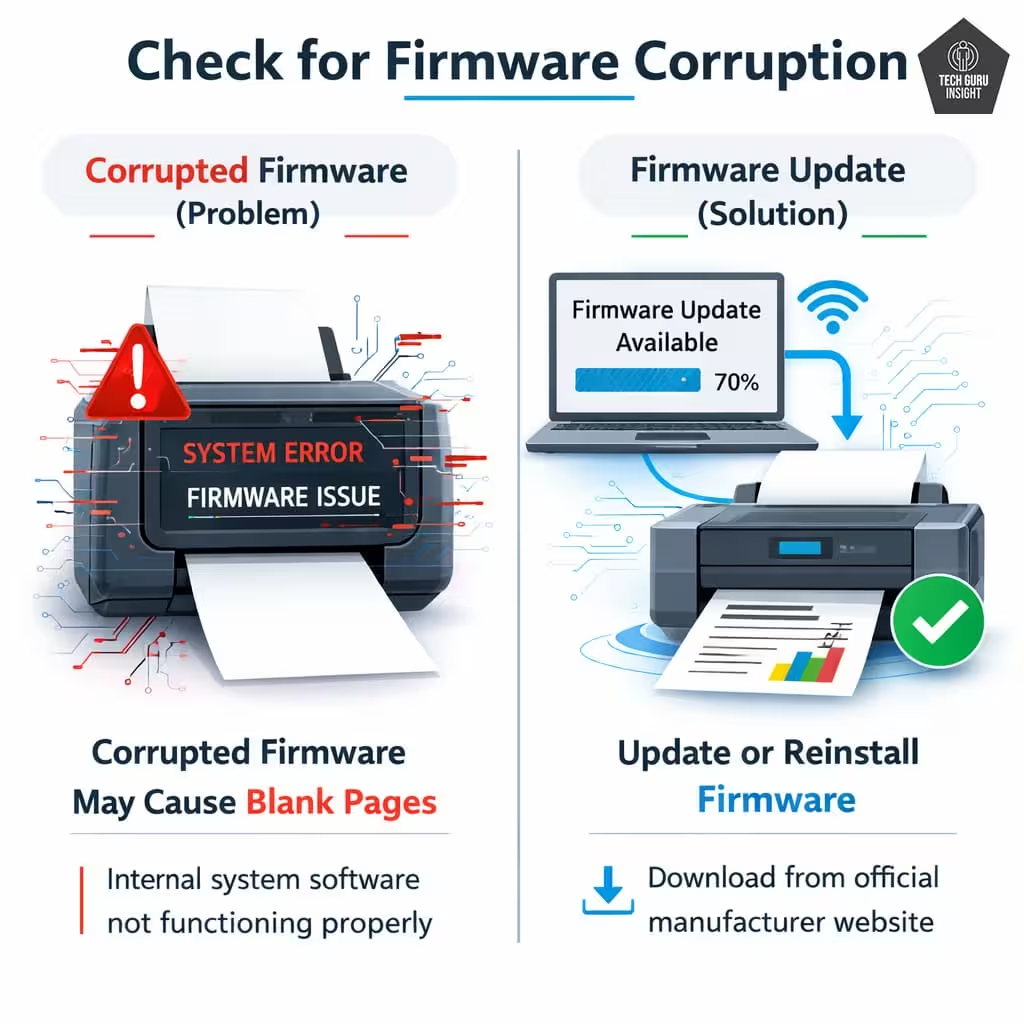
Very rare — but powerful authority signal.
📌 If your printer recently received a firmware update and started printing blank pages, reinstall the firmware from the manufacturer’s support page.
3. Advanced Hardware Check (If Nothing Else Works)
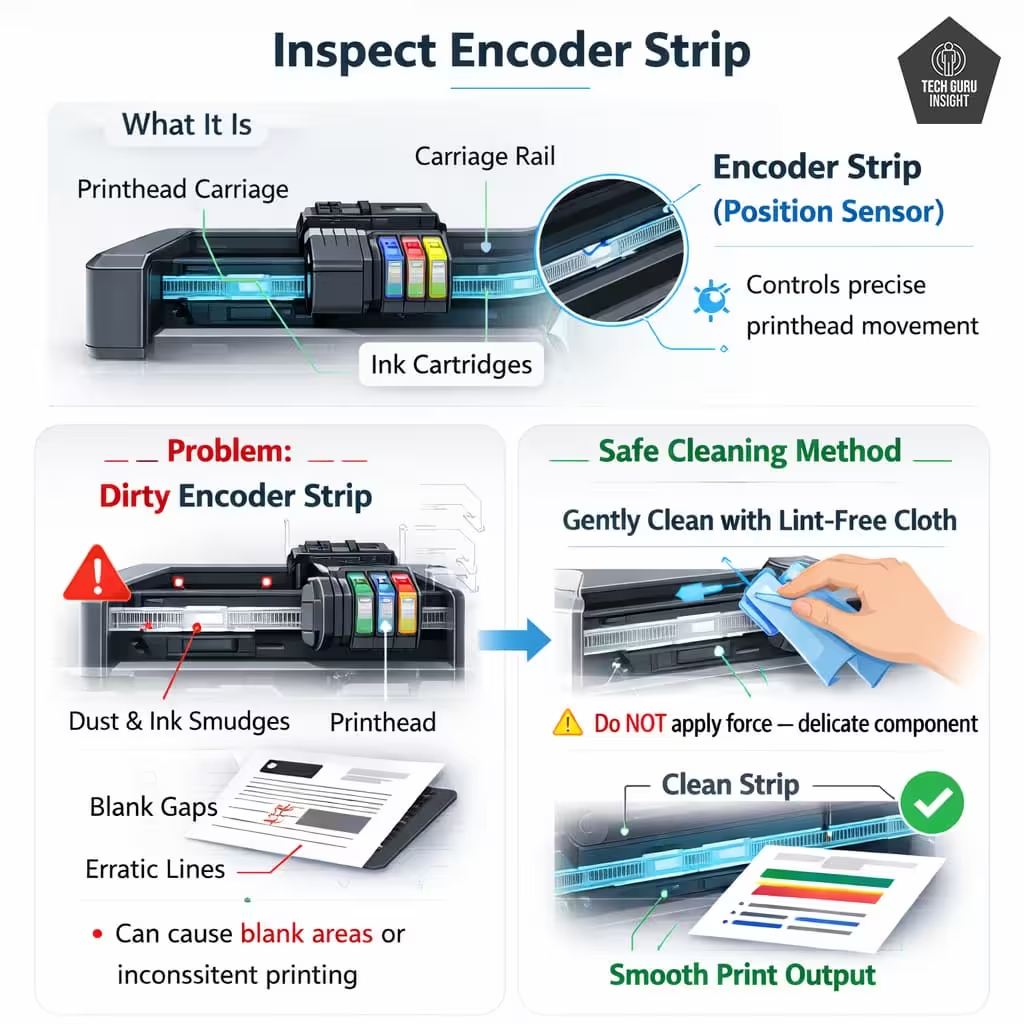
Inspect Encoder Strip
The encoder strip controls printhead positioning.
If dirty, it can cause erratic printing, including blank areas.
📌 Look inside the printer for a thin transparent plastic strip behind the carriage (encoder strip). If it’s dirty, gently clean it with a lint-free cloth.
⚠ Do not apply force — it’s delicate.
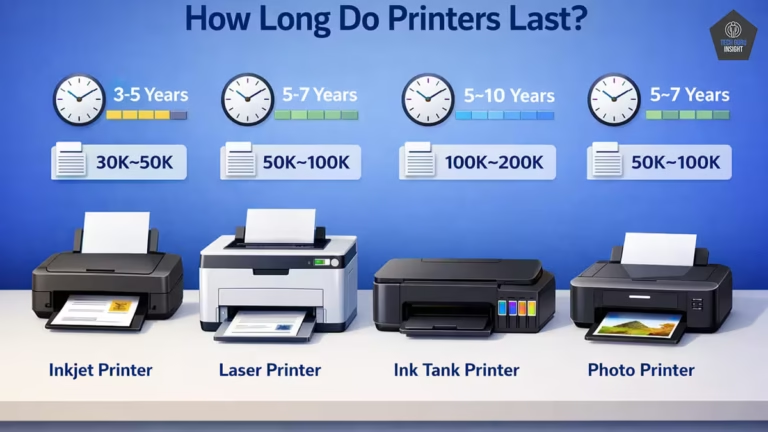
When It’s Not Worth Fixing
If your printer is:
- 4+ years old.
- Frequently clogging.
- Using expensive cartridges.
- Designed for low monthly volume.
It may be smarter to upgrade.
Consider:
- Epson EcoTank series (refillable tanks).
- HP Smart Tank models.
- Laser printers for high-volume users.
Modern tank printers dramatically reduce clogging and ink cost.
🛡 How to Prevent Blank Pages in the Future
- Print at least once per week.
- Use genuine or high-quality ink.
- Avoid cheap refills.
- Don’t exceed the duty cycle.
- Store the printer in a moderate temperature.
- Keep firmware updated.
📌 Preventive care reduces 80% of blank-page issues.
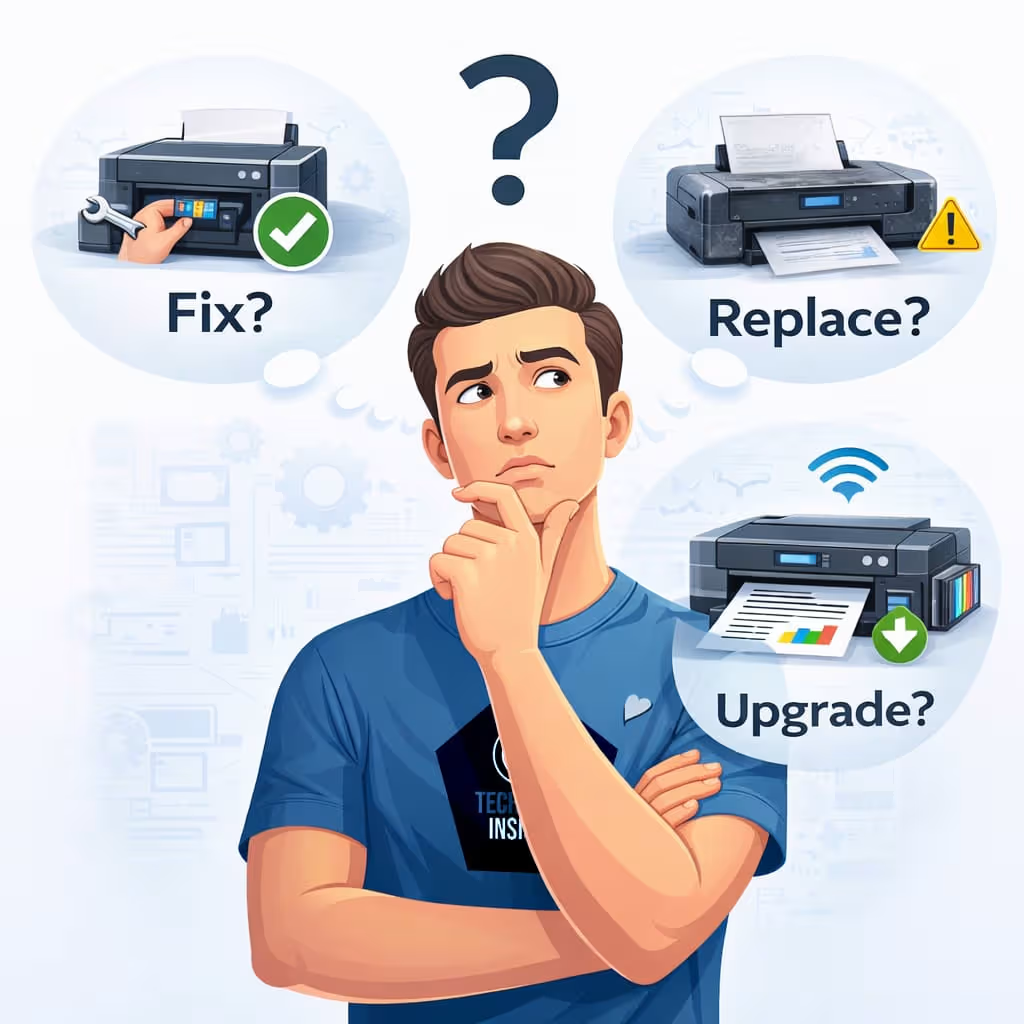
🏆 Should You Fix, Replace, or Upgrade Your Printer?
If your printer is printing blank pages repeatedly, the real question isn’t just “How do I fix it?”
It’s:
Is it worth fixing — or should I upgrade?
Use the comparison below to make a quick decision.
🔄 Fix vs Replace vs Upgrade (Quick Decision Table)
| Situation | Best Solution | Estimated Cost | Long-Term Value | What You Should Do |
| Printer unused for weeks | Run built-in printhead cleaning | ₹ | High | Try cleaning the utility first |
| Ink full but still blank pages | Manual printhead cleaning kit | ₹₹ | High | Use the cleaning solution kit |
| Cartridge runs out quickly | High-yield (XL) cartridge | ₹₹ | Very High | Upgrade to an XL cartridge |
| Frequent clogging issues | Tank printer | ₹₹₹ | Excellent | Consider switching to the tank model |
| Heavy monthly printing | Laser printer | ₹₹₹ | Excellent | Upgrade to a laser printer |
| Printer older than 4–5 years | Replace printer | ₹₹₹ | Very High | Invest in a newer model |
🖨 Printer Type Comparison (Cost & Reliability)
If blank pages keep happening, your printer type may be the real issue.
| Feature | Standard Inkjet | Tank Printer | Laser Printer |
| Ink Cost per Page | High | Very Low | Low |
| Clogging Risk | Medium–High | Low | Very Low |
| Best For | Occasional home use | Regular home / small office | High-volume document printing |
| Maintenance Needed | Frequent | Minimal | Very Low |
| Upfront Cost | Low | Medium | Medium–High |
| Long-Term Savings | Low | Very High | High |
🥇 Best Upgrade Options (Based on Usage)

🟢 Best for Light Home Printing
Entry-level inkjet models from:
HP
Canon
✔ Affordable.
✔ Good for occasional printing.
✘ Not ideal if left unused for long periods.
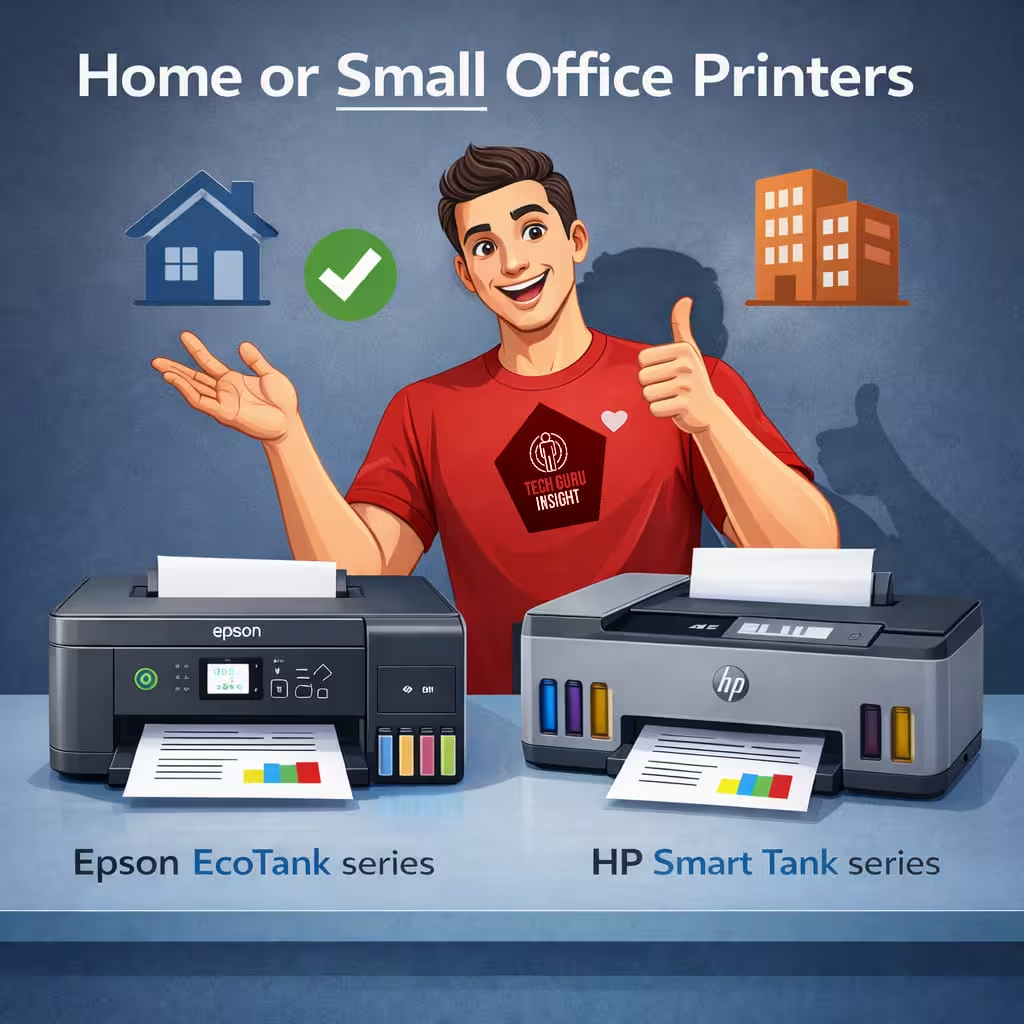
🟢 Best for Frequent Home or Small Office Use
Epson (EcoTank series)
HP (Smart Tank series)
✔ Extremely low ink cost per page.
✔ Reduced clogging risk.
✔ Ideal for 100–500 pages per month.
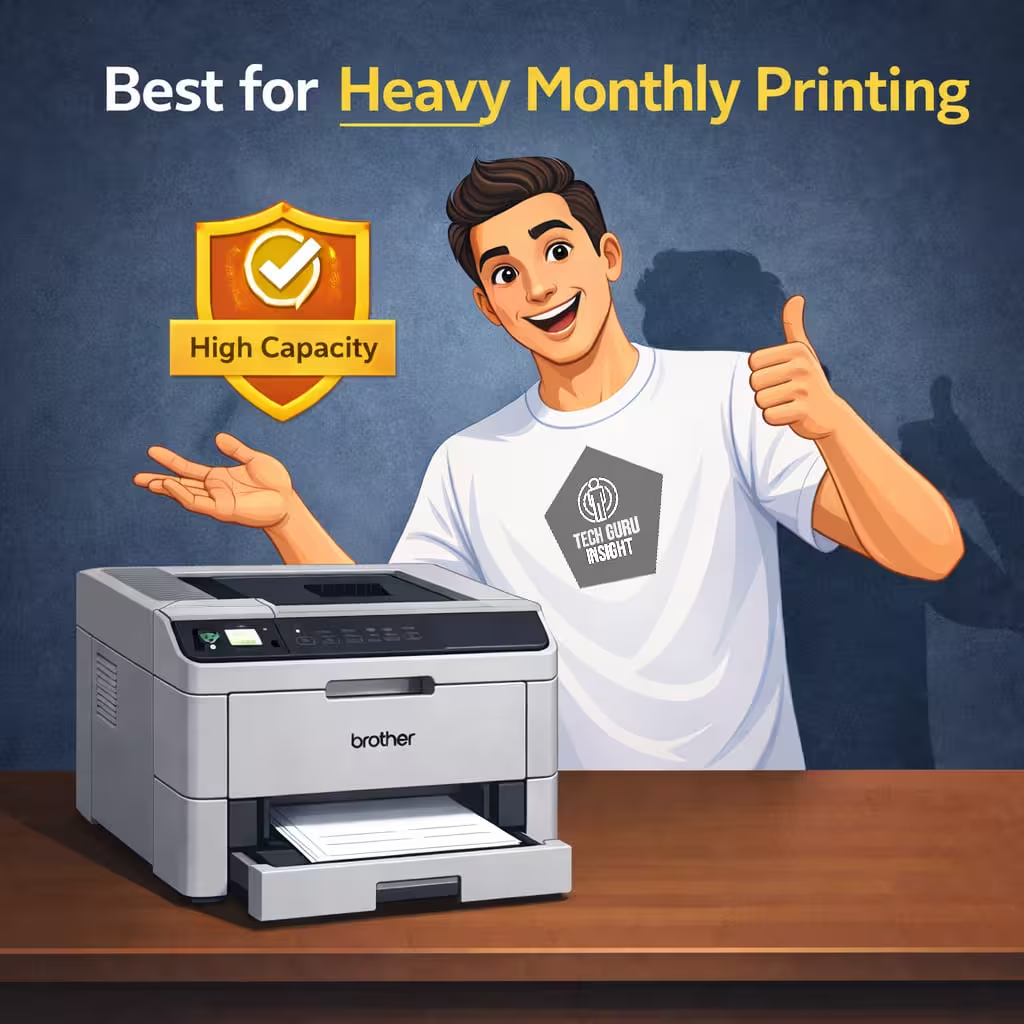
🟢 Best for Heavy Monthly Printing
Laser printers from:
Brother
✔ No ink drying issues.
✔ Very sharp text output.
✔ Designed for high duty cycles.
Perfect if you print daily documents.
💰 When Upgrading Makes More Financial Sense
If you’ve already:
- Run cleaning multiple times.
- Replaced cartridges.
- Spent money on refills.
- Experienced repeated blank pages.
You may already be close to the cost of a new printer.
In many cases, upgrading to a tank or laser printer reduces:
- Ink cost per page.
- Maintenance time.
- Clogging frustration.
- Unexpected blank prints.
🎯 Smart Decision Rule
🟢 Use this simple guideline:
Print occasionally → Try cleaning + XL cartridge.
Print regularly → Switch to a tank printer.
Print heavily → Move to a laser printer.
Printer 4+ years old → Replacement usually smarter.
FAQ
Q1: Why is my printer printing blank pages, but the ink is full?
Most likely a clogged printhead or improper cartridge installation. Running the cleaning utility usually fixes it.
Q2: Can a clogged printhead cause blank pages?
Yes. Dried ink blocks the nozzles, preventing ink from reaching the paper.
Q3: Why does my printer print faded pages?
Possible reasons:
- Low ink.
- Draft mode enabled.
- Clogged nozzles.
- Incorrect paper settings.
Q4: How do I fix printer ink not coming out?
Run head cleaning, perform nozzle check, clean cartridge contacts, and ensure correct driver installation.
Q5: Should I replace my printer if it prints blank pages?
If cleaning fails repeatedly and the printer is old or low-end, replacement may be more cost-effective.
Q6: Do InkTank printers clog like cartridge printers?
Yes, but less frequently. They are more prone to air blockage rather than cartridge drying.
Q7: Should I run multiple cleaning cycles on an InkTank printer?
No. Avoid running many cleaning cycles back-to-back. This wastes ink and can overheat the printhead.
Q8: Are InkTank printers more reliable than cartridge printers?
For regular use, yes. They typically have lower long-term maintenance costs and fewer cartridge-related errors.